❌

Normal view

There are new articles available, click to refresh the page.
Before yesterdayMain stream

SAP EWM BP558: How To Auto Pack and Print HU in SAP EWM Managed Warehouse

Β We are going to cover the EWM business process related to the Auto creation of HUs through Packaging Specification and Auto Printing of HUs through PPF Action for an Inbound delivery.

First of all, we need to configure the Packaging Specification for our Warehouse and we can refer to this BLOG for the same.

Once configuration steps are completed, maintain a multi-level PackSpec using Tcode /SCWM/PACKSPEC. We can also use the same setup for single-level PackSpec as well.

We need to maintain the condition record for our Product. Add the Product in the PackSpec and Add 2 levels. We need to maintain 2 Levels in the Level Set while configuring packaging specifications.

We have maintained 2 level types for our level set and each level type has a different element type.

Element Type CART was created for Carton and Element PALL was created for Pallet with Main packaging material as HU relevance.

Once this is done we need to activate the Auto Printing for our Packaging Material Type through PPF Action.

Step 1: Define the Action profile and Actions for the application.

IMG > SCM EWM > Extended warehouse management > Cross process settings > Handling Units > Basics>Print> Define PPF Action Profiles

Application: /SCWM/WME

Action profile: /SCWM/HU

Action Definition: HU_LABEL

Processing type method: /SCWM/HULABEL

Step 2: Now we need to define PPF Action Conditions

IMG > SCM EWM > Extended warehouse management > Cross process settings > Handling Units > Basics>Print> Define PPF Action Conditions.

Step 3: Define Print determination procedure.

IMG > SCM EWM > Extended warehouse management > Cross process settings > Handling Units > Basics> Print > Define Determination Procedure

Step 4: Assign the Print determination procedure to the packing mat type.

IMG > SCM EWM > Extended warehouse management > Cross process settings > Handling Units > Basics> Assign Determination Procedure

Step 5: Maintain Condition Record by using Tcode /SCWM/PRHU6 or /SCWM/DLVPPFC

Also, It is important that we de-activate the option No Automatic Packing from the Delivery type for which we need to Auto Pack HUs.

Now we will create an IBD in the S4 system and on successful distribution, HUs will get created automatically.

HUs will be auto-created in the EWM system and Print will get triggered in the background which we can check in SP01 Tcode.

Please feel free to reach out onΒ LinkedInΒ if you have any queries or need help with your project.

SAP EWM BP557: How To Perform Deconsolidation Process Using POSC in EWM Managed Warehouse in SAP

We are not going to cover the configuration of the deconsolidation process in SAP EWM. You may check this Blog for configuration.Β 

Please make sure you set up a few products in the warehouse with different putaway strategies or different fixed bins. We have maintained 3 Products with different fixed bins so that each product will require a different WT during the Putaway process and we have maintained the Fixed Bin Putaway Strategy, Please check thisΒ blogΒ in case you need to set up the putaway strategy as well.

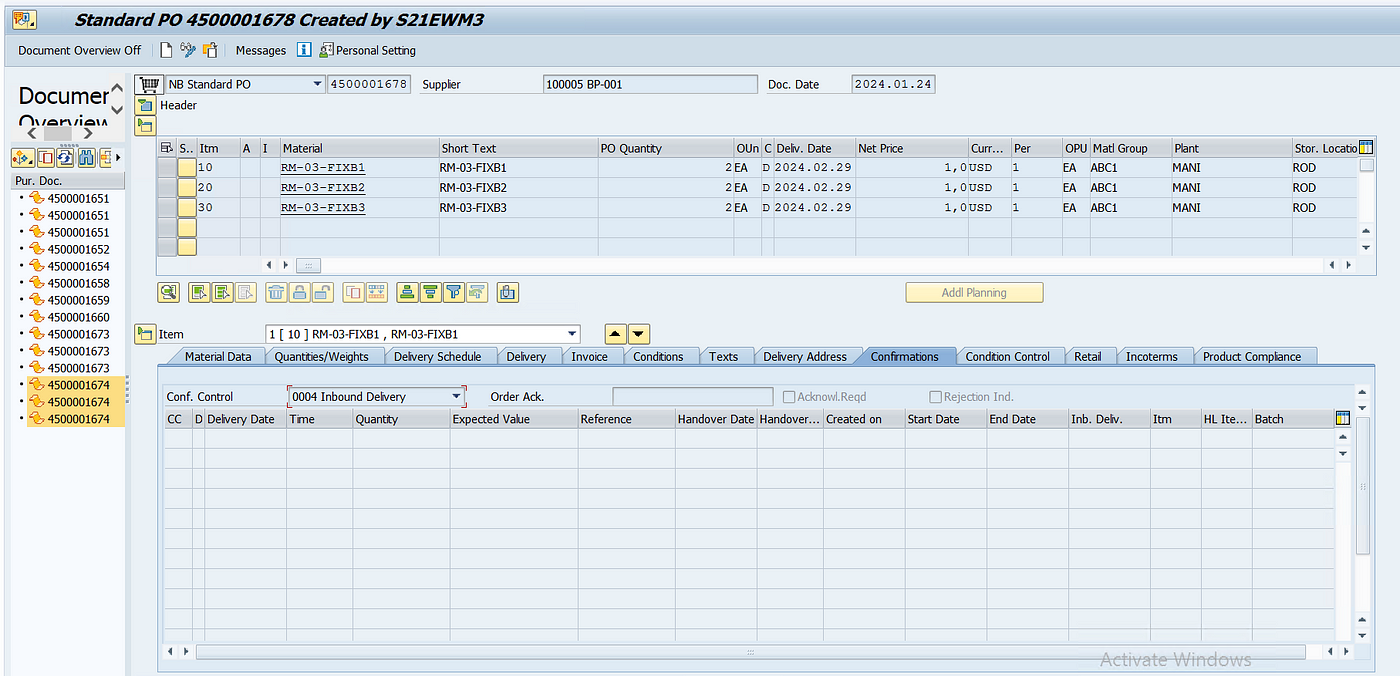
Step 1: Create a PO with all the Materials in SAP and Provide the confirmation control for Inbound creation.

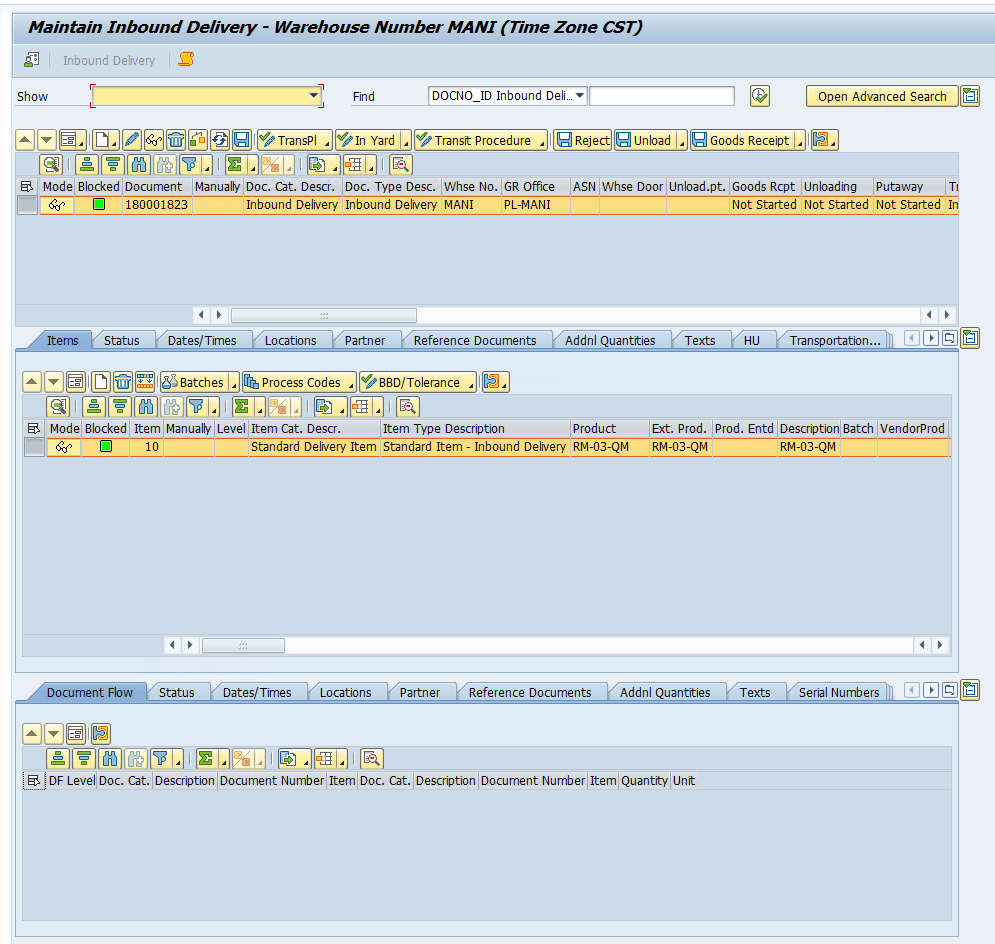
Create an inbound and Pack all the materials in a single HU so that we have the HU already created when Inbound in created in the EWM system.

Step 2: let’s check the delivery in the EWM Monitor and create a Putaway task.

IBD and HU are available in the EWM system

We can see the WPT is picked correctly as 1012

Click on the below option to start the Putaway process and click on the Create+Save button.

Now we can see in the monitor 4 WTs are created with different WPTs and statuses. We will first confirm the IB01- Unloading WT with WPT 3065 which was the first step in our POSC.

Once unloading is done, the status for GR and Unloading will change to Completed, and WT related to deconsolidation will become OPEN with WPT 3060 as you can see in the screenshot this WT will move the stock from 9010 GR-ZONE to our work center DEKO-MANI (BIN) which is meant for deconsolidation.

Once this is done, the remaining 3 WTs will be left with status B- Waiting.

Step 3: Now once we have moved our stock to the work center, we need to use the Tcode /SCWM/DCONS to perform the deconsolidation in EWM.

Provide the Source HU number as well as the Packaging Material in which we want to pack the first Product.

Now click on the warehouse Tasks button to see the 3 WTs for each product which were created as part of the POSC IB03 step. Select the first WT and click on check icon in the bottom of the dialog box.

Once this is done, click on the execute button and the system will generate a New HU automatically.

Now repeat the same thing with other products and create Destination HUs. Once it is done, select the first Destination HU and click on the icon- Complete Process Step for HU to complete the deconsolidation process.

Once this is done, check the WTs in the Monitor, and WT related to re-packing will be in a confirmed state and the same WTs to putaway the stock in the final bin as per putaway strategy will be in Pending Status, waiting to be confirmed.

We will not confirm the remaining WTs which are meant for Final Putaway and complete the Putaway process with POSC.

Now if we check the IBD status, Putaway status will be Completed along with Whse Activities.


Please feel free to reach out onΒ LinkedInΒ if you have any queries or need help with your project.

SAP EWM BP556: How To Receive Stock in Yard Managed EWM Warehouse

Β We are not going to cover the configuration related to YARD Management in this blog, Please check out this Blog for configuration and YARD setup in SAP.

Step 1: Create an INB delivery in the S4 system against a PO. Once that is done, check the delivery in the EWM system with Tcode /SCWM/PRDI

Step 2: We will manually create a TU and assign our INB to the TU with tcode /SCWM/TU

Once INB is assigned to the TU, save it.

Step 3: Check the TU in the INB delivery and receive the TU at the checkpoint with Tcode /SCWM/CICO

TU status will change from planned to active.

Transit status in the delivery will change to Registered from In-Transit

Step 4: Now we can move the TU from the checkpoint to the parking space (BIN) in the yard or to a Door for unloading with tcode /SCWM/Ymove.

we can check the TU status in EWM Monitor as well

Now we will move the TU from the Parking to the door by using the same Tcode /SCWM/YMOVE

Since we already parked a TU earlier, the system will not allow us to park another vehicle at the door. So we will first move the previous TU and then park our TU against the Door for Unloading.

we can see in the Monitor that TU is parked at the WH door for inbound.

Step 5: Once we have the TU at the door, we can start our unloading process in the INB delivery

confirm the WT

Step 6: Now check the INB delivery and see the unloading status, it should be completed.

Step 7: Once unloading is completed, we can either move the TU to the parking space using the tcode /SCWM/YMOVE or we can move it to the checkpoint (BIN)which acts like a gate.

Step 8: Now we need to move the TU out of the YARD, which we can do using TCode /SCWM/CICO

Once that is done, the TU status will change from Active to Completed.

All the YARD-related process is now completed and warehouse personnel can now perform the final Putaway.

SAP EWM BP554: Creation of Outbound Delivery and Goods Issue

Β We will create an OBD through scrapping in S4 and Post Goods Issue

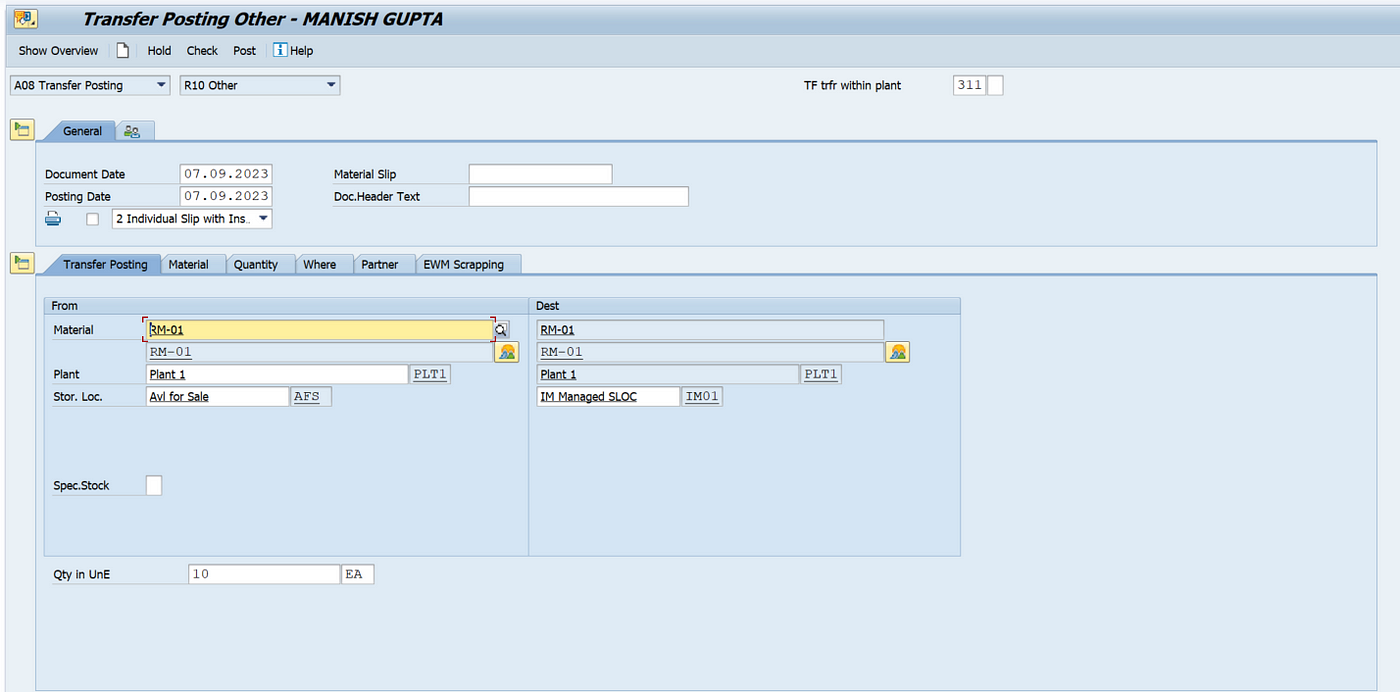
We are going to move stock from the EWM Sloc to the IM Sloc using the movement type 311

Display the OBD using VL03n and see if the delivery was distributed

Now open the EWM Delivery using /n/scwm/prdo and process the picking and Goods Issue

Click on Create and Save button

Check the stock at IM and EWM Level

Confirm the Warehouse Order

Check the stock again at IM as well as the EWM level

Stock is now moved to the StrType 9020 completely

Post Goods Issue by clicking on the Goods Issue button

The stock has moved to IM location IM01

SAP EWM BP553: Inbound Delivery Creation and Goods Receipt

Β We are going to post INB and perform EWM WH functions along with GR.

We need to create INB in S4 so that INB can be created in the EWM and GR can be performed

Open the delivery using VL33n tcode\

Use transaction /n/scwm/prdi to display the INB in EWM

Click on Goods Receipt

GR is completed in the EWM, Now we will check the stock in S4

First check INB using VL33n β€” Document flow

Check MB52

Check MMBE

Now check EWM stock using WH Monitor

Stock is available in the GR-Zone and the stock type is F1 β€” Unrestricted use in putaway

Now we will perform WH activities β€” Putaway

Click on Create

Click on Save

Now once WO is created, we will check the EWM and S4 stock status

Qty is still 0 in the 0030 storage type and 100 EA in 9010

Outgoing qty in GR-Zone and Incoming qty in OpenArea Bin gets updated

Qty is S4 is still available in ROD, no changes can be seen.

Now we will confirm the WT/WO

Click on Confirm+Save

Check the Inbound delivery status in PRDI and check DCO Status

Now let us check the stock status in the EWM as well as S4.

Stock is Available in the Storage type 0030 and OpenArea Bin, the stock type is now changed to the F2 β€” Unrestricted-Use Warehouse

Stock has now moved to the AFS Sloc in S4 at IM level

Now we will check the MB52

Material doc with 411 mvmt type gets posted automatically

MvmtType 411 Transfer posting storage location (one-step)

SAP EWM BP552: How To Receive Stock in Yard Managed EWM Warehouse

Β We are not going to cover the configuration related to YARD Management in this blog, Please check out this Blog for configuration and YARD setup in SAP.

Step 1: Create an INB delivery in the S4 system against a PO. Once that is done, check the delivery in the EWM system with Tcode /SCWM/PRDi

Step 2: We will manually create a TU and assign our INB to the TU with tcode /SCWM/TU

Once INB is assigned to the TU, save it.

Step 3: Check the TU in the INB delivery and receive the TU at the checkpoint with Tcode /SCWM/CICO

TU status will change from planned to active.

Transit status in the delivery will change to Registered from In-Transit

Step 4: Now we can move the TU from the checkpoint to the parking space (BIN) in the yard or to a Door for unloading with tcode /SCWM/Ymove.

we can check the TU status in EWM Monitor as well

Now we will move the TU from the Parking to the door by using the same Tcode /SCWM/YMOVE

Since we already parked a TU earlier, the system will not allow us to park another vehicle at the door. So we will first move the previous TU and then park our TU against the Door for Unloading.

we can see in the Monitor that TU is parked at the WH door for inbound.

Step 5: Once we have the TU at the door, we can start our unloading process in the INB delivery

confirm the WT

Step 6: Now check the INB delivery and see the unloading status, it should be completed.

Step 7: Once unloading is completed, we can either move the TU to the parking space using the tcode /SCWM/YMOVE or we can move it to the checkpoint (BIN)which acts like a gate.

Step 8: Now we need to move the TU out of the YARD, which we can do using TCode /SCWM/CICO

Once that is done, the TU status will change from Active to Completed.

All the YARD-related process is now completed and warehouse personnel can now perform the final Putaway.


SAP EWM BP551: QM-EWM | How To Perform Quality Inspection During Goods Receipts Process

Β Here we are going to discuss a very basic business scenario related to QM and EWM integration which is done through Storage Control (POSC).

Please check this Blog to configure the QM-EWM integration.

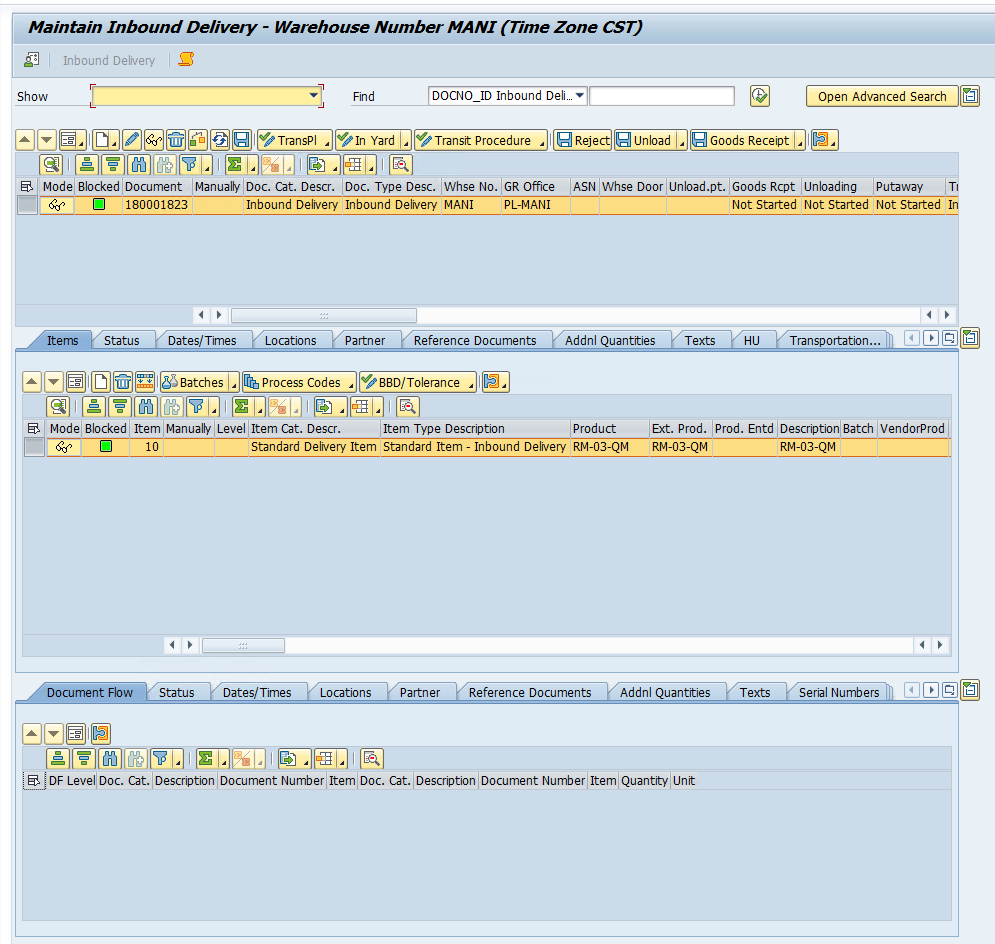
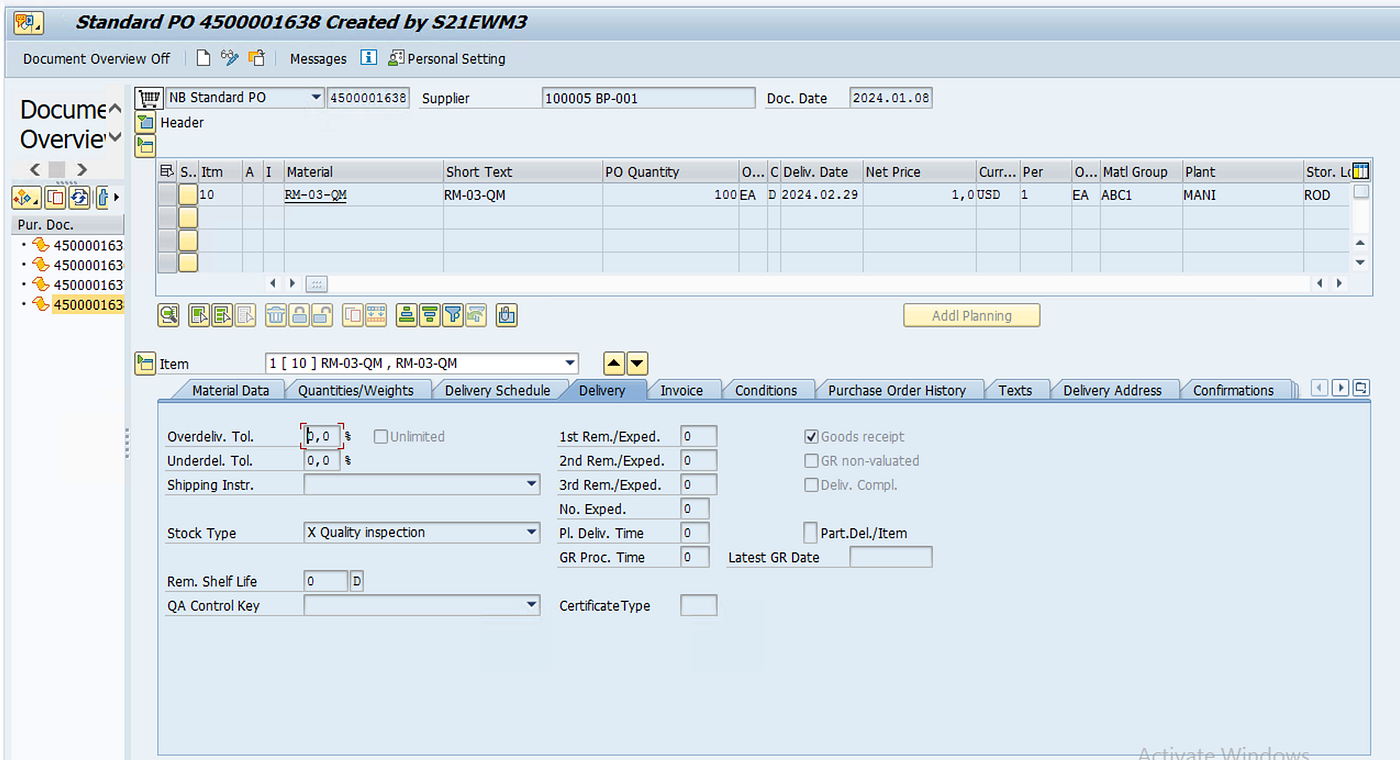
Step 1: Create a PO with Material which already has QM view maintained and create the Inbound Delivery against the PO.

we have also packed the stock in a HU while creating Inbound Delivery in S4.

Step 2: Click on Goods Receipt button to carry out GR in /SCWM/PRDI

Step 3: Create WT and the system will create 2 more WTs based on POSC, and confirm the first WT.

Check the Monitor to see the WTs created by system.

The first WT which was confirmed moved the stock from 9030 Door to 9010 GR-Zone and the next WT was activated which will move the stock to the 8020 Q-Bin so that quality inspection lot is created.

Step 4: Once stock is moved to quality inspection work center, we can execute the UD for out inspection through QA32 in S4.

Click on Usage Decision to complete the UD for Inspection Lot

Once UD code is selected, click on EWM Inspection button on top ribbon.

Select the line item and click on Mass Inspection button and select the correct decision for EWM Stock.

Select the Decision and follow up Action and press enter then click on Close HU button on top of the dialog box.

Below message will pop up.

Once that is done, click on Okay and press the save button

Below message will appear in the bottom of the screen.

Here, all the Quality inspection steps are completed and inspection lot is completely processed.

Now we need to putaway the stock from quality work center to the physical storage bin.

We can see in the below screenshot that all the warehouse operations are complete and stock has moved to storage type 0030.

We can also check the document flow in S4 IDN.

We can also check the stock in EWM WH Monitor or MMBE in S4.


Please feel free to reach out on LinkedIn if you have any queries or need help with your project.
❌
❌