
Normal view

There are new articles available, click to refresh the page.
Before yesterdayMain stream

The Ultimate Guide to Master SAP MM-FI Integration

Home » MM

SAP MM deals with the procurement of material & services.

Mastering MM-FI integration is crucial in SAP financial control. Mastering MM-FI integration helps to ensure that financial statements accurately reflect the true cost of materials and inventory.

With this Ultimate Guide to Master SAP MM-FI Integration, we will help businesses to make informed decisions about procurement, production, and overall financial health.

Note: This post is solely for automatic determination of GL in MM (OBYC). To check the configuration of SAP MM-FI integration other than the OBYC, please see the below post

Ultimate guide to configure S4 HANA MM-FI Integration

--> When we procure material or services, we need to pay to the supplier of material or services. 

--> to pay to supplier correctly & timely it is very crucial to record the amount to be paid correctly & on time.


--> In simple terms, MM-FI Integration orchestrates the posting of values in tandem with different quantity movements.

SAP MM FI integration does this crucial work of keeping the correct & on time record of amount to be paid to the suppliers.

1. How MM-FI Integration Works

MM FI integration keeps records of values on the GL (General Ledgers)

Before we go into the detail , we need to first examine what are the expectations from the SAP MM FI integration in order to pay suppliers correctly & on-time.

1.1 Expectations & Solutions from MM-FI integration

Below are the typical characteristics of the business which should be taken care by MM FI integration.

1.1.1 Keep Record as Material Moves

in an organization, material moves due to several reasons. For example-

  • Receipt of the material from external vendor
  • Receipt of the material from production
  • Issue of the material for production
  • Scrapping of the materials

MM FI integration should capture this movement & record the values on GLs in real time as soon as material moves.

Below are the Elements used by SAP to fulfill this requirements

a) Movement Type

A movement type is a three digit/character identification key for a
goods movement. for example – 101 for Goods receipt, 201 for goods issue against cost center , 261 is goods issue against order etc.

b) Value String

Value string is assigned to each relevant movement type in inventory management. Value strings contain keys for relevant posting transaction such as BSX, WRX etc. For Example – movement type 101 contains the value string WE01

c) Transaction/Event keys

Transaction event key is to determine different GL for different business transactions. For example- BSX is used fort stock posting & BSV for change in stock value.

1.1.2 Keep Record for Materials having Different business Characteristics

Organizations has different type of materials like -Raw materials which are used as input for production process.

Semifinished materials might be produced in a production process which can be further consumed to produce final finishes product

MM FI integration should record the values on GLs according to the characteristics of the materials. For example – values for the Raw materials should be captured on the different GL account compare to the semi finished materials for the goods receipt against production order.

or value of the scrapping of the raw material should be captured on different GL account compare to the scrapping of the finished material.

Below are the Elements used by SAP to fulfill this requirements

a) Valuation Class

Valuation class if like further extension of material types.

For example – Material Type – RAW can have two valuation classes as 3100 – Raw material Domestic & 3110 Raw material Imported.

b) Account Modifier / Account Grouping Code

Account Modifier or Account Grouping Code is a three-character code used to differentiate the offsetting accounts

For example- Event is goods issue . But this goods issue can be for goods issue to a production order or for a scrapping etc.

So Account modifier or account grouping code is used for different scenarios like goods issue, scrapping, physical inventory to assign different accounts (for example, consumption account, scrapping etc.)

Another example

Business wants to post price differences to difference accounts in case of goods receipts for purchase orders compare to goods receipts for production orders.

--> Account grouping is used only for offsetting entries, consignment liabilities, and price differences.

1.1.3 Post Values as per the Org Structure

The two main organization structure elements in FI & MM are Company code & Plant.

Below elements are used by FI MM integration to post correct values here.

a) Valuation Area

Materials are valuated at plant level or at company code level.

  • If valuation is at plant level, then valuation area is plant.
  • If valuation is at company code level, then valuation area is company code.

Hint : Generally Valuation area should be plant otherwise it will be difficult to control the costing of the product.

b) Valuation Area Grouping

Valuation grouping code is used to determine the GL code for more than one valuation areas similar or different.

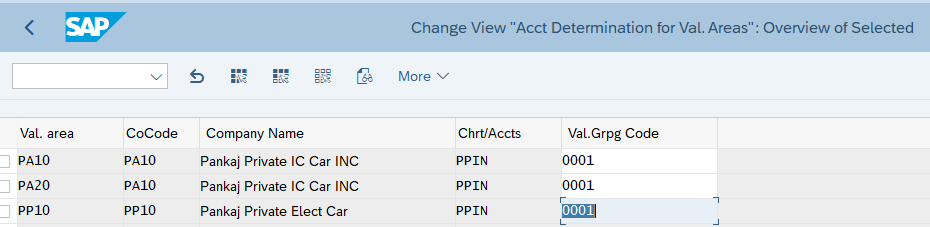
Our Car business has three plants -PA10, PA20 & PP10 (Valuation Area is plant).

Though PA10 & PA20 plants belongs to different company code compare to PP10, but they use the same chart of account.

We want to post transactions for these plants to the same accounts so we will group these three valuation areas under a single valuation grouping code.

We will group together all our three valuation areas. We will group our valuation areas (plants) PA10, PA20 & PP10 to 0001

This will avoid to configure account determination separately for all plants as shown below

Below is the path to group the valuation areas

SPRO –> IMG –> Materials Management –> Valuation and Account Assignment –> Account Determination –> Account Determination Without Wizard –> Group Together Valuation Areas

Picture: Valuation Area Grouping

2. Configure SAP MM FI Integration

Now we are ready to configure the automatic account determination (SAP MM FI integration) by using the elements explained above

  • Material Movement
    • Movement Type
    • Value String
    • Transaction/Event keys
  • Different Material Type
    • Valuation Class
    • Account Modifier / Account Grouping Code
  • Organization Structure
    • Valuation Grouping Code

To configure start transaction “OBYC”

Please note that for each business scenario we will explain

  • Transaction/event keys associated with the business scenario.
  • Account Modifier/Account grouping code (if relevant).
  • GL used (click against each scenario to check the GL creation in detail).
  • We have already configured Valuation grouping code as “0001”. Please click HERE to see the details

3. MM FI Integration Configuration for Different Business Scenarios

Now we will configure FI-MM integration (Automatic account determination) for different business scenarios

3.1 Scenario 1 :Goods Receipt Against Standard Purchase Order

Below are the values of the five elements to configure the FI MM Integration (automatic account determination) for the different events which happens as a result of Goods receipt against purchase order.

3.1.1 Increase in Inventory Value

The first event is – inventory value is increased by the value of the goods purchased. Increase in Inventory Value is posted on the GL accounts through Key BSX. This increase is value is captured & post as shown below.

a) For Raw Material (ROH)

Since the inventory value is increasing so it will be a debit (Dr) transaction

  • Transaction Key – “BSX”
  • Valuation Class – “3000”
  • Account Modifier/Grouping Code – Not Applicable
  • Valuation Grouping Code – “PPIN”
  • Posting on General Ledger – “113100000” (PPIN-Inventory – Raw Material). Click HERE for detail.
b) For Trading Material (HAWA)

Since the inventory value is increasing so it will be a debit (Dr) transaction

  • Transaction Key – “BSX”
  • Valuation Class – “3100”
  • Account Modifier/Grouping Code – Not Applicable
  • Valuation Grouping Code – “PPIN”
  • Posting on General Ledger – “113600000” (PPIN-Inventory – Trading Goods). Click HERE for detail.
c) For Semi-Finished Material (HALB)

Since the inventory value is increasing so it will be a debit (Dr) transaction

  • Transaction Key – “BSX”
  • Valuation Class – “7900”
  • Account Modifier/Grouping Code – Not Applicable
  • Valuation Grouping Code – “PPIN”
  • Posting on General Ledger – “113300000” (PPIN-Inventory – Semi-Finished Goods). Click HERE for detail.
d) For Finished Material (FERT)

Since the inventory value is increasing so it will be a debit (Dr) transaction

  • Transaction Key – “BSX”
  • Valuation Class – “7920”
  • Account Modifier/Grouping Code – Not Applicable
  • Valuation Grouping Code – “PPIN”
  • Posting on General Ledger – “113400000” (PPIN-Inventory – Finished Goods). Click HERE for detail.
e) FI MM Integration Configuration for Increase in Inventory Value

Start OBYC and select Transaction as “BSX”.

Input Chart of Account as “PPIN”

Now configure as per the values given above

Picture : FI MM Integration Configuration for BSX

Since Valuation Modifier 0001 is a grouping of our all three plants (Valuation area PA10, PA20 & PP10) so this configuration is completed for all the three plants.

Note

Please click HERE to check the creation of GL account 113600000

3.1.2 GR/IR Posting

In accounting if there is a Positive (+ve) entry then there has to be a negative (-ve) entry to clear it in further transaction.

Here since increase in stock value was a +ve entry , so -ve entry will be on GR/IR account

3.1.2.1 FI MM Integration Configuration for GR/IR Postings.

WRX is the accounting key to post on GR/IR

WRX is maintained at client level . It means it is same GL for all valuation class, valuation grouping code etc.

  • Transaction Key – “WRX”
  • Valuation Class – Not Applicable (but we can use)
  • Account Modifier/Grouping Code – Not Applicable
  • Valuation Grouping Code – “PPIN”
  • Posting on General Ledger – “221120000” (PPIN-Goods receipt/Invoice Receipt). Click HERE for detail
Picture : FI MM Integration Configuration for WRX

3.1.3 Price Difference Posting

How Price difference is posted

  • For materials with price control indicator as ‘V’, while posting invoices, the difference will go to Price Difference A/c if the stock is not there.
  • For materials with price control indicator ‘S’, while making GR (either against Purchase Order or otherwise), the difference between the PO price and the standard price will go to Price Difference.
  • Production Order variances also gets posted to Price Difference A/c, with offset to COGM A/c.
--> We have created two Price variance (Difference) accounts

552041000 - PPIN-LOSS PRICE VARIANCE
552541000 - PPIN-GAIN PRICE VARIANCE
3.1.3.1 FI MM Integration Configuration for Price Difference.

For price difference we work with & without account modifier

Below are the rule for OBYC settings for PRD

  • Account modifier is not used for Goods & Invoice receipts against Purchase Orders
  • PRF for GR against Product Order & Order Settlement
  • PRA for Goods Issues
  • PRU for transfer postings.

Please see below the OBYC configuration screenshot for our car business

Picture: Price Difference Automatic Posting Configuration

3.1.4 Freight Posting

If we use delivery cost in the PO price schema then we need to post the fright charges to the relevant GL accounts.

System will search the GL account corresponding to the posting key which is used against freight condition type.

Here system is searching GL account for Key FR1 because in our pricing schema we have used key FR1 for condition “FRC1”. And in PO we have used condition “FRC1″for freight charges. Please check in detail HERE

Please check the pricing schema from the link to the post given below

Ultimate Guide to MM Pricing in 5 Easy Steps

3.1.4 FI MM Integration Configuration for Freight Charges.

We will use GL 221730000-PPIN-Freight Clearing Account (MM)

Please click HERE to check the creation of GL account 221730000 step by step

Picture : Configuration of FR1 Posting key

3.1.5 Scenario 1: Testing

Now we will test for the FI-MM integration configuration as done above for scenario 1

3.1.6 PO Price Detail

We have posted goods receipt for a PO of Finish Material number 12 (Finished Car Model D)

Below is the detail Price break up of the 10 EA in PO

Base Price (from Info Record) =99900 USD
Surcharge (Manually Entered) =9909 USD
--------------------
Net Value (Base for Taxes) = 109890 USD
---------------------
A/P Sales Tax 1 Inv. 6.000 % = 6593.40 USD
A/P Sales Tax 2 Inv. 3.000 % = 3296.70 USD
A/P Sales Tax 3 Inv. 1.000 % = 1098.90 USD
--------------------
Total Tax = 10989 USD
--------------------
Net Value (Including Taxes) = 120879 USD
--------------------
Freight (Manually Entered) = 1000 USD
_______________________________________________
Actual Price = 121879 USD
_______________________________________________

3.1.7 Posting on the GL in FI Document

After GR system has posted FI document as shown below

Picture: Various GL Postings in FI Document
3.1.7.1 Analysis of FI Document GL Postings
  • Amount posted on the inventory is exactly same as material value in material master due to standard valuation
  • The difference in the total value (minus freight) and material value is posted on the Price variance loss account as explained HERE
  • Freight amount is posted to a separate Freight clearing account as explained HERE

3.2 Scenario 2: Initial Stock Load

Below are the values of the five elements to configure the FI MM Integration (automatic account determination) for initial stock load.

3.2.1 Increase in Inventory Value

Due to stock load inventory value will be increased. This increase is value is captured through transaction key “BSX” & post same as shown above in goods receipt against purchase order.

Click HERE to go to the relevant section

3.2.2 Offsetting entry to increase in Inventory Value

GBB is the accounting key for “Offsetting entry for inventory posting”. Further as explained previously account modifiers are used to tell the system against which account the offsetting entry to inventory should be accounted. Some example are -VAX: for goods issues for sales orders, VBR: for internal goods issues (for example, for cost center), VNG: for scrapping/destruction etc.

a) For Raw Material (ROH)
  • Transaction Key – “GBB”
  • Valuation Class – “3000”
  • Account Modifier/Grouping Code – “BSA”
  • Valuation Grouping Code – “PPIN”
  • Posting on General Ledger – “339911000” (PPIN-Inventory – Initial Entry of Raw Material Balances). Click HERE for detail
b) For Trading goods (HAWA)
  • Transaction Key – “GBB”
  • Valuation Class – “3100”
  • Account Modifier/Grouping Code – “BSA”
  • Valuation Grouping Code – “PPIN”
  • Posting on General Ledger – “339912000” (PPIN-Inventory – Initial Entry SF & Finish Goods Balances). Click HERE for detail
c) For Raw Material (HALB)
  • Transaction Key – “GBB”
  • Valuation Class – “7900”
  • Account Modifier/Grouping Code – “BSA”
  • Valuation Grouping Code – “PPIN”
  • Posting on General Ledger – “339912000” (PPIN-Inventory – Initial Entry SF & Finish Goods Balances). Click HERE for detail
d) For Finished Material (FERT)
  • Transaction Key – “GBB”
  • Valuation Class – “7920”
  • Account Modifier/Grouping Code – “BSA”
  • Valuation Grouping Code – “PPIN”
  • Posting on General Ledger – “339912000” (PPIN-Inventory – Initial Entry SF & Finish Goods Balances). Click HERE for detail
e) FI MM Integration Configuration for Initial Stock Load

As usual start OBYC. Select the account key GBB

Picture: OBYC for initial inventory load…1

3.3 Scenario 3 :Goods Issue Against Sales Order

When goods are issues against sales order, inventory is decreased and offsetting entry is posted against COGS (Cost of goods sold)

3.3.1 Decrease in Inventory

Due to goods issue, inventory value will be decreased. This is captured through transaction key “BSX” & post same as shown above in goods receipt against purchase order. The only difference is now it is credit (-ve) against earlier debit (+ve) in goods receipt.

Click HERE to go to the relevant section

3.3.2 Offsetting entry to decrease in Inventory Value

GBB is the accounting key for “Offsetting entry for inventory posting”. Further as explained previously account modifiers are used to tell the system against which account the offsetting entry to inventory should be accounted.

Here account modifier will be VAX: for goods issues for sales orders.

a) For Raw Material (ROH)
  • Transaction Key – “GBB”
  • Valuation Class – “3000”
  • Account Modifier/Grouping Code – “VAX”
  • Valuation Grouping Code – “PPIN”
  • Posting on General Ledger – “550100000” (PPIN-Cost of Goods Sold Raw Material). Click HERE for detail
b) For Trading Material (HAWA)
  • Transaction Key – “GBB”
  • Valuation Class – “3100”
  • Account Modifier/Grouping Code – “VAX”
  • Valuation Grouping Code – “PPIN”
  • Posting on General Ledger – “550200000” (PPIN-Cost of Goods Sold Trading Material). Click HERE for detail
c) For Semi-Finished Material (HALB)
  • Transaction Key – “GBB”
  • Valuation Class – “7900”
  • Account Modifier/Grouping Code – “VAX”
  • Valuation Grouping Code – “PPIN”
  • Posting on General Ledger – “550300000” (PPIN-Cost of Goods Sold Semi-Finished Material). Click HERE for detail
d) For Finished Material (FERT)
  • Transaction Key – “GBB”
  • Valuation Class – “7920”
  • Account Modifier/Grouping Code – “VAX”
  • Valuation Grouping Code – “PPIN”
  • Posting on General Ledger – “550300000” (PPIN-Cost of Goods Sold Finished Material). Click HERE for detail
e) FI MM Integration Configuration for Sales Order Goods Issue

3.4 Scenario 4 :Transfer from Consignment Stock to Own

When we transfer the consignment stock, a financial document is generated and we are financially liable to pay the supplier for the goods.

To determine the GL accounts for this scenario we need to configure the OBYC for transaction key “KON”

Picture: Posting of “KON” Key

3.5 Scenario 5: Subcontracting Purchasing FI Integration

Subcontracting Process is a Special Procurement Process where a company outsources certain Manufacturing Processes to produce Sami fished or finished material to a Subcontracting Vendor.

Please check the below post for detail subcontracting process configuration & Testing

a) GBB+VBO

VBO is used to post GL for consumption of Stock material to vendor (543) – Receiving of material from subcontractor RM consumption

We have configured GL 551900000 (PPIN-Consumption – Subcontracting, w/o CE) for all the material types (Valuation Class 3000 for Raw Materials, 3100 for Trading goods, 7900 for Semifinished Goods & 7920 for Finished Goods

Configure GBB+VBO as per below

Picture: OBYC Configuration for GBB+VBO

b) BSV

This key is used to configure Change in stock account – Subcontracting

We have configured GL 550200000 (PPIN-Cost of Goods Sold (Trade w/o Cost Element)

Picture: OBYC Configuration for BSV

c) FRL

Accounting key FRL is used to post outside Processing Charges – subcontracting charges GL account

We have configured GL 665008500 (PPIN-Subcontracting Services)

Picture: Configuration of FRL key

3.6 Scenario 6 : Expense/Revenue from Material in Stock Transfer

we are transferring stock from one plant (PA10) to another (PA20). The material is valued at 1000 USD in PA10 while 1010 USD in plant PA20.

a) AUM

Material will be transfer with the valuation of sending plant . The difference in the price will be recorded in the separate account

We have configured as per below

  • GL 552011000 (PPIN-Loss Inventory Transfer (Raw & Trade) for loss in transfer of Valuation Class 3000 (Raw Materials) & 3100 (Trading Goods)
  • GL 552511000 (PPIN-Gain Inventory Transfer (Raw & Trade) for gain in transfer of Valuation Class 3000 for Raw Materials & 3100 (Trading Goods)
  • GL 552013000 (PPIN-Loss Inventory Transfer (SF & Finish Goods) for loss in transfer of Valuation Class 7900 (Semi-Finished) & 7920 (Finished Goods)
  • GL 552513000 (PPIN-Gain Inventory Transfer (SF & Finish Goods) for gain in transfer of Valuation Class 3000 (Raw Materials) & 3100 (Trading Goods)
Picture; OBYC Config for AUM Transaction Key

Image by pikisuperstar on Freepik

The post The Ultimate Guide to Master SAP MM-FI Integration appeared first on Ultimate SAP Guides | S4 HANA Logistics Modules.
By: admin
28 August 2024 at 11:41

Ultimate guide to SAP S4 HANA MM Pricing Procedure

Home » MM


In this post we will configure all aspects of SAP S4 HANA MM Pricing Procedure. Before starting S4 HANA MM pricing procedure , we will have a look at the pre-requisite configuration, which is required before configuring Pricing Procedure in SAP S4 HANA

1. Pre-Requisite Configurations

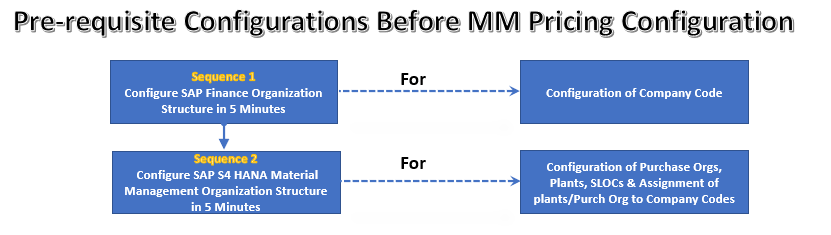
Below diagram is showing the configuration (& related posts) required to complete before starting configuration of S4 HANA pricing procedure.

Picture : Pre-requisite Configurations Before MM Pricing Configuration

Link to each post is given below

Once we have completed all the above configurations, we are ready to configure MM Pricing Procedure.

2. Understanding of SAP S4 HANA MM Pricing Procedure

SAP S4 HANA MM Pricing Procedure can be Bifurcated in Two Parts

2.1 Technique behind S4 HANA MM Pricing Procedure (Condition Technique)

To understand SAP S4 HANA MM Pricing Procedure, We need to first have an overview of the working of the pricing conditions in the MM. To understand this we need to understand condition technique. Pricing is broadly used to describe the calculation of price & costs. During Purchase Order processing, the system uses the condition technique to determine automatically the various cost components like discounts, surcharges, freight etc.

2.2 Determination of Pricing Procedure

Let’s start with technique behind working of pricing procedure

3. Condition Technique in S4 HANA MM Pricing Procedure

Condition technique involves the following below elements in sequence.

  • Condition Types
  • Access Sequences
  • Condition Tables
  • Calculation Schemas

Let,s review all the four elements of condition technique one by one

4. Condition Type

In SAP S4 HANA MM Pricing Procedure, the first step in defining pricing is configuration of condition types.

We create different type of condition types representing discounts, surcharges, freight, cost, taxes etc. to complete our pricing schema.

Let’s review the configuration of condition type and all the fields associated with it.

Picture : Condition Type Configuration ..First Part
Picture : Condition Type Configuration ..Second Part
Picture : Condition Type Configuration ..Third Part
Picture : Condition Type Configuration ..Fourth Part

4.1 Fields in “Control Data 1” Section of Condition Type Configuration

Below fields are available in control data 1 section of condition type configuration

Picture : Fields in “Control Data 1” Section of Condition Type Configuration

4.1.1 Condition Class

This field determines the category of condition type like : Price, Tax. Discount or surcharge etc.

The most common classes are as follows

4.1.1.1 Condition Class “B”

If a condition type is being configured for gross pricing then condition class “B” will be used.

4.1.1.2 Condition Class “A”

If a condition type is being configured for Quantity or weight discount then condition class “A” will be used.

4.1.1.3 Condition Class “D”

If a condition type is being configured for taxes then condition class “D” will be used.

4.1.2 Calculation Type

This field determines how the condition type will be calculated.

The most common used calculation types are

“B”-For Fixed Amount,

“A”-For percentage

“C”-For quantity

“G” for our own formula

if we use calculation type “G” in a pricing procedures, a condition basis formula and a condition value formula must be assigned to this calculation type.

Note : The formula define here (in MM pricing procedure) works the same way in SD. We use VOFM for the same.

4.1.3 Condition Category

Condition Category is the classification of condition types such as FREIGHT, TAX, PRICE, DISCOUNT.

The condition categories are always hardcoded.

4.1.3.1 Condition Category “F -Freight” vs “B -Delivery costs”

If the vendor is same for Main Purchase Order & Freight then we can select the F category

But if the transportation vendor is different then the Purchase order vendor then we need to select the “B” delivery cost condition category

With condition category “B – Delivery Cost”, we will have the option of entering delivery vendor (other than main vendor) for that condition type in PO and also option of posting this cost to different G/L account based on account key setting in Accrual column in MM pricing procedure and G/L account assignment in OBYC for that account key.

Hint

Condition types are differentiated broadly using the condition class and more definitively using the condition category.

4.1.4 Rounding Rule

Rounding rule determines the rounding up value of the condition type. If the value is set up as “Commercial” then value is rounded off, for example $9.364 round off to $9.36

4.1.5 Plus/Minus Value

This configuration determines if condition type value is treated as positive value or negative value.

Negative values are discounts and positive values are surcharges.

Note : A blank value represents a positive.

4.2 Fields in “Group Condition” Section of Condition Type Configuration

Below three fields are present in this section of condition type configuration

Picture : Fields in “Group Condition” Section of Condition Type Configuration

4.2.1 Group Condition

if this field is checked , then such condition type is determined based on the cumulative value of the line item. for a group condition, all the values of the relevant items (price, order quantities etc) are added and then total is used as condition bases.

For example : a PO has several line items . There is a discount group condition in our PO which gives 10% discount if PO value is exceeds by 1000$ for a particular material group items. in this case if total value of this material distributed in several line item is calculated and compared against 100$ in order to arrive on discount decision, though individually such PO line item may not qualify for discount being less than $1000 order value.

4.2.2 Rounding Difference Comparison

if this field is checked then system compares the total of line items condition values to the condition value at the header level and difference is added to the largest item.

4.2.3 Group Condition Routine

This is used to calculate any alternative value as base to determine the scale value. For example – Group condition base can be a total of all line items weight which belongs to a particular material groups.

4.3 Fields in “Changes which can be made” Section of Condition Type Configuration

Below fields are given in this section of condition type configuration. Let’s review all the fields one by one

Picture : Fields in “Changes which can be made” Section of Condition Type Configuration

4.3.1 Manual Entries

This fields controls the priority of a condition type between manual entries and determined automatically .

Options available are “No Limitations”, or “Automatic entry has priority” which means cannot be entered manually, or “Manual Entry has priority” which means if entered manually, system does not check if a condition record exists and final option “Can not be processed manually”.

4.3.2 Header Condition/Item Condition

The selection of these checkbox determines if the condition type is a header condition type or item condition type.

4.3.3 Delete

This specifies if deletion of this condition type is allowed from the documents

4.3.4 Value

This field controls whether the value can be overwritten on the sales/purchase documents

4.3.5 Calculation Type

This field controls whether we can change the calculation type while processing the document

4.3.6 Amount/Percentage

Controls whether amount or percentage can be changed during document processing.

4.3.7 Quantity Relation

This field controls if conversion factor for the unit of measure of this condition type can be changed during document processing.

4.4 Fields in “Master Data” Section of Condition Type Configuration


This section has below fields.

Picture : Fields in “Master Data” Section of Condition Type Configuration

4.4.1 Ref. Condition Type, Ref. Application & Pricing Procedure

A pricing condition type sometimes can have a reference to another pricing condition type. We will understand the use of all the above fields through a real scenario

Our requirement is that a pricing condition should flow from PO to Billing for a STO.

In Billing Type, the Pricing Procedure will be SD Pricing Procedure with normal Price Determination settings. But we will not maintain condition Records (through VK11) but we will set Reference Condition , Reference application & reference pricing procedure while configuring this Condition Type (V/06) under “Master Data” Section of Condition Type Configuration as shown in above screenshot.

Now System will access the Condition Record of the Referred Condition Type & reference Application (M – Purchasing).

The other example is a requirement that the Freight paid to Shipment Vendor should be exactly same as one charged to Customer in Sales Order / Invoice. Thus we will use Reference Condition to fulfil this requirement.

4.4.2 Condition Index

This field controls if condition index will be updated or not. we can select this for faster searches.

4.5 Fields in “Scales” Section of Condition Type Configuration

This section of the condition type configuration has several scales related fields. We will review all the fields here.

Picture : Fields in “Scales” Section of Condition Type Configuration

4.5.1 Scale Basis

if no scale type is entered (if this field is blank then it means Scale “Can be maintained in condition record”), then we can specify scale related to money value (scale basis B) or qty (scale basis C) or a weight (Scale basis D or E).

4.5.2 Check Value

This field controls if the scale can be maintained in ascending or descending order.

4.5.3 Scale Type (with Real time examples)

The possible values for scale type are

Blank-Can be maintained in condition records

4.5.3.1 A : Base Scale

Example of Scale type A

From 1 Unit Price is $10

From 11 units price is $9

From 21 price is $8

So if we create a PO for 30 unit then per unit price would be at a discount of $8

4.5.3.2 B : To Scale

Example of Scale type B

Up to 10 Unit Price is $10

Up to 20 units price is $9

Up to 30 unit price is $8

So if we create a PO for 30 unit then per unit price would be at a discount of $8

C : Not Used

4.5.3.3 D : Graduated Scale

in normal scales , system determines one price. while in graduated scale, multiple prices are possible in the pricing screen of an individual item.

Example of a graduated scale

From 1 unit to 10 Unit Price is $10

From 11 to 20 units price is $9

From 21 to 30 unit price is $8

So if we create a PO for 30 unit then first 10 units will be$100, next 10 units will be $90 and the last 10 units will be $80 so PO value will be $270.

4.5.3.4 Scale Routine

if standard scale bases are not sufficient then we can write our own formula to determine alternate scale basis value. Scale formulas are created through VOFM.

4.5.3.5 Scale Unit (Unit of Measure)

This unit of measure is used for group conditions that are weight or volume dependent.

4.6 Fields in “Control Data 2” Section of Condition Type Configuration

There are several important fields in “Control Data 2” Section of Condition Type Configuration. Let’s review them

Picture : Fields in “Control Data 2” Section of Condition Type Configuration

4.6.1 Currency Conversion

If we select this indicator then currency conversion happens after the multiplications of the quantity.

Example – Our company is purchasing some components from abroad, main PO is in INR but freight is in USD so to avoid rounding errors, freight condition type will have this indicator checked so that freight is calculated after the quantity is multiplied.

4.6.2 Promotion Condition

Specifies that the condition type is valid only for promotions. Conditions for which this indicator has been set can only be maintained via the ‘Promotion’ menu – not via the Purchasing menu.

4.6.3 Accruals

This field controls if Condition is Relevant for Accrual (e.g. Freight)

Indicates that the system posts the amounts resulting from this condition to financial accounting as accruals. This appears as statistical on documents i.e. not taken into account in the calculation of net price.

4.6.4 Used for Variant Configuration

This indicators indicates that condition is relevant for variant configuration.

4.6.5 Inter-company Billing

Indicator that defines a condition as relevant for the inter-company process.

Inter-company conditions are usually statistical in the sales order and the customer invoice and not statistical in the inter-company invoice.

4.6.6 Condition Exclusion Indicator

This field controls whether the system automatically excludes the discounts that are proposed during pricing. For example- if a customer is already receiving a favourable price then the discount should be excluded.

We can use exclusion for a particular condition record or for all records of a particular condition type (the field appears on the screen where you define the condition type).

4.6.7 Relevant for Acct. Assignment

If field is blank then condition type is relevant for account assignment.

If “B” is chosen , then the accounting indicator is taken into account for the account assignment.

4.6.8 Condition for Invoice List

Indicates that the condition type is relevant for internal costing

4.6.9 Quantity Conversion

This field controls the quantity conversion during determination of the condition basis.

The field is only relevant for calculation rule ‘C’ (quantity- dependent).

It is relevant if the sales quantity unit and the condition quantity unit are identical (and is different to the basis quantity unit).
–> Deactivated: The condition basis quantity is converted via the quantity to the stock keeping unit. This means that the condition quantity is determined for planned factors. This means that a change to the conversion factors in the delivery or the order are not taken into account.
Rounding errors can occur during quantity conversion.
–> Activated: If the sales quantity unit and the condition quantity unit are identical, the quantity of the document item is used, i.e. the actual quantity.

4.7 Fields in “Sales Pricing” Section of Condition Type Configuration

This section has two fields as given below.

Picture : Fields in “Sales Pricing” Section of Condition Type Configuration

4.7.1 Relevant to Pricing

Indicates that a condition is taken into account during purchase price determination in the sales price calculation function.

The indicator can be maintained during definition of condition types and is taken as a default value when condition records are generated. This default can be changed when the “Pricing relevance can be changed” indicator is set.

In scales, the indicator is used to select the scale line used for price determination in Sales Price Calculation.

4.7.2 Pricing On/Off

If this indicator is set, whether each individual condition record is to be taken into account in the sales price calculation function.


Click HERE to read more on condition technique on SAP help

5. Access Sequence

An access sequence may be assigned to a condition type. The access sequence is a search strategy that enables you to specify the order in which condition tables are to be searched for relevant entries for a condition type.

Picture : Access Sequence

5.1 Silent features of Access Sequence

  • The order of the accesses is determined by the order of the condition tables in the access sequence.
  • The Exclusive indicator determines that the search for further valid entries in (other) condition tables is interrupted if an access was successful and a relevant entry was found.
  • A condition type must have an access sequence assigned to it if you want to maintain conditions with their own validity periods(for example, condition type PB00).
  • No access sequence assigned to header conditions, discounts, or surcharges

5.2 Requirements in Access Sequence

An access sequence is a search strategy to find the valid data for a condition type. Access sequence outlines the sequence in which system searches for the data.

Every access has a requirement associated with it and every requirement has a routine associated with it. Routines are ABAP codes that perform validation when the particular condition type is associated.

5.3 Exclusion Indicator

If we check this indicator then as soon as valid condition record is found , system stop the further searches for condition records.

6. Condition Table

In a condition table, we specify the combination of fields for which we create condition records.

6.1 Screenshot of a condition table

Picture : Condition Table

Note : Field catalog consists of all the available fields , from which condition table is created.

7. Calculation Schema

Calculation schema is used to calculate costs, prices, period-end rebates, and taxes. This concept is referred to in the Sales and Distribution (SD) area as a pricing procedure.

Calculation schema (pricing procedure) specifies which condition types are to be taken into account in which sequence.

Standard settings

Follow the below path for configuring the pricing schema

SPRO –> Materials Management –> Purchasing –> Conditions –> Define Price Determination Process –> Set Calculation Schema – Purchasing

or use t-code M/08

In the standard system RM0000 and RM1000 calculation schemas are predefined

We have copied RM0000 and created below schema for our car company.

Picture : Our IC Car Plant Pricing Schema , First Part
Picture : Our IC Car Plant Pricing Schema , Second Part
Picture : Our IC Car Plant Pricing Schema , Third Part
Picture : Our IC Car Plant Pricing Schema , Fourth Part
Picture : Our IC Car Plant Pricing Schema , Fifth Part


Similar schema is configured for Elect car company too.

Let,s review all the components of calculation schema

7.1 Manual

We check this checkbox if we need to input the value of a pricing condition manually. For example – unplanned freight or a special discount based on the quality complaint of the customer.

7.2 Required

This field is selected if a condition is mandatory i.e. document (sales order/purchase order)should not be completed if this pricing condition is not entered.

7.3 Statistics

This is used when this pricing condition is not required to be included in total value of PO, but only displayed in PO. For example – Rebate condition types. The rebate value is calculated but does not add to the value of PO. When rebate agreement is settled at that time these conditions are used.

7.4 Subtotals

This configuration Controls whether and in which fields condition amounts or subtotals are stored. For example-a customer discount or the cost of a material.

Example

These condition amounts or subtotals are used as a starting point for further calculations. For example – a subtotal of all the discounts included in the pricing of a sales order.

7.5 Requirements

Most of the time pricing needs can not be met by just defining condition type, access sequence, condition table & condition records.

For this SAP has given VOFM routines. These routines are customizable if standard routine is not capable of meeting the requirements. For example – distribution of discount among line item according to the volume instead of value.

Requirements in pricing procedures are used to validate certain conditions before a condition type is activated. For example – a condition need to be activated only if material belongs to a specific material group. We can define our own requirements starting from 900.

7.6 Alternative Calculation of Condition (Formula Condition Value)

Sometimes pricing conditions needs to be calculated by special formula. We can do this through small ABAP code and inputting this routine into the pricing procedure here.

7.7 Alternative Calculation of Condition Base Value

Routine for determining the condition basis as an alternative to the standard.

For Example : An absolute header discount is, for example, distributed in the standard system according to the cumulative value of the items.

7.8 Account Key

Through this key , pricing condition type is linked to GL account. We use this key in OBYC transaction to link this to the respective GL where the value of this condition type need to be posted. This represents MM-FI integration.

7.9 Account Key – Accruals / Provisions

With this account key, the system can post amounts to certain types of accruals accounts. For example, rebate accruals

8. Pricing Procedure Determination

In this section we will see how pricing procedure is determined in our purchasing documents. Pricing is determined by a combination of schema groups defined by vendors & purchasing organizations.

We need to understand Purchasing info record (PIR) to understand the pricing determination.

8.1 PIR

PIR maintains the relationship between material and vendor. Prices in PIR are defined at material level or purchase organization level. Prices from the last created PO stored in PIR is automatically proposed in the PO.

8.2 Configure MM Pricing determination in 5 easy steps

Below are the steps in brief to determine pricing procedure in 5 easy steps

Time needed: 10 minutes

How to Configure MM Pricing in 5 easy steps

  1. Step 1 – Define Schema Group for Purchasing Organizations

    (PA10-IC Car Puchase.org. Schema Group, PP10-Elect Car Purchase.org. Schema Group)

  2. Step 2-Assignment of Schema Group to Purchasing Organization

    (PA10->PA10, PP10->PP10)

  3. Step 3-Define Schema Group for Suppliers

    (I1-PA10 IC Car Vendor Schema Grp, E1-Elect Car Vendor Schema Grp, I2-PA20 C Car Vendor Schema Grp)

  4. Step 4-Define Calculation Schema

    ICCAR001-Schema for IC Car, ELCAR001-Schema for Elec Car

  5. Step 5-Define Schema Determination

    Check the respective section for details on schema determination


Step 1 : Define Schema Group for Purchasing Organizations

These allows us to group together purchasing organizations that use the same calculation schema.

|Here SAP has given flexibility if we want to have separate scheme for different purchase org like service purchase organization & Material purchasing organization or export purchasing organization

Picture : Path to Define Schema Group for Purchasing Organizations

|for our car business, we have created two Schema groups for both the Purchasing Organization

Picture : Define Schema Group for Purchasing Organizations

Step 2 :Assignment of Schema Group to Purchasing Organization

Picture : Path to Assignment of Schema Group to Purchasing Organization
Picture : Assignment of Schema Group to Purchasing Organization

Step 3 :Define Schema Group for Suppliers

Here through this we can assign different pricing determination procedure to different suppliers.

Picture : Path to Define Schema Group for Suppliers

Picture : Define Schema Group for Suppliers
Step 3.1 :Define Supplier Schema Group for Inter-company STO Process with Delivery & Billing

|For Inter-company STO Process with Delivery & Billing, we have defines a separate supplier schema group called “02 -SPL Sch.Grp IC STO Dlv Billing”

Picture: Supplier Schema Group for Inter-company STO Process with Delivery & Billing

This supplier schema group “02 -SPL Sch.Grp IC STO Dlv Billing” is inputted in the Supplier BP to be able to determine the correct Pricing Schema in pricing schema determination configuration

Please see the below post to check the BP supplier creation

How To Configure S4HANA BP and CVI In 7 Easy Steps – Creation of BP Supplier for Inter-Company STO with Delivery & Billing

Step 4 :Define Calculation Schema for Standard Order

We will copy Big schema RM0000 and rename to use for our car business. This schema already has all the necessary condition types required for our car business.

Picture : Path to Define Calculation Schema
Picture : Define Calculation Schema for IC Car

Picture : Define Calculation Schema for Electric Car

Step 4.1 :Define Calculation Schema for Inter-company STO Process with Delivery & Billing

for for Inter-company STO Process with Delivery & Billing, we will use SAP standard Schema “A17011”- Intercompany Stock Transfer (US)

Picture: Calculation Schema for Inter-company STO Process with Delivery & Billing

Step 5 : Define Schema Determination for Standard PO

We will define Standard Purchase Order Schema determination. For STOs we will do it later in special post.

At present we are assigning same schema for the vendors of PA10 & PA20 Plants. Please note that, if require, we have made provisions to have separate schema for the vendors of PA10 or PA20 through different vendor schema group as per above step

Picture : Path to Define Schema Determination

Picture : Define Schema Determination
Step 5.1 : Define Schema Determination for Inter-company STO Process with Delivery & Billing

To determine Calculation Schema for Inter-company STO Process with Delivery & Billing, we use the schema group for supplier as “02”

Picture: Schema Determination for Inter-company STO Process with Delivery & Billing

Note: We have user Schema for Purchasing organization “PP10” because in our Inter-company STO Process with Delivery & Billing scenario, Ordering plant is PP10 .

So supplying plant PA10 will be created as supplier in the PP10 purchasing organization PP10 with schema group for supplier as “02”.

8.3 Pricing Schema for Stock Transport Orders

We will first configure the pricing schema for stock transport order . Once configured we will then determine the pricing schema for stock transport order.

8.3.1 Configure Pricing Schema for Stock Transport Orders

To configure price schema for STO, follow the below path

SPRO –> Materials Management –> Purchasing –> Conditions –> Define Price Determination Process –> Set Calculation Schema – Purchasing

or use t-code M/08

We will use standard pricing schema RM2000 for STO

Picture: Schema for STO

8.3.2 Determine Pricing Schema for Stock Transport Orders

To configure price schema determination for STO, follow the below path

SPRO –> Materials Management –> Purchasing –> Conditions –> Define Price Determination Process –> Define Schema Determination –> Determine Schema for Stock Transport Orders

For stock transport orders, pricing schema is determined depending on the supplying plant, the document type and the schema group of the purchasing organization.

Picture: Pricing Schema Determination for STO

This completes the configuration of SAP S4 HANA MM Pricing Procedure

In the previous post we have configured S4 HANA input Tax procedure which is used in SAP S4 HANA MM Pricing Procedure in this post. Please click on the above button to see the details.

In the next post we will configure FI-MM Integration. Please click on the above link to see the details.

Image courtesy : Sale vector created by jcomp – www.freepik.com

The post Ultimate guide to SAP S4 HANA MM Pricing Procedure appeared first on Ultimate SAP Guides | S4 HANA Logistics Modules.

SAP Stock Transport Order with Delivery: Setup, Execution & Key Insights

Home » MM

SAP Stock Transport Order (STO) with Delivery is a critical process for businesses optimizing intercompany and intracompany goods movement while ensuring seamless logistics execution. Understanding how to set up and execute an STO with delivery can significantly enhance supply chain efficiency, reduce costs, and improve compliance with SAP best practices. In this comprehensive guide, we’ll walk you through the step-by-step configuration, execution, and key insights that drive successful STO implementation. Whether you’re an SAP consultant, business analyst, or supply chain manager, mastering STO with delivery will help you streamline operations, minimize delays, and maximize operational efficiency. Let’s dive into the setup, process flow, and expert tips for leveraging SAP Stock Transport Orders with delivery.

Stock Transport Order (STO) with Delivery is a SAP process to transfer the stock between two plants within a company along with using deliveries via the SAP Shipping module.

--> This post is for "SAP Stock Transport Order with Delivery but without Billing". It is called "intra-company SAP Stock Transport Order with Delivery (and without Billing)".

--> Please check the below post for SAP Stock Transport Order with Delivery & billing. It is also called Cross company or Inter-Company SAP Stock Transport Order with Delivery & Billing.

We have seen details of the two simplest form of Stock transfer till yet

1- Stock Transfer with MIGO (no STO, No delivery & no Billing)

Stock Transfer in SAP: The Best Guide with All Scenarios Explained – Stock Transfer with MIGO (Without STO, Delivery & Billing)

2- Stock Transfer with STO (no delivery & no Billing)

SAP Stock Transport Order Without Delivery: Process, Configuration & Guide

Unlike the above two simple form of stock transfer, the STO with Delivery adds an additional layer of control by allowing users to generate delivery documents, handle shipping logistics, and track goods through the delivery process.

SAP Stock Transport Order with Delivery ensures that supply and receiving plants has the visibility over stock movements, improving accuracy and efficiency.

Below is the pictorial representation for this type of stock transfer

Picture: SAP Stock Transport Order with Delivery

1. Type of SAP Stock Transport Order with Delivery

There are two types of SAP Stock Transfer Order with Delivery

  • Scenario 1: Two Step Stock Transfer Order with Delivery
  • Scenario 2: One Step Stock Transfer Order with Delivery

1.1 Two Step Stock Transfer Order with Delivery

The business scenario for SAP Stock Transport Order with Delivery is when plants are located far away and we need to transfer the goods. While transferring, goods remains in transit for a substantial time.

In this scenario we use 2 step SAP Stock Transport Order with Delivery

in the two Step Stock Transfer Order with Delivery, the quantity issued from the sending plant is posted as stock in transit of the receiving plant. This is the first step. This enables the quantity “on the way” to be monitored.

In the second step goods receipt is posted in the receiving plant and then it becomes the stock of the receiving plant.

Below is the pictorial representation of Two Step Stock Transfer Order with Delivery

Picture: Two Step Stock Transfer Order with Delivery

1.1.1 Configuration of Two Step Stock Transfer Order with Delivery

We will configure Intra-Company Stock Transport Order Wit Delivery step by step

1.1.1.1 Configure PO Document Type

In this configuration

–> we Check and copy existing document types for purchase orders and

–> define allowed item categories for each document type

Document types configuration controls item interval, determine allowed follow-on document types & number range interval etc.

--> For our car business, we will use standard document type "UD" for the "Two Step Stock Transfer Order with Delivery"

Follow the below path for document type configuration

SPRO –> Materials Management –> Purchasing –> Purchase Order –> Define Document Types for Purchase Orders

Picture: Document Type “UD”
1.1.1.2 Item Category

Item category defines how the procurement of a material or service item is controlled.

For the document type “UD” item category U is used

Picture : Allowed Item Categories “U” for “Doc Type “UD”

Note : Item Categories can not be configured. These are maintained by SAP, therefore we cannot change them. However, we can change the “External Representation” of PO item categories in IMG.

1.1.1.3 Configure Pricing Schema for Two Step Stock Transfer Order with Delivery

Please check the below post to Configure Pricing Schema for STO Without Delivery

Ultimate guide to SAP S4 HANA MM Pricing Procedure – Pricing Schema for Stock Transport Orders

1.1.1.4 Configure Delivery Type for Two Step Stock Transfer Order with Delivery

Delivery type “NL” is used for the Two Step Stock Transfer Order with Delivery.

Please see below post for delivery type “NL” configuration

SAP Delivery Guide: Outbound to Inbound – NL – Replenishment Delivery

1.1.1.5 Item category configuration & determination for “Two Step Stock Transfer Order with Delivery”

For “Two Step Stock Transfer Order with Delivery”, item category “NLN” is used.

Please check the below post for item category configuration & determination

Mastering SAP Sales Item Categories: A Comprehensive Guide-Item Category for Stock Transfer Order with Delivery

Mastering SAP Sales Item Categories: A Comprehensive Guide-Item Category Determination for Stock Transfer Order with Delivery

1.1.1.6 Schedule Line configuration & determination for “Two Step Stock Transfer Order with Delivery”

For Two Step Stock Transfer Order with Delivery, schedule line category “NN” is used.

SAP Schedule Line Categories Explained: Everything You Need to Know – Stock Transfer Order with Delivery “NN”

SAP Schedule Line Categories Explained: Everything You Need to Know – Schedule Line Category Determination Stock Transfer Order With Delivery

1.1.1.7 Define Shipping Data for Plants

For the stock transfer order to work , the below two mandatory to define

--> Suppling Plant should be created as supplier in the receiving plant purchasing organization

--> Receiving plant should be created as customer in the sending plant sales organization & distribution channel.

Follow the below path

SPRO –> Materials Management –> Purchasing –> Purchase Order –> Set up Stock Transport Order –> Define Shipping Data for Plants

Here sending plant is PA10 & Receiving plant is PA20

a) Shipping Data for Sending Plant

Through this configuration, system needs to identify the sales organization, distribution channel & division of the supplying plant under which the receiving plant is created as customer

Picture: Shipping Data for sending plant

So as per this configuration receiving plant should be created as customer in Supplying plant sales organization “PA10” , Distribution Channel “PA” & Division “DC”

b) Shipping Data for Receiving Plant

For receiving plant, system identifies receiving plant customer number.

Picture: Shipping Data for Receiving Plant

Receiving plant PA20 will be represented as a customer through customer number “PA20_CUST” as per this configuration

1.1.1.8 Configure Stock Transfer Order

Now we will configure define delivery type and availability check for two step stock transport order.

Follow the below path

SPRO –> Materials Management –> Purchasing –> Purchase Order –> Set up Stock Transport Order –> Configure Delivery Type & Availability Check Procedure by Plant

In this configuration we specify whether an SD delivery is to be created in the case of a PO with a certain combination of supplying plant and document type. You can also specify which delivery type is to be used.
The delivery type in Sales and Distribution (SD) determines how a delivery is handled. In the standard system, the delivery type ‘NL’ is used for stock transfers without a billing document. For stock transfers with a billing document, the delivery type ‘NLCC’ is used.

Configure “Two Step Stock Transfer Order with Delivery”
a) Configure Delivery Type “NL”

Please check below post for detail of delivery type “NL” configuration

SAP Delivery Guide: Outbound to Inbound – NL – Replenishment Delivery

b) Copying Control from STO Doc Type “UD” to Delivery type “NL”

Since in the above configuration, for the 2-step SAP Stock Transport Order with Delivery, PO document type is “UD” & delivery type is “NL”, we need to configure copying control in order to create “NL” delivery on the basis of “UD” document type.

Please check the below post for the detail of copy control configuration for this scenario

SAP Delivery Guide: Outbound to Inbound – Copy Control for Stock Transfer Order with Delivery.

c) Delivery Scheduling and Transportation Scheduling in SAP S/4 HANA

For stock transport orders, scheduling is activated while configuring stock transport order

Picture: Delivery Scheduling and Transportation Scheduling in STO

Follow the below Customizing node 

SAP IMG > Cross-Application Components > Advanced Available-to-Promise > Configure Activities for Specific Document Type > Stock Transport Orders.

it will give you same screen as above

--> Delivery scheduling are defined either in the route or the shipping point.
d) Transportation Scheduling Lead Times

The main parameter for transportation scheduling is transportation lead time.

Transportation lead time is defined by the transit time and unloading time. When an availability check is triggered, system executes backward scheduling from the requested delivery date (LFDAT). System deduct the transit time from RDD (Requested Delivery Date) to arrive at the goods issue date (WADAT). Routes are used to determine the transit durations.

Once a route is determined, the transit duration from the route is used as the lead time for scheduling. The route also specifies the transportation lead time, which is used to determine the transportation planning date.

e) Route Configuration

First we will configure a route to use for the transportation from plant PA10 to plant PA20

Follow the below path

SPRO –> Logistics Execution –> Transportation –> Basic Transportation Functions –> Routes –> Define Routes –> Define Routes and Stages

We will configure route “PA1020”

Picture: Configuration of Route “PA1020”

For the route “PA1020” we have configured–

  • Transit time is 1 Calendar day.
  • Transportation Lead Time is 2 Days
f) Route Determination Configuration Between Plant PA10 & PA20 (Route “PA1020”)

Now we will configure the route determination for Route “PA1020”

–> Outbound shipping point PA10 is assigned to the plant PA10

–> Outbound shipping point PA30 is assigned to the plant PA20

–> Shipping point PA10 & PA30 both has transportation zone assigned as “0000000001-Region East”

Please check the below post for detail

Configure SAP S4 HANA Logistics Execution Organization Structure in 5 Minutes – Define Shipping Points

To configure the route determination, follow the below path

SPRO –> Logistics Execution –> Transportation –> Basic Transportation Functions –> Routes –> Route Determination –> Maintain Route Determination

Route is determined based on the shipping type from the customer master & Transportation Group from the material master

Picture: Configuration of Route Determination
g) Scheduling Configuration

for this scenario we will configure scheduling based on the route

Follow the below path for configuration

SPRO –> Logistics Execution –> Shipping –> Basic Shipping Functions –> Scheduling –> Delivery Scheduling and Transportation Scheduling –> Define Scheduling By Shipping Point

We will configure here that for shipping point PA10 pick/pack time & loading time will be taken from the route as we are configuring scheduling based on the route

Picture: Scheduling based on Route

Now we need to input the pick/pack & loading time in the route so that system can pick these from the route while scheduling

Follow the below path

SPRO –> Logistics Execution –> Shipping –> Basic Shipping Functions –> Scheduling –> Delivery Scheduling and Transportation Scheduling –> Maintain Duration

Maintain the pick/pack time as 8 hrs

Picture: Pick/Pack time in route

Also maintain the loading time as 8 hrs

Picture: Loading Time Time in route

This completes the configuration of SAP two step Stock Transport Order with Delivery.

1.1.2 Testing of Two Step Stock Transfer Order with Delivery

We will test now two step stock transfer order with delivery

There are certain data pre-requisites in order to be able to execute Stock transfer order with Delivery as given below

How to Configure & Test 2-Step Stock Transfer Order with Delivery

  1. Step 1: Configure all the required Elements

    First configure all the elements required as explained in heading Configuration of Two Step Stock Transfer Order with Delivery

  2. Step 2: Extend the material in the receiving plant

    The material should be extended in both sending & receiving plant. Please check the below post for details.
    2 Minutes Guide to Create your First Material in S4 HANA – Extension of Material to Other Plants

  3. Step 3: Suppling Plant should be created as supplier in the receiving plant purchasing organization

    We will create the suppling plant PA10 as a supplier as “PA10_PLANT”. Check the below post for details
    How To Configure S4HANA BP and CVI In 7 Easy Steps – Creation of BP Supplier for STO with Delivery Scenario

  4. Step 4: Receiving Plant should be created as customer in the sending plant sales organization & distribution channel.

    We will create the Receiving Plant PA20 as a customer as “PA20_CUST”. Check the below post for details
    How To Configure S4HANA BP and CVI In 7 Easy Steps – Creation of BP Customer for STO with Delivery Scenario

  5. Step 5: Create the STO: Check “Shipping” tab should be available at the line item level. Check the different dates as loading date, goods issue date etc. These sates should be as per the scheduling configured based either on shipping point or route level as explained in heading “Delivery Scheduling and Transportation Scheduling in SAP S/4 HANA”

  6. Step 6: Create the Outbound Delivery

    Use VL10B or create the delivery automatically through batch job certain days ahead of PGI date as per business requirement. We need to configure copying control in order to create “NL” delivery on the basis of “UD” document type. Please check the below post for the detail of copy control configuration for this scenario
    SAP Delivery Guide: Outbound to Inbound – Copy Control for 2-Step Stock Transfer Order to Outbound Delivery

  7. Step 7: Pick/Pack & Goods Issue the Outbound Delivery

    Since this is 2 step delivery so movement type 641 will be used in the first step (goods issue in the issuing plant). Check the Accounting document generated

  8. Step 8: Create the inbound Delivery in the Receiving plant

    Create inbound delivery through VL31N or configure SPED output type to create the inbound delivery automatically in the receiving plant.

  9. Step 9: Post goods receipt in the receiving plant

    Since this is 2 step delivery so movement type 101 will be used in the second step (goods receipt in the receiving plant).This complete the process.

Step 1: Configure all the required Elements

First we need to configure all the necessary elements of the two step SAP Stock Transport Order with Delivery.

This is explained in detail explained in heading Configuration of Two Step Stock Transfer Order with Delivery

Step 2: Extend the material in the receiving plant

Here sending plant is PA10 & Receiving plant is PA20.

The material should be available in both sending & receiving plants. Please check the below post to see the step be step explanation of how to extend the material to another plant

2 Minutes Guide to Create your First Material in S4 HANA – Extension of Material to Other Plants

Step 3: Suppling Plant as a supplier in the Receiving Plant Purchasing Organization

We will create the suppling plant PA10 as a supplier as “PA10_PLANT” Please check the below post in detail

How To Configure S4HANA BP and CVI In 7 Easy Steps – Creation of BP Supplier for STO with Delivery Scenario

Step 4: Receiving Plant as a Customer in the Sending Plant Sales Organization & Distribution Channel.

We will create the Receiving Plant PA20 as a customer as “PA20_CUST”. Check the below post for details

How To Configure S4HANA BP and CVI In 7 Easy Steps – Creation of BP Customer for STO with Delivery Scenario

Step 5: Create the STO & check the Presence of “Shipping” Tab.

Create the STO now. Start ME21N , input all the data and press enter

“Shipping” tab with “Shipping” data should appear in the PO line item

Picture: Shipping TAB in 2-Step STO with Delivery
--> Delivery type is "NL" as configured in the section Configure Delivery Type for Two Step Stock Transfer Order with Delivery

--> Shipping Point is "PA10" as configured in the post Configure SAP S4 HANA Logistics Execution Organization Structure in 5 Minutes – Define Shipping Points

--> Route in STO is determined as "PA1020" as configured in the section Route Determination Configuration Between Plant PA10 & PA20 (Route "PA1020")
Step 5.1 : Check Scheduling in STO

Scheduling in the system should be as per the route scheduling configured in section Delivery Scheduling and Transportation Scheduling in SAP S/4 HANA

As per our scheduling

  • Transit time is 1 Calendar day.
  • Transportation Lead Time is 2 Days
  • Pick/Pack Time is 8 Hrs
  • Loading time is 4 hrs.

Picture: Delivery Scheduling

In the above screenshot we can see that

  • PO is created at 04.10.2024 12:21:45
  • Pick/Pack time is 8 hrs. so 04.10.2024, 12:21:45 + 8 working hrs. =07.10.2024 10:21:45 – This is Transportation Planning Date & loading time
  • Loading time is 4 hrs. so 07.10.2024 10:21:45 +4 hrs. = 07.10.2024, 14:21:45 , this will be goods issue date
  • Transit time is 1 calendar day so GR date & time will be 08.10.2024 15:21:45 (Receiving plant PA20 is in Boston so 1 hr. ahead from Chicago Plant time zone)
Step 6: Create the Outbound Delivery

Create the outbound delivery through VL10B or create the delivery automatically through batch job.

We need to configure copying control in order to create “NL” delivery on the basis of “UD” document type. Please check the below post for the detail of copy control configuration for this scenario

SAP Delivery Guide: Outbound to Inbound – Copy Control for 2-Step Stock Transfer Order to Outbound Delivery

Step 6.1 : Activate Automatic Delivery Creation

We configure this “Auto Delv. indicator”, If we want to create a replenishment delivery immediately after creation of the stock transport order.

Follow the below path for this

SPRO –> Materials Management –> Purchasing –> Purchase Order –> Set up Stock Transport Order –> Activate Automatic Delivery Creation and CRM Billing

Picture: Activate Automatic Creation of outbound Delivery

Now activate this for our shipping point

Follow the below path for this configuration

SPRO –> Materials Management –> Purchasing –> Purchase Order –> Set up Stock Transport Order –> Activate Automatic Delivery Creation for PO Type and Shipping Point

Picture: Activate Automatic Creation of outbound Delivery per Shipping Point

Please check the movement type & item category in the outbound delivery.

Item Category in Outbound delivery for 2-Step STO with Delivery

Picture: Item Category in Outbound Delivery for 2-Step STO with Delivery

Movement Type in Outbound delivery for 2-Step STO with Delivery

Picture: Movement Type in Outbound Delivery for 2-Step STO with Delivery
--> Movement Type should be "641" & Item category should be "NLN" as configured for 2-Step STO with Delivery

--> Movement type comes from the scheduling line configuration as explained in the Heading "Schedule Line configuration & determination for "Two Step Stock Transfer Order with Delivery"

--> Item category "NLN" configuration & determination is explained in the Heading "Item category configuration & determination for "Two Step Stock Transfer Order with Delivery"
Step 7: Pick/Pack & Goods Issue the Outbound Delivery

Now we do the pick pack & Goods issue to the outbound delivery

Below accounting document will be generated

Picture: Accounting Document in 2-Step STO with Delivery
Step 8: Create the inbound Delivery in the Receiving plant

Create inbound delivery through VL31N or configure SPED output type to create the inbound delivery automatically in the receiving plant as soon as goods issue is done in the sending plant.

Step 8.1 Output Type “SPED” configuration

We configure SPED output type to create the inbound delivery automatically in the receiving plant.

If material is handled in HUs then HUs are also transferred seamlessly from outbound delivery to inbound delivery through SPED. Please check the details of SPED configuration here.

for delivery type “NL”, we use OutputDet.Proc. “V10000” . Check the below post for this

SAP Delivery Guide: Outbound to Inbound – NL – Replenishment Delivery

Start transaction NACE & select application as V2 “Shipping” & click on “Procedures”

select procedure “V10000” and click on Control, make sure condition Type “SPED” should be available with Requirement as “1”

Picture: Output Type “SPED”

go back and select “output type” . Scroll down and select “SPED” from the list

Picture: Partner Functions in “SPED”

Select Medium “8-Special function” & Function “SH -Ship-to-Party”

Picture: Partner Functions Details in “SPED”

go back and click on condition record while selecting “V2-Shipping”

Select output type as “SPED” & create the condition record for our delivery type “NL”. alternatively we can create condition records through T-code VV21.

Picture: “SPED” Condition Record for delivery type “NL”

We have completed “SPED” configuration now

Because of triggering of output type “SPED” as soon as PGI will be done in issuing plant, system will create an inbound delivery in the receiving plant.

to check SPED trigger go to Extra –> Delivery Output –> Header as shown in the below screenshot

Picture: Delivery Output Header

We can see that SPED is triggered successfully

Picture: SPED is triggered successfully

It has created inbound delivery in the receiving plant successfully. Check the workflow of outbound delivery

Picture: Inbound Delivery Created
Step 9: Post goods receipt in the receiving plant

Since this is 2 step delivery so movement type 101 will be used in the second step (goods receipt in the receiving plant).

Post Goods Receipt of the Inbound delivery

Note: There is no accounting document generated at PGR

With PGR of Inbound Delivery , 2-step STO with delivery process is completed.

--> We can post invoice for any delivery cost. But since this is intra company Stock transfer so material cost can not be invoiced. 

Note

Sometime it is more efficient & economical to use 1-step STO instead of regular 2-step STO between the same plants.

Please see such possible Business reasons below

Maximize SAP Efficiency: Configure 1-Step STO with Delivery Alongside 2-Step STO Between the Same Plants – Business Scenarios Requiring Both 1-Step & 2-Step STO Between the Same Plants

To cater to such scenarios , please see the below post which explains How to Configure 1-Step STO with Delivery Alongside 2-Step STO Between the Same Plants

Maximize SAP Efficiency: Configure 1-Step STO with Delivery Alongside 2-Step STO Between the Same Plants

1.2 One Step Stock Transfer Order with Delivery

We will configure & test 1-step STO with delivery based on the below scenario

–> Sending plant is PA20 and receiving plant is PA10. Both the plants are attached with same company code (PA10).

Picture: 1-Step STO with Delivery

1.2.1 Configuration of one Step Stock Transfer Order with Delivery

We will configure Intra-Company Stock Transport Order Wit Delivery step by step

1.2.1.1 Configure PO Document Type

PO Document type for the One Step Stock Transfer Order with Delivery is “UD” which is same as for Two Step Stock Transfer Order with Delivery as described HERE

--> For our car business, we will use standard document type "UD" for the 1-step as well as 2-step Stock Transfer Order with Delivery"
1.2.1.2 Item Category

“Item category” for the One Step Stock Transfer Order with Delivery is “U” which is same as for Two Step Stock Transfer Order with Delivery as described HERE

1.2.1.3 Configure Pricing Schema for One Step Stock Transfer Order with Delivery

Please check the below post to Configure Pricing Schema for STO Without Delivery

Ultimate guide to SAP S4 HANA MM Pricing Procedure – Pricing Schema for Stock Transport Orders

1.2.1.4 Configure Delivery Type for One Step Stock Transfer Order with Delivery

Delivery type “NL” is used for the One step as well as Two Step Stock Transfer Order with Delivery.

Please see below post for delivery type “NL” configuration

SAP Delivery Guide: Outbound to Inbound – NL – Replenishment Delivery

1.2.1.5 Item category configuration & determination for “One Step Stock Transfer Order with Delivery”

For “One Step Stock Transfer Order with Delivery”, item category “NLN” is used same as “Two Step Stock Transfer Order with Delivery”

Please check the below post for item category configuration & determination

Mastering SAP Sales Item Categories: A Comprehensive Guide-Item Category for Stock Transfer Order with Delivery

Mastering SAP Sales Item Categories: A Comprehensive Guide-Item Category Determination for Stock Transfer Order with Delivery

1.2.1.6 Schedule Line configuration & determination for “One Step Stock Transfer Order with Delivery”

For one Step Stock Transfer Order with Delivery, schedule line category “NN” is used same as for “Two Step Stock Transfer Order with Delivery”

SAP Schedule Line Categories Explained: Everything You Need to Know – Stock Transfer Order with Delivery “NN”

SAP Schedule Line Categories Explained: Everything You Need to Know – Schedule Line Category Determination Stock Transfer Order With Delivery

1.2.1.7 Define Shipping Data for Plants

For the stock transfer order to work , the below two mandatory to define

--> Suppling Plant should be created as supplier in the receiving plant purchasing organization

--> Receiving plant should be created as customer in the sending plant sales organization & distribution channel.

Follow the below path

SPRO –> Materials Management –> Purchasing –> Purchase Order –> Set up Stock Transport Order –> Define Shipping Data for Plants

Here sending plant is PA20 & Receiving plant is PA10

a) Shipping Data for Sending Plant

Through this configuration, system needs to identify the sales organization, distribution channel & division of the supplying plant under which the receiving plant is created as customer

Picture: Shipping Data for sending plant

So as per this configuration receiving plant should be created as customer in Supplying plant sales organization “PA10” , Distribution Channel “PA” & Division “DC”

b) Shipping Data for Receiving Plant

For receiving plant, system identifies receiving plant customer number.

Picture: Receiving Plant Customer Number

Receiving plant PA10 will be represented as a customer through customer number “BPPA10” as per this configuration

1.2.1.8 Configure Stock Transfer Order

Now we will configure define delivery type and availability check for one step stock transport order.

Follow the below path

SPRO –> Materials Management –> Purchasing –> Purchase Order –> Set up Stock Transport Order –> Configure Delivery Type & Availability Check Procedure by Plant

In this configuration we specify whether an SD delivery is to be created in the case of a PO with a certain combination of supplying plant and document type. You can also specify which delivery type is to be used.
The delivery type in Sales and Distribution (SD) determines how a delivery is handled. In the standard system, the delivery type ‘NL’ is used.

Picture: Configure “Two Step Stock Transfer Order with Delivery”
a) Configure Delivery Type “NL”

Please check below post for detail of delivery type “NL” configuration

SAP Delivery Guide: Outbound to Inbound – NL – Replenishment Delivery

b) Copying Control from STO Doc Type “UD” to Delivery type “NL”

Since in the above configuration, for the 1-step SAP Stock Transport Order with Delivery, PO document type is “UD” & delivery type is “NL”, we need to configure copying control in order to create “NL” delivery on the basis of “UD” document type.

Please check the below post for the detail of copy control configuration for this scenario

SAP Delivery Guide: Outbound to Inbound – Copy Control for Stock Transfer Order with Delivery.

c) Assign one-Step Procedure

Since the stock transfer from the plant PA20 to PA10 is to be done in 1-step, here we will define the purchasing document type of stock transport orders (UD) to post the goods issue and goods receipt at the same time.

Picture: Assign one-Step Procedure
d) Delivery Scheduling and Transportation Scheduling in SAP S/4 HANA

Delivery Scheduling and Transportation Scheduling in SAP S/4 HANA for “One Step Stock Transfer Order with Delivery” is done same as for “Two Step Stock Transfer Order with Delivery” described HERE

1.2.2 Testing of One Step Stock Transfer Order with Delivery

We will test now one step stock transfer order with delivery

Step 1: Configure all the required Elements

Configure all the elements required for 1-Step STO with delivery as explained above.

Step 2: Extend the material in the receiving plant

Here sending plant is PA20 & Receiving plant is PA10.

The material should be available in both sending & receiving plants. Please check the below post to see the step be step explanation of how to extend the material to another plant

2 Minutes Guide to Create your First Material in S4 HANA – Extension of Material to Other Plants

Step 3: Suppling Plant as a supplier in the Receiving Plant Purchasing Organization

We will create the suppling plant PA20 as a supplier as “PA20” Please check the below post in detail

How To Configure S4HANA BP and CVI In 7 Easy Steps – Creation of BP Supplier for STO with Delivery Scenario

Step 4: Receiving Plant as a Customer in the Sending Plant Sales Organization & Distribution Channel.

We will create the Receiving Plant PA10 as a customer as “BPPA10”. Check the below post for details

How To Configure S4HANA BP and CVI In 7 Easy Steps – Creation of BP Customer for STO with Delivery Scenario

Step 5: Create the STO & check the Presence of “Shipping” Tab.

Create the STO now. Start ME21N , input all the data and press enter

“Shipping” tab with “Shipping” data should appear in the PO line item

Picture: Shipping TAB in 1-Step STO with Delivery
--> Delivery type is "NL".

--> Shipping Point is "PA10" as configured in the post Configure SAP S4 HANA Logistics Execution Organization Structure in 5 Minutes – Define Shipping Points

--> Route in STO is determined as "PA1020" as configured in the section Route Determination Configuration Between Plant PA10 & PA20 (Route "PA1020")
Step 5.1 : Check Scheduling in STO

Scheduling in the system should be as per the route scheduling configured in section Delivery Scheduling and Transportation Scheduling in SAP S/4 HANA

As per our scheduling

  • Transit time is 1 Calendar day.
  • Transportation Lead Time is 2 Days
  • Pick/Pack Time is 8 Hrs
  • Loading time is 4 hrs.

Picture: Delivery Scheduling

In the above screenshot we can see that

  • PO is created at 04.10.2024 12:21:45
  • Pick/Pack time is 8 hrs. so 04.10.2024, 12:21:45 + 8 working hrs. =07.10.2024 10:21:45 – This is Transportation Planning Date & loading time
  • Loading time is 4 hrs. so 07.10.2024 10:21:45 +4 hrs. = 07.10.2024, 14:21:45 , this will be goods issue date
  • Transit time is 1 calendar day so GR date & time will be 08.10.2024 15:21:45 (Receiving plant PA20 is in Boston so 1 hr. ahead from Chicago Plant time zone)
Step 6: Create the Outbound Delivery

Create the outbound delivery through VL10B or create the delivery automatically through batch job.

We need to configure copying control in order to create “NL” delivery on the basis of “UD” document type. Please check the below post for the detail of copy control configuration for this scenario

SAP Delivery Guide: Outbound to Inbound – Copy Control for Stock Transfer Order to Outbound Delivery

Step 6.1 : Activate Automatic Delivery Creation

We configure this “Auto Delv. indicator”, If we want to create a replenishment delivery immediately after creation of the stock transport order.

Follow the below path for this

SPRO –> Materials Management –> Purchasing –> Purchase Order –> Set up Stock Transport Order –> Activate Automatic Delivery Creation and CRM Billing

Picture: Activate Automatic Creation of outbound Delivery

Now activate this for our shipping point

Follow the below path for this configuration

SPRO –> Materials Management –> Purchasing –> Purchase Order –> Set up Stock Transport Order –> Activate Automatic Delivery Creation for PO Type and Shipping Point

Picture: Activate Automatic Creation of outbound Delivery per Shipping Point

Please check the movement type & item category in the outbound delivery.

Item Category in Outbound delivery

Picture: Item Category in Outbound Delivery for 2-Step STO with Delivery

Movement Type in Outbound delivery for 2-Step STO with Delivery

Picture: Movement Type in Outbound Delivery for 1-Step STO with Delivery
--> Movement Type should be "647" & Item category should be "NLN" as configured for 1-Step STO with Delivery

--> Movement type comes from the scheduling line configuration as explained in the Heading "Schedule Line configuration & determination for "Two Step Stock Transfer Order with Delivery"

--> Item category "NLN" configuration & determination is explained in the Heading "Item category configuration & determination for "Two Step Stock Transfer Order with Delivery"
Step 7: Single Transaction Goods Issue & Goods Receipt

Now we do the pick pack & Goods issue to the outbound delivery

Now we do the pick pack & Goods issue to the outbound delivery

--> In the 1-Step STO with delivery, as soon as we do goods issue to the outbound delivery in the issuing plant, goods receipt in the receiving plant happens automatically. 

--> Since Goods receipt happens automatically based on the PO (no inbound delivery is required), so there should be no "confirmation control key" in the PO.

--> Since there is no requirement of inbound delivery in the receiving plant (GR happens based on PO), there is no requirement of SPED configuration for 1-Step STO with delivery

Please check the PO history after outbound delivery PGI. System has posted Goods Receipt as well.

Picture: PO History Update after execution of 1-Step STO with Delivery

1.3 Special Scenario

We have configured a Special Scenario for Stock Transfer with STO/PO – STO with delivery – Configuring 1-step & 2-step between the same plants

Please see the details of this scenario in the below post

Maximize SAP Efficiency: Configure 1-Step STO with Delivery Alongside 2-Step STO Between the Same Plants

Image by freepik

The post SAP Stock Transport Order with Delivery: Setup, Execution & Key Insights appeared first on Ultimate SAP Guides | S4 HANA Logistics Modules.

By: admin
8 October 2024 at 19:54
❌
❌