❌

Reading view

There are new articles available, click to refresh the page.
βœ‡SAP EWM Blog by Manish Gupta

SAP EWM CF136: Setting Up Bulk Storage for EWM Managed Warehouse in SAP

Β This is going to be an advanced level of configuration as we are also going to configure the Auto Packaging and Queue determination for our Bulk Storage Putaway process and we are going to use the RF Menu to perform the Putaway process.

Step 1: First of all we need to create a Storage Type as Bulk Storage and mark the storage behavior as 2.

We have made the HU requirement mandatory. In the Putaway Control, the HU type check is activated and Putaway Complete icon is activated. Putaway rule is selected as 2 which means, the stock will added to the existing bins with HU inside first.

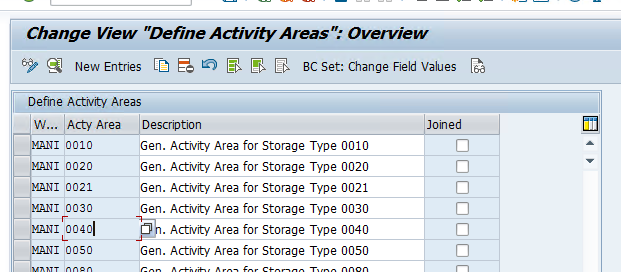
Step 2: Create activity area for our Bulk Storage
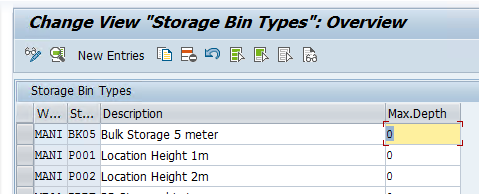
Step 3: Create Storage Bin Type for our Bulk Storage

We are creating SBT BK05 which is only to be used in Bulk Storage Area and since our forklift can reach up to 5 meter, the SBT will be of 5 meter
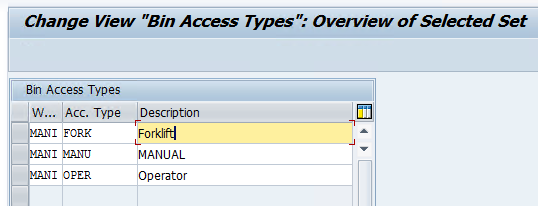
Step 4: Define a Bin Access Type for Bulk Storage Area so that we can assign to our resource when Putaway will be done β€” This is not a mandatory step.

We created FORK Access type and it will assigned to the Storage Bins as well so that Bulk Storage bins can only be accessed by forklift.
Step 5: Since our Bulk Storage is a small area in our warehouse we will have 5 bins based on below Layout and Pallets will Stacked in these 5 Bins.
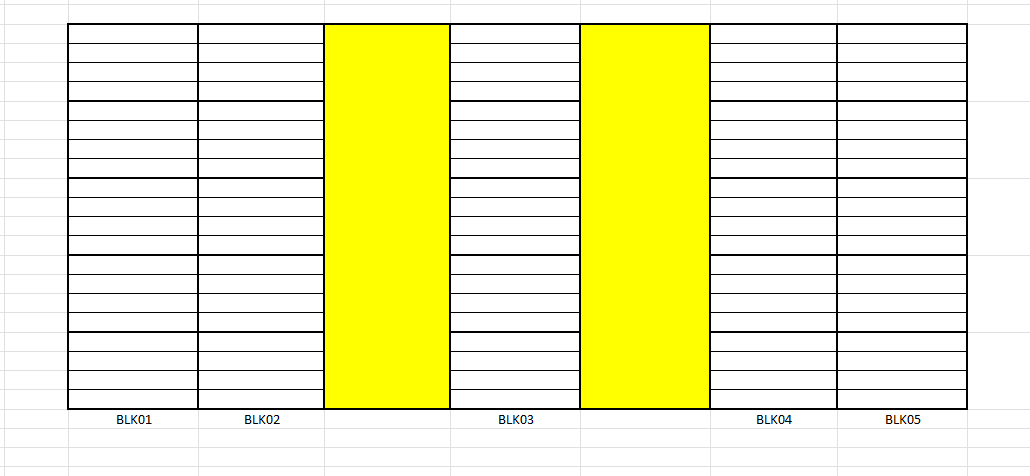
We can create 5 bins manually and each bin will be able to keep 5X5 i.e 25 pallets at a time.
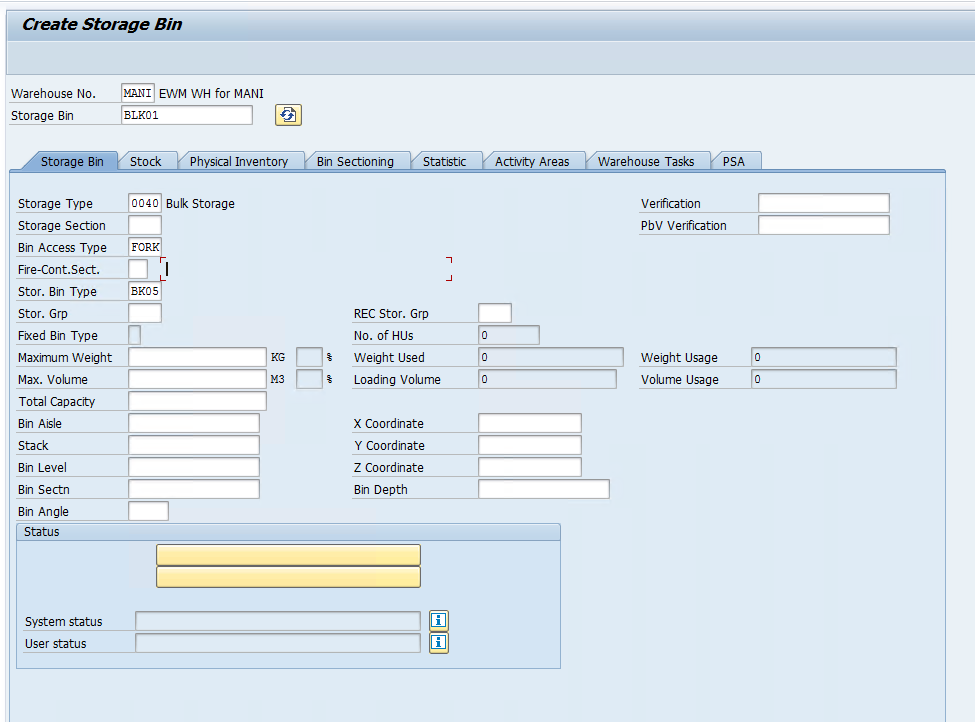
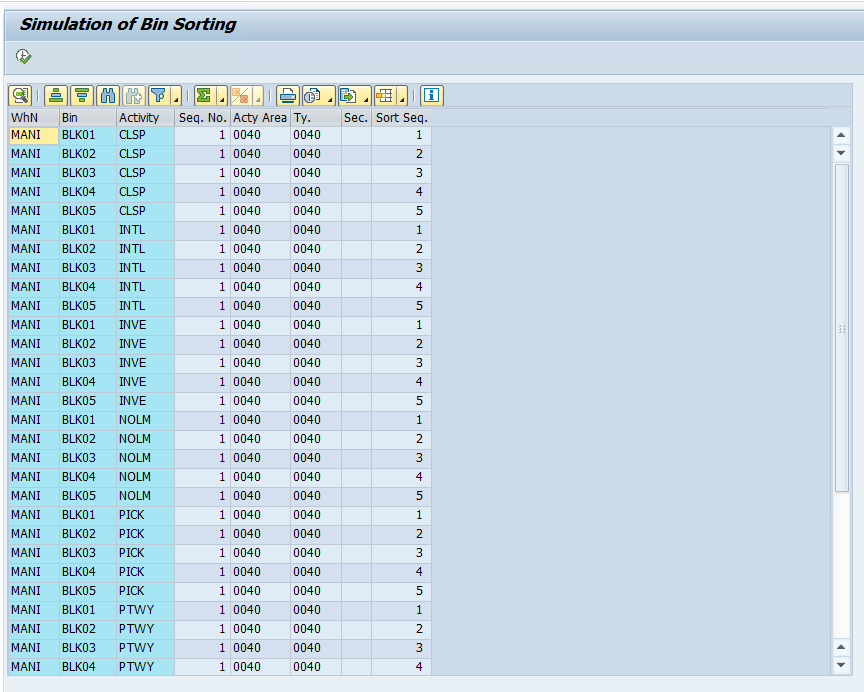
Step 6: Assign Bins to the Activity area and assign sort sequence
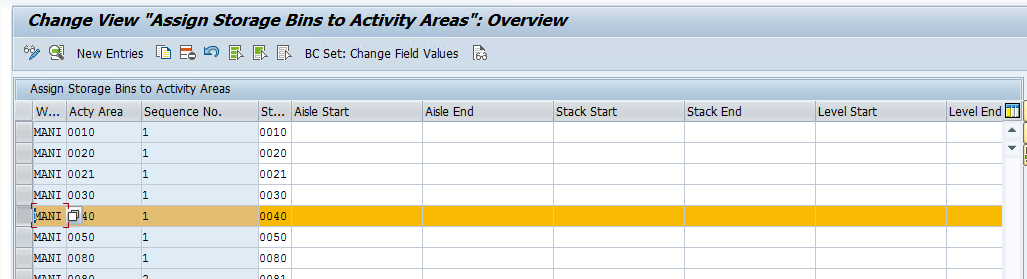
Tcode : /SCWM/SBST
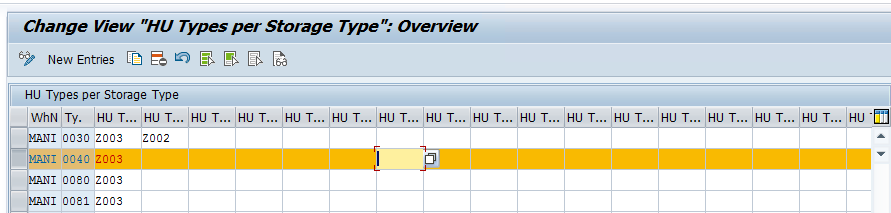
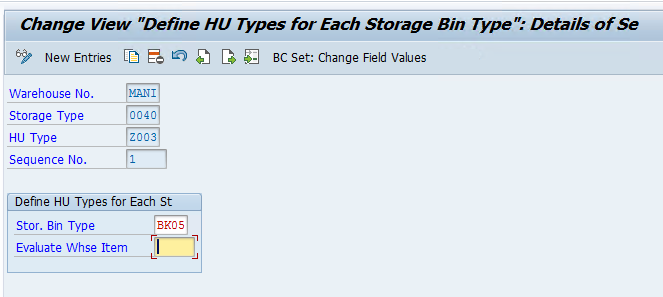
Step 7: Now we need to have a HU Type assigned to our Bulk Storage Type, make sure HU management is active in the warehouse and since we will only keep Full pallets in our bulk storage bins, we are assigning Z003 to our storage type.
Step 8: Now we need to define Bulk storage Strategy to our warehouse and complete the configuration
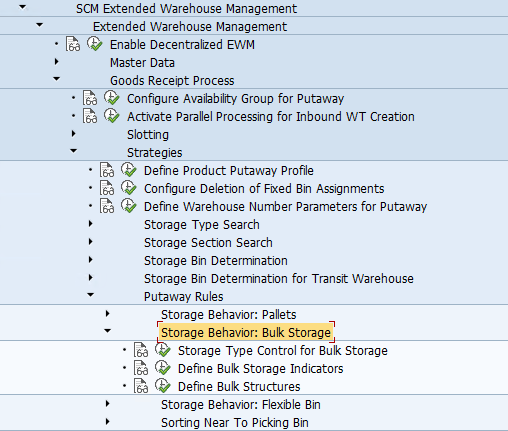
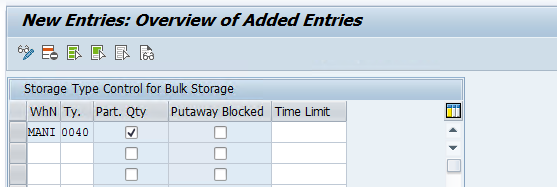
We need to maintain storage type controls for bulk storage.
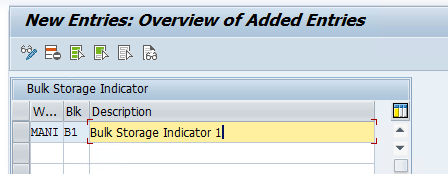
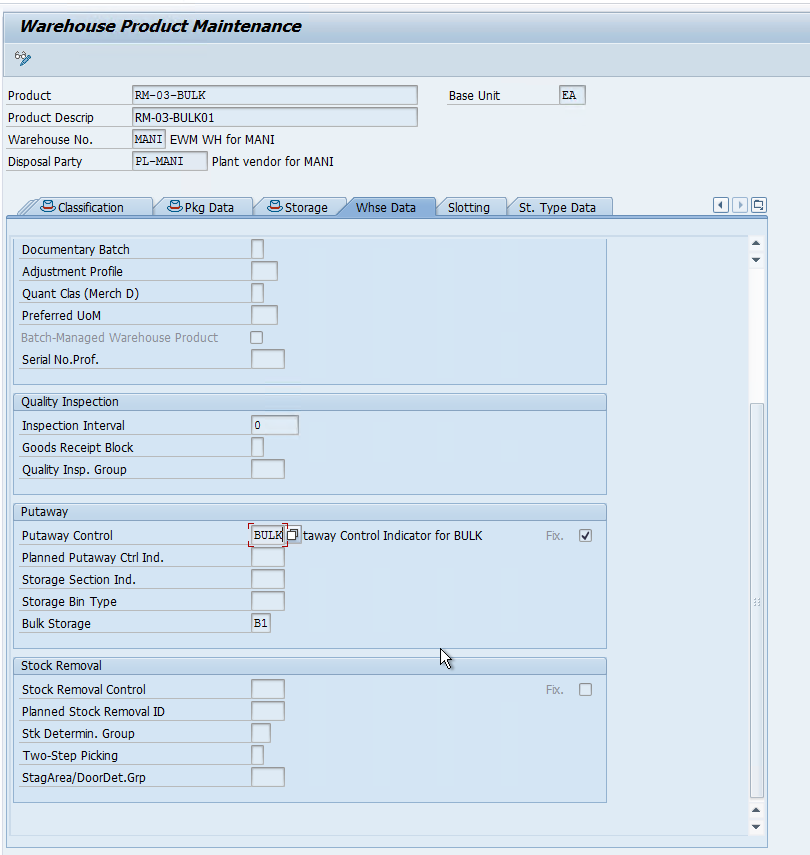
We created a bulk Storage indicator, it should be assigned to the product master.
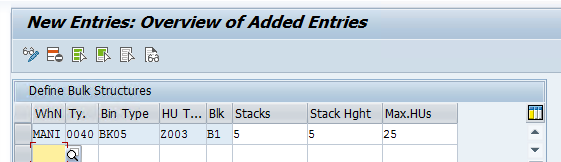
Now we need to define a bulk storage indicator and since only pallets can be stored in our bulk storage area, we have assigned Z003 HU Type as well.
Step 9: Now we need to create a resource type for our Forklift which will be used to to putaway and Pick stock from the Bulk Storage Area and only forklift can be used to manage stock in this area.

Assign Bin Access type to the resource Type.
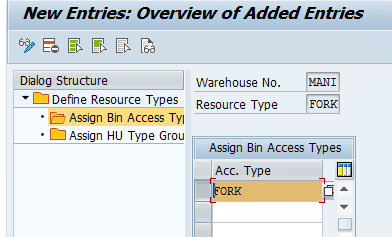
We have assigned HU Group ZMAN which was already assigned to our HU Type Z003 which belongs to the Pallet HU type.

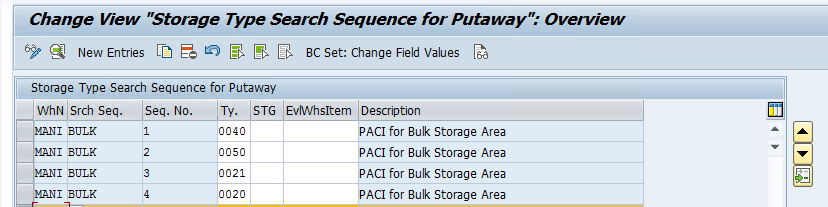
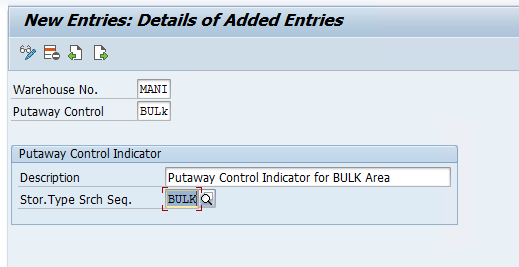
Step 10: Now we need to create a PACI for our Bulk Storage and since we are only going to putaway full pallets in the bulk Storage, if there is any stock left without pallet, it will go other storage type.
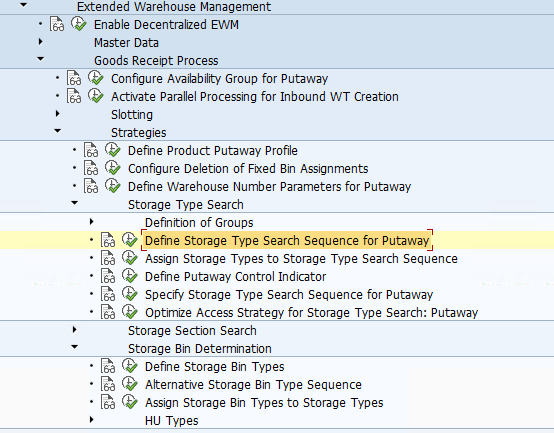
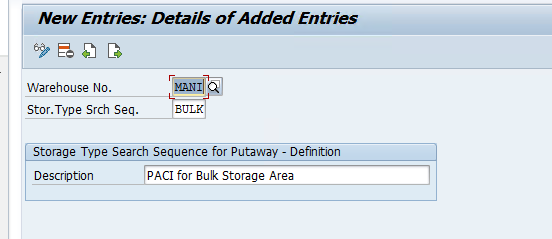
Step 11: Assign SBT to the Storage type for Storage bin determination during Putaway.
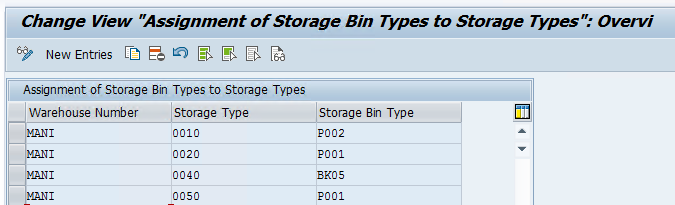
Now assign HU type to the SBT
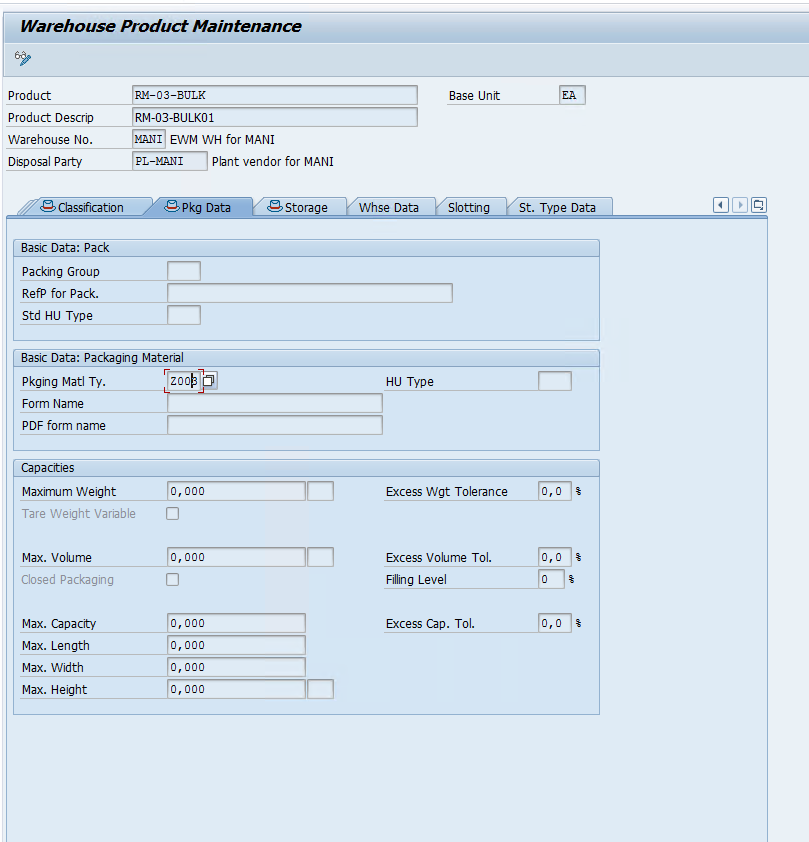
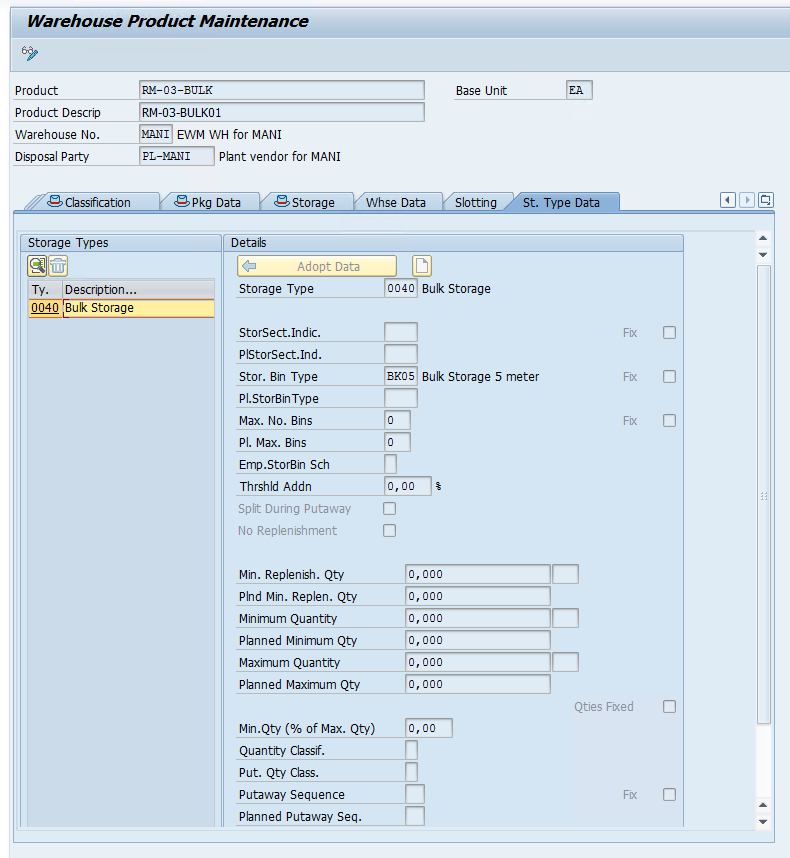
Step 12: We need to maintain Product master data.
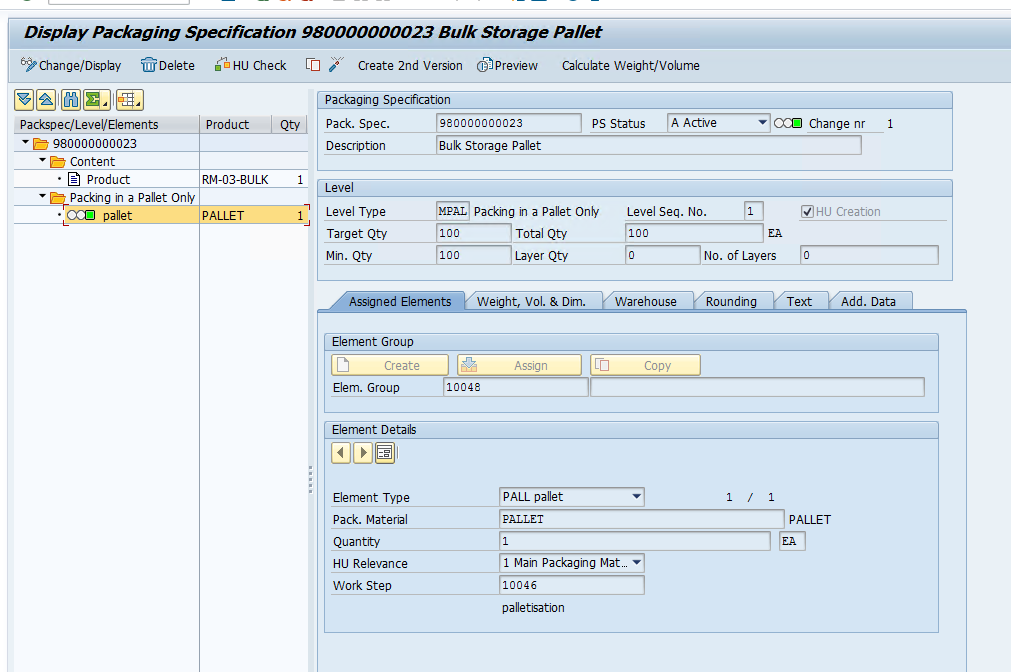
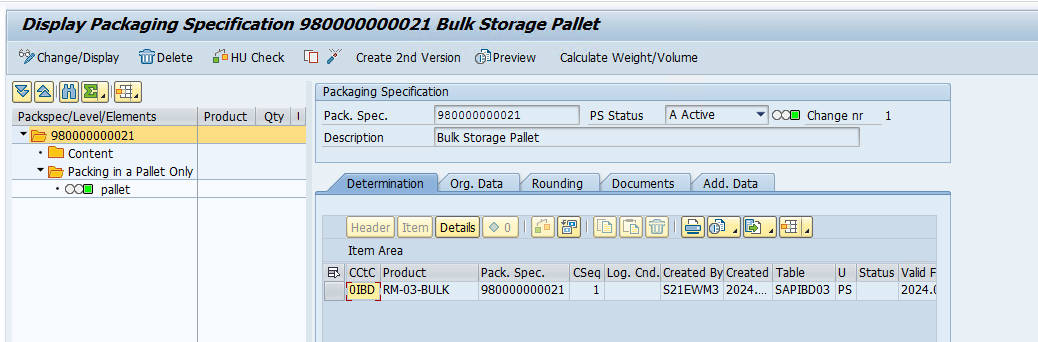
Step 13: We need to create packaging specifications for our product if we want to automate the packaging process when an inbound is created, this can be done manually also so this step is not mandatory.
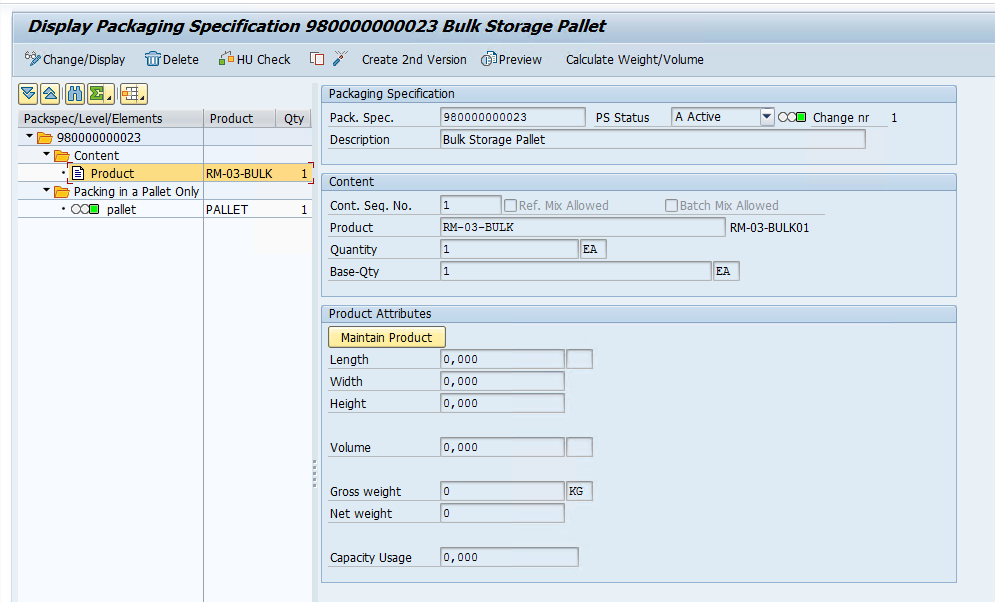
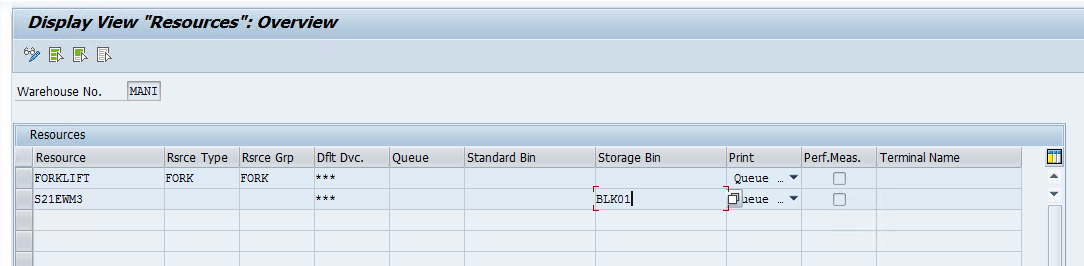
Step 14: Now we need to maintain the resource type and queue data so that we can assign the WTs to the resource Forklift and carry out the putaway process using the Forklift in the Bulk Area.

Create Resource Type

Assign Bin Access Type
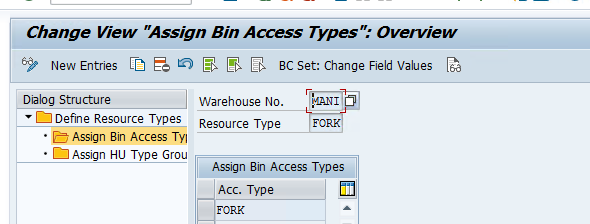
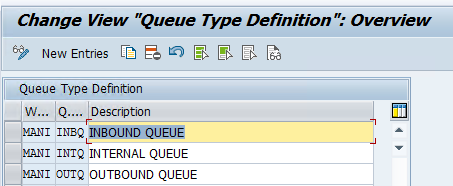
Define Queue type
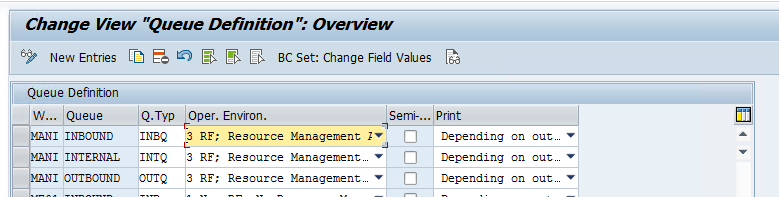
Define queue
Define queue determination
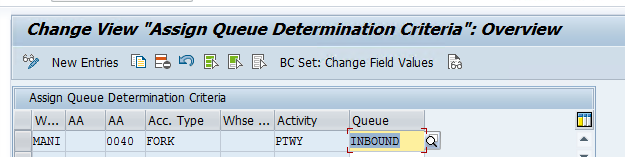
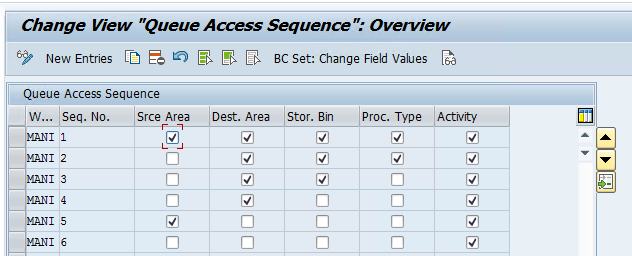
Define Queue access sequence
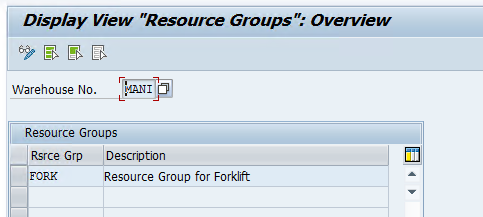
Use tcode /SCWM/RGRP to maintain resource Group
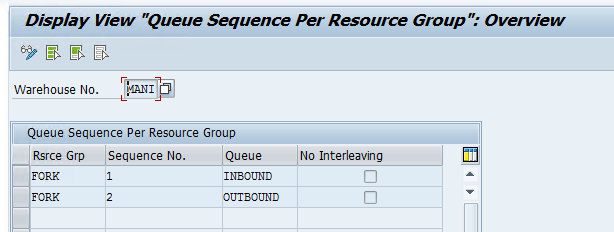
/SCWM/QSEQ to maintain queue sequence for resource Group
/SCWM/RSRC to maintain resource
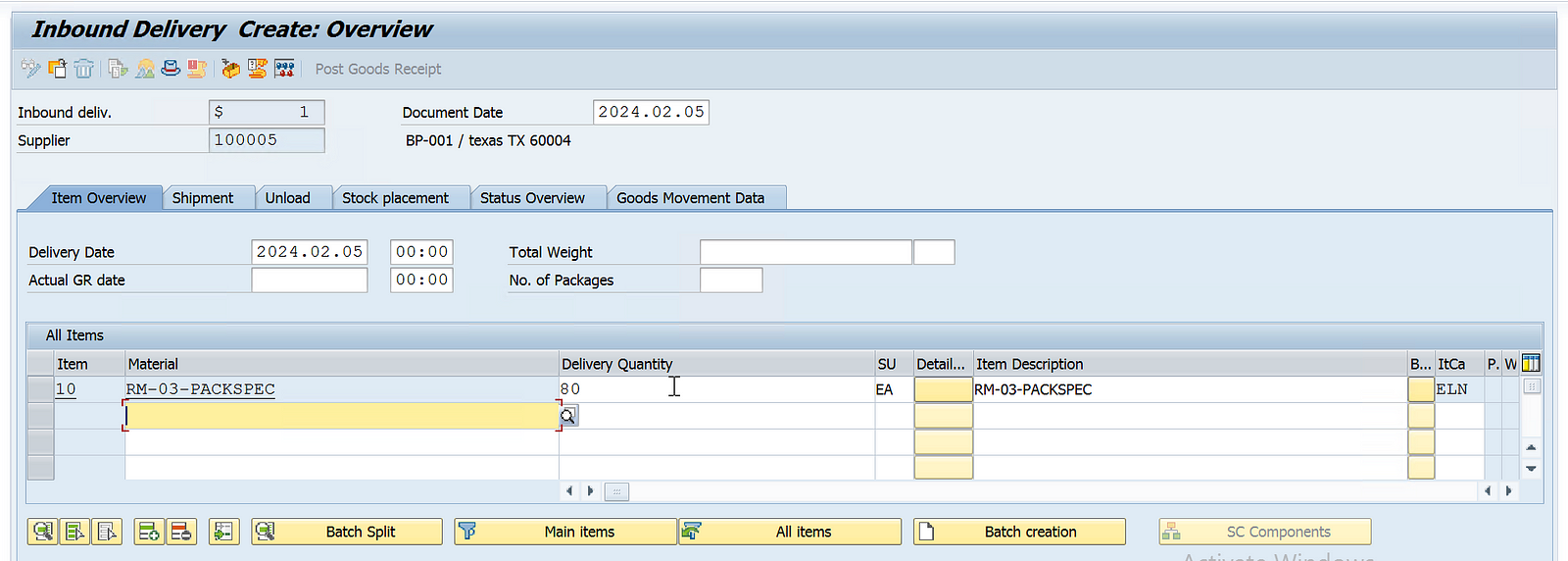
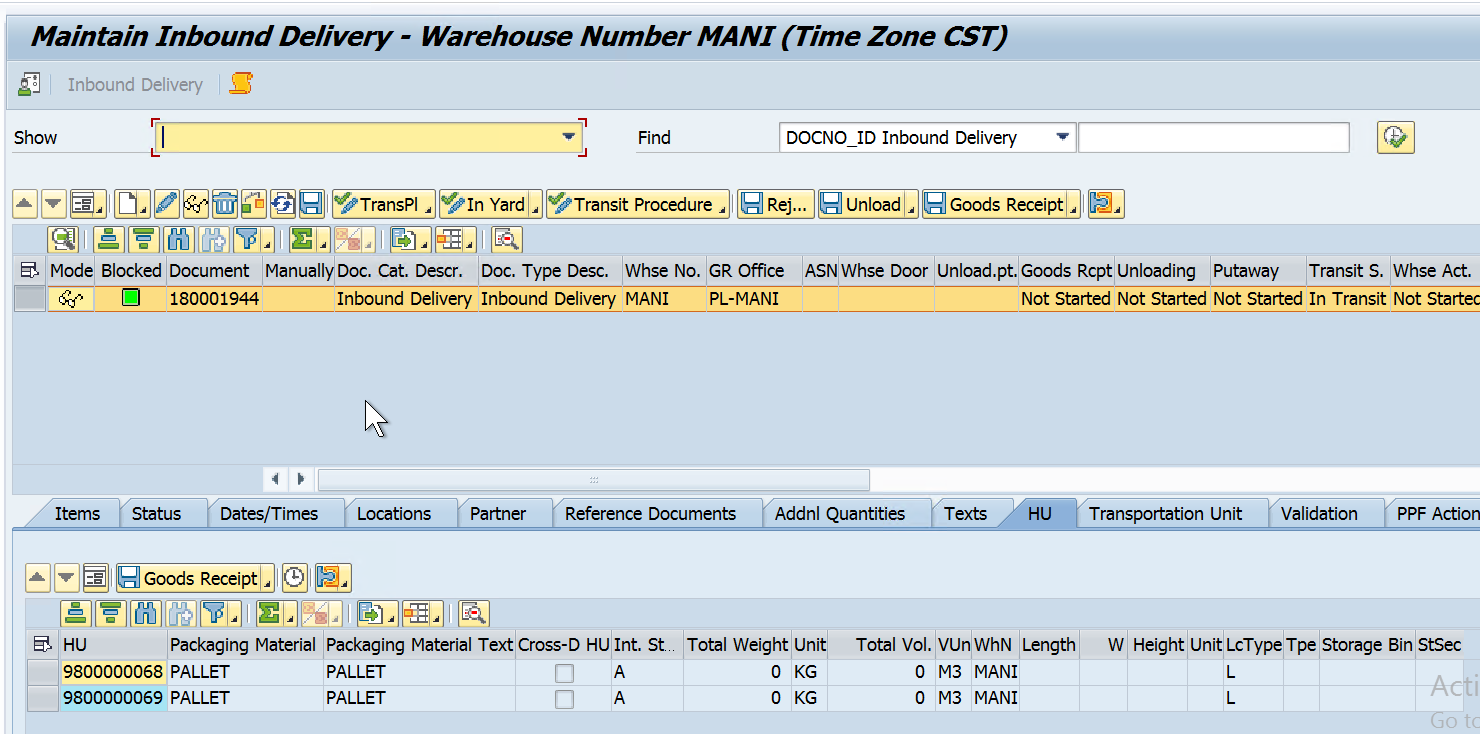
Step 15: Now we will create an Inbound delivery and check in the EWM if it is distributed and if HU was created automatically, if HU is missing please create an HU manually. Click on Goods Receipt.
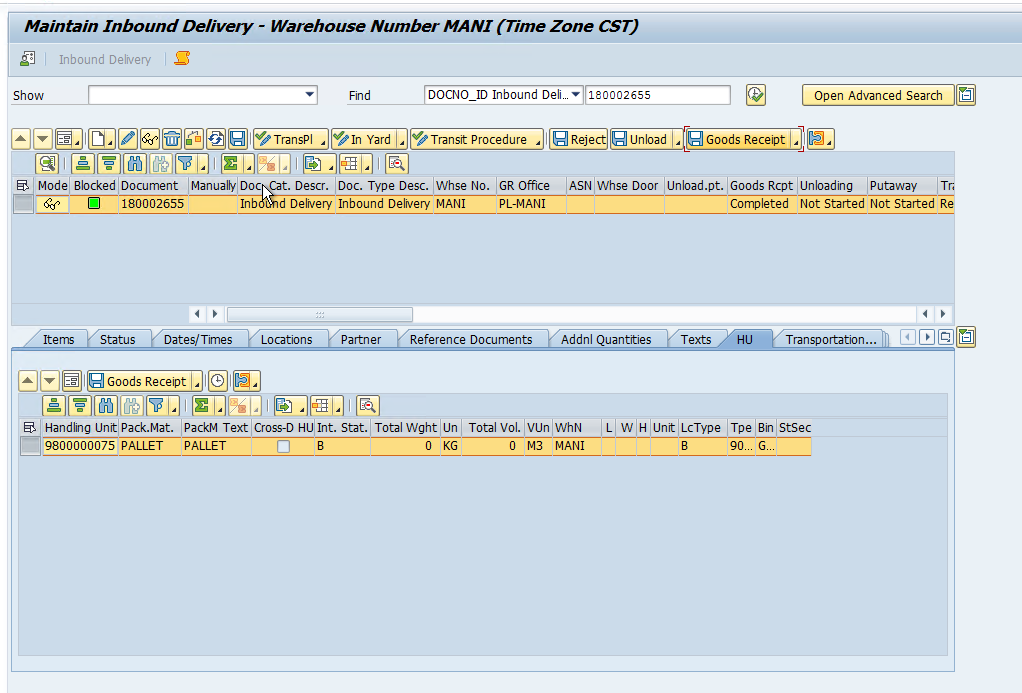
Now use the subsequent function to create WT.

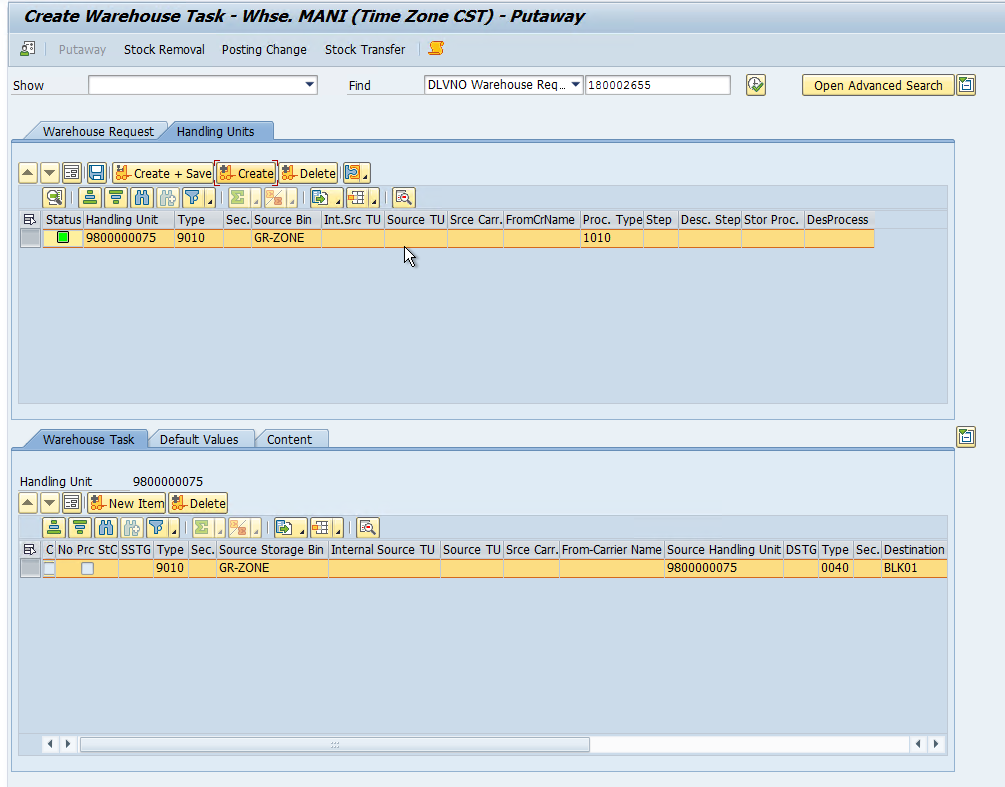
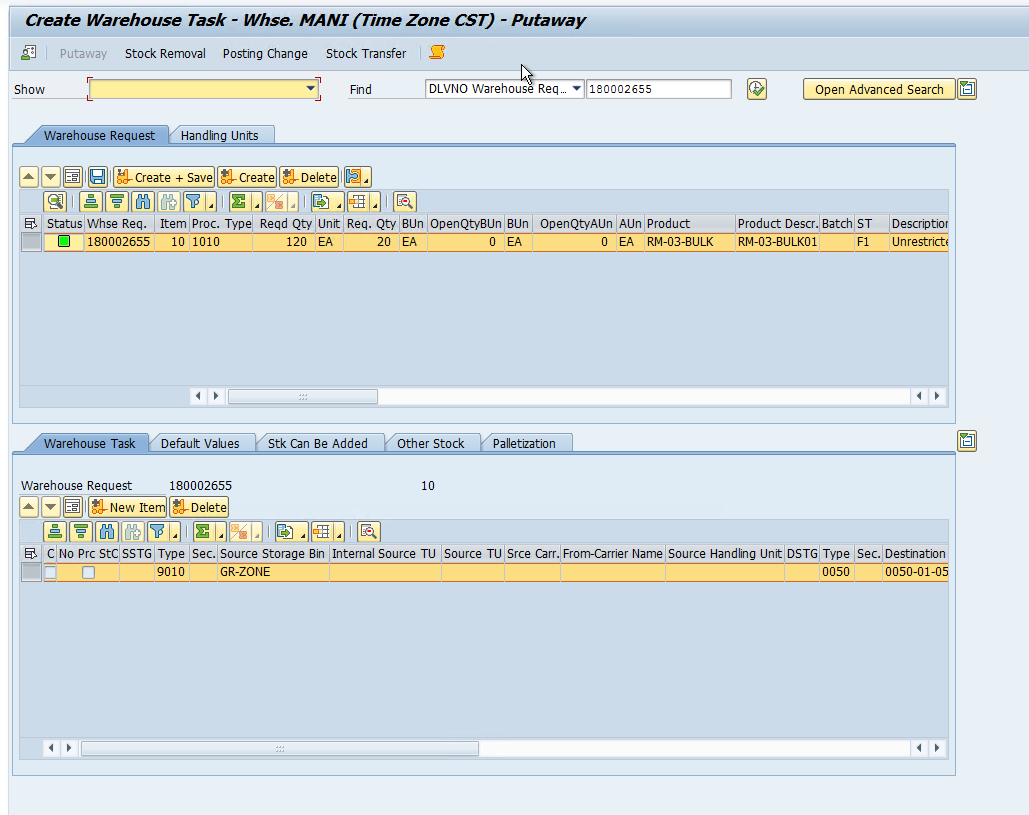
Since we created Inbound for 120 qty and HU only allows 100, we have an HU and 20 quantity as unpacked. First, we will create HU WT. Click on the Create and Save button.
The Product WT is going to be kept in 0050 strType
The WO for HU has been assigned to the queue INBOUND because of the bin access type and the other WO is a stand-alone WO for 20 qty.
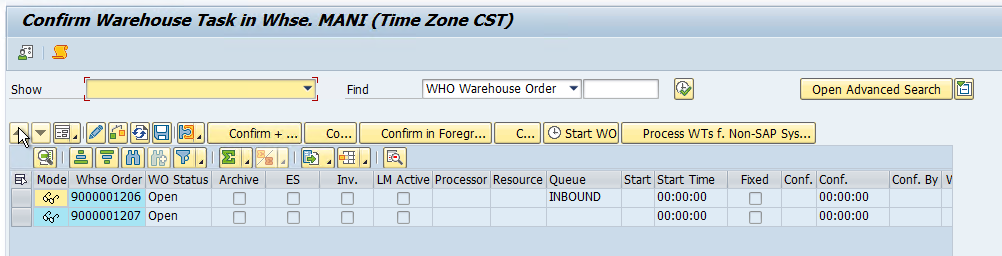
The superviser can now assign these WOs to the resource manually or recource can pick up the WO based on queue from the RF Menu.
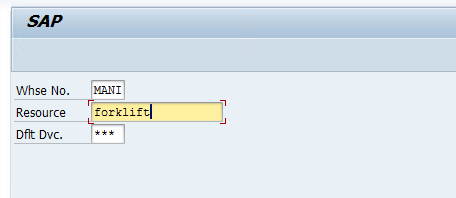
System Guided > System Guided selection
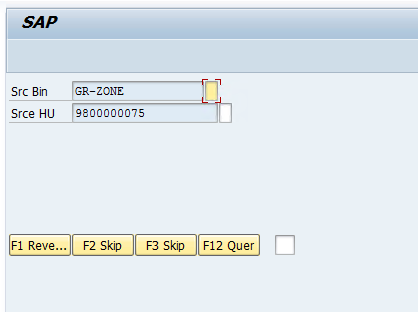
Now scan the Bin and HU and click enter
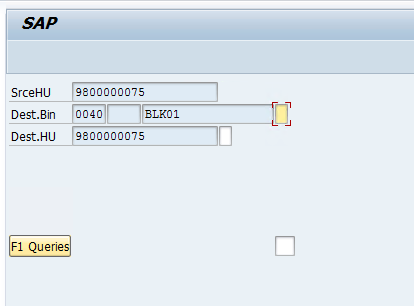
Now scan the destination bin and HU and click enter. The process will be completed. Now check the Inbound delivery and see what is the status.
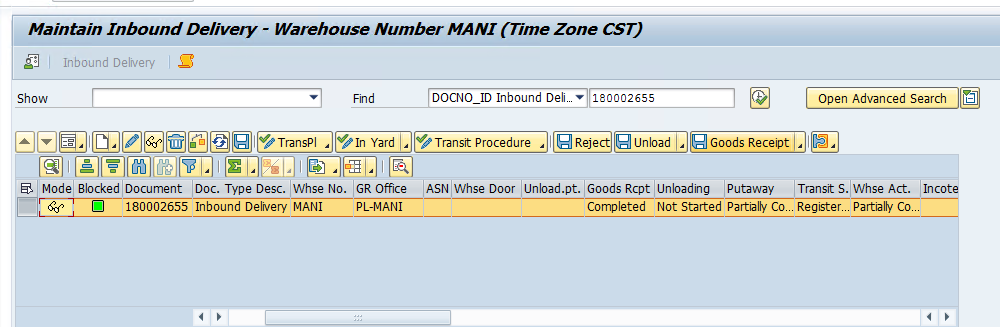
Putaway is partially completed, we also need to Putaway the 20 qty in storage type 0050.

We can do that using Warehouse monitor or tcode /SCWM/TO_CONF or using RF Menu. Click on the confirm plus save button.
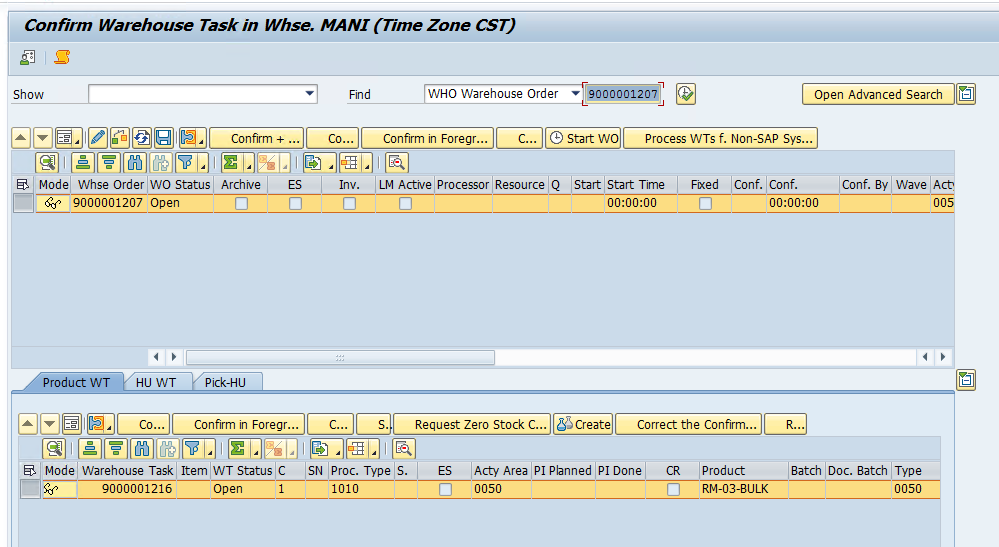

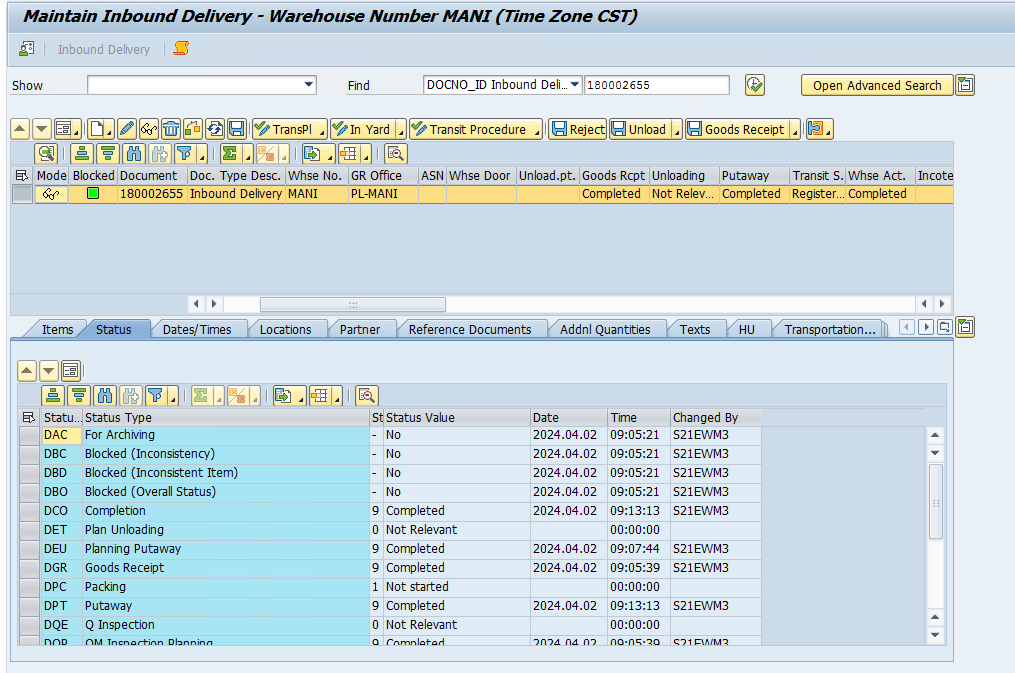
Check the Inbound delivery now.
βœ‡SAP EWM Blog by Manish Gupta

SAP EWM CF 135: Setting Up Cycle Counting Process for Physical Inventory in an EWM Managed SAP Warehouse

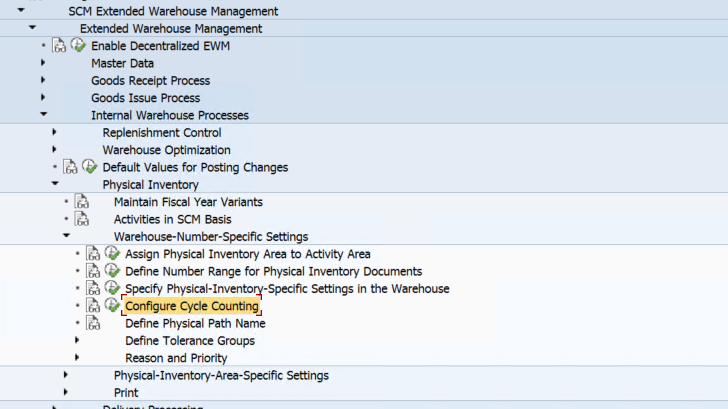
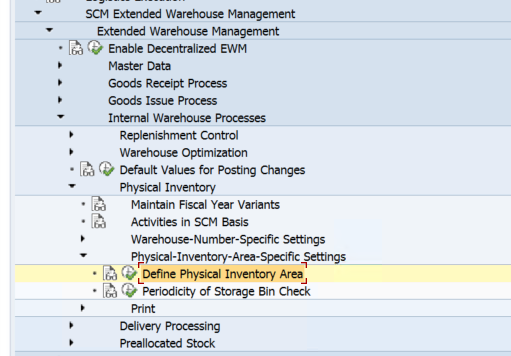
Β Step 1: Use the below IMG path and set up cycle count indicators for your warehouse.

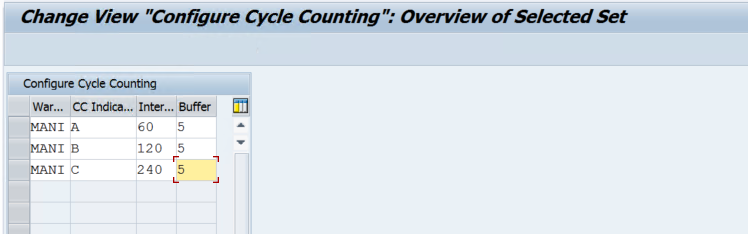
We have maintained the below parameters

Here 3 indicators are maintained with intervals in days after which cycle counting needs to be carried out for Products with these indicators.

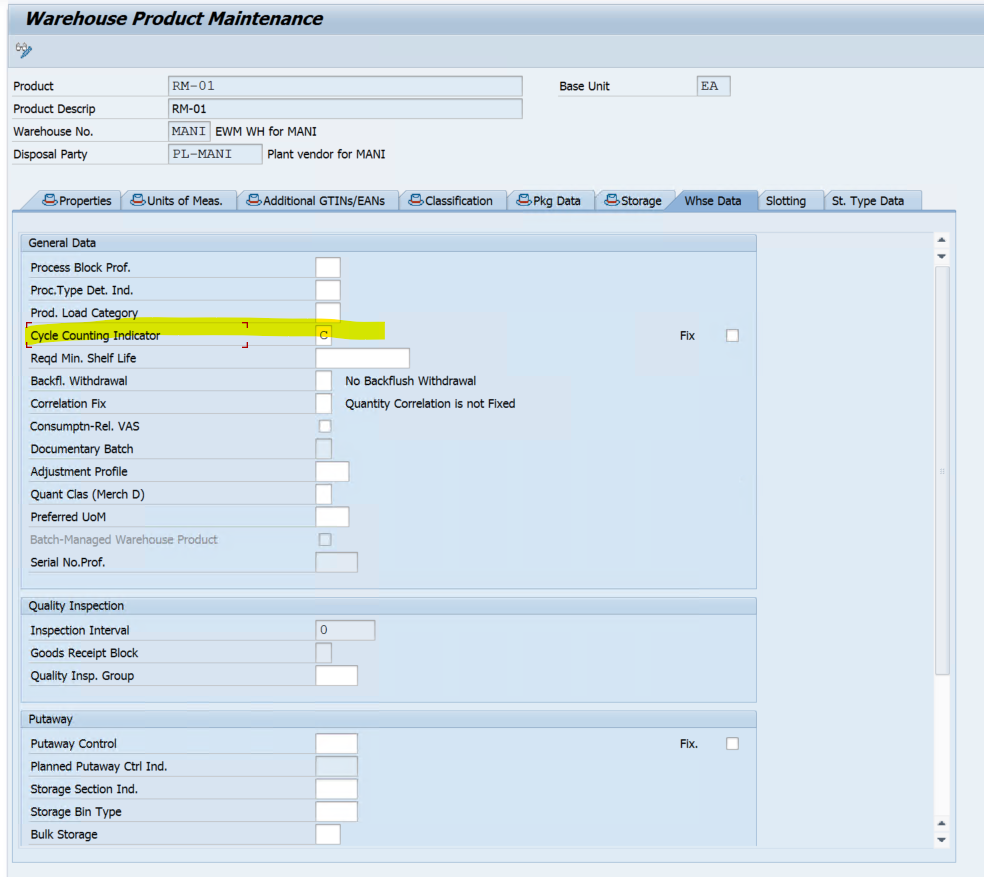
Step 2: We need to maintain this indicator in the product master so that cycle count can be carried out.

The CC indicators can also be assigned with the help of /SCWM/ABC TCode.

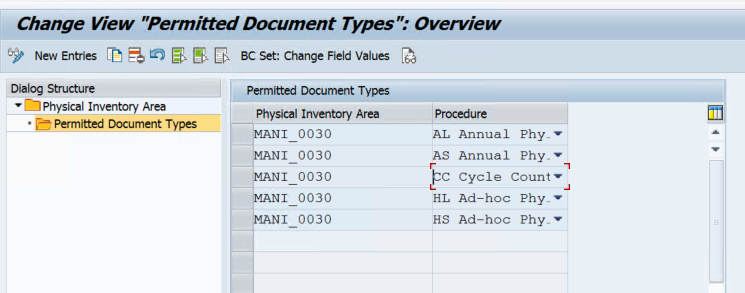
Step 3: Make sure the cycle counting PI process is assigned to your Physical inventory area.

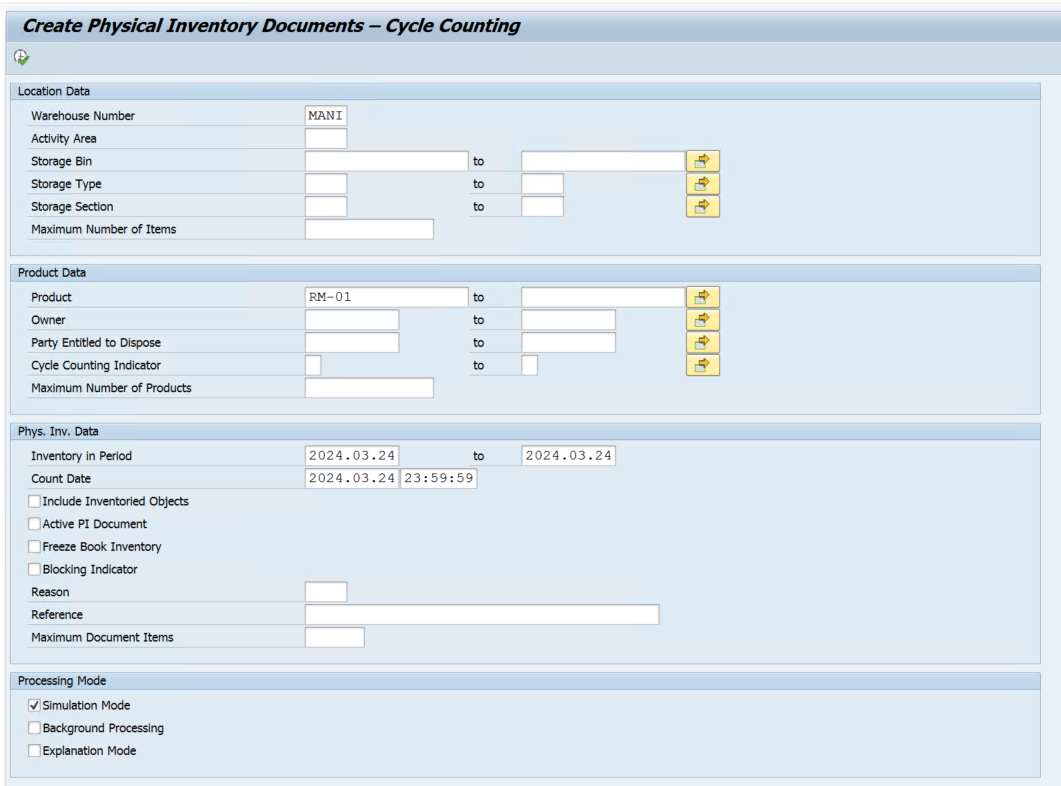
Step 4: User Transaction /SCWM/PI_CC_CREATE to create CC PI doc.

Remove the simulation mode.

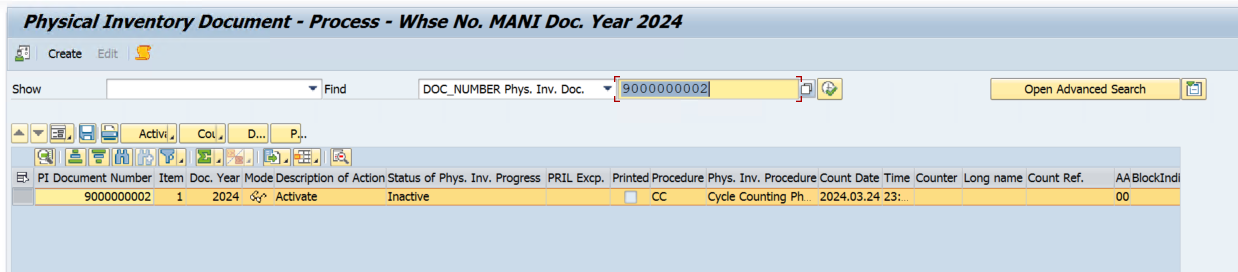
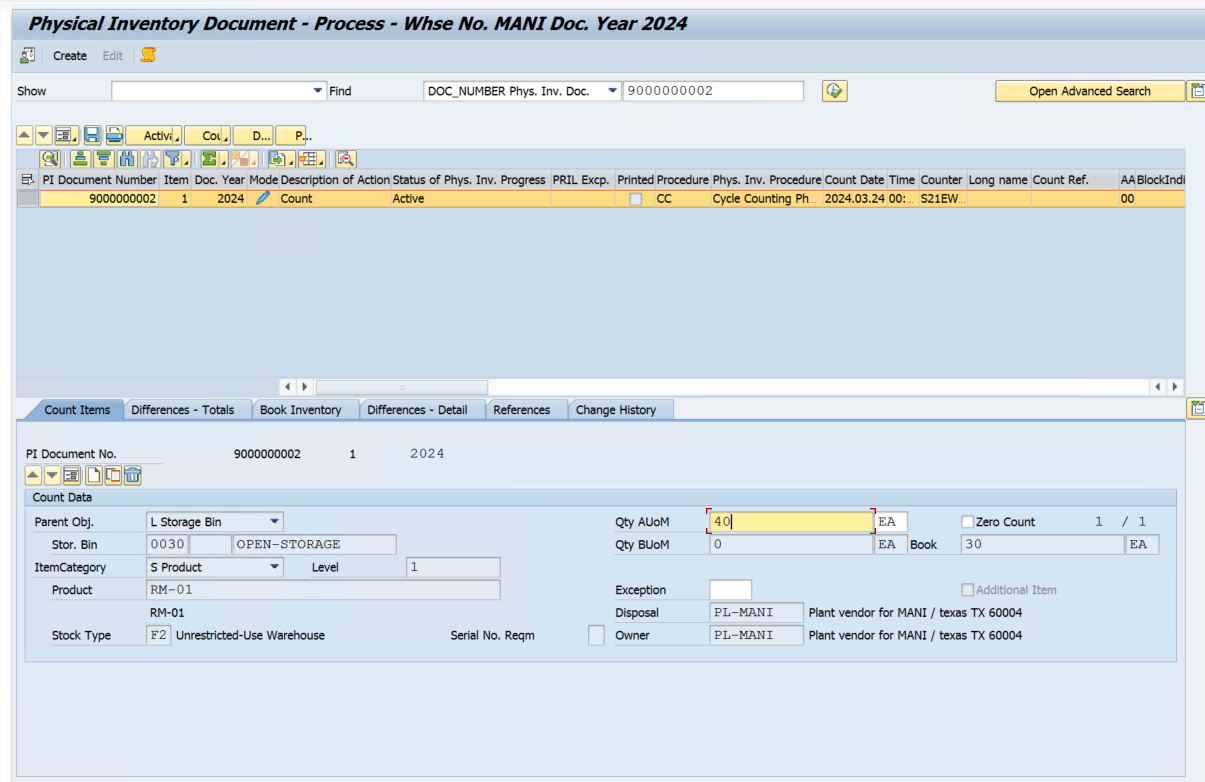
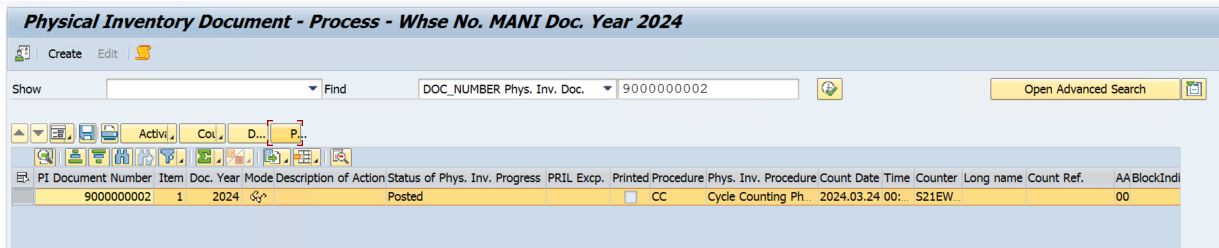
Step 5: Now we can activate, count, and post the PI doc with transaction /SCWM/PI_PROCESS

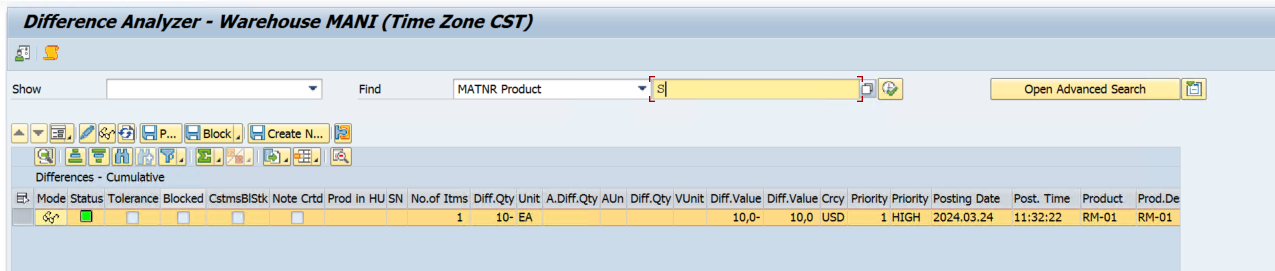
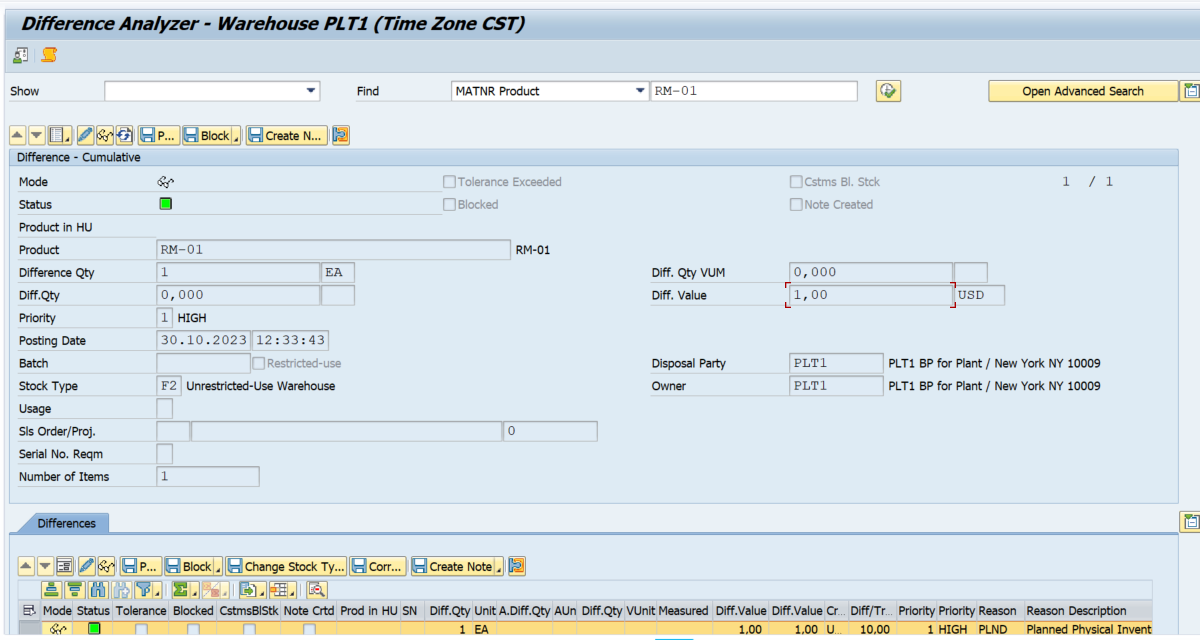
Step 6: Now we can clear the difference using /SCWM/DIFF_ANALYZER

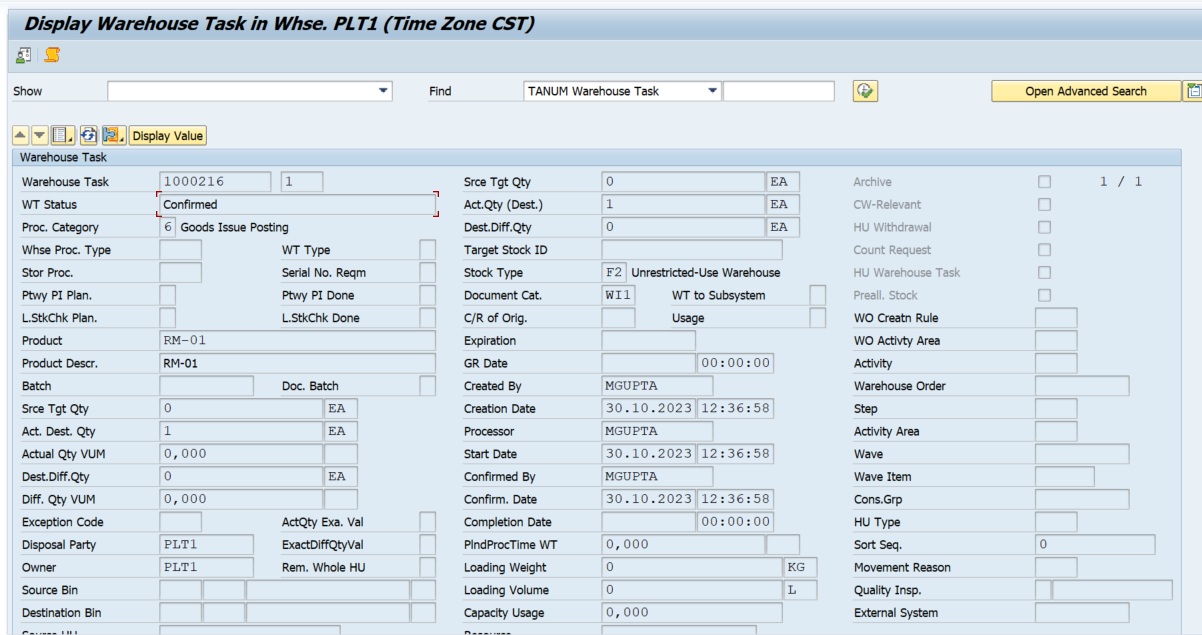
Once we click on the post and save, WT will be created and GR/GI for the product will be executed based on the difference in the count document.

βœ‡SAP EWM Blog by Manish Gupta

EWM CF134: Integrating EWM Staging Process for Production Planning | SAP EWM-PP Advanced Integration

Β Step 1: Create Material Master β€” 2 raw materials and 1 Finished Good

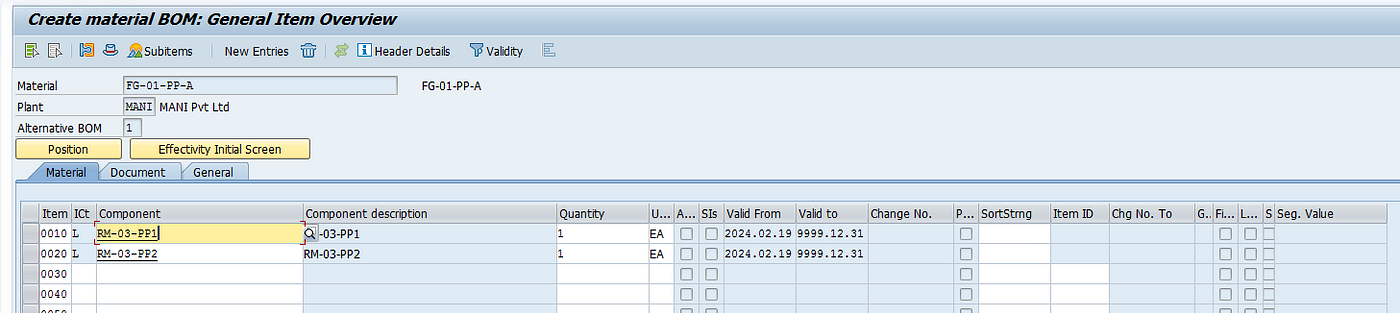
Step 2: Create BOM β€” CS01

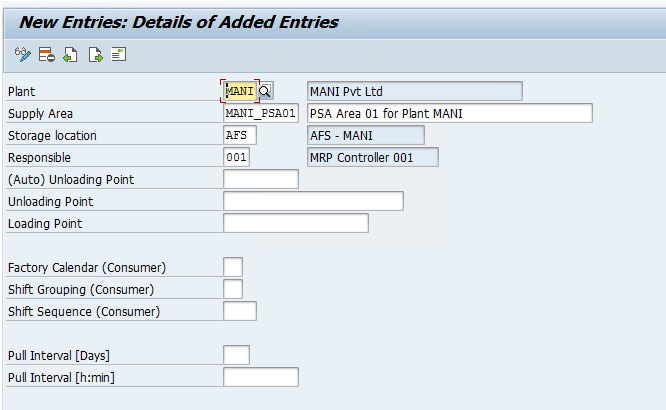
Step 3: Create PSA in S4 β€” PK05

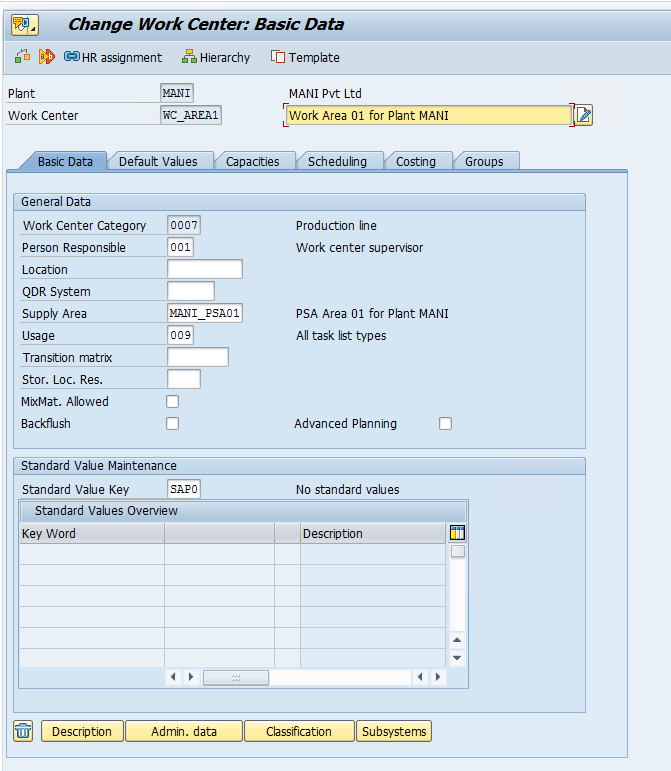
Step 4: Create Work center β€” CR01

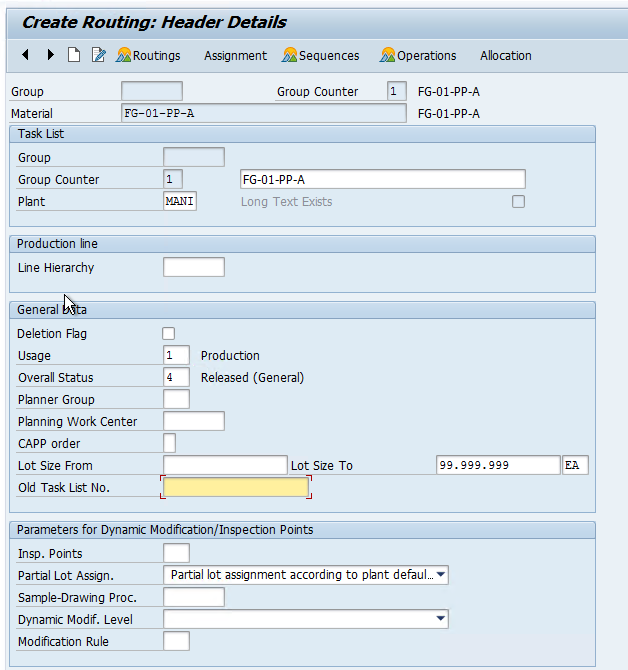
Step 5: Create Routing for FG β€” CA01

Once BOM and Routing are created, maintain the production version for the finished good in the material master data.

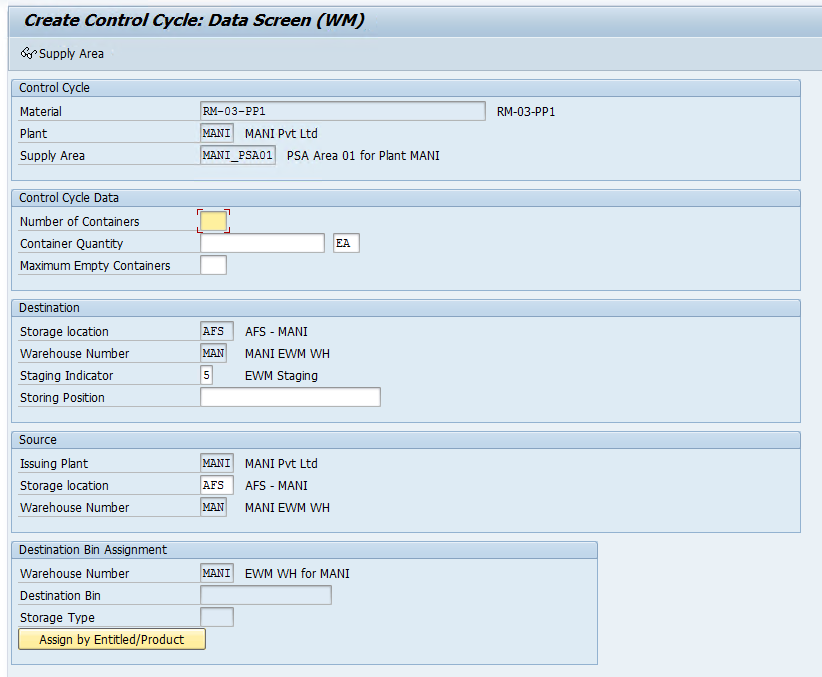
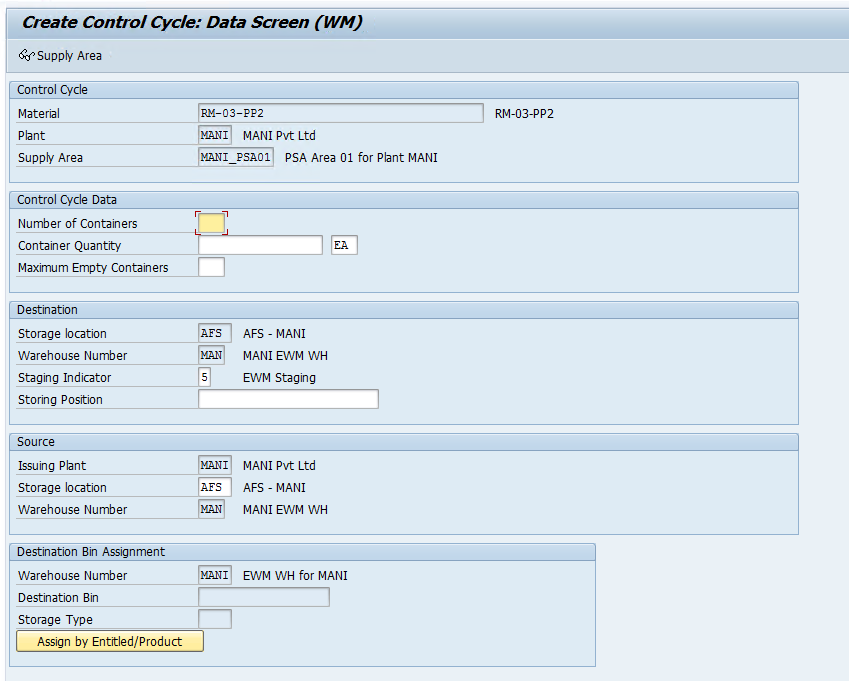
Step 6: Create Control Cycles for Components in S4 β€” LPk1

The staging indicator needs to be 5 which stands for EWM Staging and the Staging type will be selected in the EWM system.

This is all we need to do from the S4/ERP side and now we will cover the configuration and master data needed in the EWM system to carry out the Staging for Production.

Step 7: Activate below BC Sets below by using SCPR20 Tcode first

/SCWM/PMR*

Step 8: Now we need to set up the PSA Area in EWM.

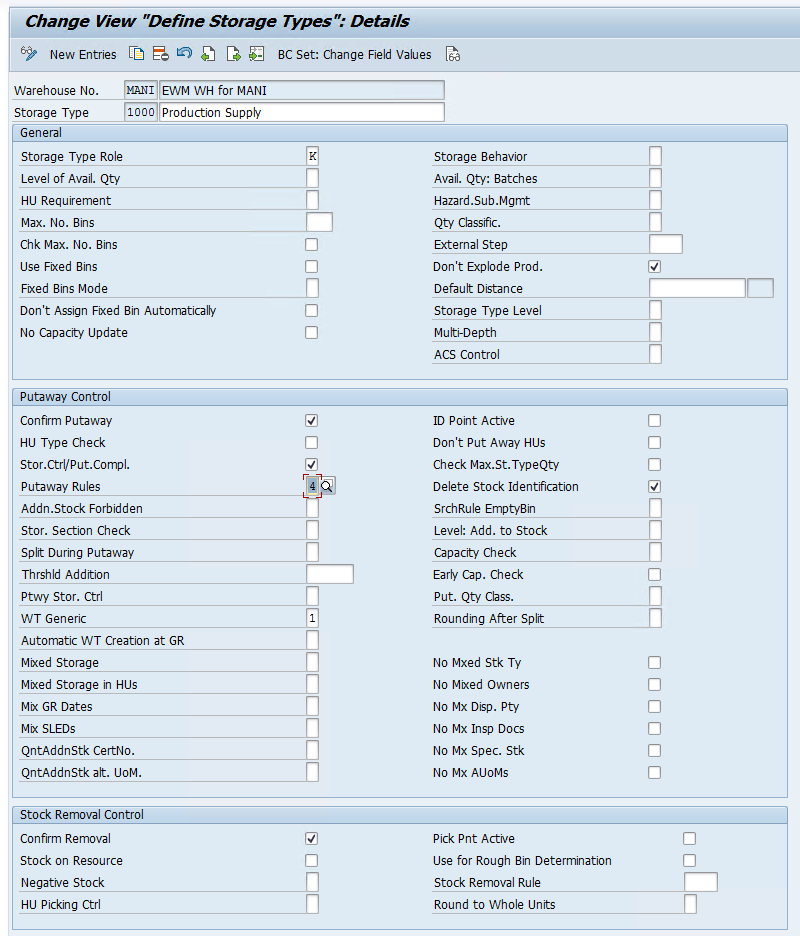
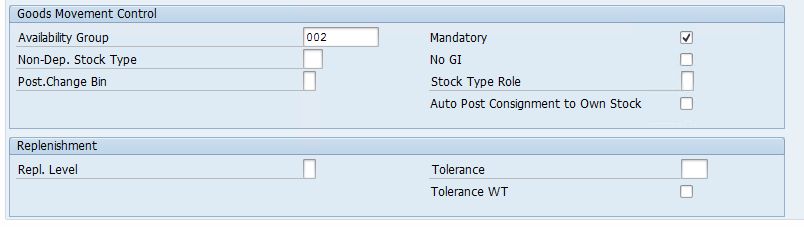
First, we will create a Storage Type (1000) which will used as a PSA Area. Here StrType Role K stands for Production Supply.

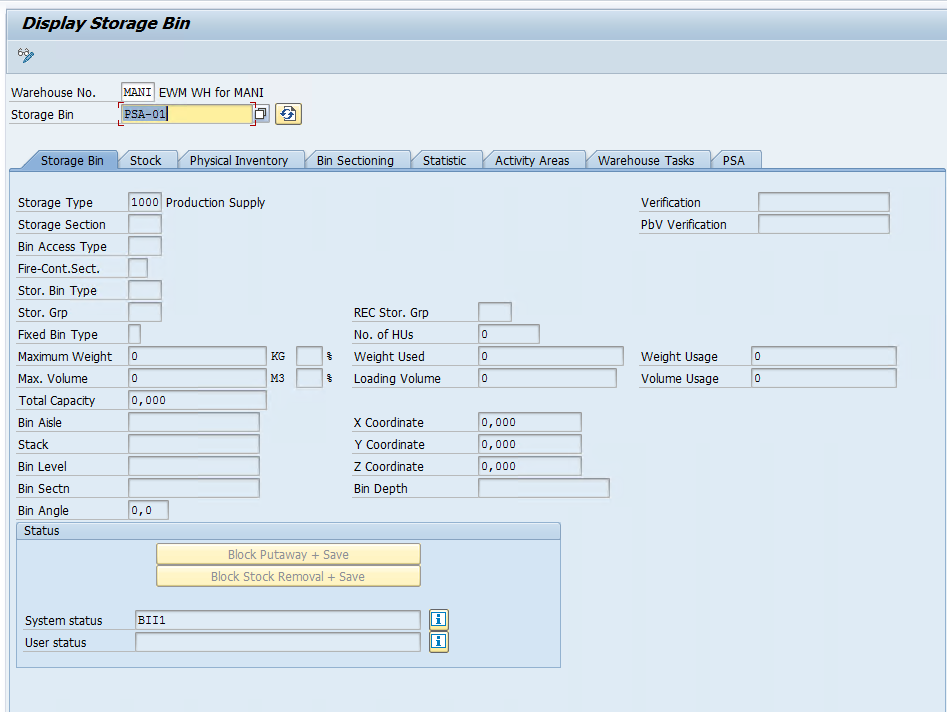
Now we need to create a Bin which will act as a physical area for Production Supply and all the components will be stagged in this bin.

Tcode: /SCWM/LS01

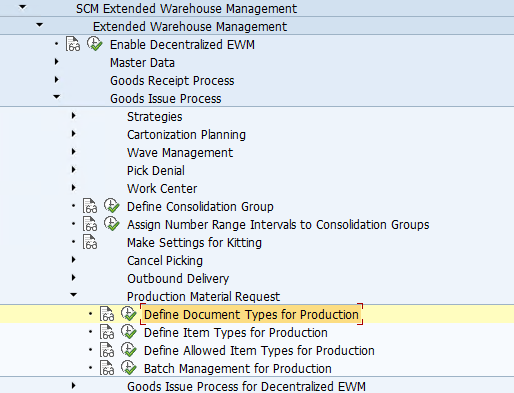
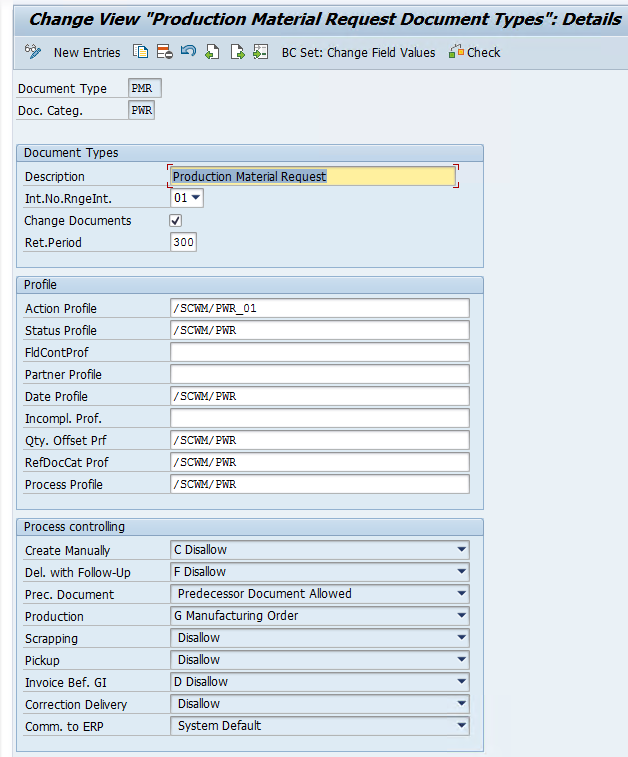
Step 9: Now we need to define the Document type for PMR which will get created in the EWM system once we trigger WM stagging from our production order.

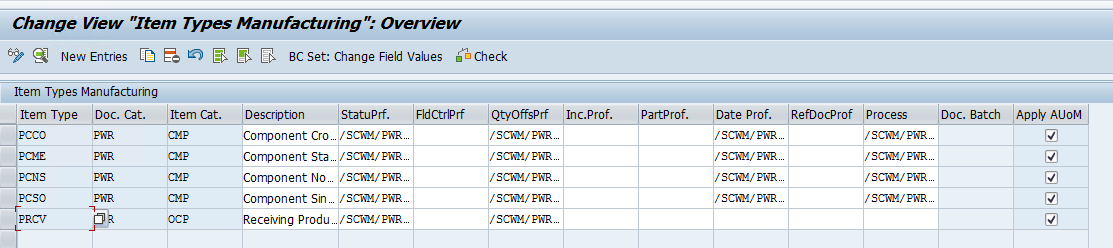
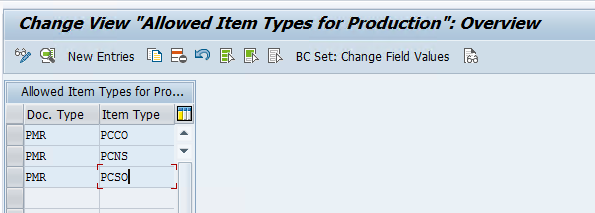
If we have activated the BC sets correctly, Doc type PMR and Doc Category PWR will be already available along with item types and allowed item types for production.

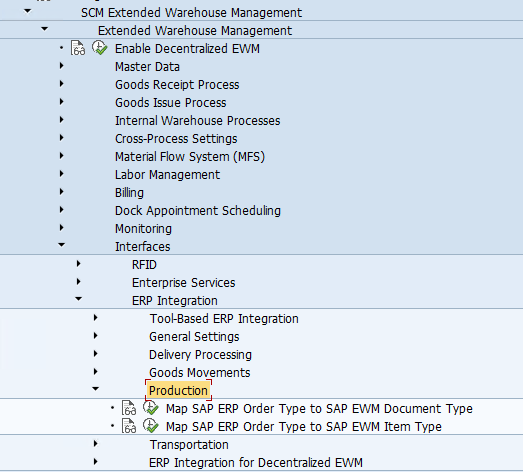
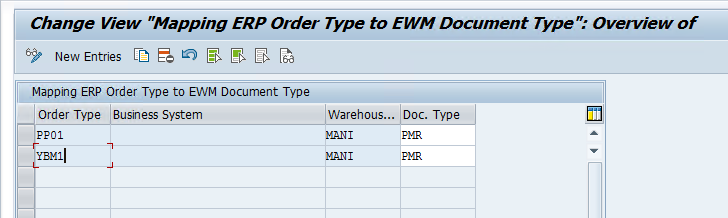
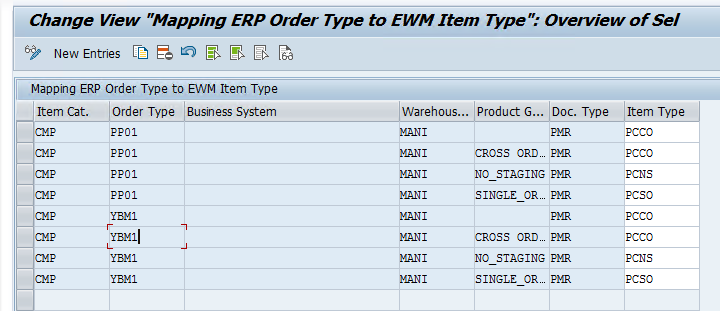
Step 10: Now we will map the ERP doc type with the EWM doc type to create PMR in the EWM system.

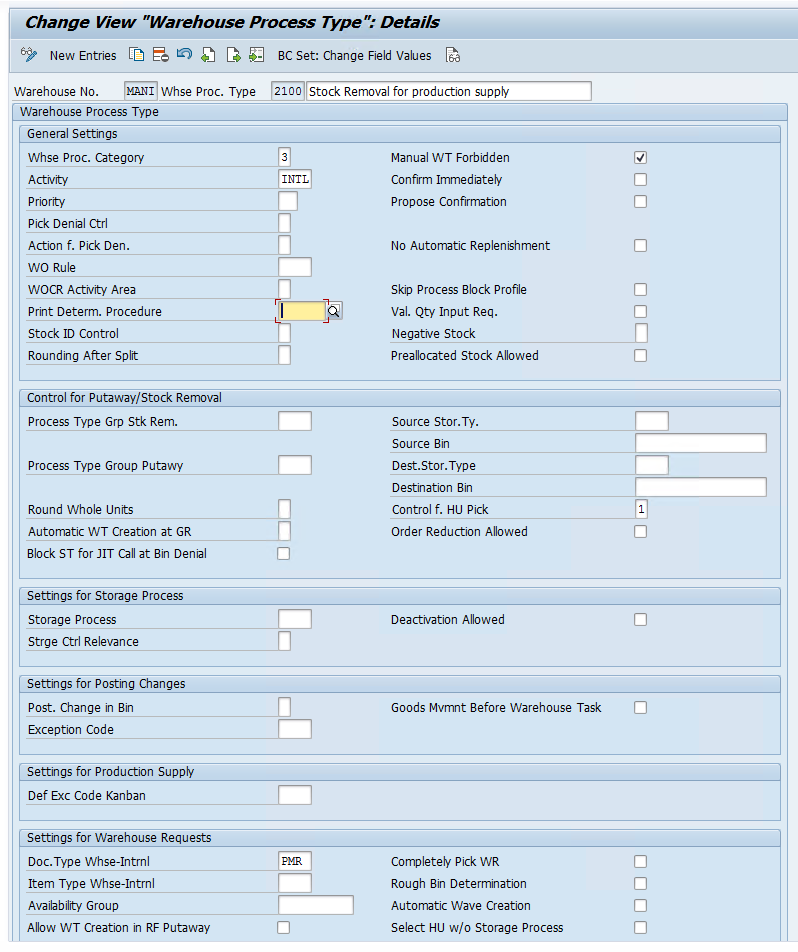
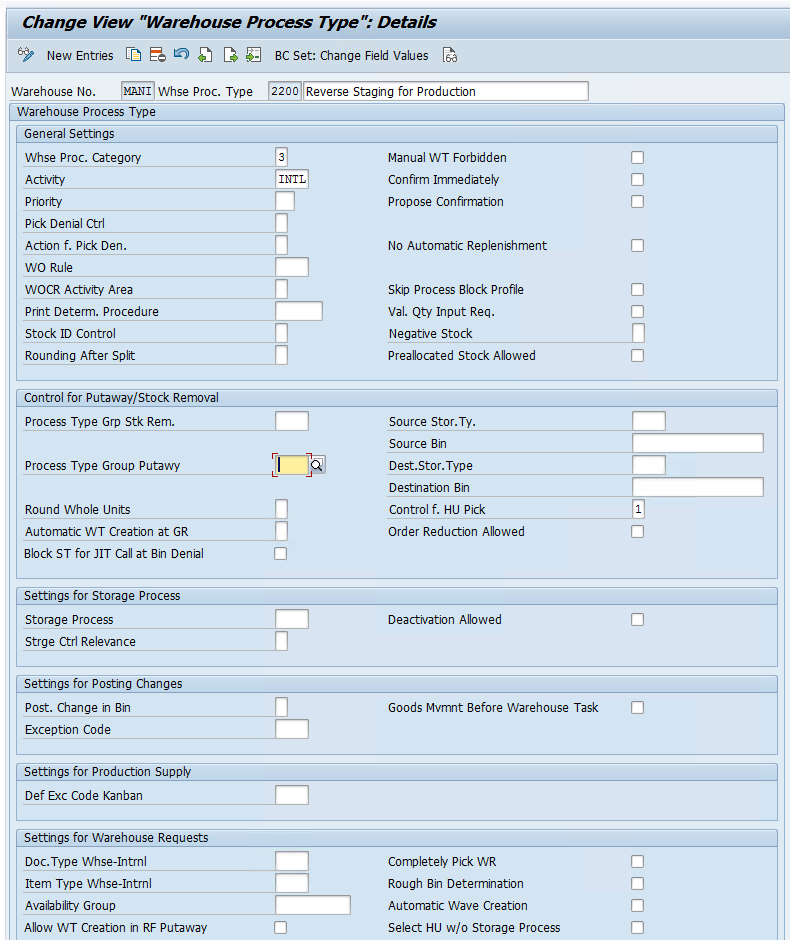
Step 11: Now we need to create a WPT to Stage the components and a WPT to Clear the PSA Bin in case stock is still left once the Production cycle is over.

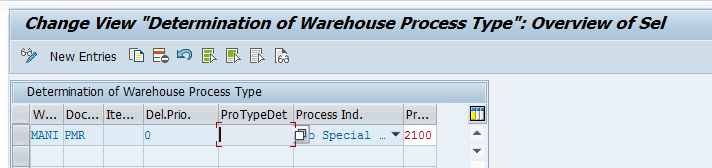
Step 12: Now we will set up WPT determination and Stock removal strategy for our product.

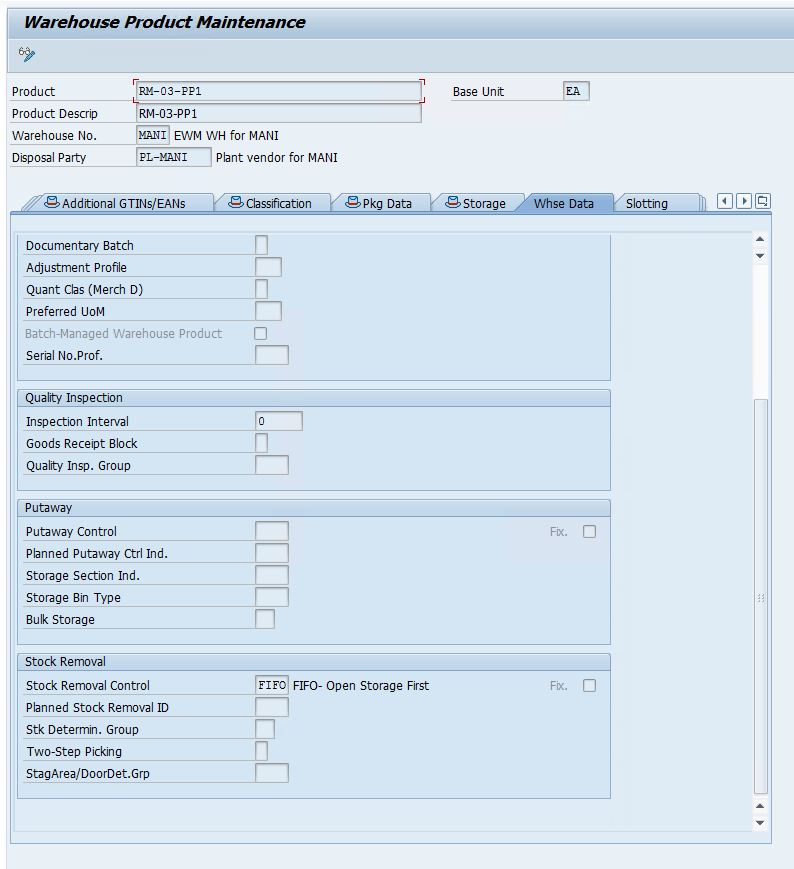
we already created picking strategy, we will just add the indicator in product master for our components.

Step 13: Create PSA in EWM β€” /n/scwm/psa_replicate

We can also create and assign the PSA bins in EWM with TCode /n/scwm/psamap

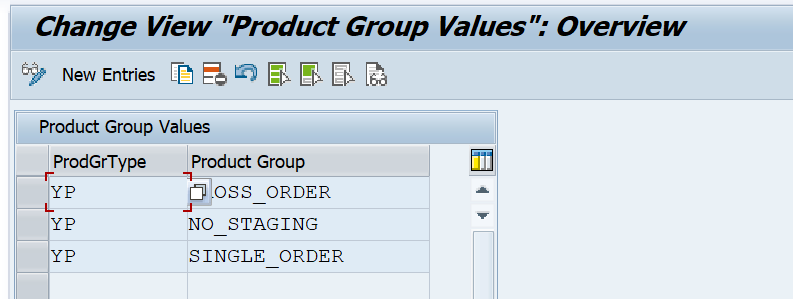
Step 14: Define product group and product group type

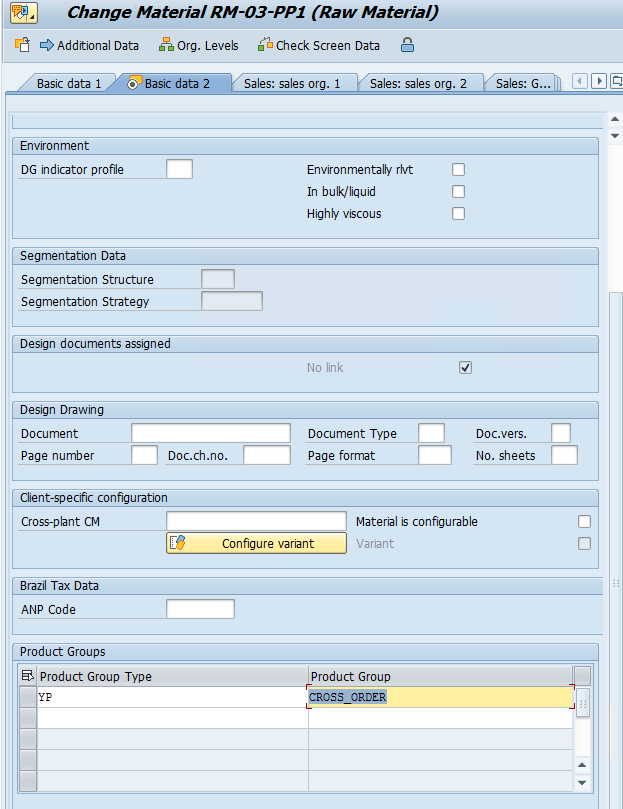
Step 15: Maintain Product group in material master in Basic data 2 View, we are only going to use the CrossOrder Staging method in this blog.

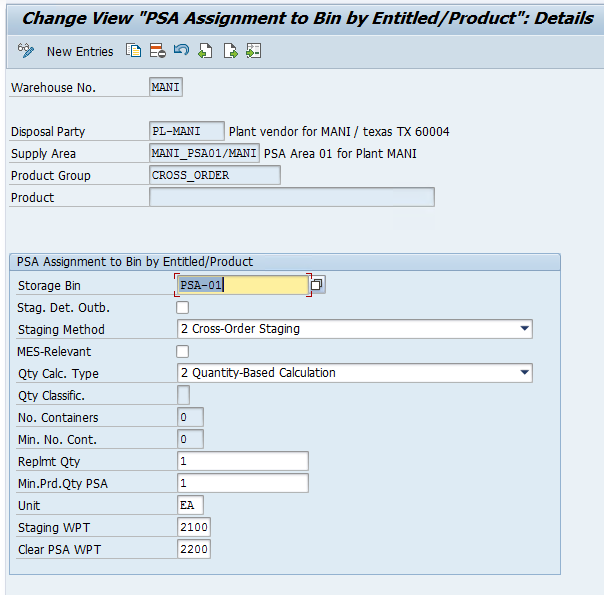
Step 16: Assign Bin to PSA/Product/Party entitled in EWM β€” /SCWM/PSASTAGE

We have maintained this for our product group, this can also be done for the each component individually.

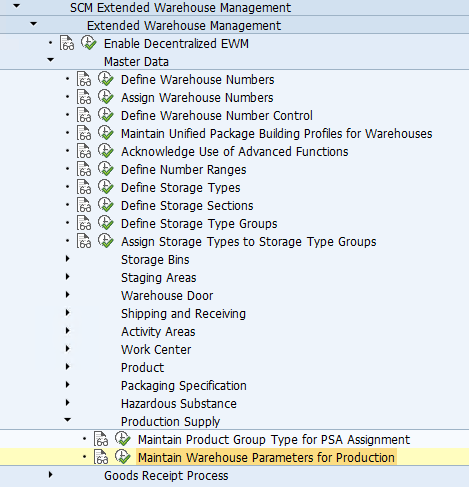
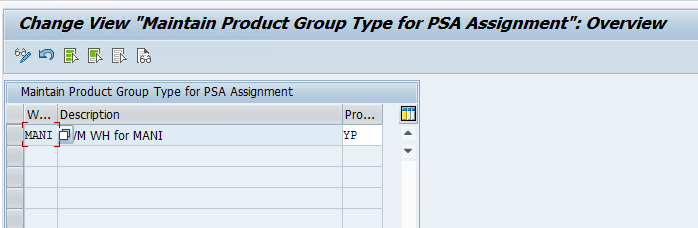
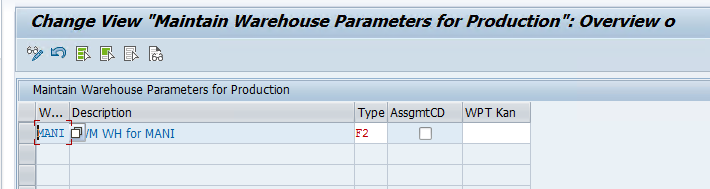
Step 17: MaintainProduct Group Type and Warehouse Parameters for Production

Now we will create a production Order in the S4 system and try to generate a PMR doc in the EWM system.

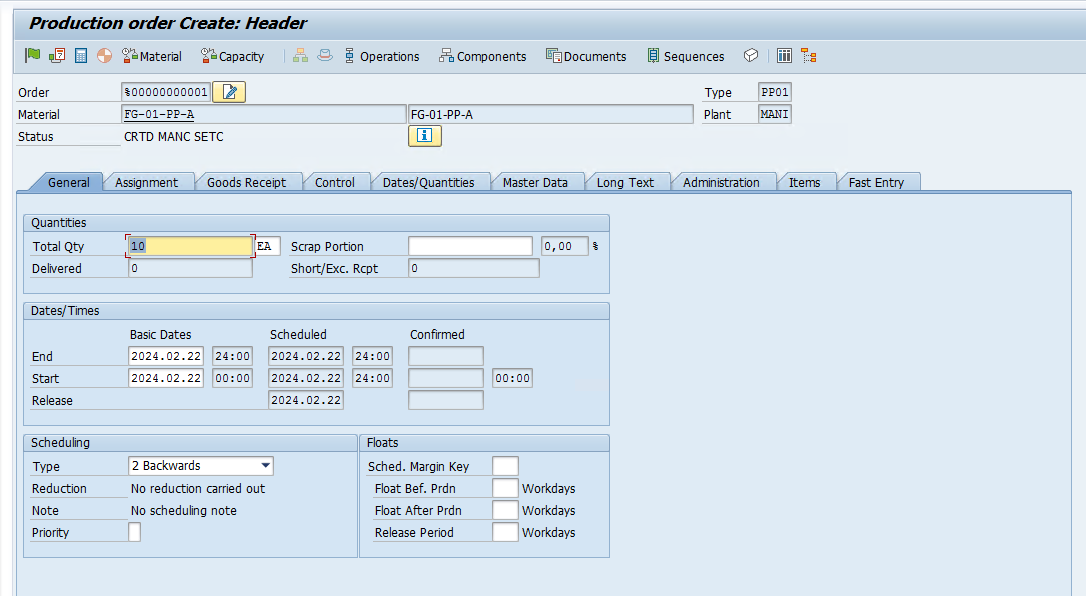
CO01

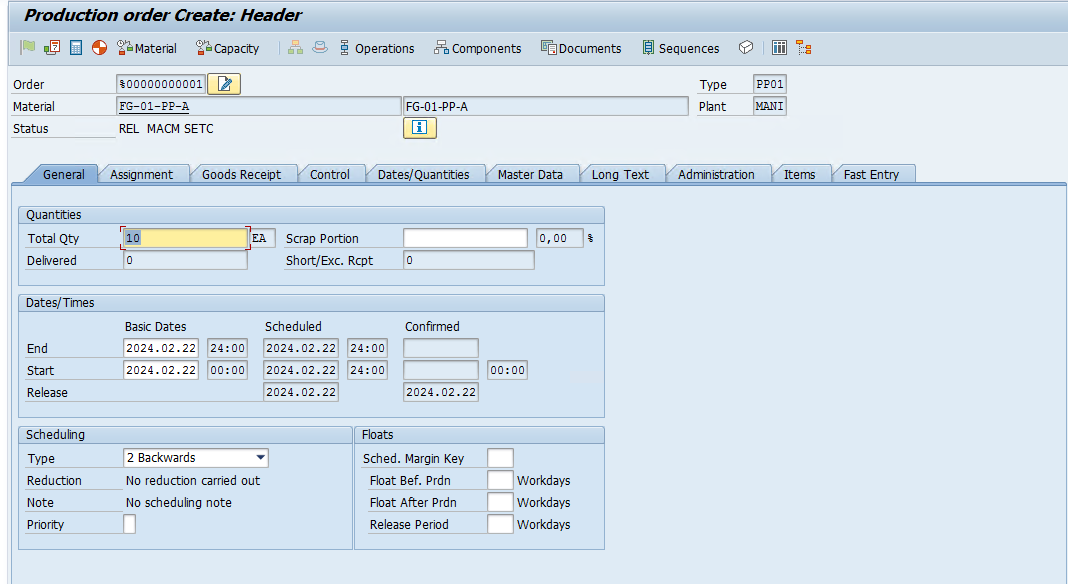
Release the ProdOrder : CO02

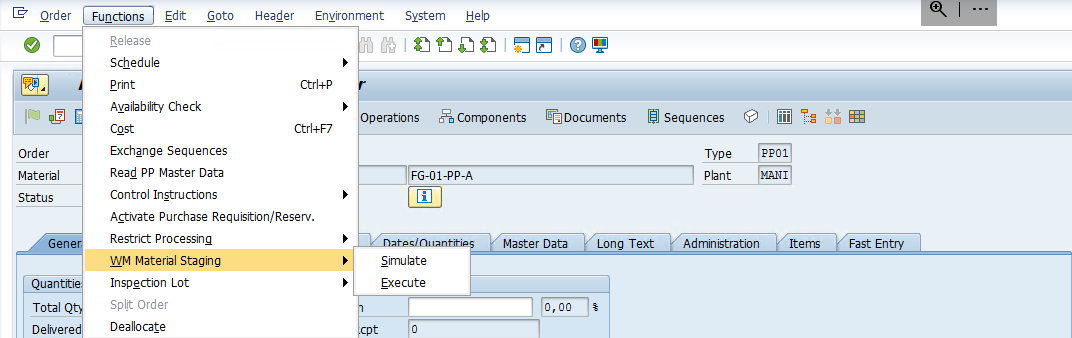
Carry out WM staging from change mode by clicking on execute button.

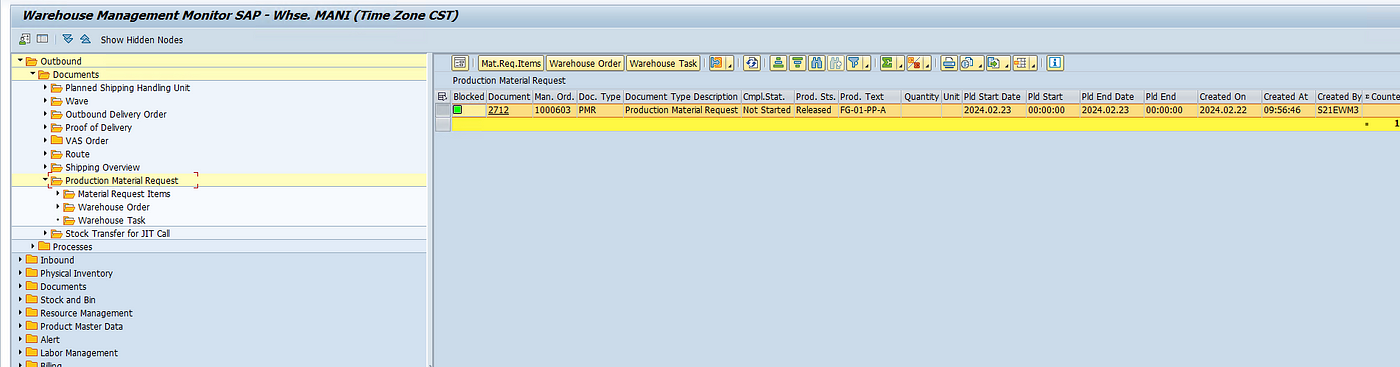
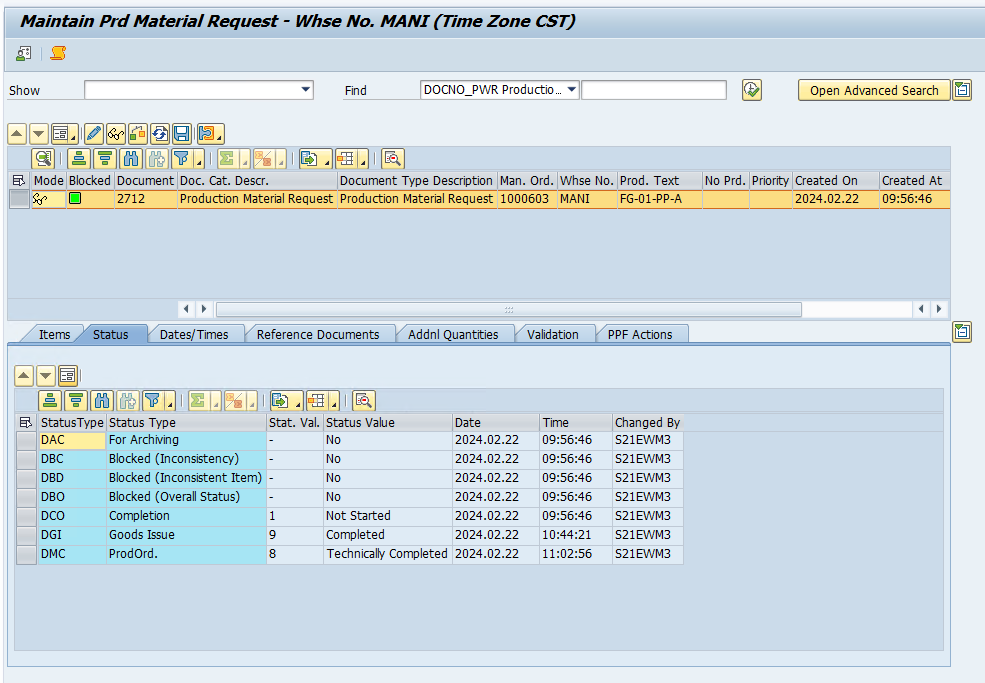
Save the ProdOrder and check Warehouse monitor for PMR

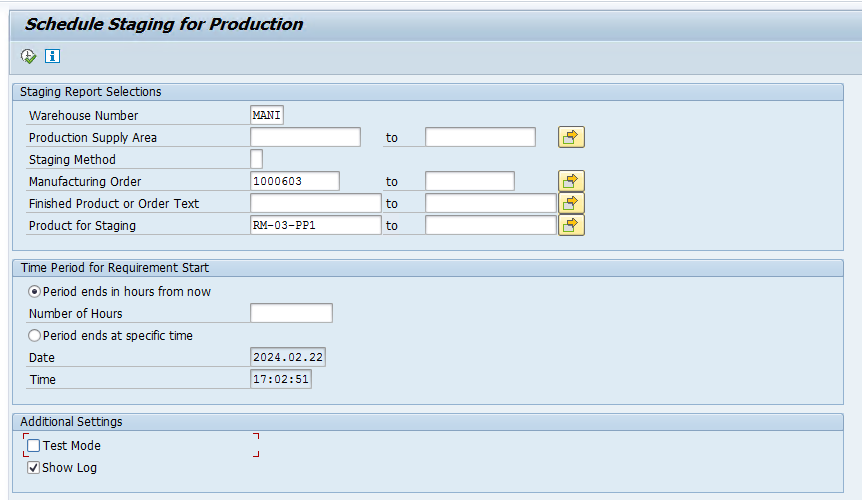
Now we can start with the staging process by using tcode /SCWM/STAGE

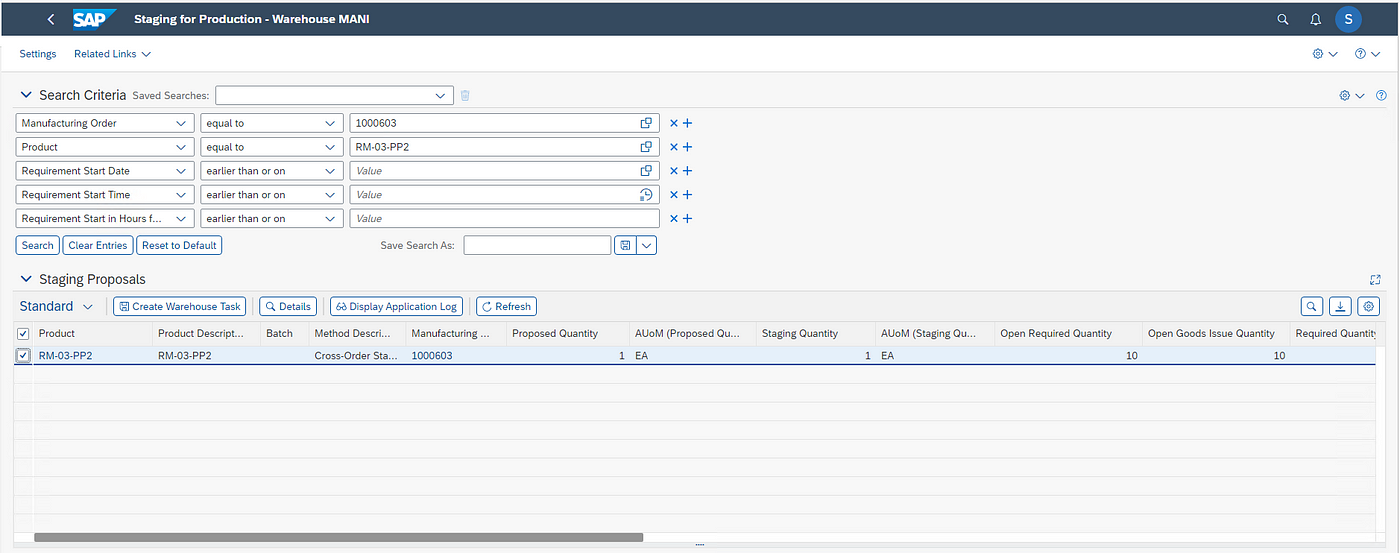
We can also use the below Fiori app and click on create Warehouse Task

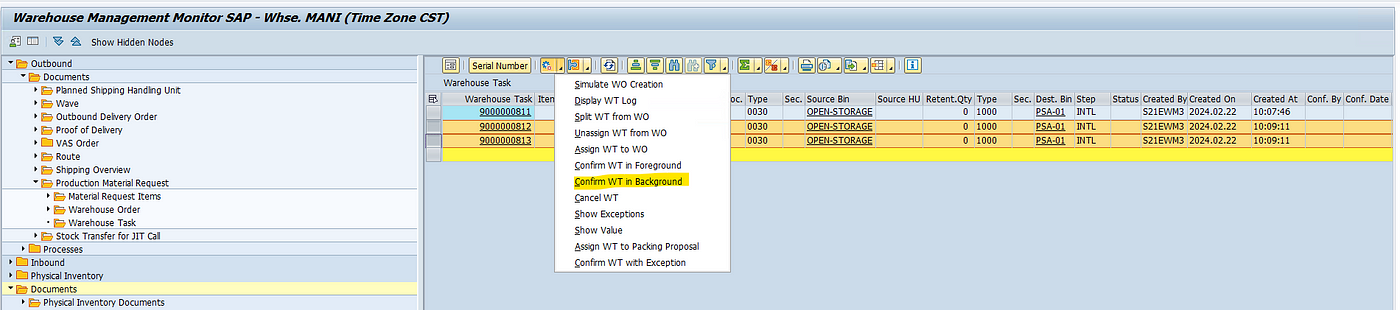
Now once this is done we will have the WTs created which we can check in the warehouse monitor, we will confirm the WTs to move the stock to the PSA Area.

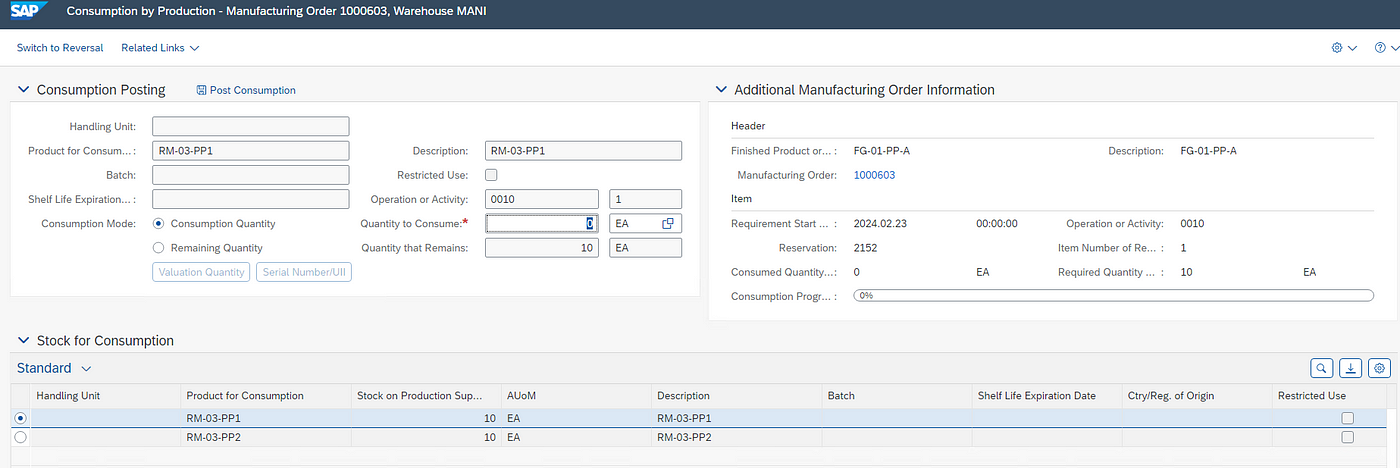
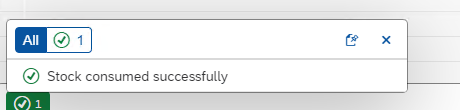
Once this is done, we need to consume the components. We can use below Fiori app or RF Menu

this will create a WT for GI. You can see this in the below Screenshot. First, the material was stagged and then material was consumed.

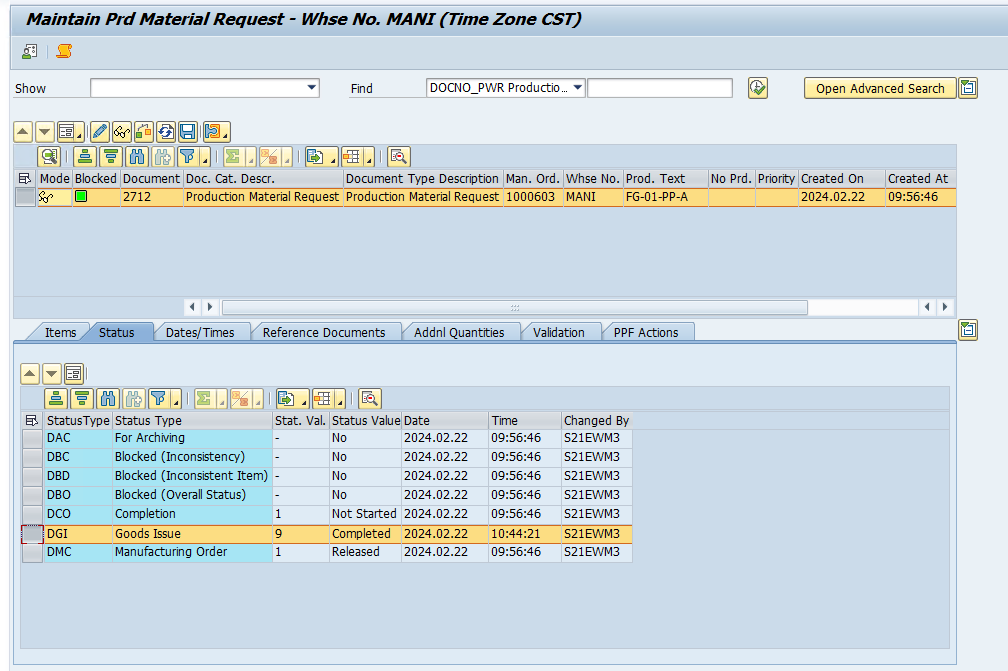
We can see in the PMR, GI is completed, and subsequently material docs with 261 mvmt type are posted in the S4 system.

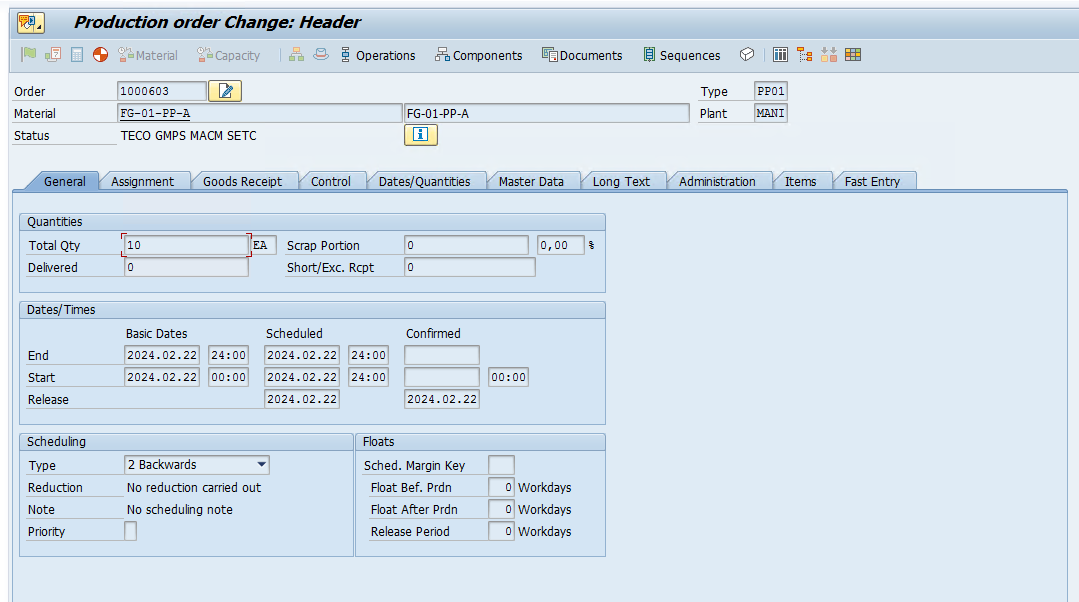
If we TECO the ProdOrder.

Prod Order status will change in PMR

After posting GR for the Finished goods and final settlement. The Production order will be completed.

βœ‡SAP EWM Blog by Manish Gupta

EWM CF133: Configuring Auto Packaging (Pick-HU) with WOCR during Outbound Process for EWM Managed Warehouse inΒ SAP

In this blog, we are only going to cover configuration related to Auto Packaging and not the WOCR and Packaging Specification.

To set up the initial WOCR configuration, Please check out this BLOG.

To set up the Initial Packaging Specification configuration, Please check out this BLOG.

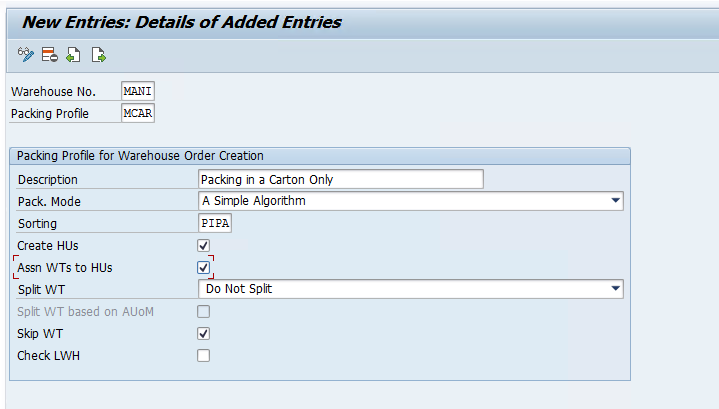
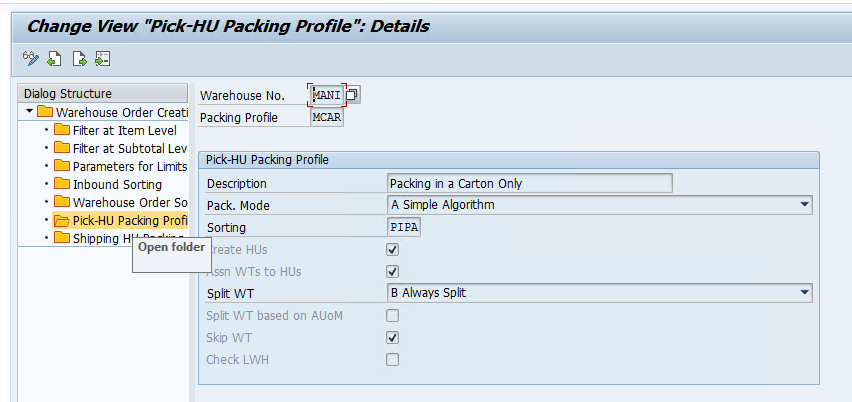
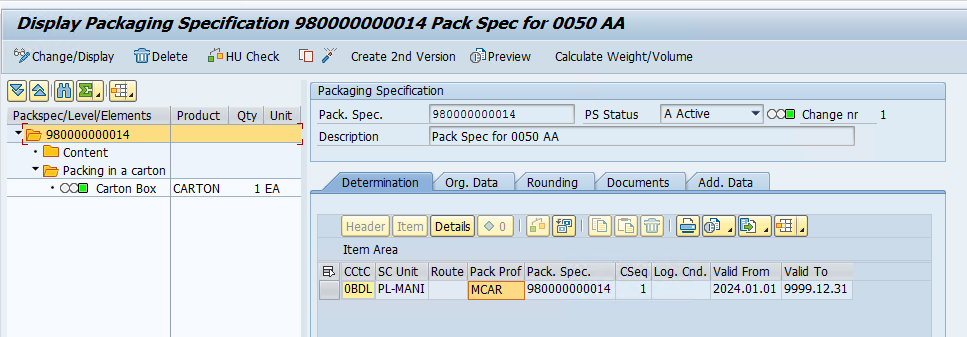
Step 1: Define the Packing Profile for WOCR

We have created a Packing Profile MCAR which stands for packing of Products in Cartons. This Packing Profile will be used in the Packaging Specification for the Product.

\

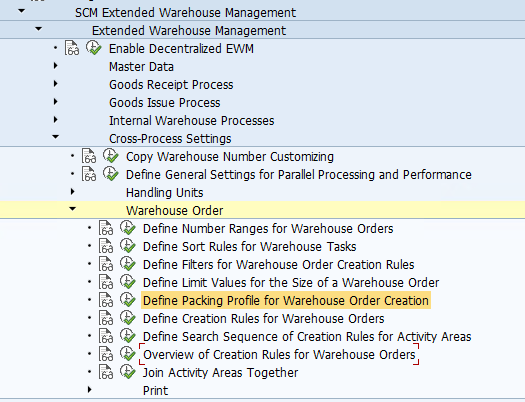
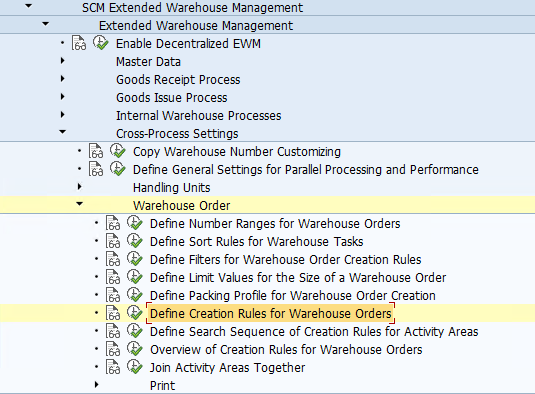
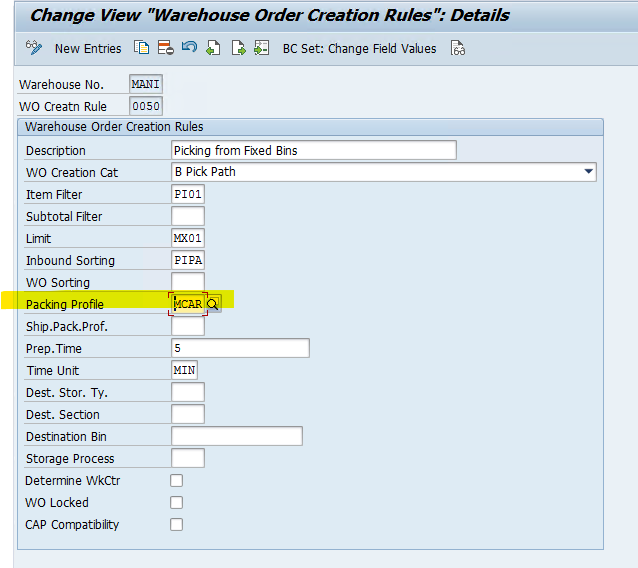
Step 2: Maintain the Packing Profile in the Creation Rule for Warehouse Orders.

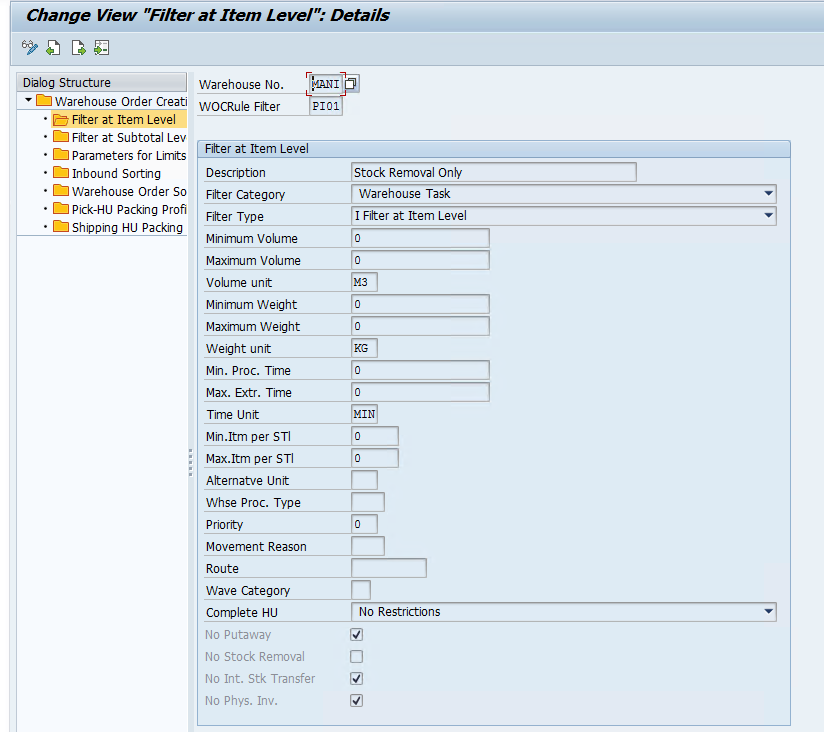
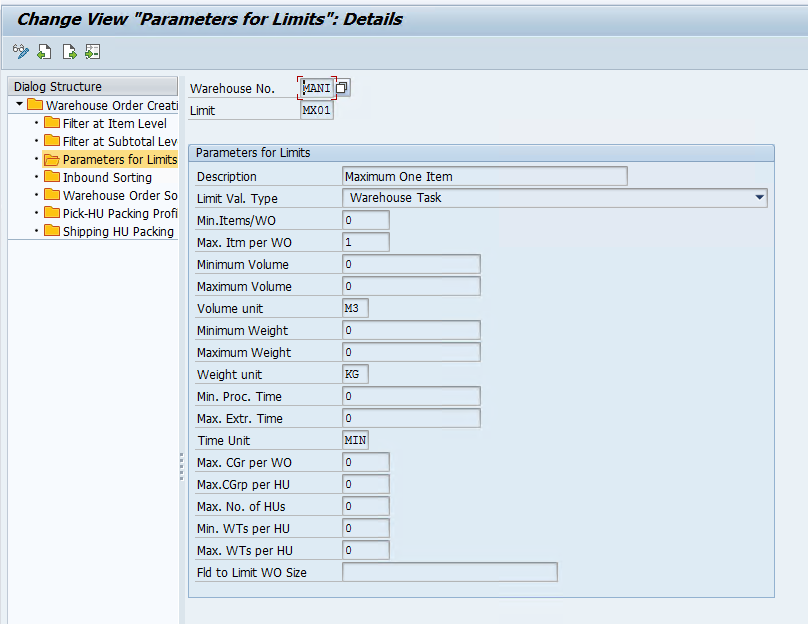
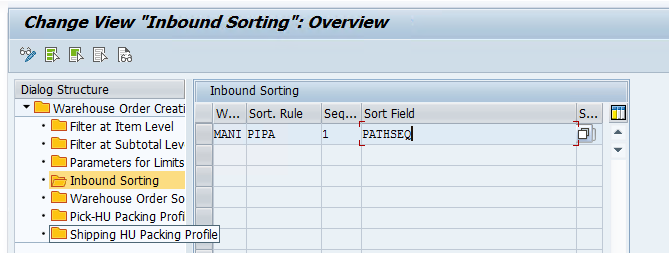
Since I have created WOCR 0050 for this Blog I will give an overview of the WOCR.

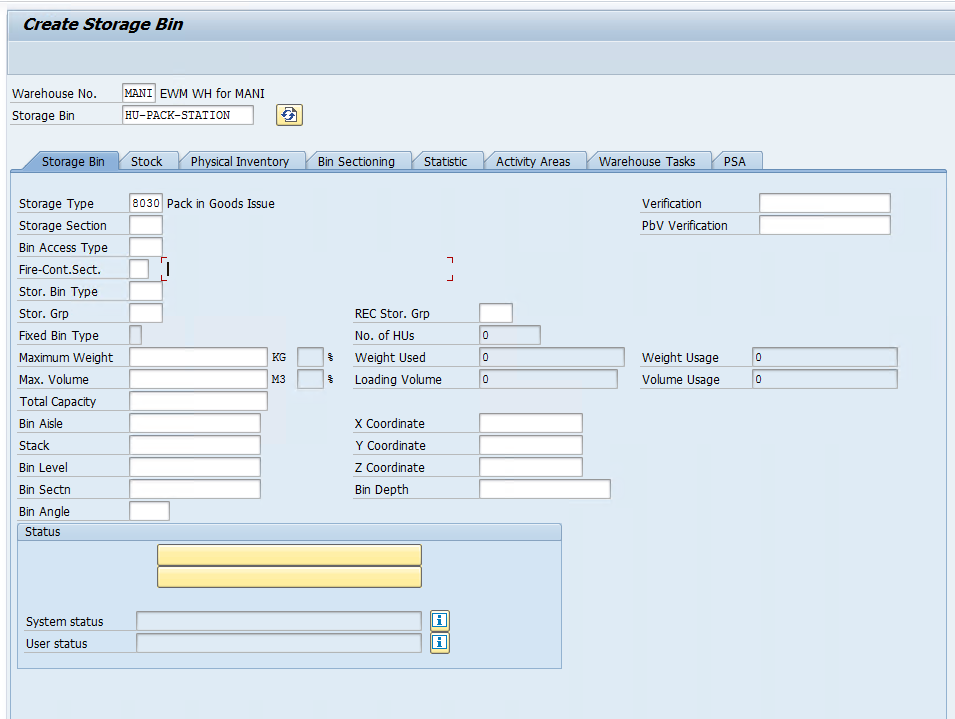
Step 3: Maintain a Storage Bin for the HU Packing.

We need to create a Storage Bin in a Storage type where the Packing of HU will take place, make sure you create this Bin under a Storage type that allows HUs, we are using standard Storage Type 8030β€Šβ€”β€ŠPack in Goods Issue. Tcode: /SCWM/LS01

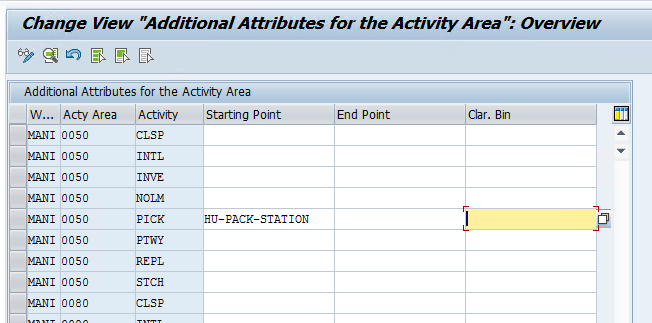
Now assign this to the activity area for this we created our WOCR and activated auto packaging through WOCR. /SCWM/SEBA

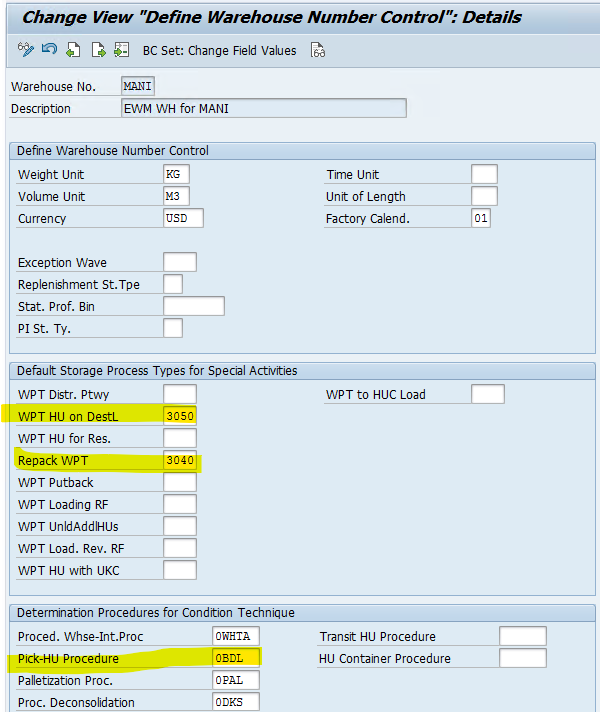
Step 4: Now we need to maintain standard WPTs at the Warehouse level to successfully create Pick-HUs

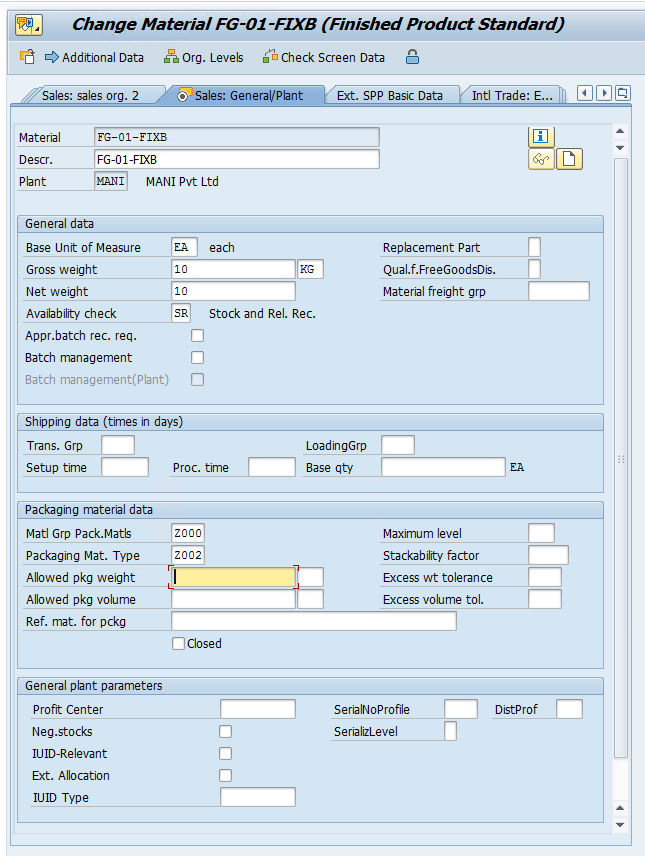
Step 5: We need to maintain the master data for our Product/Material Master Data to pack the product during warehouse order creation. We also need to maintain the Packspec.

Maintain Packaging Material Type in the Material Master.

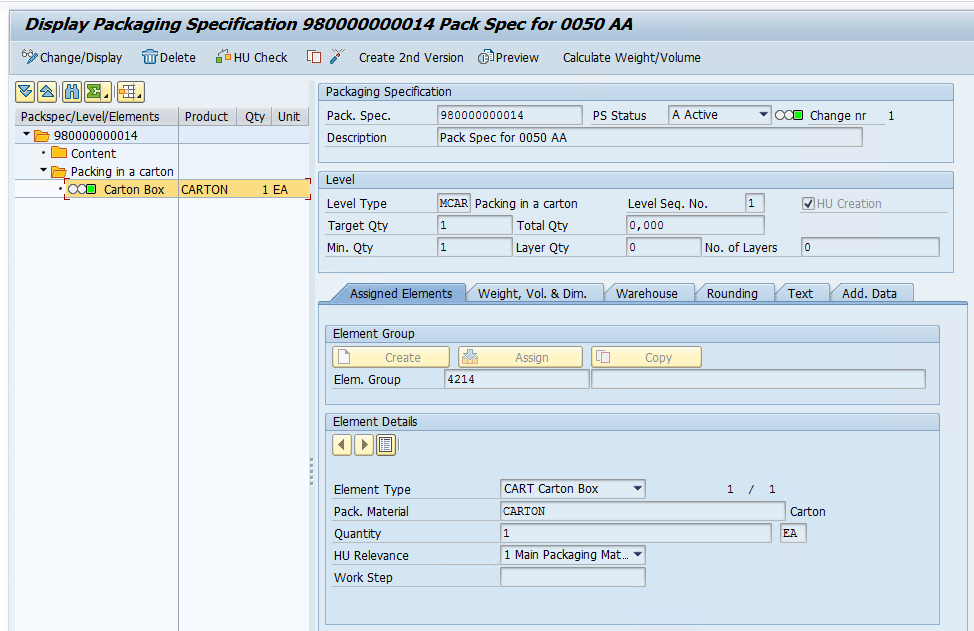
/SCWM/PAKSPEC Create a packaging specification

Now we can test our configuration, first, we need to create an OBD in the S4 system and make sure it gets distributed to the EWM system.

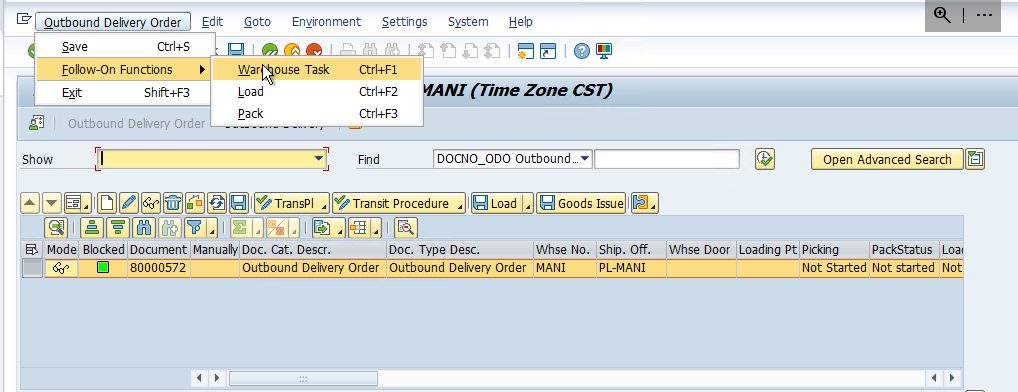
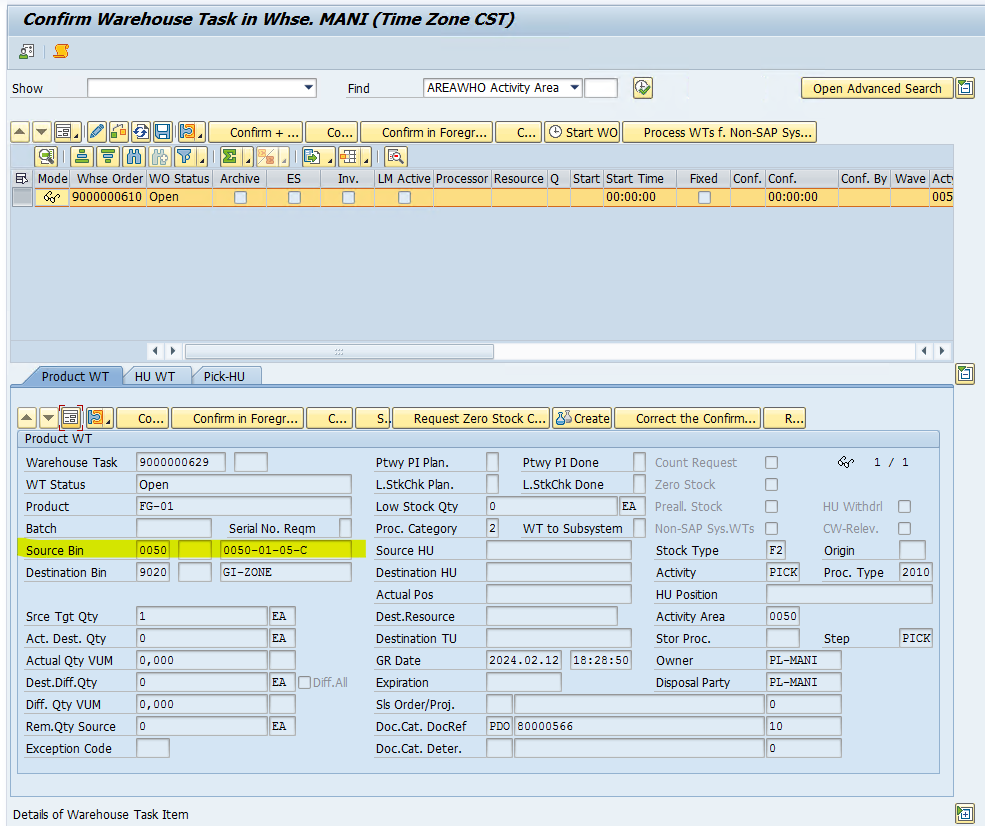
Create a Picking WT and use Tcode /SCWM/TO_CONF to confirm the open WO.

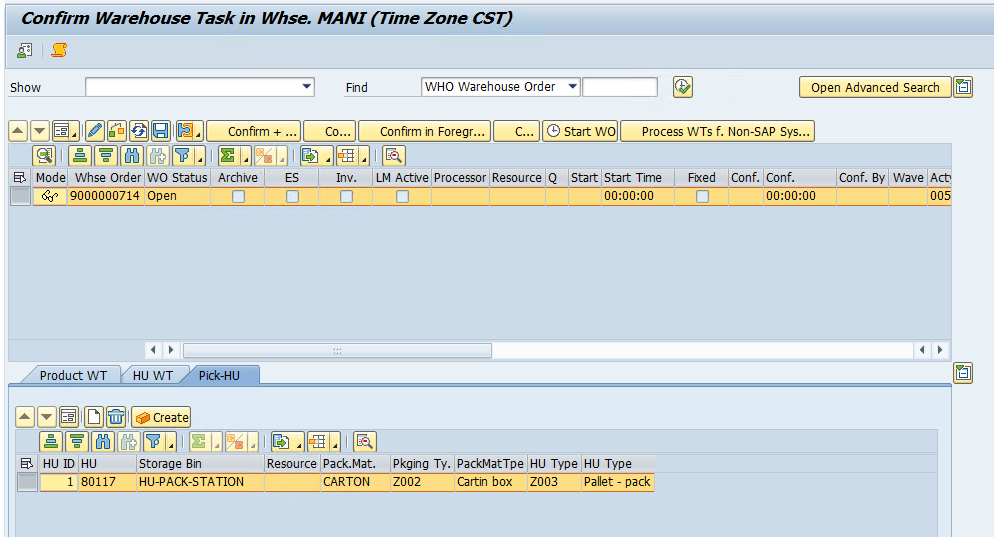
As can be seen in the below Screenshot, Pick-HU is created automatically.

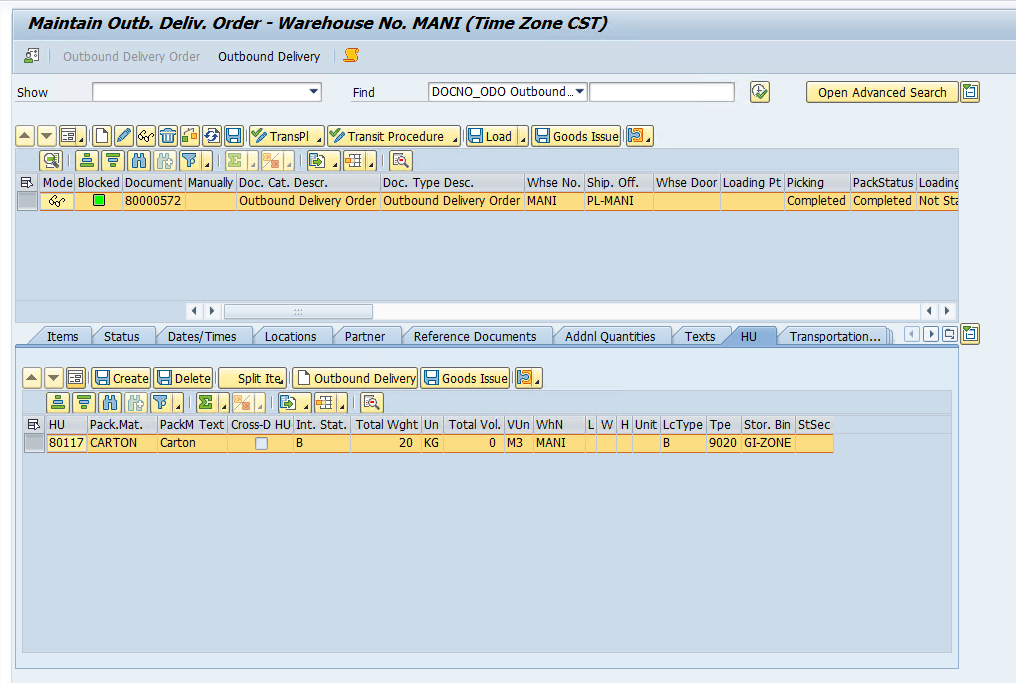
Once we confirm this WO, the HU will get created and moved to the GI ZONE for PGI.

Now we can complete the PGI.

βœ‡SAP EWM Blog by Manish Gupta

SAP EWM CF132: Physical Inventory Process Configuration and BusinessΒ Process | SAP EWM Configuration

Β We will go through the EWM PI configuration and Business Process.

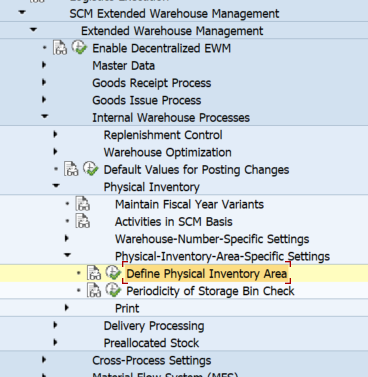
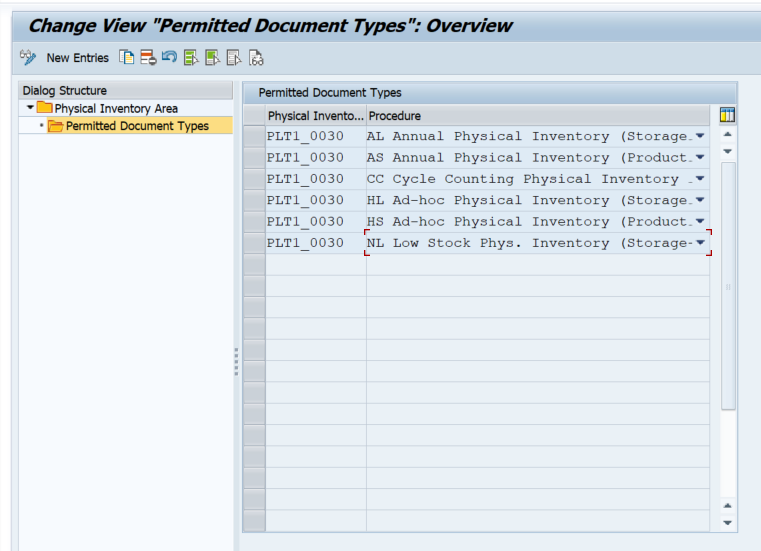
Step 1: first we need to define the PI area

You specify the following per physical inventory area:

  • Whether a putaway physical inventory is allowed (once per PI period)
  • Whether a low-stock/zero-stock physical inventory is allowed (once per PI period)
  • Whether a low-stock/zero-stock check is to be carried out when the warehouse task is confirmed
  • Whether the document is to be posted automatically after the count (this depends on the user’s allowed tolerance values)
  • Whether the book inventory is to be proposed at the time of the count and at the time of printout (does not apply to radio frequency environments)
  • Whether the inventory quantity is to be proposed at the time of the count but not at the time of printout (does not apply to radio frequency environments)
  • Whether the product data is proposed in the case of the storage-bin- specific physical inventory
  • Whether it is allowed to count a handling unit as complete
  • Whether you want to count collectively the number of handling units or the number of items inside a handling unit. (The prerequisite of activating handling unit collective counting is to select both HU Complete checkbox and Display Item Objects at Time of Count Entry checkbox)
  • Whether the product data is included in printouts
  • The threshold value for the low-stock physical inventory or check (in the case of the zero-stock physical inventory or check, leave the field initial or zero)
  • Whether to ignore the setting of the default stock type that is set on the warehouse level for a physical inventory area.
  • Whether to enable a tolerance check for low-stock check at stock removal before the system posting an inventory difference to difference analyzer. (If an inventory difference doesn’t pass a tolerance check, the system cancels the low-stock check.)

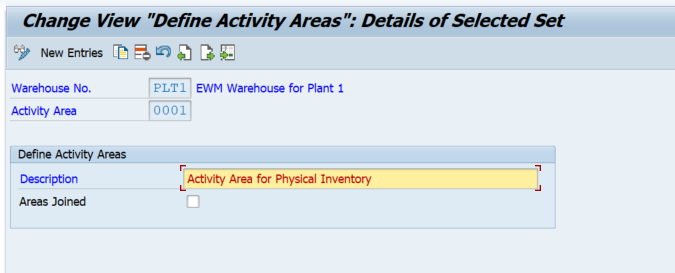
Step 2: We need to define Activity Area for PI

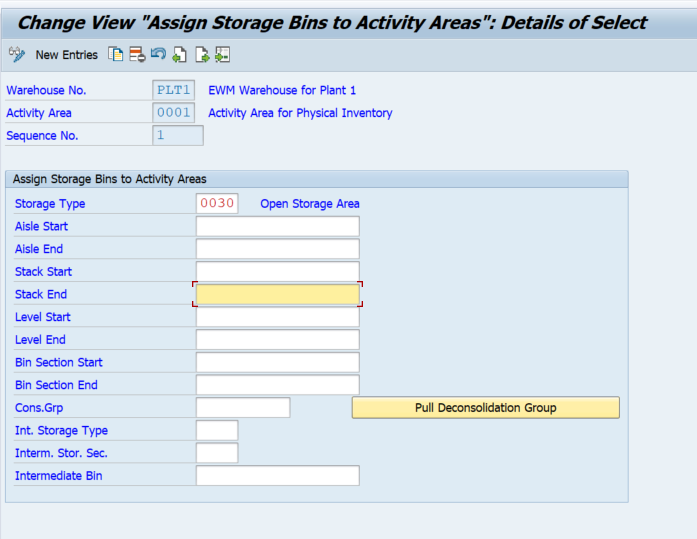
Assign bins to the PI Activity Area

Execute /o/scwm/sbst and assign the act area to the bin

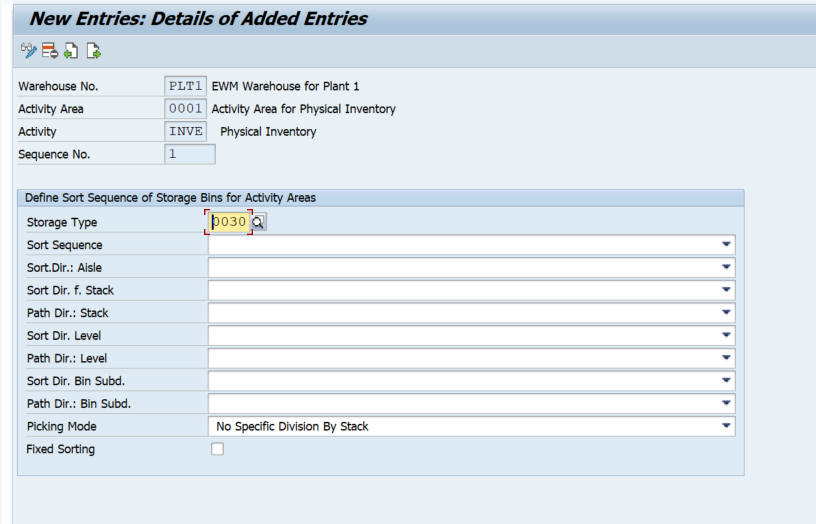
Assign Activity PI to AA 0001

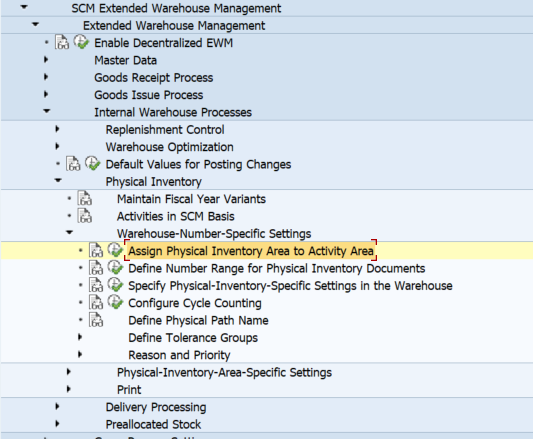
Step 3: WH Specific settings

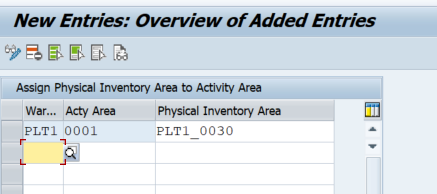
Assign PI area to Activity Area

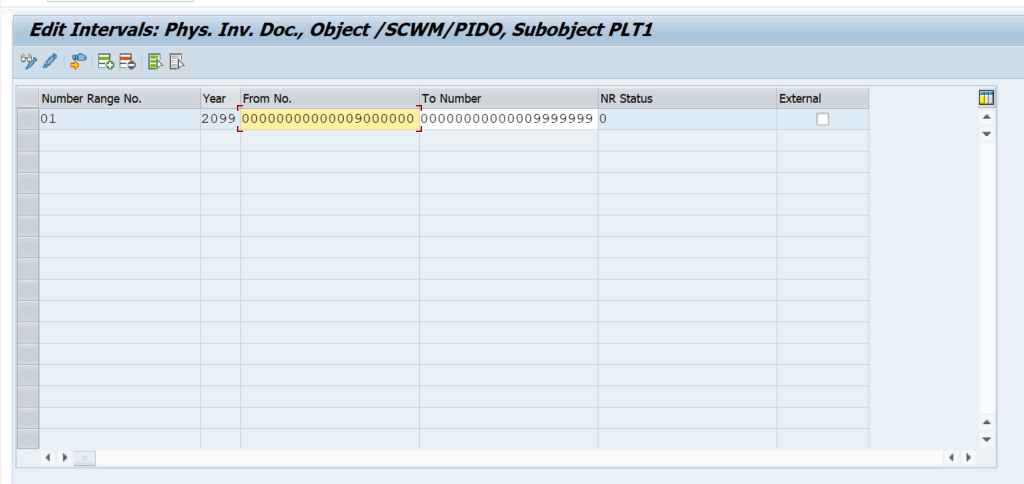
Assign number range

you can make the following physical-inventory-specific settings for each warehouse:

  • Currency unit
  • Factory calendar
  • Period (fiscal year)
  • Determination procedure for printing physical inventory (PI) documents to use
  • Month and day of (yearly) PI period, if different to fiscal year
  • Whether the owner is proposed in the physical inventory count
  • Whether the person authorized to draw is proposed in the physical inventory count
  • Whether adjustment postings are allowed in the Difference Analyzer
  • Permitted percentage deviation when inputting a quantity for the physical inventory count
  • Whether the percentage deviation for the physical inventory count is to be checked

The percentage tolerance check is only used when inputting information on the user interface, it is not used when saving or posting. Separate tolerance checks are available for saving and posting.

  • Assignment of a number range interval to physical inventory documents
  • Whether physical inventory completeness should always be determined at the warehouse level only
  • Whether the system checks if the counter entered a valid party entitled to dispose for a product when posting the results of a PI count in SAP Extended Warehouse Management (SAP EWM)
  • Whether the system checks that the counter who recounts the PI documents is different from the original counter

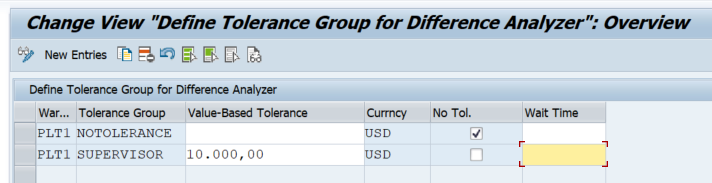
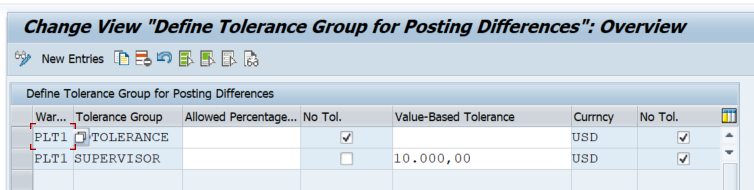
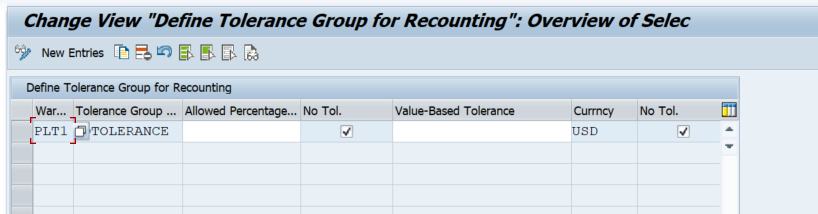
Define Tolerance Groups

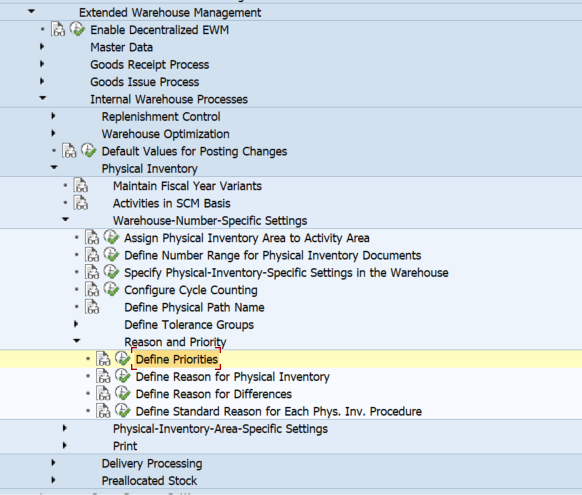
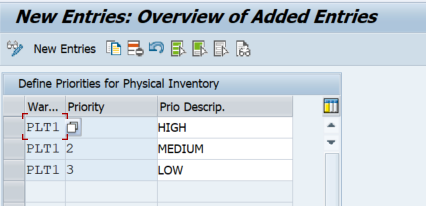
Define Reason and Priority

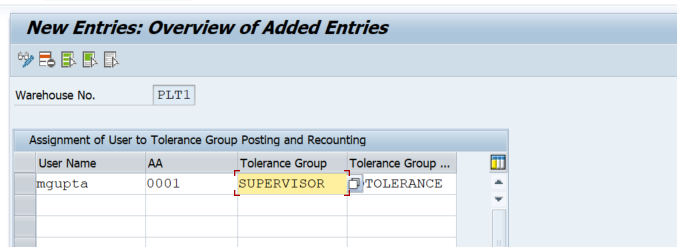
Assign a Tolerance group to Users

Steps to carry out PI at the EWM level

Annual inventory

/SCWM/PI_CREATEβ€Šβ€”β€ŠCreate Physical Inventory Document

/SCWM/PI_COUNTβ€Šβ€”β€ŠEnter Count Results

/SCWM/DIFF_ANALYZERβ€Šβ€”β€ŠDifference Analyzer

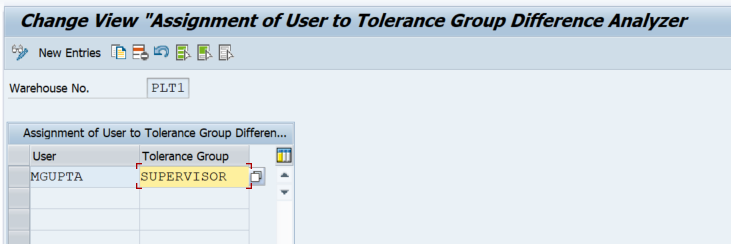
/SCWM/PI_USER_DIFFβ€Šβ€”β€ŠAssign User to Tolerance Group for Difference Analyzer

/SCWM/PI_USERβ€Šβ€”β€ŠAssign User to Tolerance Group for Recount/Clearing

Step 1: Create PI document

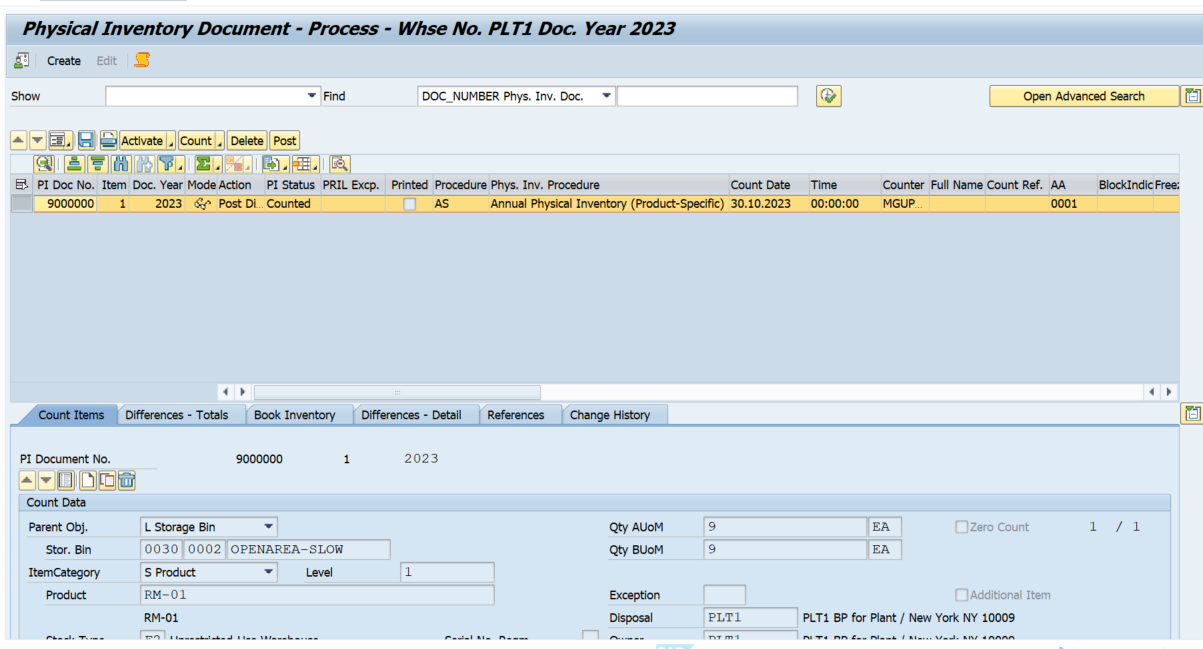
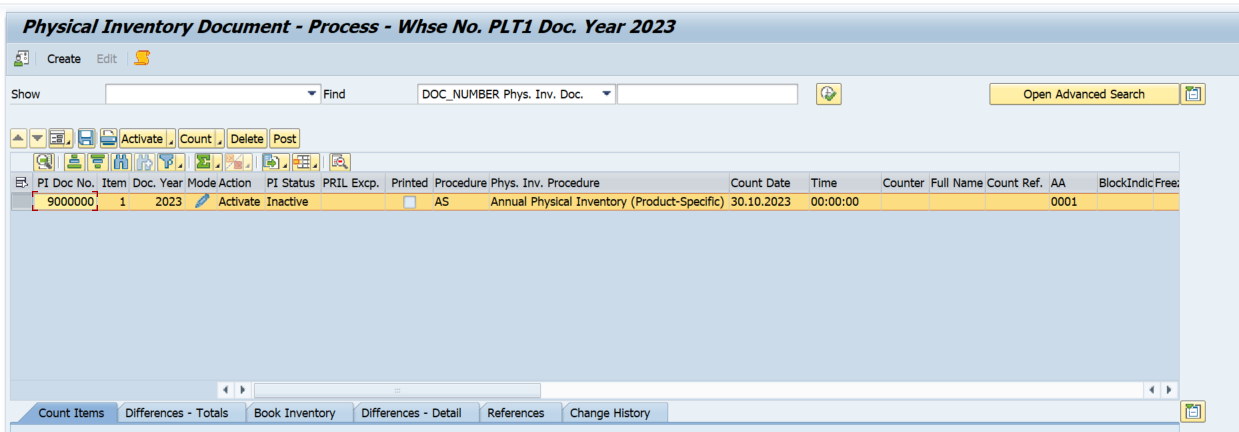
Step 2: Process PI doc and count

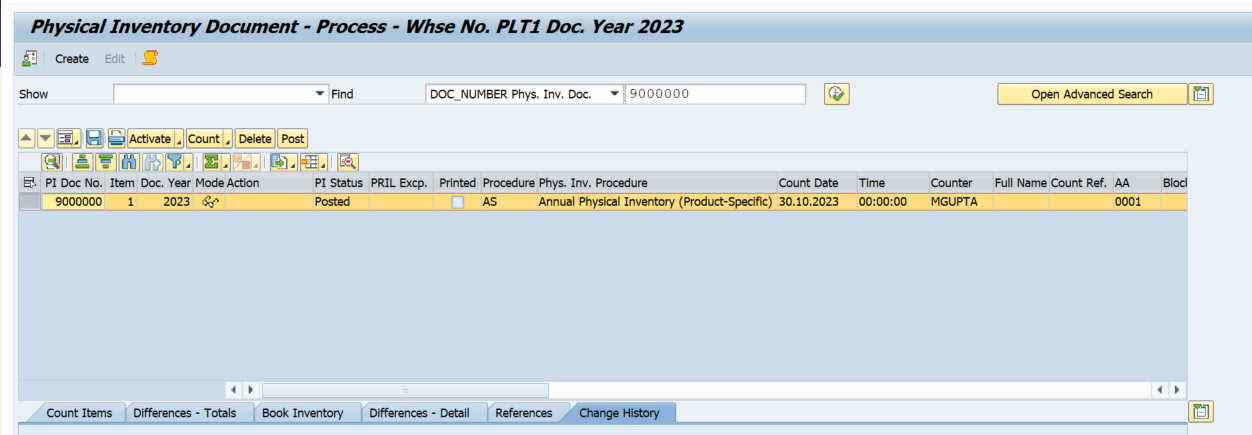
Stock is now counted- diff posting is pending, click on the post

Step 3: Analyze the Difference.

Once this WT is confirmed- The difference will be posted at EWM as well as the S4 level

βœ‡SAP EWM Blog by Manish Gupta

SAP EWM CF131: Setting up Fixed Bin Picking Strategy with FIFO for an EWM Managed Warehouse in SAP

Β In this Blog, we are going to learn about how to set up a Fixed Bin Picking strategy by using a Stock removal control indicator and the Oldest quant based on GR date will be Picked First from the Fixed Bins.

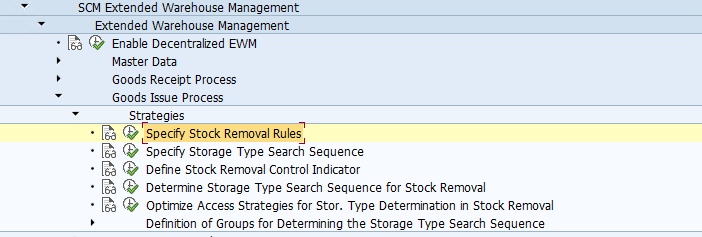
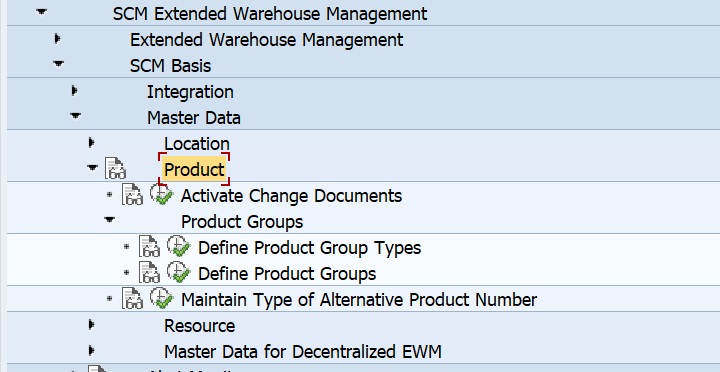
The Steps involved in this configuration are available under the same node as can be seen below.

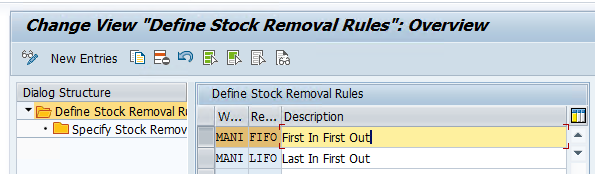
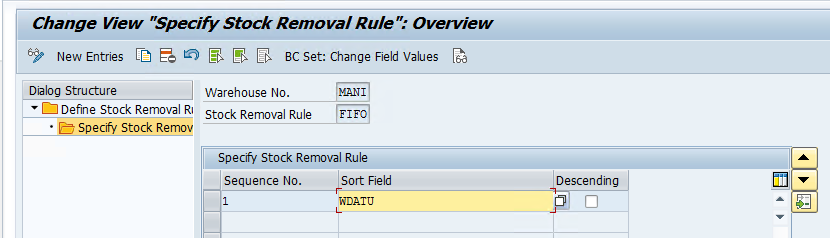
Step 1: Specify a Stock Removal Rule β€” FIFO

Assign the sort field WDATU to the FIFO Rule

WDATU stands for Date and Time of GR

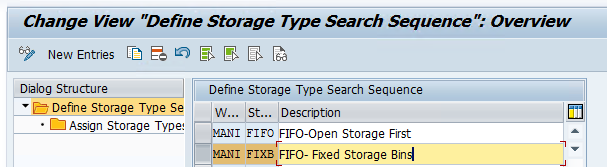
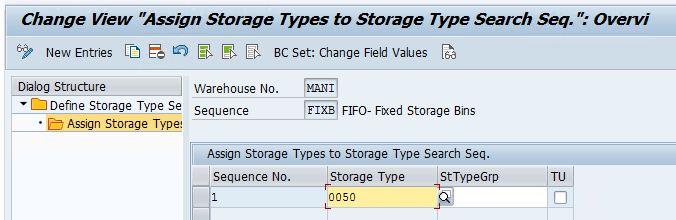
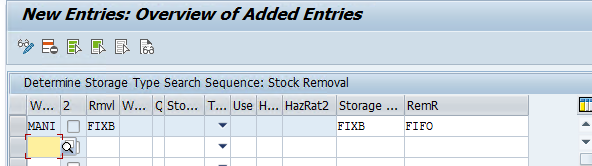
Step 2: Define Storage Type Search Sequence and assign Fixed Bin Storage Type

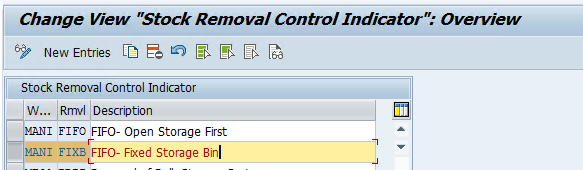
Step 3: Define Stock removal control indicator

Step 4: Maintain Storage type Search Sequence

Irrespective of WPT if the RMVL Indicator is FIXB, the system will consider FIXB search sequence and FIFO strategy during stock removal.
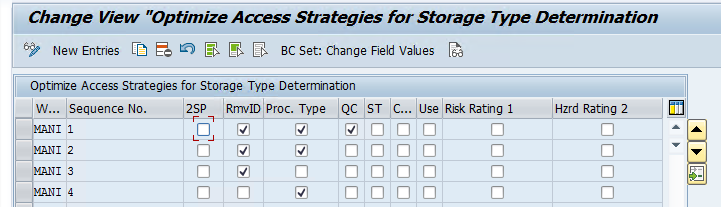
Step 5: Maintain Access Strategy for the Stock removal.
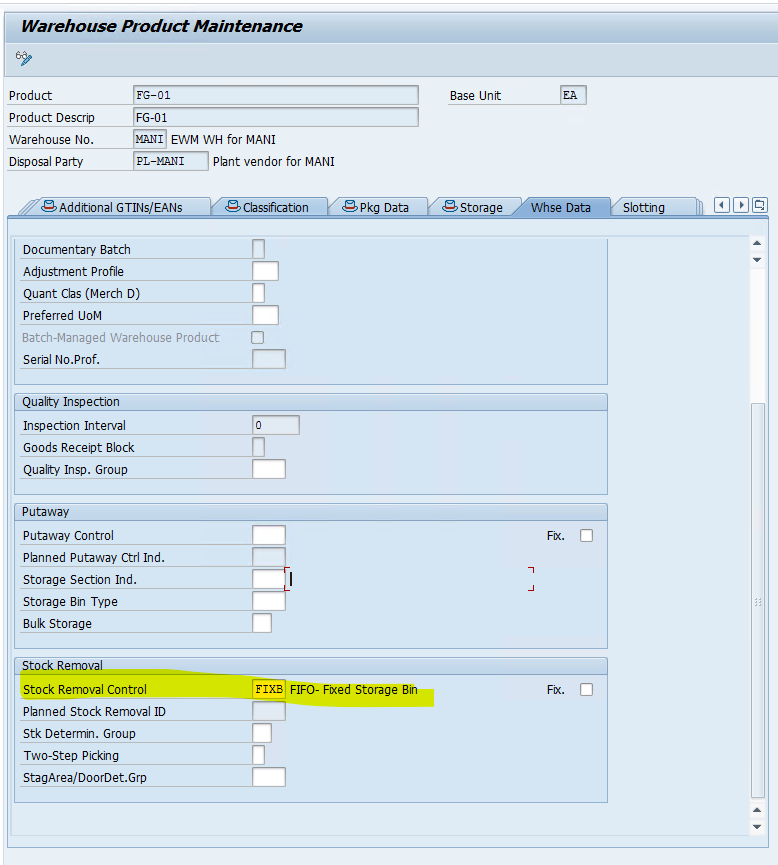
Now we need to maintain this removal indictor FIXB in the product master.

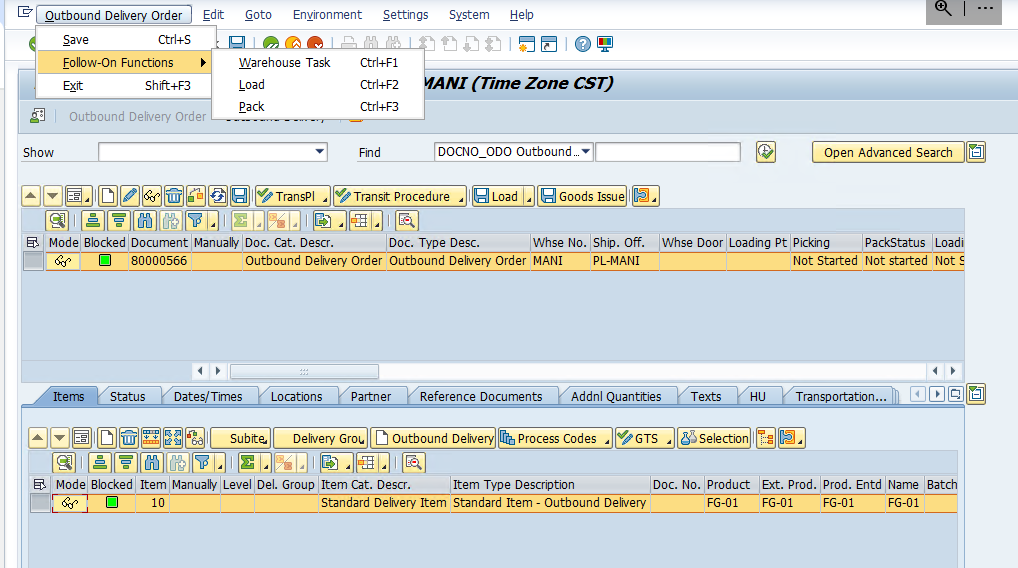
Once this is done. We will create a sales order or an sto and generate an OBD to check if our strategy is working fine.

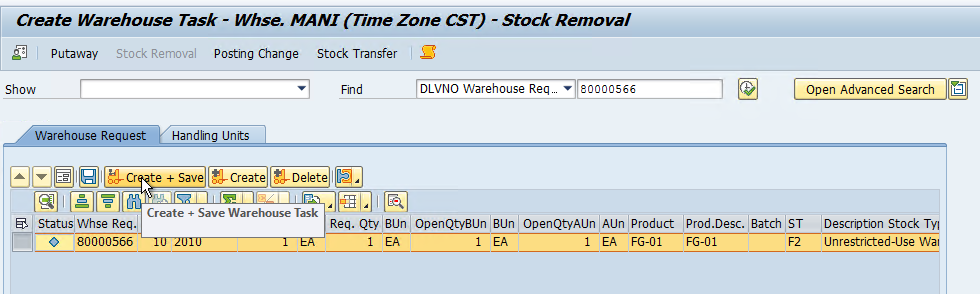
Just click on the create+save button and the system will create a WT with a source bin from the 0050 Storage type which is our fixed bin storage type.

βœ‡SAP EWM Blog by Manish Gupta

SAP EWM BP558: How To Auto Pack and Print HU in SAP EWM Managed Warehouse

Β We are going to cover the EWM business process related to the Auto creation of HUs through Packaging Specification and Auto Printing of HUs through PPF Action for an Inbound delivery.

First of all, we need to configure the Packaging Specification for our Warehouse and we can refer to this BLOG for the same.

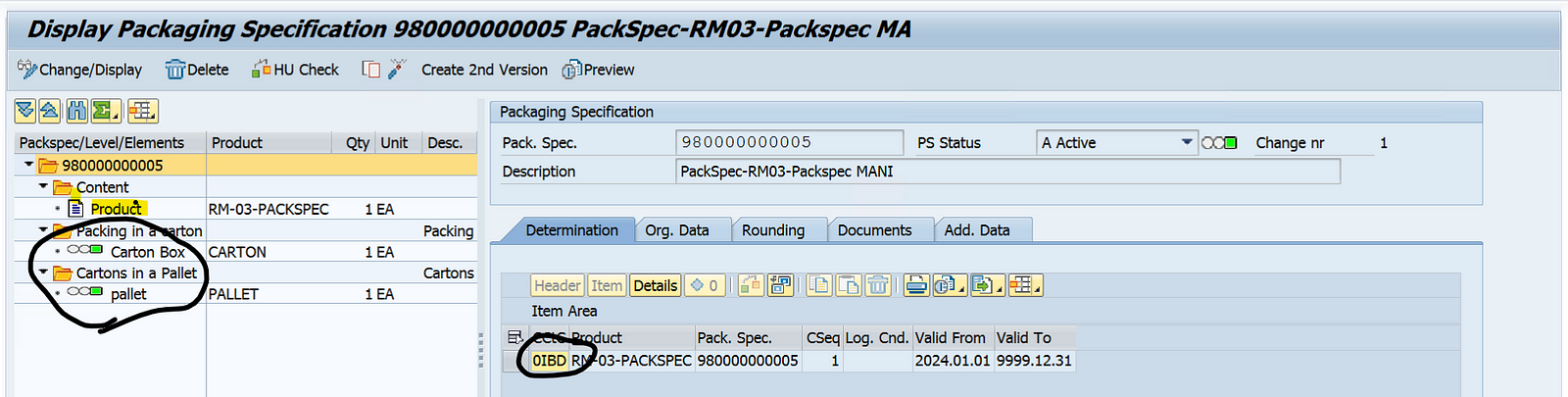
Once configuration steps are completed, maintain a multi-level PackSpec using Tcode /SCWM/PACKSPEC. We can also use the same setup for single-level PackSpec as well.

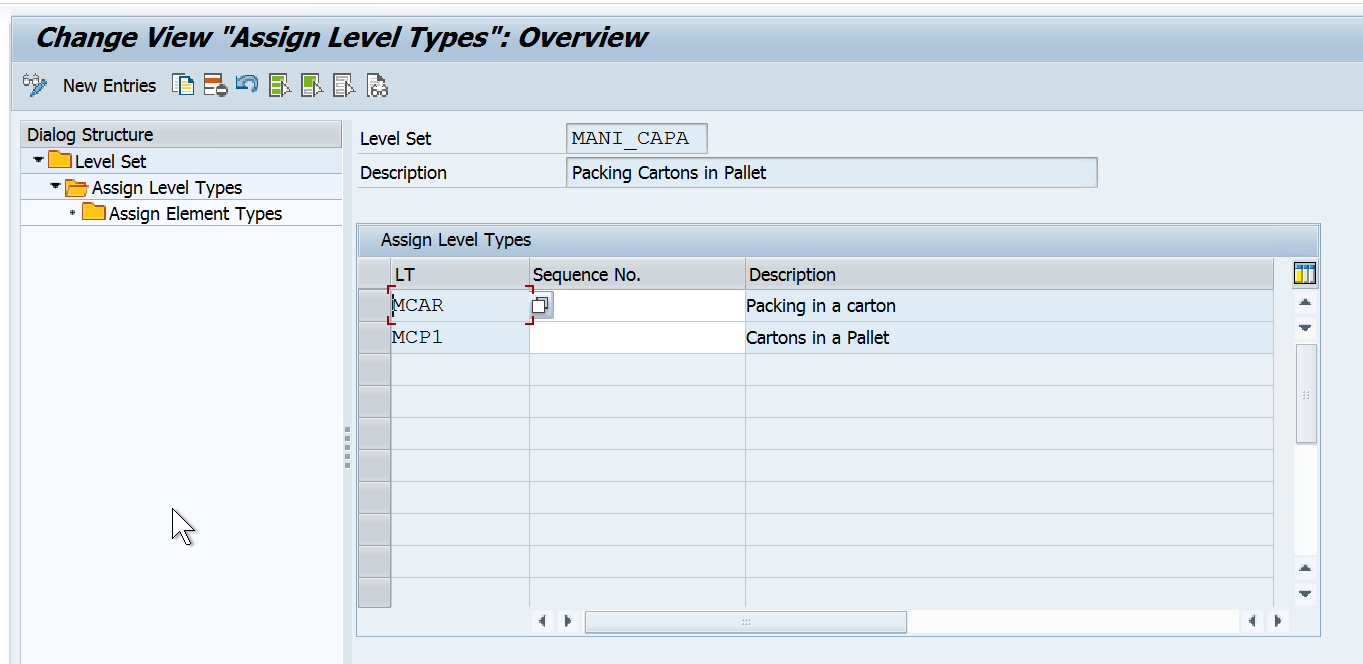
We need to maintain the condition record for our Product. Add the Product in the PackSpec and Add 2 levels. We need to maintain 2 Levels in the Level Set while configuring packaging specifications.

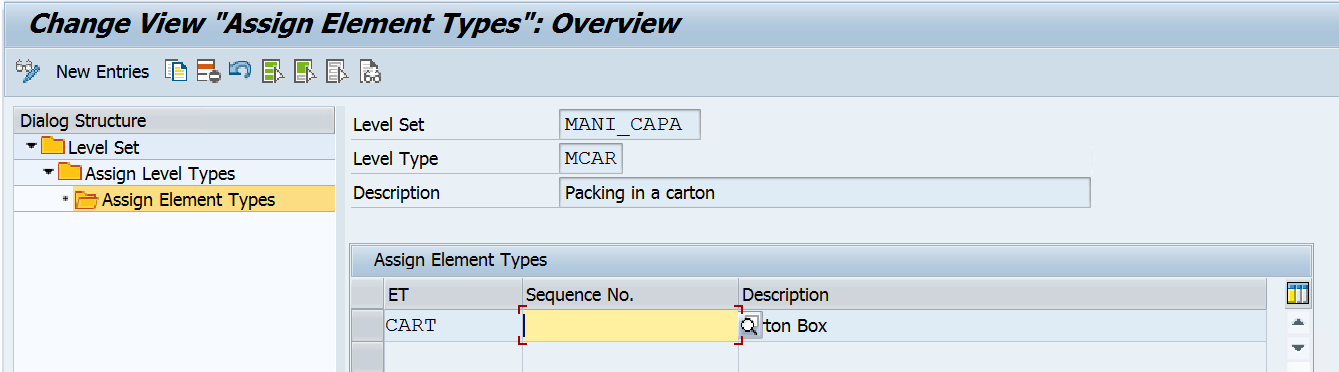
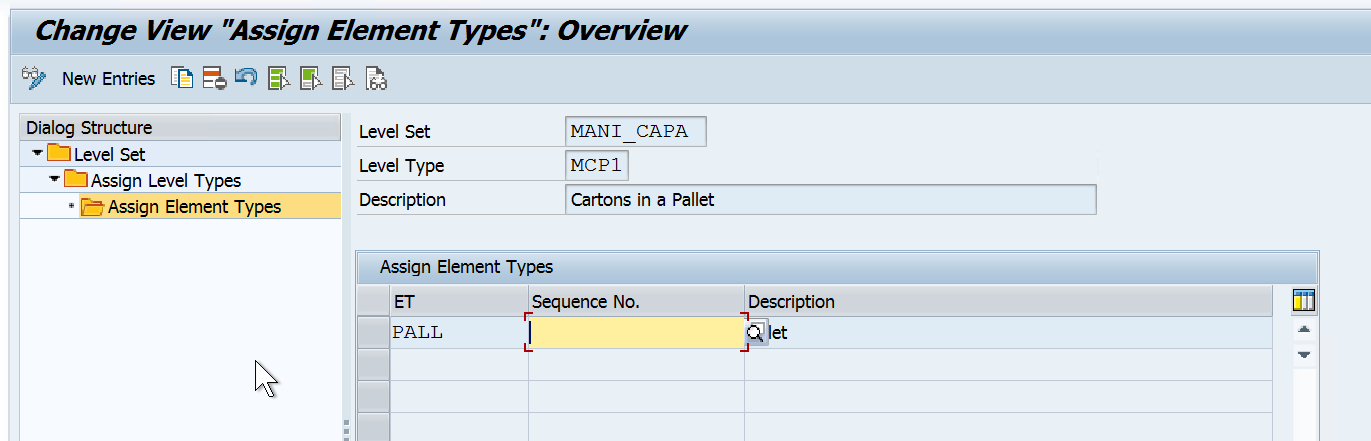
We have maintained 2 level types for our level set and each level type has a different element type.

Element Type CART was created for Carton and Element PALL was created for Pallet with Main packaging material as HU relevance.

Once this is done we need to activate the Auto Printing for our Packaging Material Type through PPF Action.

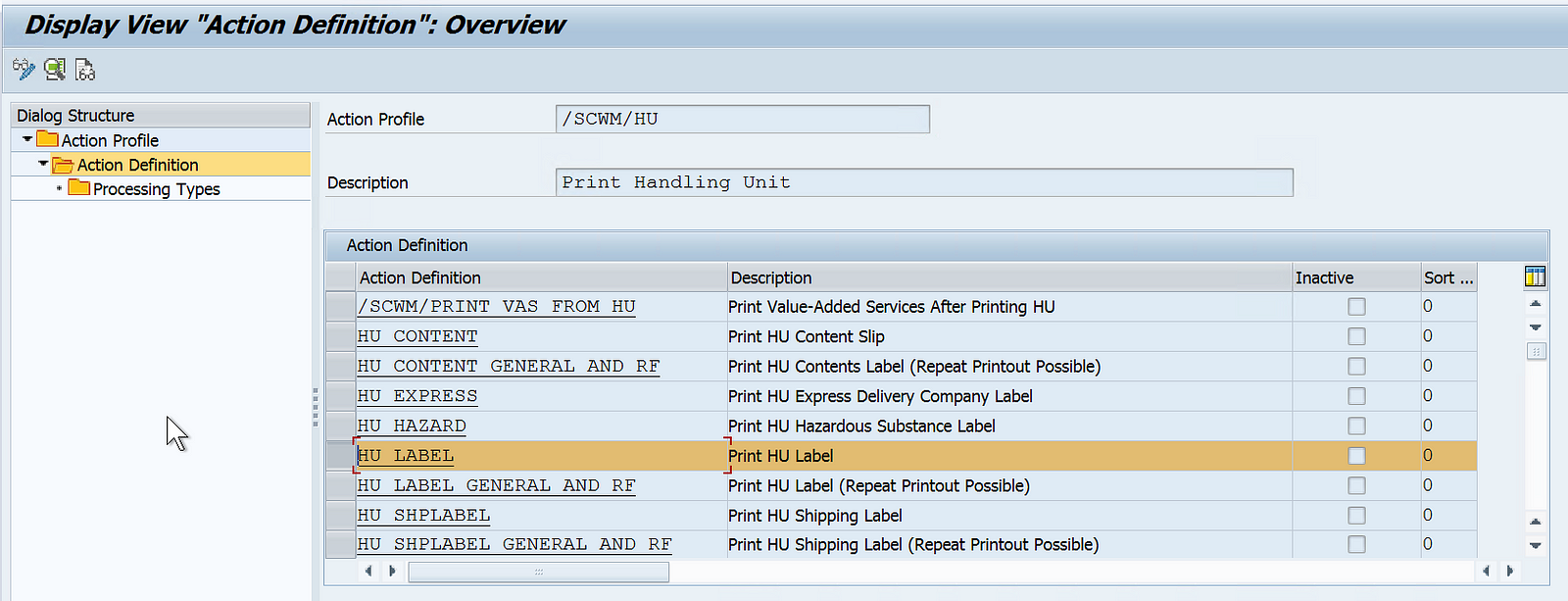
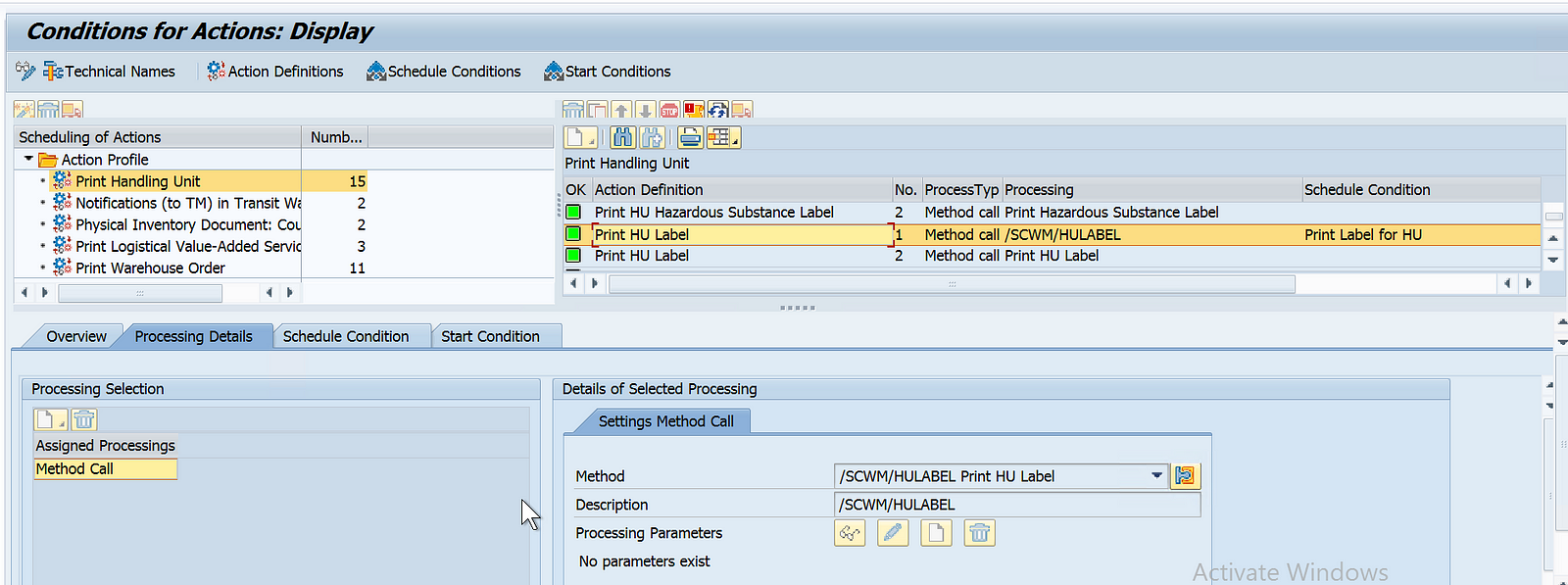
Step 1: Define the Action profile and Actions for the application.

IMG > SCM EWM > Extended warehouse management > Cross process settings > Handling Units > Basics>Print> Define PPF Action Profiles

Application: /SCWM/WME

Action profile: /SCWM/HU

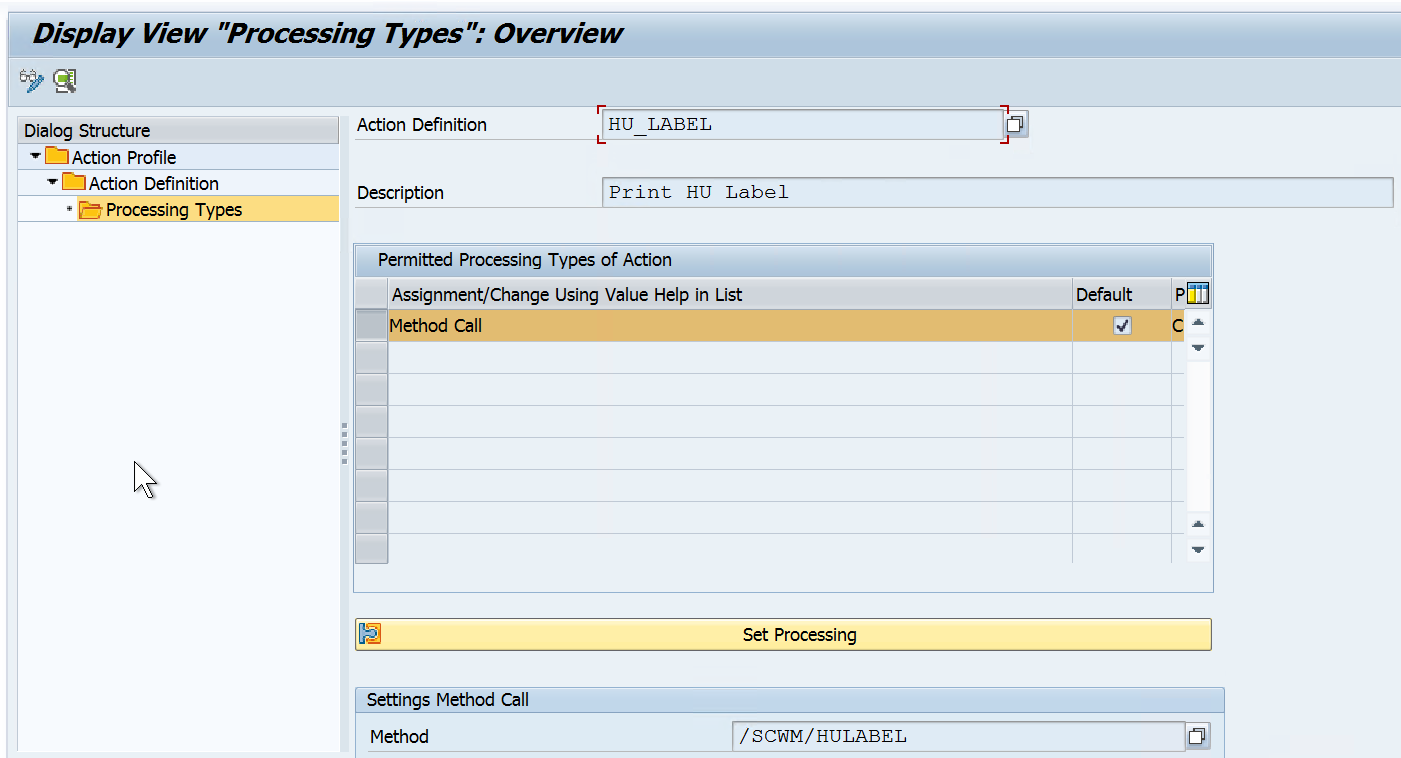
Action Definition: HU_LABEL

Processing type method: /SCWM/HULABEL

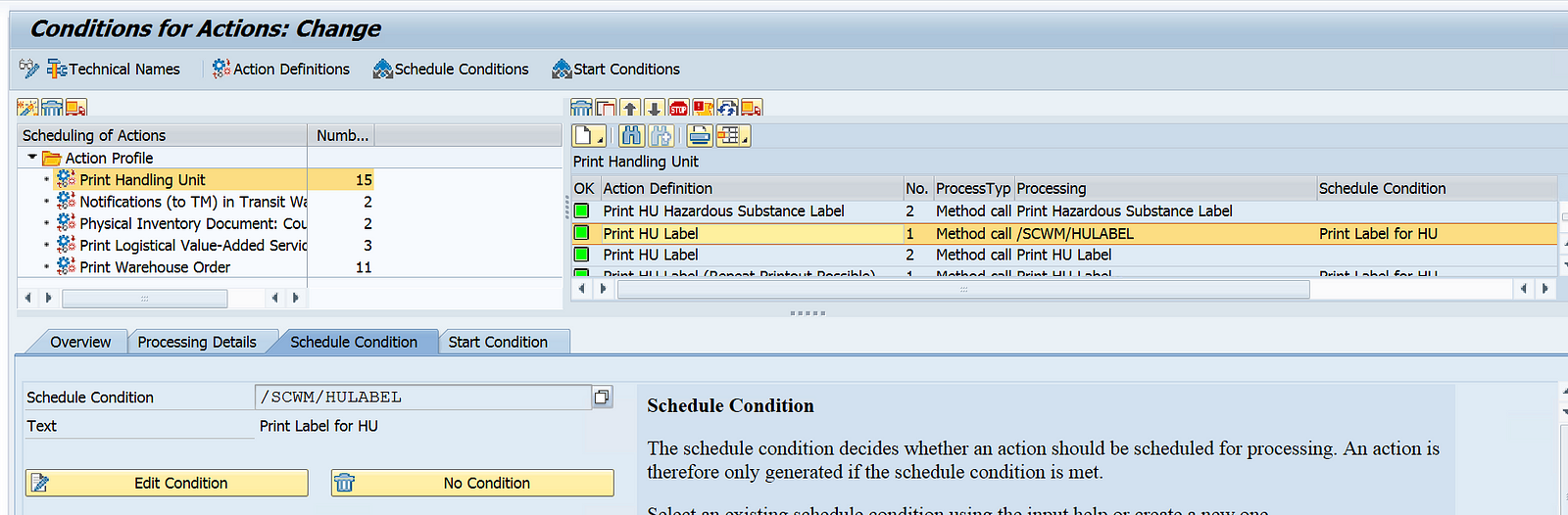
Step 2: Now we need to define PPF Action Conditions

IMG > SCM EWM > Extended warehouse management > Cross process settings > Handling Units > Basics>Print> Define PPF Action Conditions.

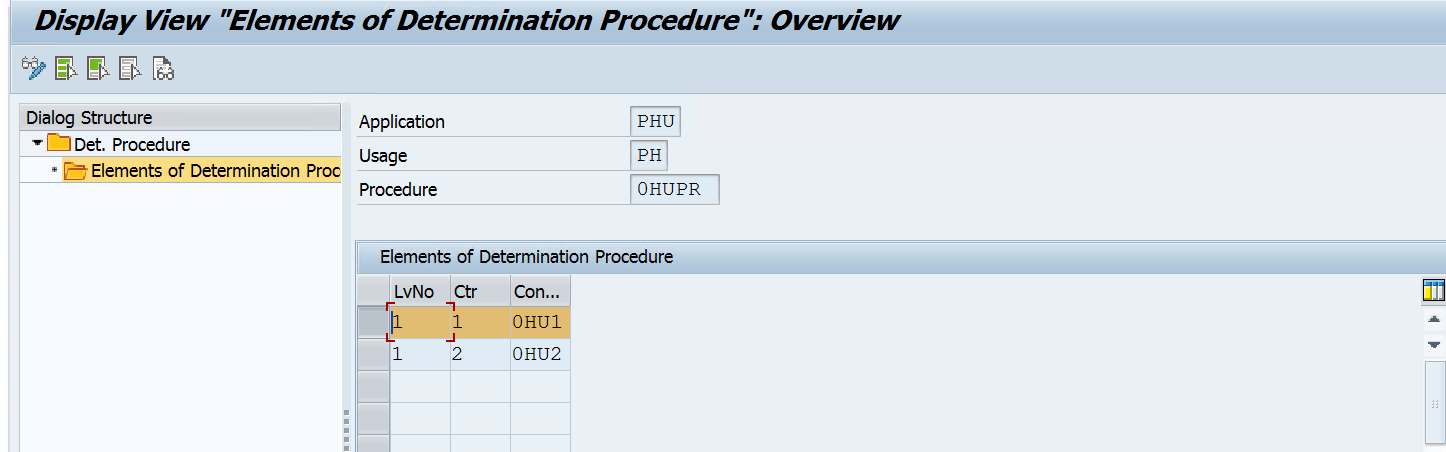
Step 3: Define Print determination procedure.

IMG > SCM EWM > Extended warehouse management > Cross process settings > Handling Units > Basics> Print > Define Determination Procedure

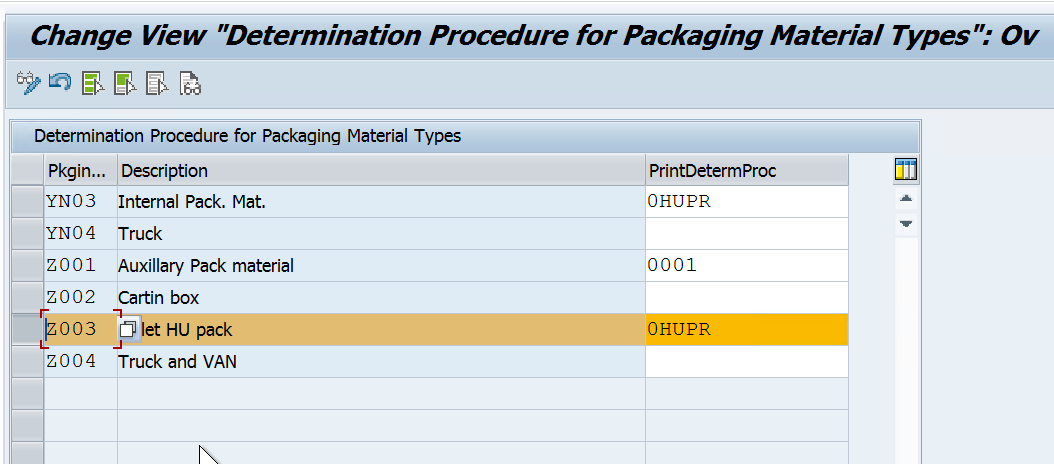
Step 4: Assign the Print determination procedure to the packing mat type.

IMG > SCM EWM > Extended warehouse management > Cross process settings > Handling Units > Basics> Assign Determination Procedure

Step 5: Maintain Condition Record by using Tcode /SCWM/PRHU6 or /SCWM/DLVPPFC

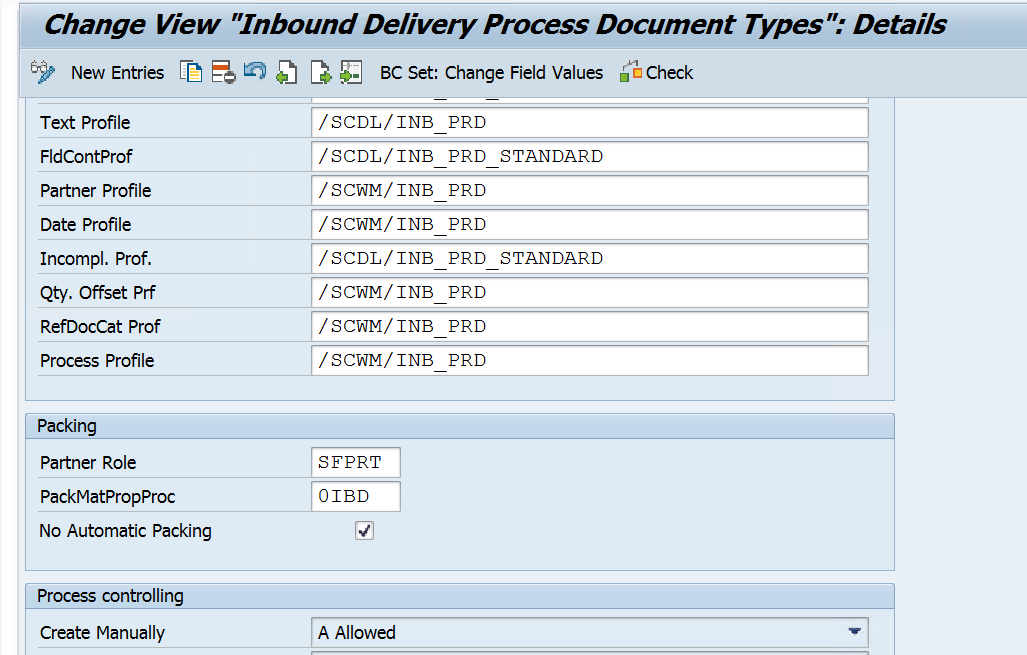
Also, It is important that we de-activate the option No Automatic Packing from the Delivery type for which we need to Auto Pack HUs.

Now we will create an IBD in the S4 system and on successful distribution, HUs will get created automatically.

HUs will be auto-created in the EWM system and Print will get triggered in the background which we can check in SP01 Tcode.

Please feel free to reach out onΒ LinkedInΒ if you have any queries or need help with your project.

βœ‡SAP EWM Blog by Manish Gupta

SAP EWM CF130: Deconsolidation Process in EWM Managed Warehouse in SAP | SAP EWM Configuration

Β Follow the Below Steps to configure the deconsolidation process during the Putaway Process.

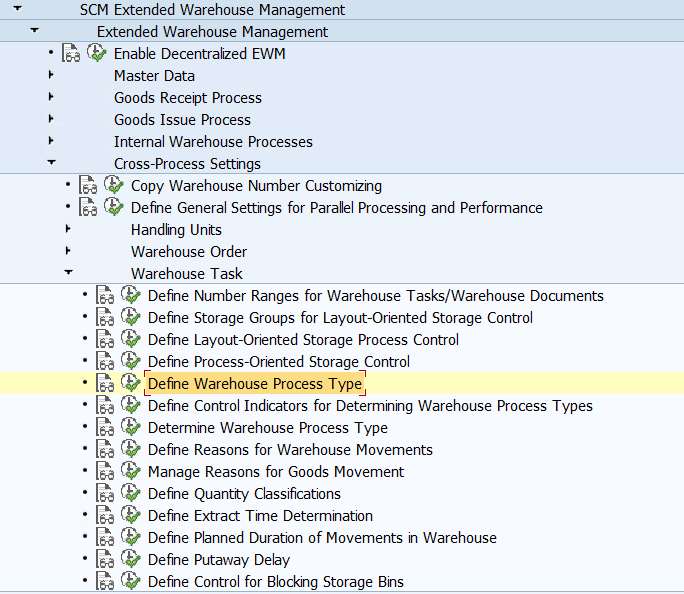
Before you start the configuration for your EWM Warehouse using this blog, we would advise you to activate the BC set /SCWM/DECONS using Tcode SCPR20 for standard warehouse 0001 to have basic configurations ready for copying.

Also, please make sure you also maintain below WPTs, Storage types, and Bins in advance.

WPT β€” 3060, 3065, and 3070 (Refer to thisΒ BLOG)

Storage Type β€” 9010, 8010, and 9030 (Refer to thisΒ BLOG)

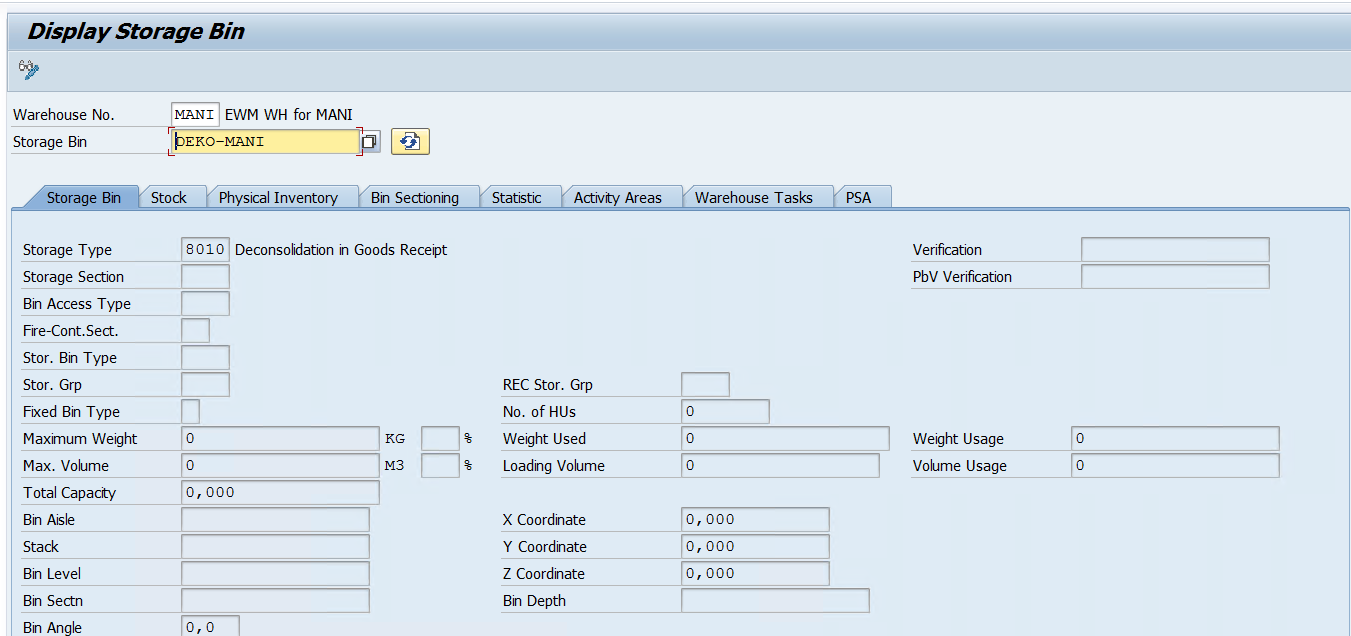
Storage Bin β€” GR-Zone (9010 Storage Type) and DEKO-BIN (8010 Storage Type) use tcode /SCWM/LS01

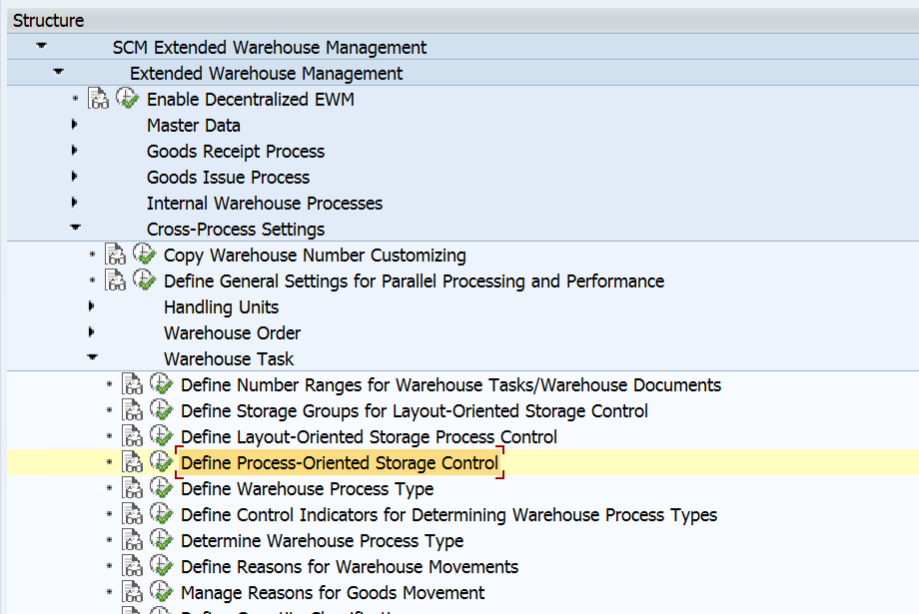
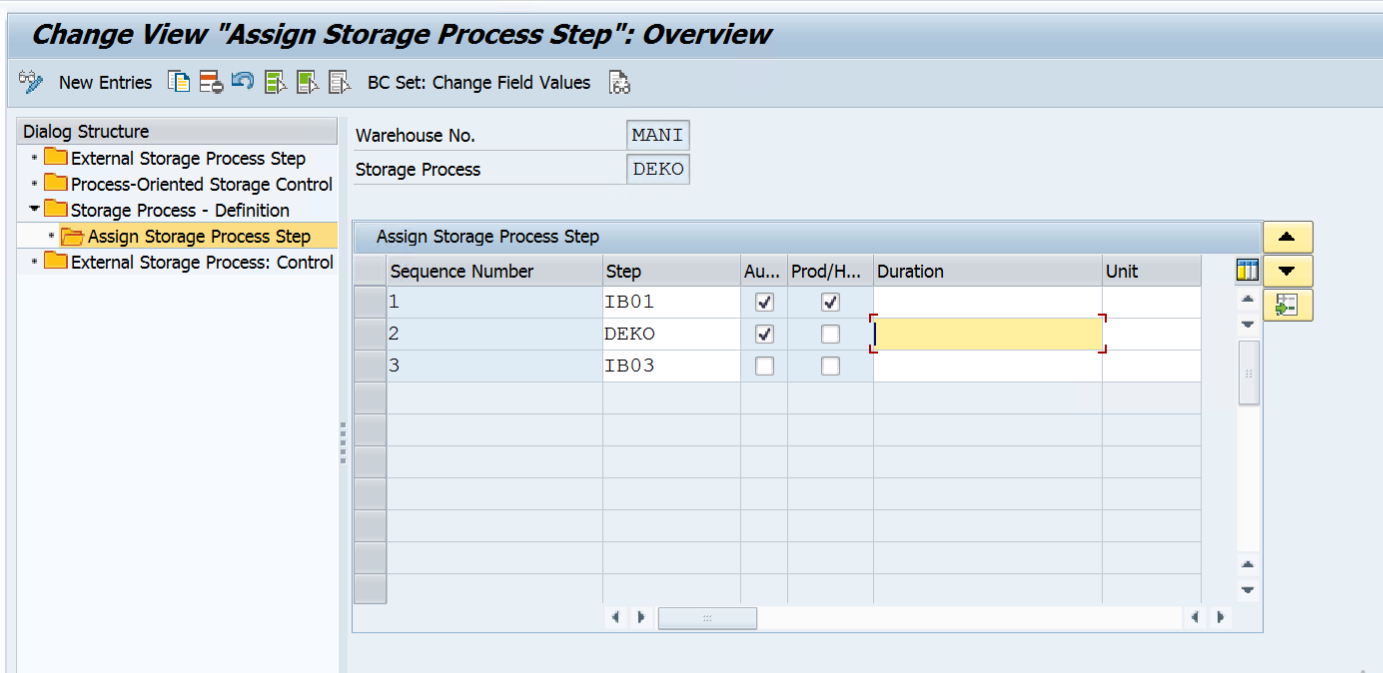
Part 1: First we need to create a POSC for our warehouse to perform deconsolidation during the Putaway Process.

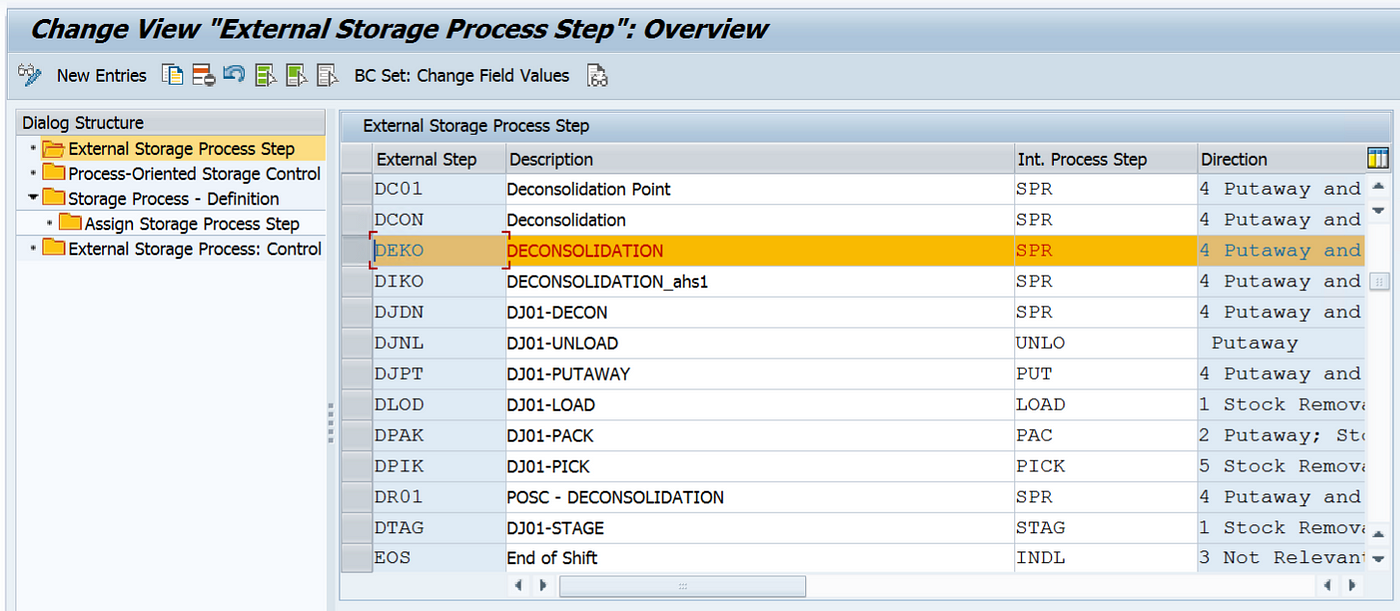
We need to create an external step for Deconsolidation and assign Internal Step SPR which stands for deconsolidation so that we use it as one of the steps in our POSC. Similarly, we need to maintain external steps for Unloading and Putaway which will be needed to create POSC.

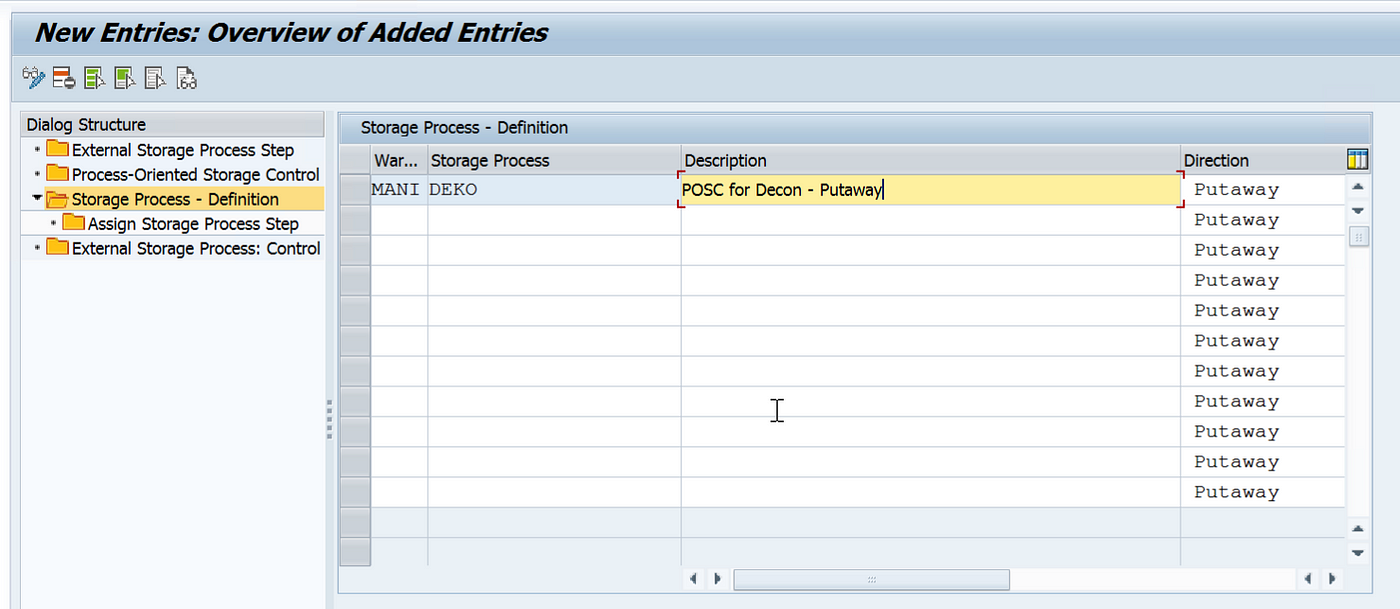
Now we need to create a Storage Process Indicator and assign the direction on whether POSC will be used for Inbound, Outbound, or Internal Transfers.

In the DEKO Storage Control, we have assigned Three External Steps: IB01 β€” for Unloading, DEKO for Deconsolidation, and IB03 for Final Putaway. We have Auto WT creation for the Unloading and Deconsolidation Process and have selected HU Task for Unloading.

For the Putaway Process, we can assign the below steps in the same sequence only.

  1. Unload
  2. Count
  3. Deconsolidation
  4. Quality Inspection
  5. Perform VAS
  6. Putaway

We have selected Auto WT for the first 2 steps which means on successful confirmation of the WT, the system will create WT for the next step automatically. We have selected Create Product/HU WT which means it will simultaneously create Putway WT.

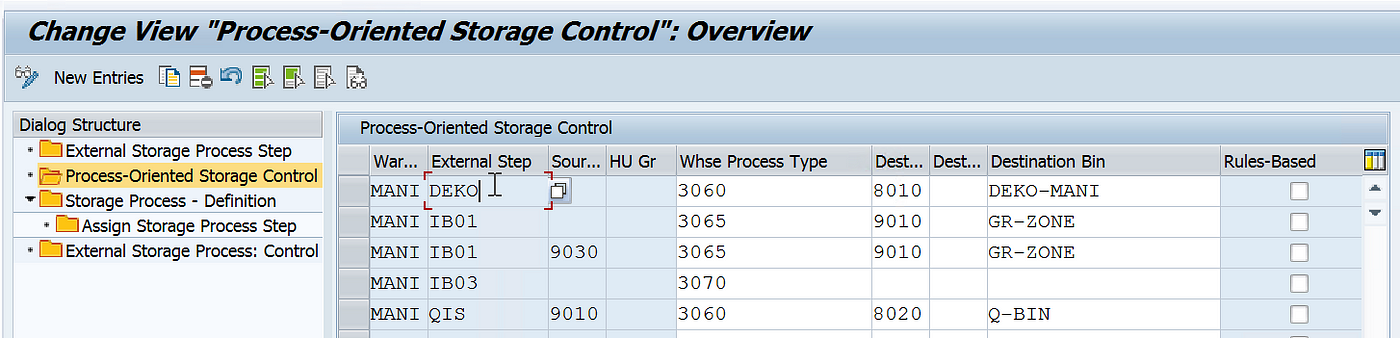
Now we need to assign the below controls at the External Step level.

  1. Source Storage Type
  2. HU Type Group: In case we need to specify different data for a specific kind of HU Type/Group.
  3. WPT β€” To move the stock from the source storage type to the Destination Storage Type
  4. Intermediate Storage Type and Section β€” Specify a staging area or work center
  5. Intermediate Storage Bin β€” if the WPT has a WT generic indicator or there is no rule-based indicator selected, it is advised to provide a Bin so that stock will be moved to this bin for deconsolidation or any other activity.

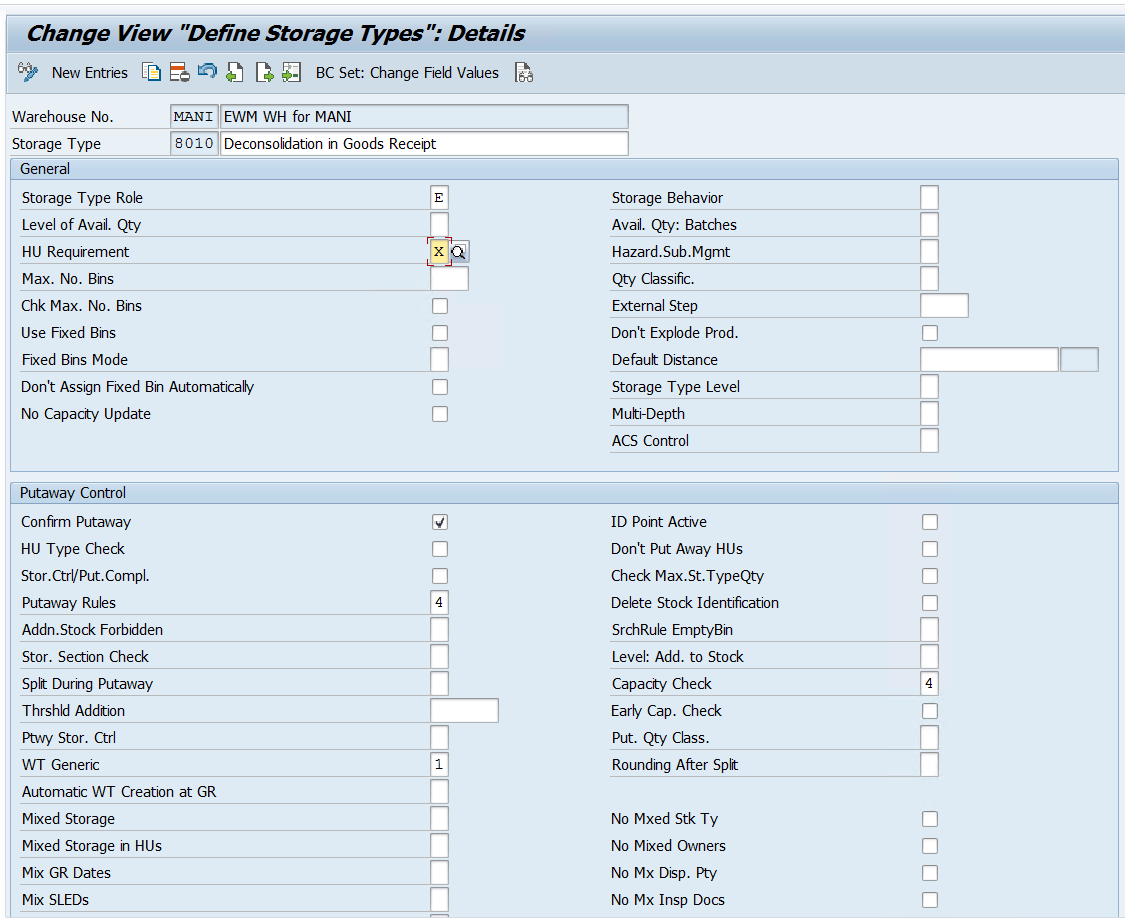
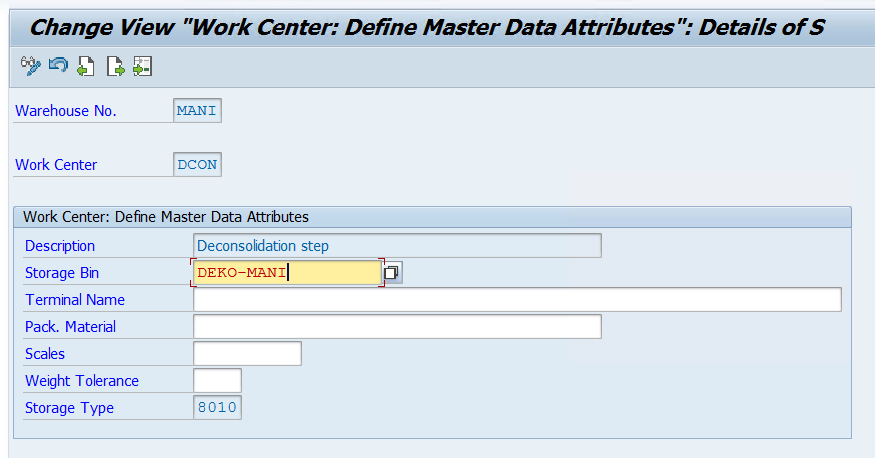
As you can see we also need to maintain the destination storage type 8010 and Storage Bin DEKO-MANI for our external step DEKO. We will have to maintain a storage type with role β€œE (Work Center)” and bin in the same storage type using Tcode: /SCWM/LS01. Similarly maintain the storage type and Bins for other steps as well if not already maintained.

Also, make sure to create WPT 3060 for our Deconsolidation Step, we can copy the standard WPT 3060 which is available for WH 0001. Similarly create WPTs 3065 and 3070 for other external steps IB01 and IB03 if not already created.

Part 2: Now we need to set up a WPT for our deconsolidation process and configure WPT determination.

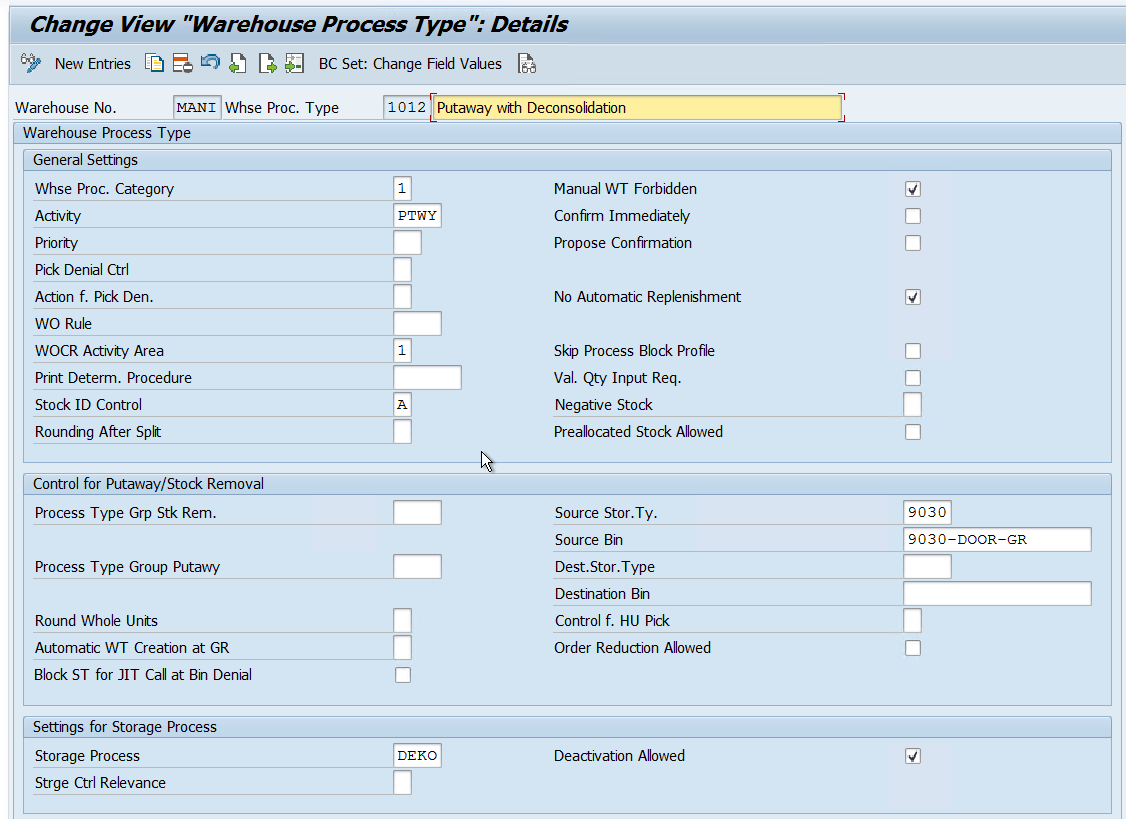
We have created WPT 1012 for the Deconsolidation Process during Putaway in our Warehouse MANI. We have also assigned the POSC to the WPT.

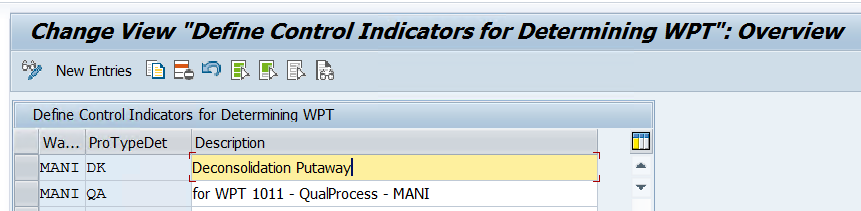
Now we will create a Control Indicator for our WPT

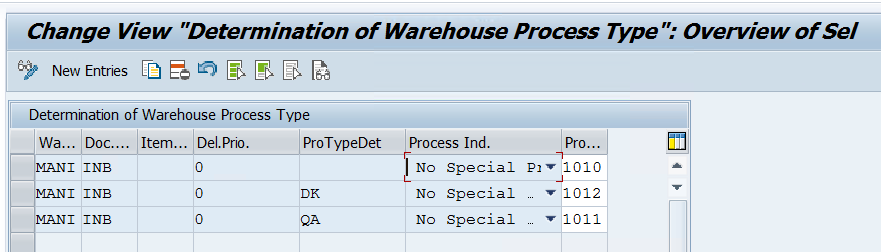
Now we will maintain determination settings for our newly created WPT 1012. We can determine WPT based on the below parameters.

  1. The Document Type (IBD Type)
  2. The Item Type (Item Type for IBD)
  3. The Delivery Priority
  4. The Control Indicator (DK β€” we created for our WPT 1012)
  5. Process Indicator

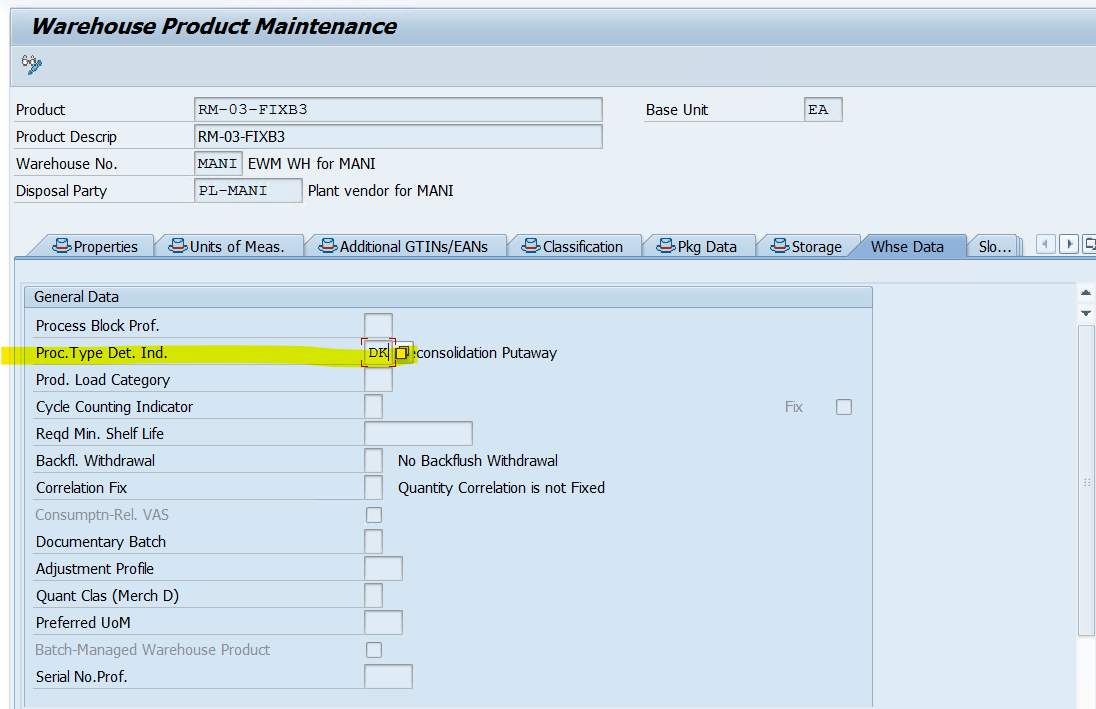
The WPT determination indicator DK which we created for our 1012 WPT needs to be assigned to the Product master in Whse Data view so that the system can correctly identify the WPT during Inbound Processing.

Part 3: After setting up the POSC and WPT for the deconsolidation Process. We will maintain Activity Area-related configuration.

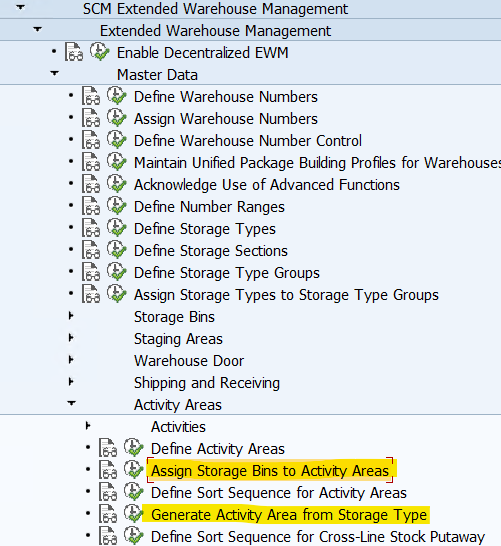
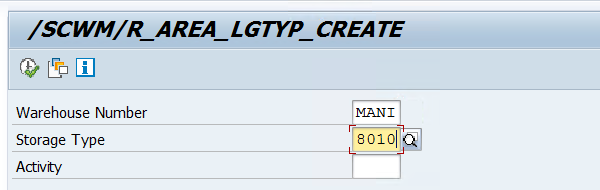
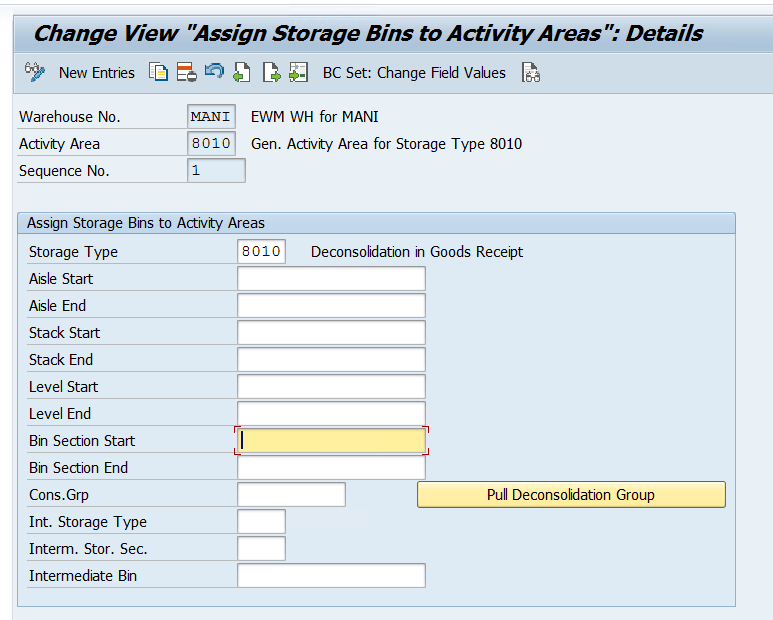
we will use the below nodes to maintain the activity area for our deconsolidation work center (Storage Type)

Part 4: After setting up the Activity Area, we need to maintain the work center-related configuration.

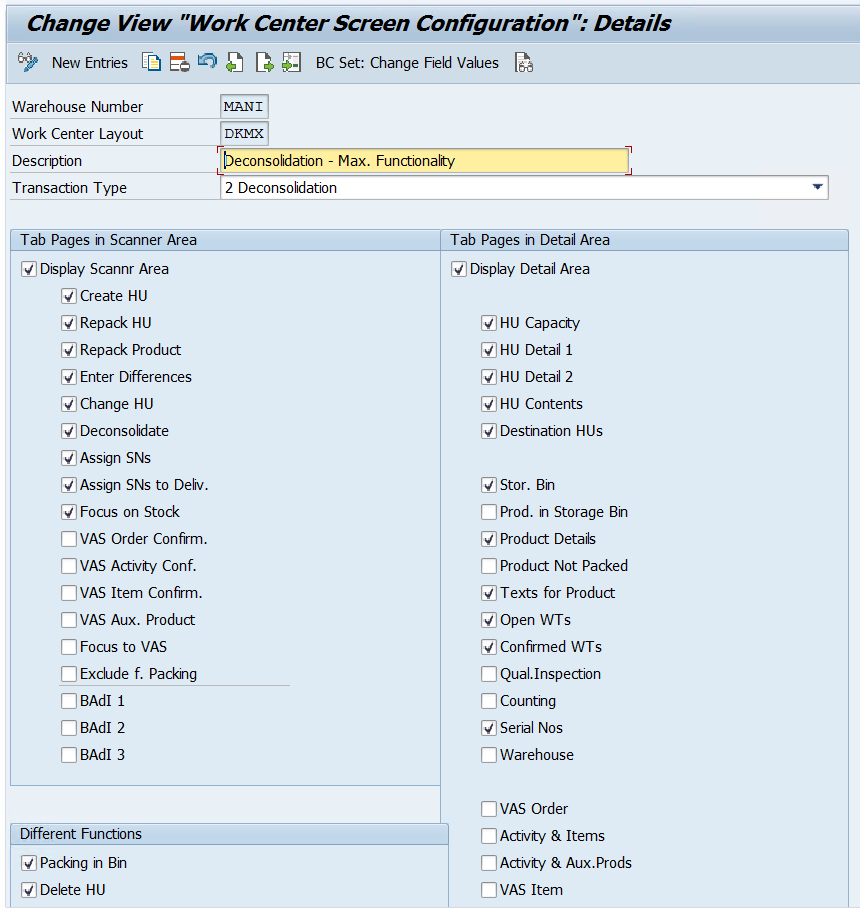
We just need to create a work center layout and define a work center that will act as a location within our warehouse where deconsolidation takes place.

We have copied a standard work center for deconsolidation and created the DKMX layout for our work center.

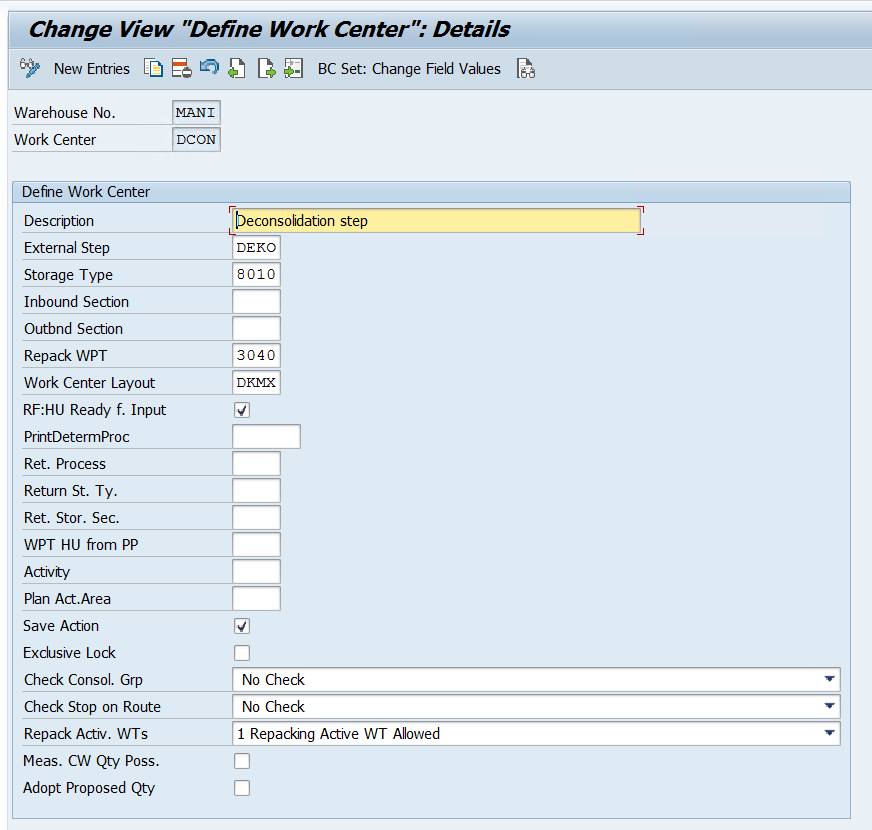
While defining the work center we have below options to maintain.

  1. Inbound and Outbound Section
  2. External process step: Mandatory to maintain the external step if we are using this work center in a POSC
  3. Repacking WPT
  4. Print Determination Procedure for printing
  5. Return Storage type and Section to move the surplus stock if the work center is used as a pick point.
  6. Storage Type: We can use a storage type with role E- Work Center, B- Pick Point, I- Work Center in Staging areas group, or C- Identification and Pick point.

Once this is done, we need to assign a Bin to the work center where the activity will be performed once WT is confirmed and HU will be moved to this work center. Use tcode /SCWM/TWORKST

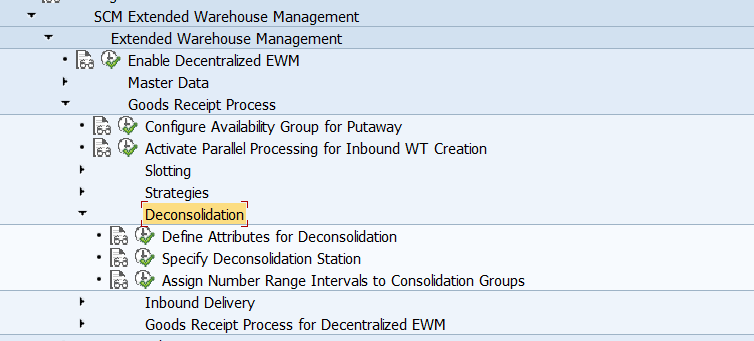
Part 5: Once work center-related information is maintained, we need to maintain some configuration specific to deconsolidation using the below path.

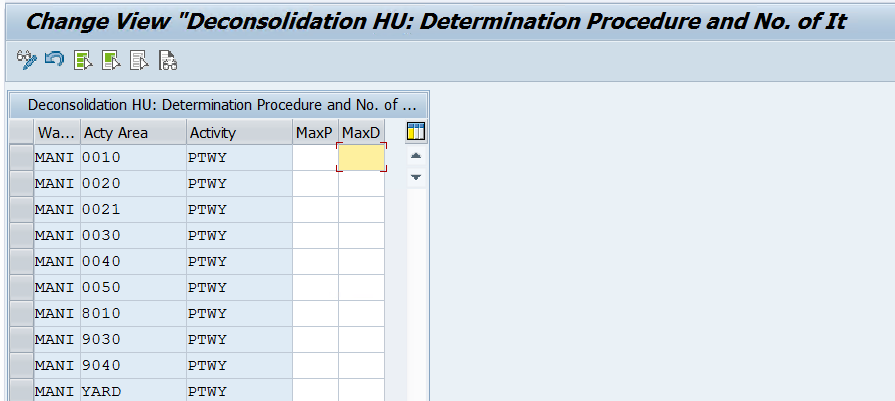
As you can see in the attributes we have not maintained max WTs in a Putaway HU and Max Items in a Decon HU for our storage types as we will allow any number of items and WTs during our POSC process.

Please note that max items in a Decon Hu should either be equal or more than the max WTs in a Putaway HU.

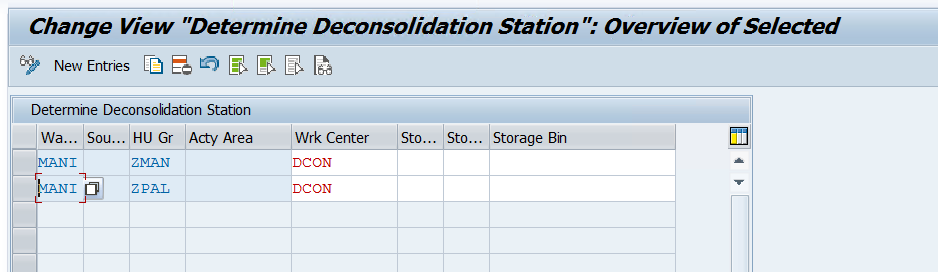
Now we need to maintain the decon station to our Warehouse and HU Type Group. Here we can maintain different work centers for different HU Type Groups if our warehouse is designed in such a way.

Now you will be able to de-consolidate your stock using POSC during Putaway.

To see the configuration in action, you may check this Blog.

Please feel free to reach out onΒ LinkedInΒ if you have any queries or need help with your project.

βœ‡SAP EWM Blog by Manish Gupta

SAP EWM CF129: Yard Management Configuration | EWM Configuration Guide

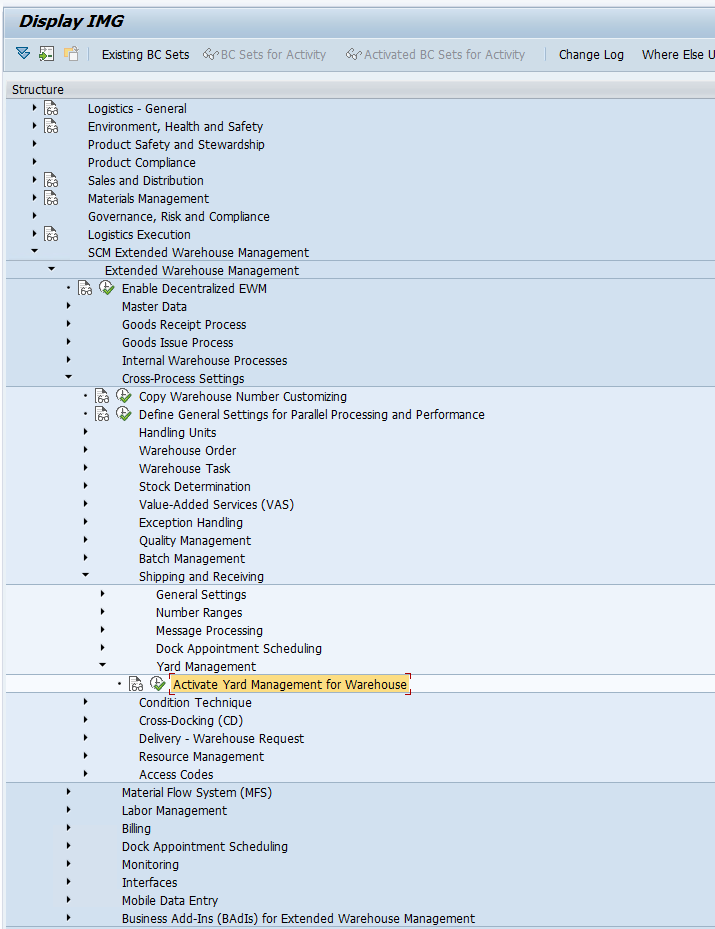
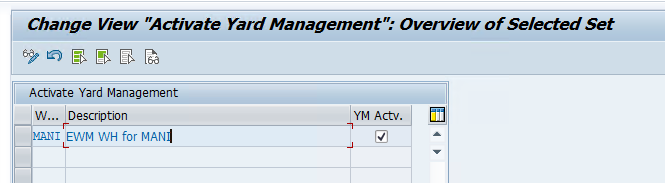
Β Step 1: First we need to activate YARD Management for our EWM WH.

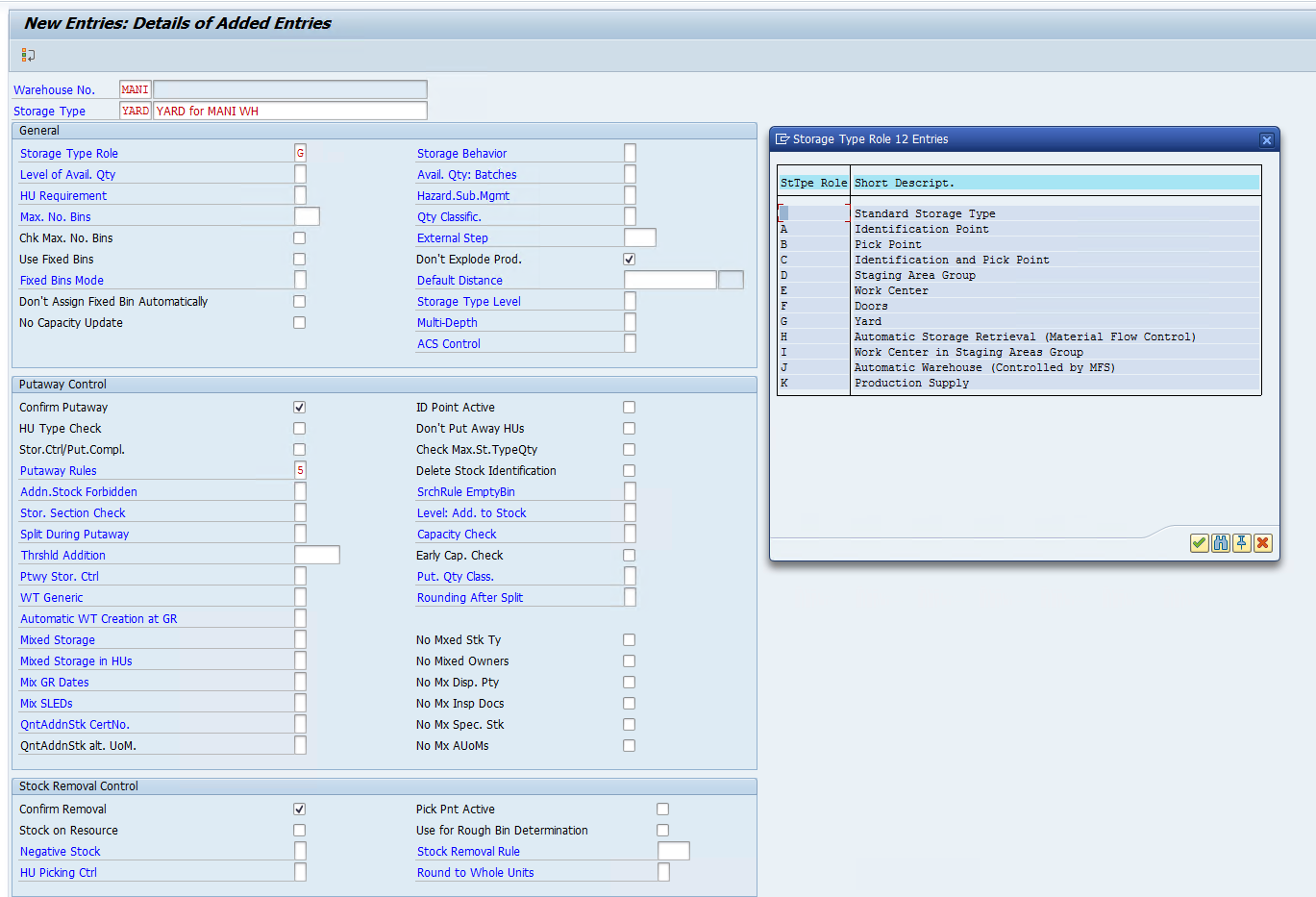
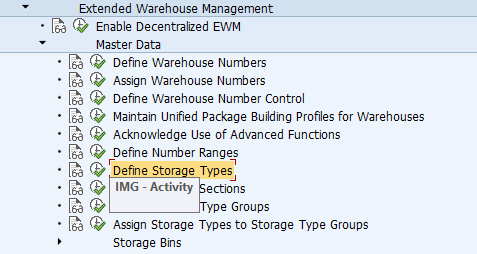
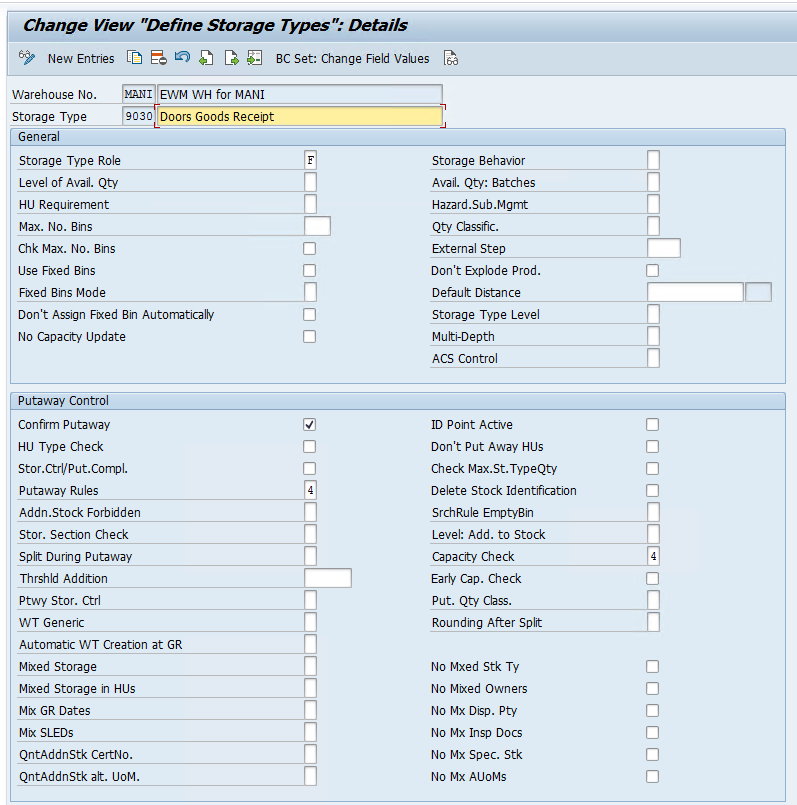
Step 2: Now we need to create a storage type for our yard, a yard contains Check Points, Parking Spaces, and Doors which we need to create for our Yard Storage Type

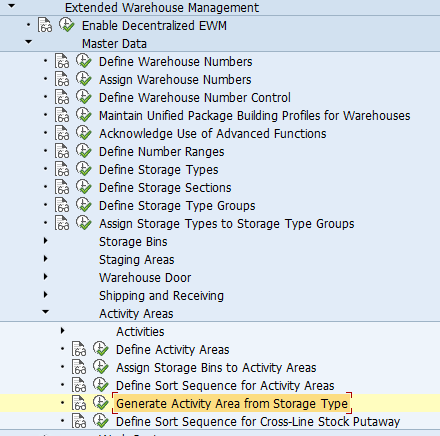
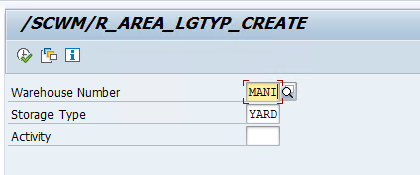
Step 3: Activity Area for our YARD Storage Type

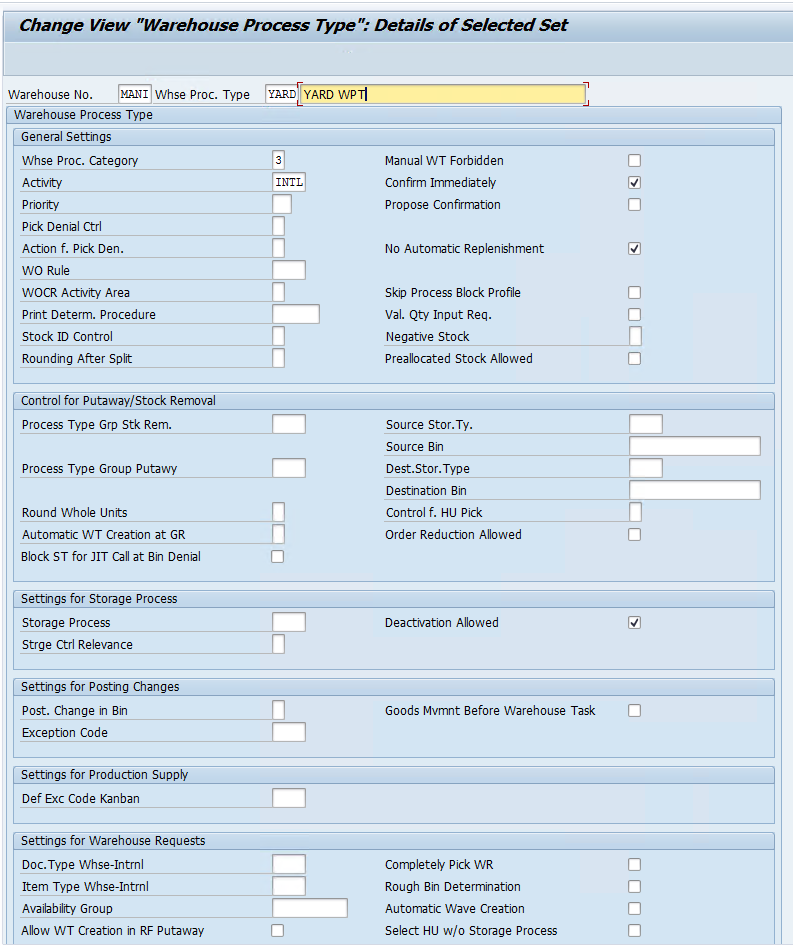
Step 4: Create a custom WPT for YARD to track all the YARD movements

Step 5: Now we will setup our yard and its components

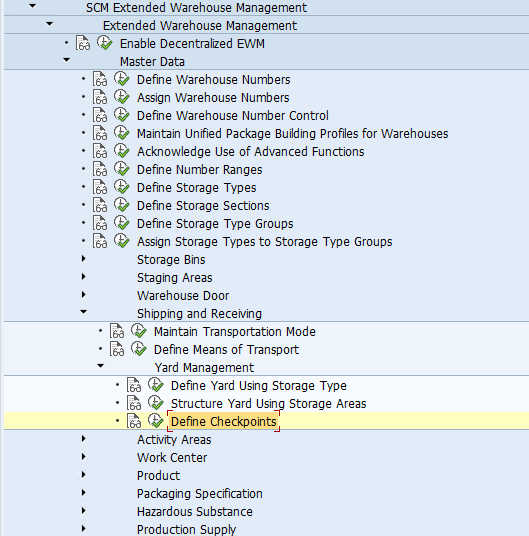
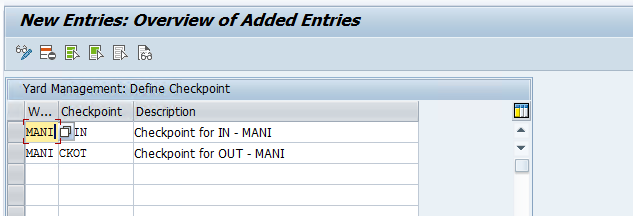
Checkpoints: Used as entry and exit points for TUs or Vehicles.

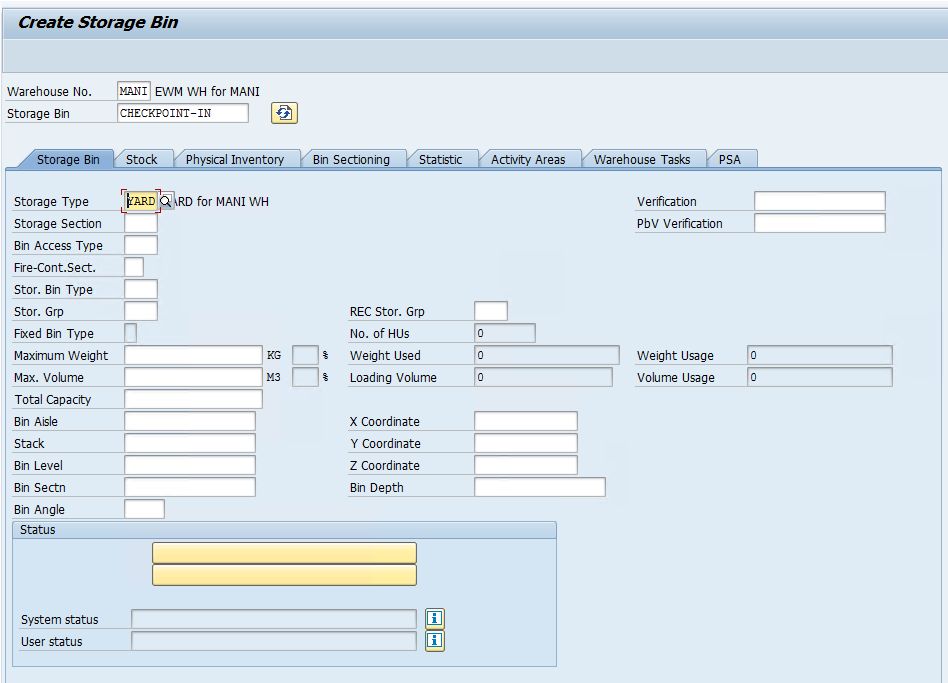
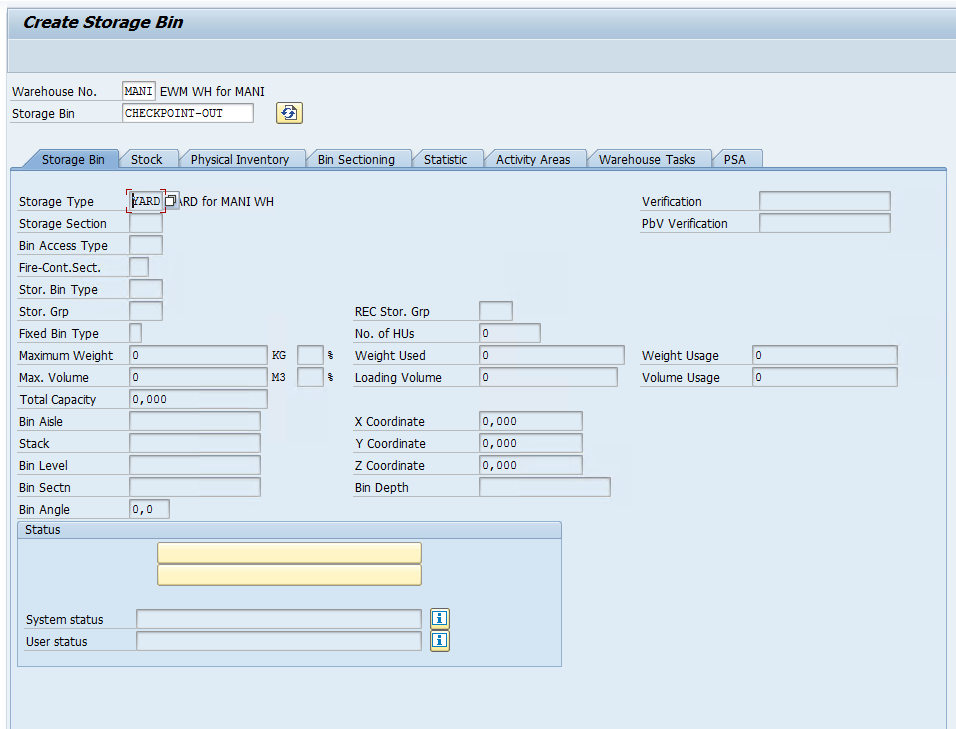
Now we need to create a Bin that will be assigned to the Checkpoint /SCWM/LS01

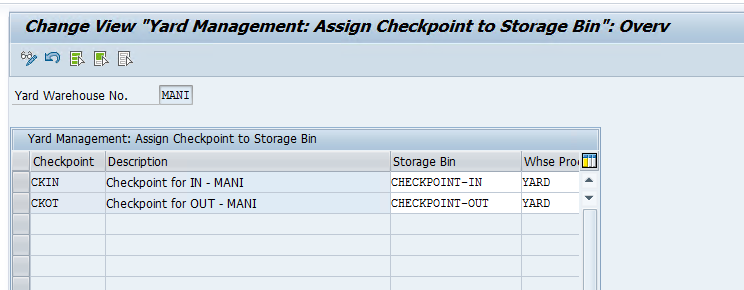
Now we need to assign checkpoints to Bins /SCWM/YM_CHKPT_BIN

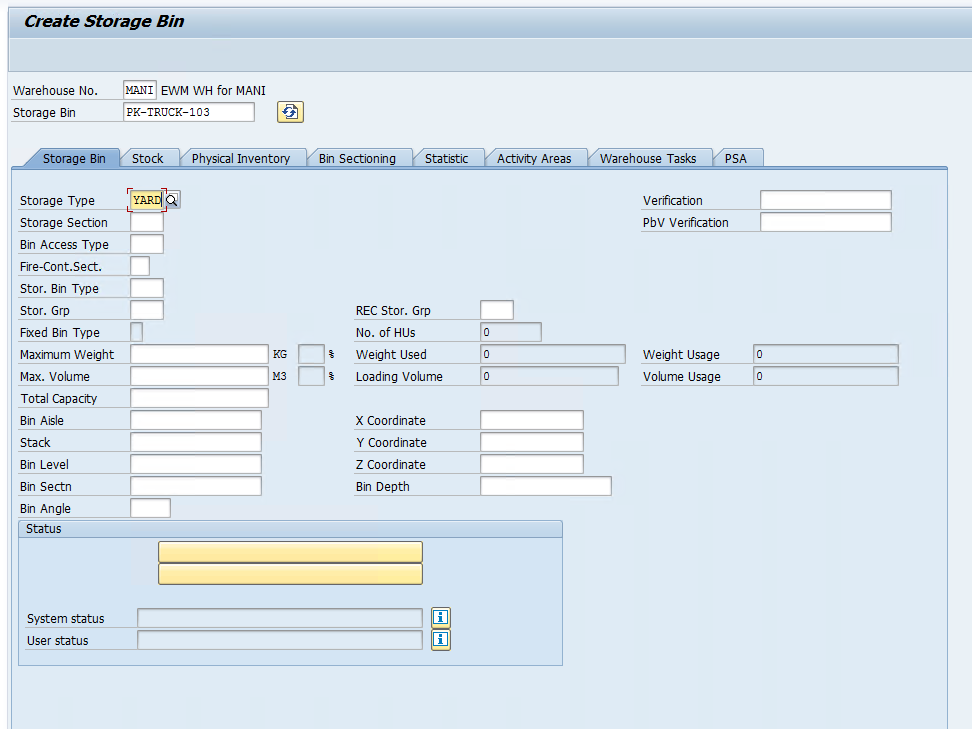
Parking Spaces: Bins inside the Yard where TUs or Vehicles can be parked. /SCWM/LS01

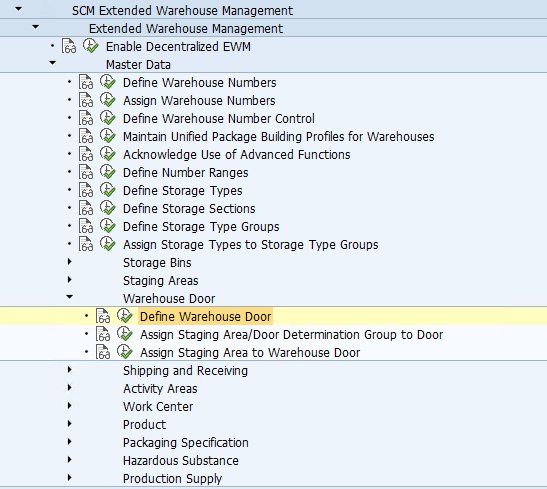
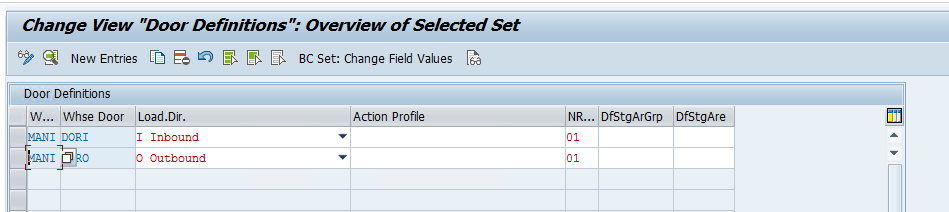
Doors: TUs will be parked and complete the loading and unloading through these doors which are connected to EWM WH and Door Bins in YARD.

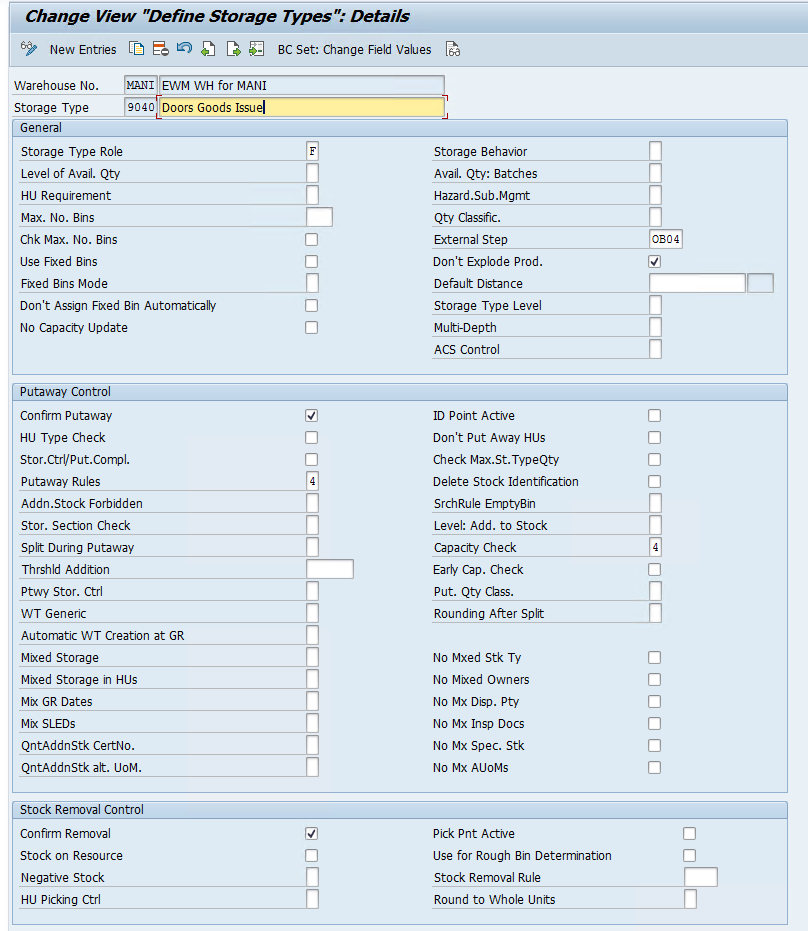
Define Activity Areas for the IN and OUT Doors

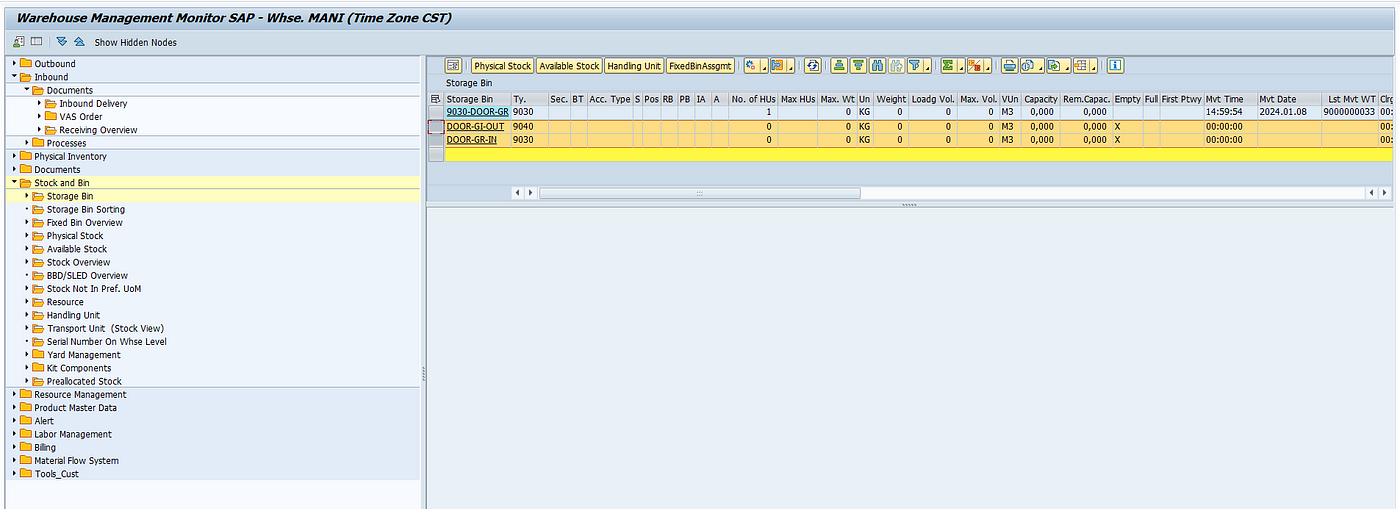
Now we need to create Bins for out GR and GI DOOR and assign them to the whose door we created in the configuration

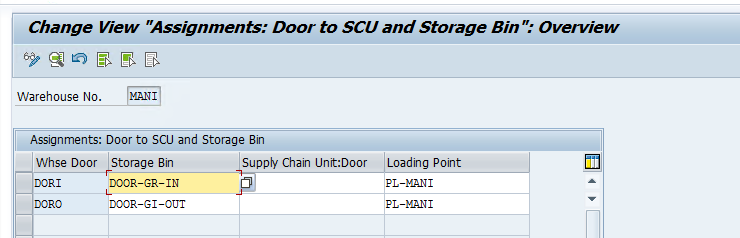
Assign the warehouse door to the door storage bin and to the supply chain unit using the t-code:/SCWM/DOOR_SCU

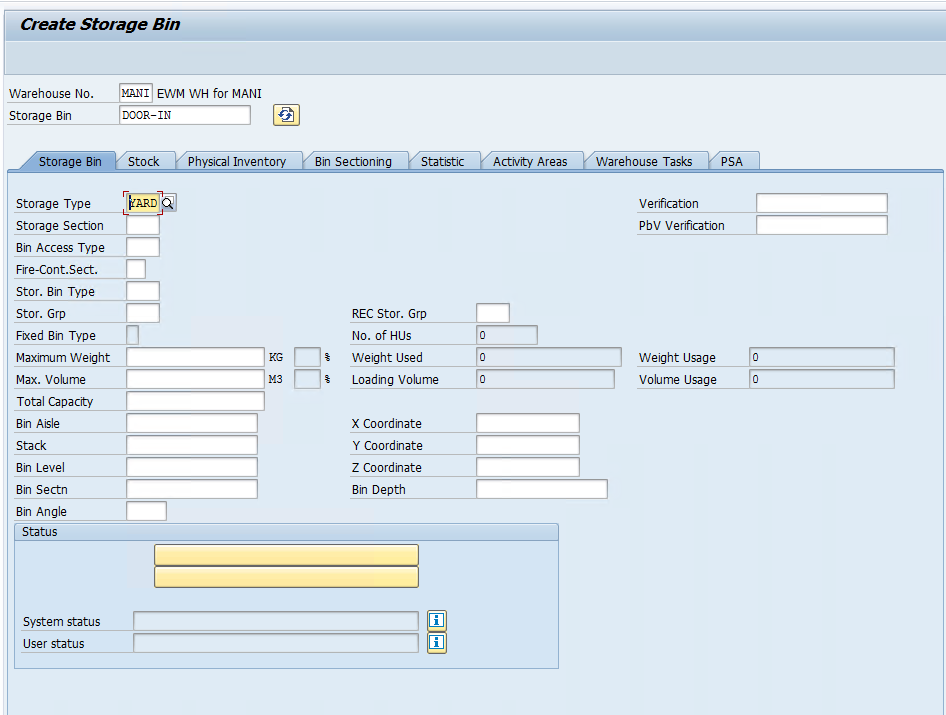
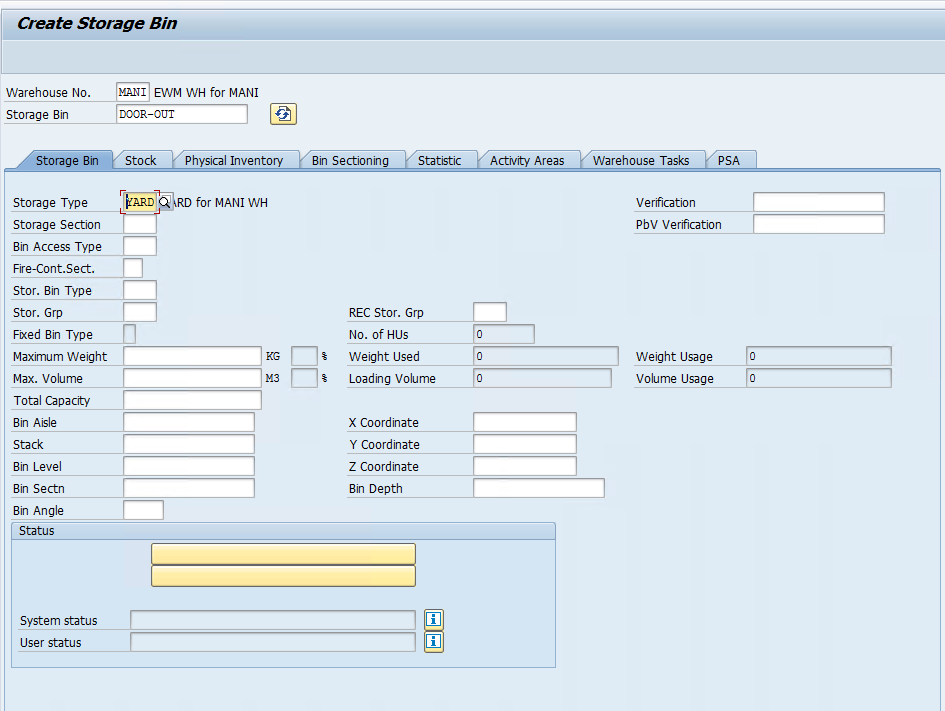
Now we will create bins as doors in YARD and assign them to the IN and OUT Doors assigned to our WH

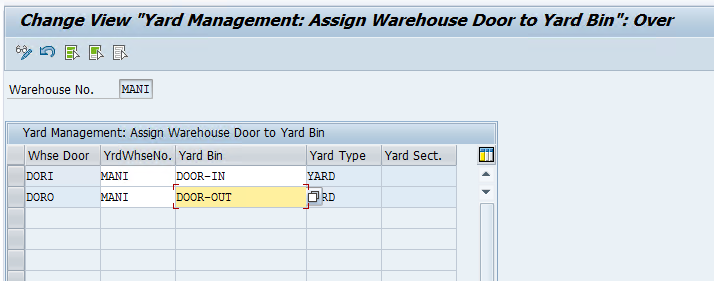
Assign the YARD doors to WH Doors /SCWM/YM_DOOR_BIN

once all these configurations are done, We need to maintain the Means of transport, packaging material, and Transportation unit configuration for our warehouse

This is a basic configuration which we are going to cover in this blog so that we can generate a TU for our inbound process and assign the Inbound delivery to the TU to execute yard management transactions.

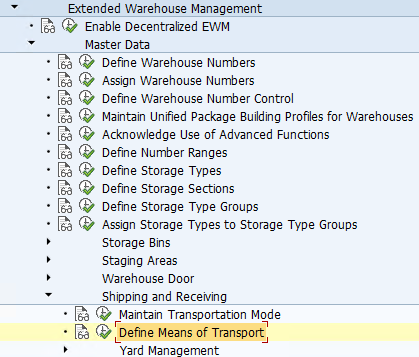
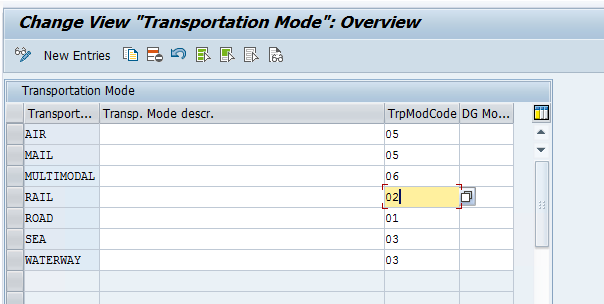
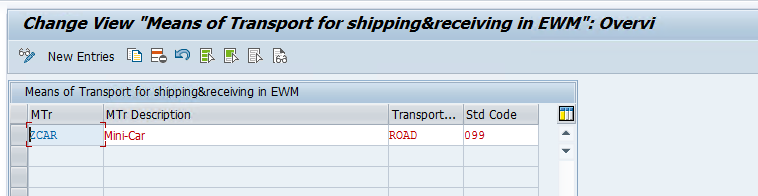
First, maintain transportation modes and then define the means of transport.

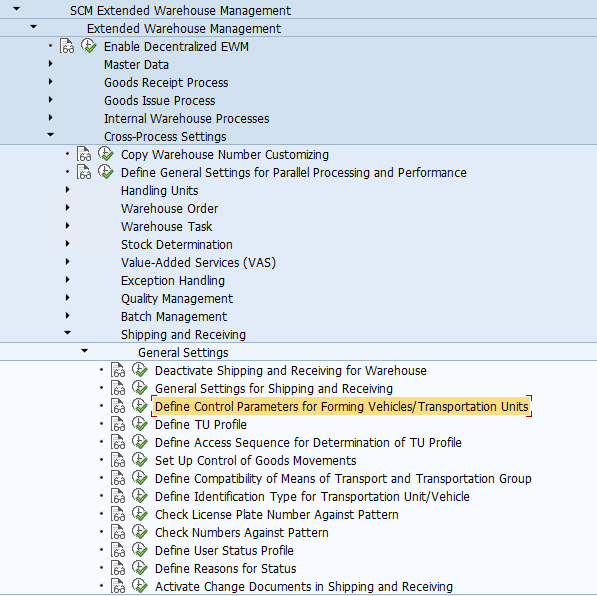
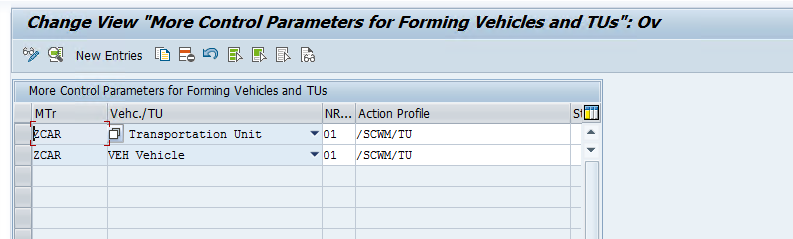
Define control parameters for TU/Vehicle forming

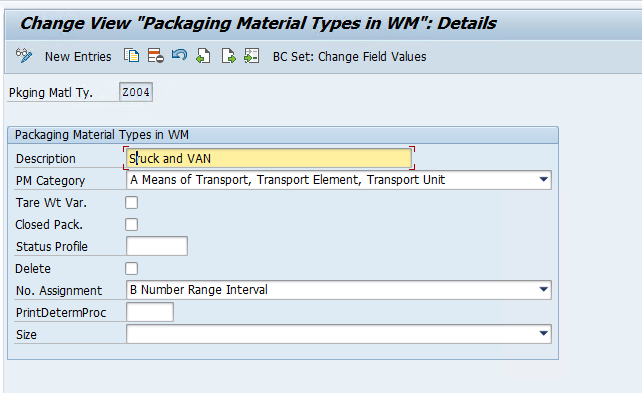
Create a packaging material type for TUs

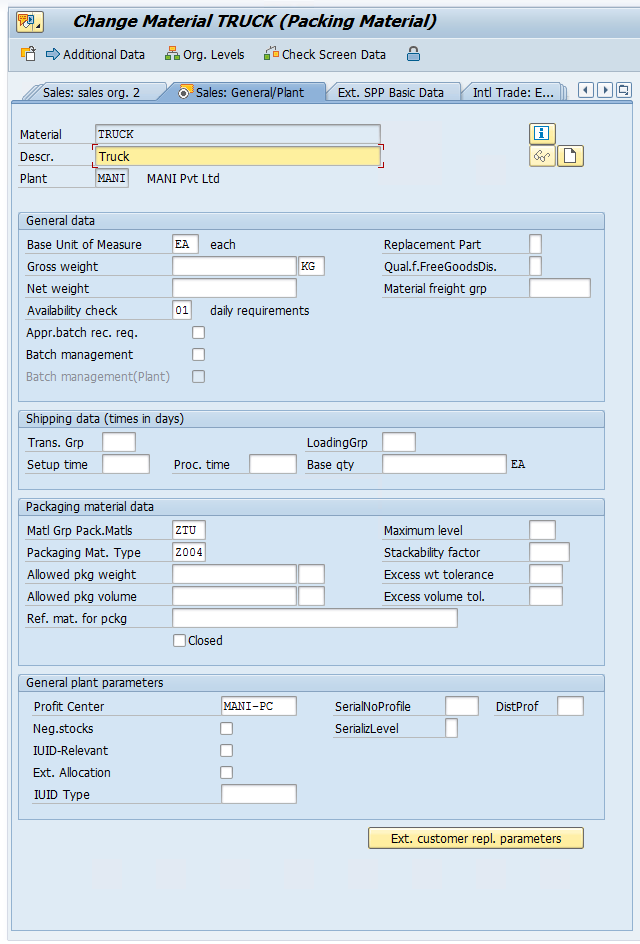
create a packaging material mm01

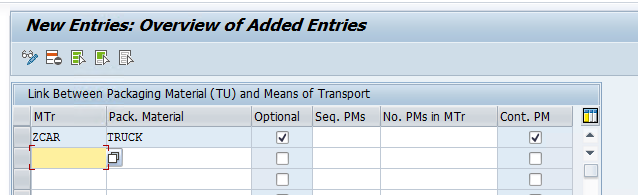
  • Link Packaging Material with Means of transport β€” TCode /SCWM/PM_MTR

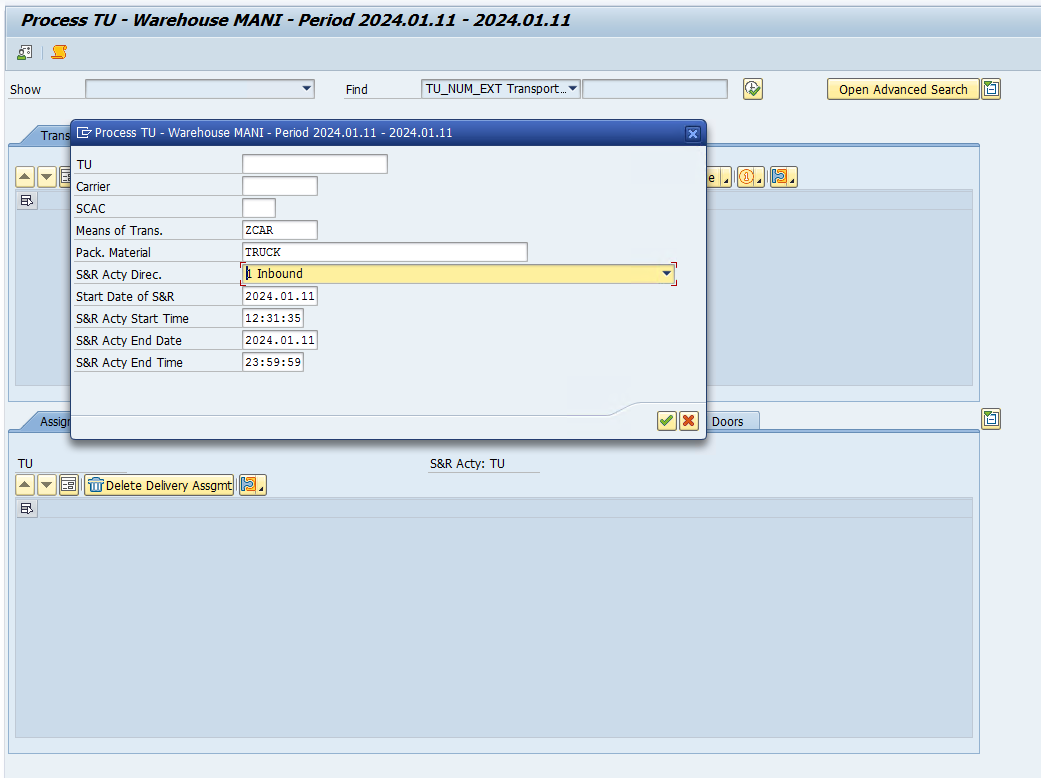
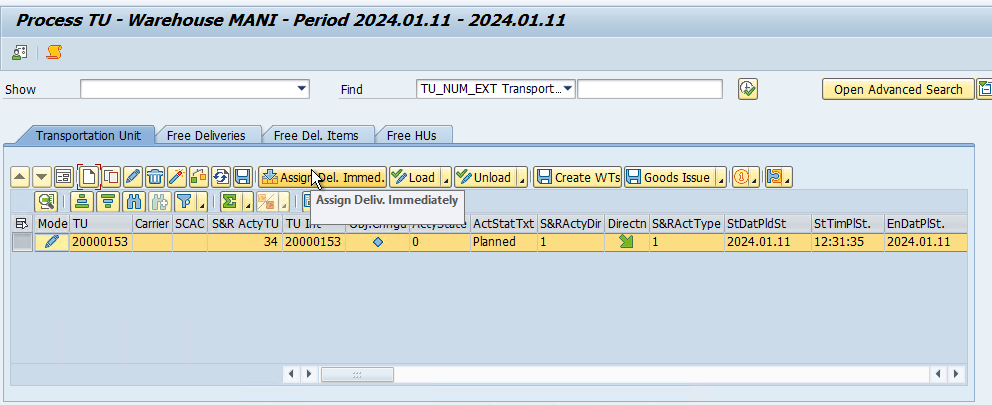
Once this is done create a TU with Tcode /SCWM/TU and assign the inbound delivery to the TU

❌