In this post we will unlock the complexities of accounting entries in the SAP Intercompany STO Process with Delivery & Billing with this comprehensive guide.
We will discover the accounting entries for both moving average price (MAP) and standard price materials.
--> This post is to explain the accounting entries in the SAP Intercompany STO Process with Delivery & Billing
--> To check the details of configuration & testing of "SAP Intercompany STO Process with Delivery & Billing", please check the below post
The business scenario for “SAP Intercompany STO Process with Delivery & Billing” involves two separate company codes within the same corporate group.
Plant PP10 orders 1 PC of a material from plant PA10.
The system uses the following prices:
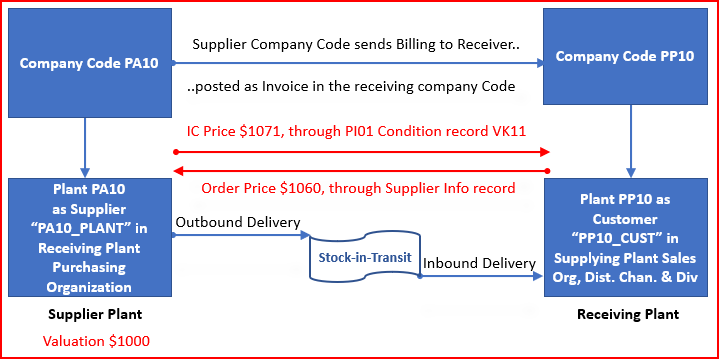
Valuation price of material (Plant PA10): $1000
Order price (Plant PP10): $1060
Price for intercompany billing (Plant PA10): $1071
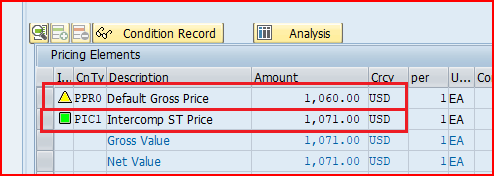
To understand easily, Prices are given in the pictorial form below
Picture: Pricing Arrangement in Inter-company STO with Billing
1.1 Material Valuation in Supplying Plant
Material valuation in the supplying plant is picked up from the material master data
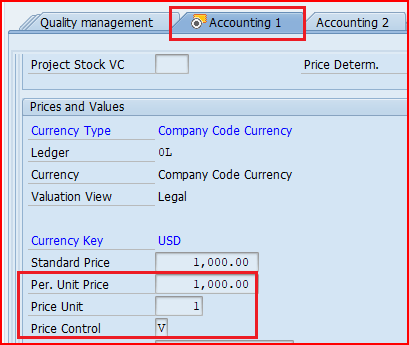
As shown above, We have set it at $1000 at Moving Average Price (MAP)
Check the price in MM03 “Accounting View”
Picture: Material Price
1.2 STO Order Price
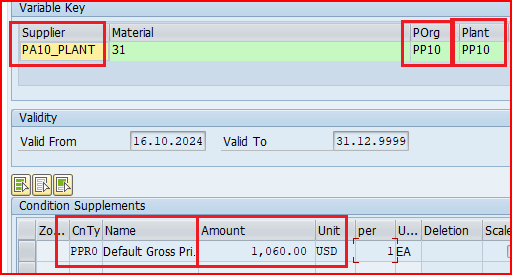
Order price is determined through info records in the ordering plant (PP10) for the supplying vendor (PA10_PLANT) in the ordering plant Purchasing Organization (PP10).
To maintain the same, start ME11 and input the data as stated above
Input the ordering price as $1160
--> As soon as we input intercompany Price in the STO, This PPR0 value becomes inactive as explained HERE
1.3 Intercompany Price
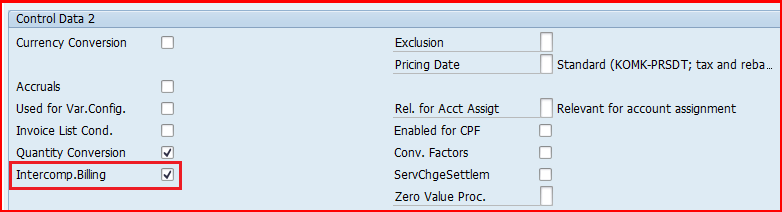
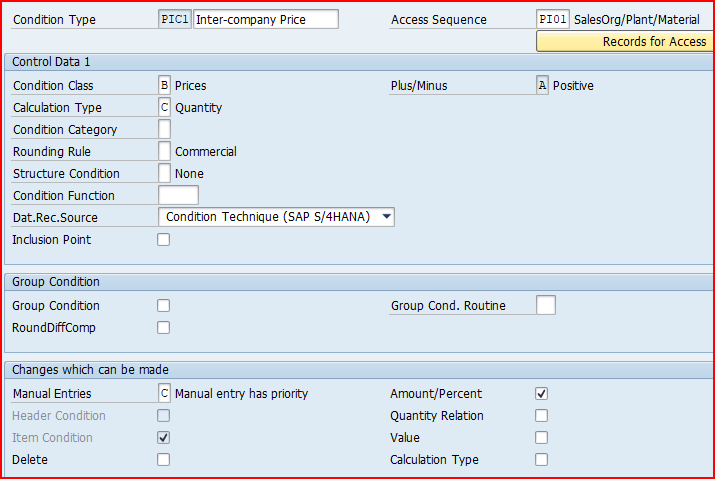
To calculate the intercompany Price in the SAP Intercompany STO Process with Delivery & Billing, we use condition type PI01 & PIC1
1.3.1 Condition Type PI01
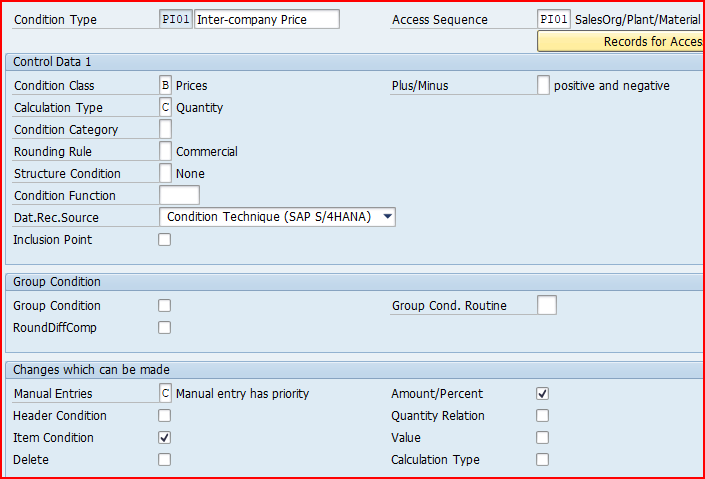
PI01 represents the intercompany base price or the cost price to transfer the material between the two company codes.
Intercompany base price is crucial because it forms the foundational value for pricing the material in the intercompany transactions.
--> The price derived from PI01 is set at the supplying plant's cost of goods or the agreed price for the goods being transferred to the receiving company code.
--> Intercompany conditions are usually statistical in the sales order/customer invoice but not statistical in the intercompany invoice.
1.3.2 Condition Type PIC1
The purpose of PIC1 is to ensure the selling company (the supplying plant) reflects a profit in its books from the intercompany sale.
PIC1 helps to adhere to transfer pricing policies often required for financial and tax reporting in multinational corporations.
--> When the billing is generated for the intercompany STO, PIC1 condition type determines the total amount to be billed from the supplying company to the receiving company.
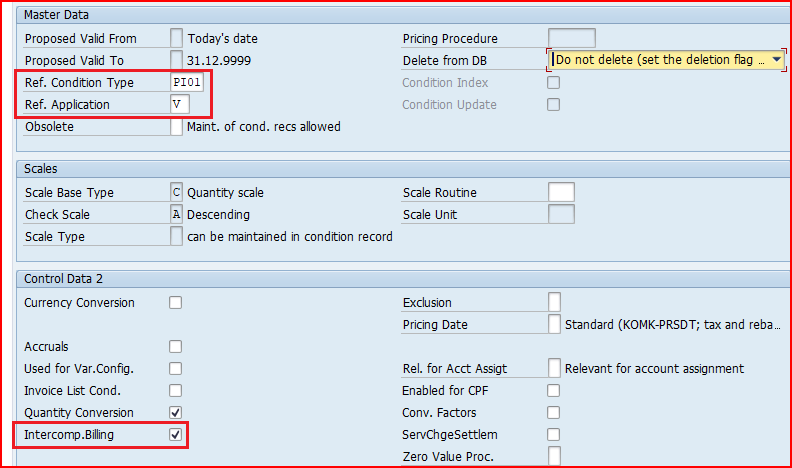
PIC1 refers to PI01 to determine the transfer price.
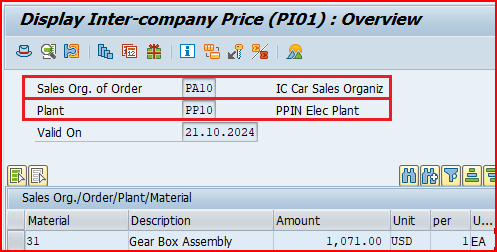
--> Intercompany price condition records are created based on sales organization of Order (PA10) & Receiving plant
Input the sales organization of order (PA10) & Ordering plant (PP10) along with intercompany prices $1071, and save the entries
Picture: Intercompany Price
Since condition type used in the intercompany STO PIC1 refers to the PI01 so maintaining PI01 through VK11 will automatically set the value of PIC1 in the corresponding Intercompany STO.
1.3.4 Intercompany Price Condition PIC1 in Intercompany STO
As soon as PIC1 is activated through condition record as explained above, system makes main condition type PPR0 inactive.
Picture: Intercompany Price Condition PIC1 in Intercompany STO
2. Accounting Integration Points in the SAP Intercompany STO with Delivery & Billing Process.
in SAP Intercompany STO Process with Delivery & Billing , there are four FI integration points
2.1 Accounting Integration at Goods Issue in the sending Plant
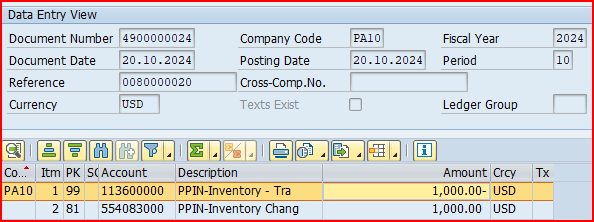
At the time of goods issue in the sending plant , accounting integration happens.
Below are the accounting entries at the time of Goods Issue in the sending Plant.
Debit (+) – Stock Account (Sending Company Code)
Credit (-) – Inventory Change Account (Sending Company Code)
Picture: Accounting integration at Goods Issue in the sending Plant
2.2 Accounting Integration at Goods Receipt in Receiving Plant
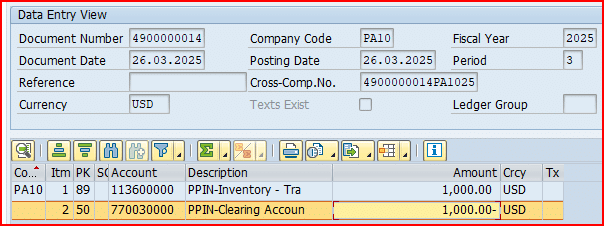
At the time of goods receipt in the receiving plant , accounting integration happens.
Below are the accounting entries at the time of Goods receipt in the receiving Plant.
Debit (+) – Stock Account (Receiving Company Code)
Credit (-) – GR/IR Account (Receiving Company Code)
For the above , Value is taken from the intercompany Price as explained in heading 1.3 Intercompany Price
Picture: Accounting integration at Goods Issue in the sending Plant
2.2.1 Accounting Integration at Goods Receipt in Receiving Plant with Standard Material Price.
If material price is “S” then in the whole process of SAP Intercompany STO Process with Delivery & Billing, accounting entries are a bit different at the time of Goods Receipt in Receiving Plant
Below are the accounting entries at the time of Goods receipt in the receiving Plant with material price as “Standard” in receiving plant
Material valuation in receiving plant is $1100 and sending plant is sending the material at $1071.
So the gain of $29 will be posted to the Gain in Price variance
Debit (+) – Stock Account (Receiving Company Code)
Credit (-) – GR/IR Account (Receiving Company Code)
Credit (-) – Gain Price Variance Account (Receiving Company Code)
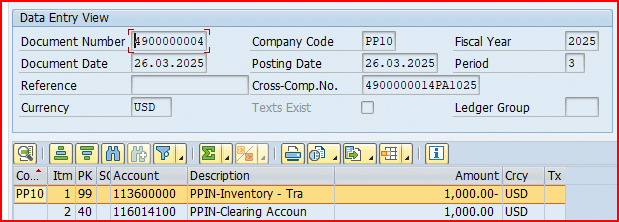
2.3 Accounting Integration at Intercompany Billing
The next accounting integration point is at the time of intercompany billing.
Below are the accounting entries at the time of Intercompany Billing in the sending Plant.
Debit (+) – Customer Account (PP10_CUST , Sending Company Code)
Credit (-) – Domestic Revenue Account (Sending Company Code)
For the above , Value is taken from the intercompany Price as explained in heading 1.3 Intercompany Price
2.4 Accounting Integration at Invoicing
The next accounting integration point is at the time of Invoicing in the receiving plant.
Below are the accounting entries at the time of Invoicing in the receiving plant.
Debit (+) – GR/IR Account (Receiving Company Code)
Credit (-) – Supplier Account (PA10_Plant, Receiving Company Code)
For the above , Value is taken from the intercompany Price as explained in heading 1.3 Intercompany Price
This completes the accounting Entries in the SAP Intercompany STO Process with Delivery & Billing
In the fast-paced world of SAP logistics, optimizing Stock Transport Orders (STO) is crucial for efficient inter-plant stock movement. While the 2-Step STO with Delivery is commonly used, many businesses seek a streamlined 1-Step STO with Delivery to reduce processing time and improve supply chain efficiency. But how do you configure both 1-Step and 2-Step STOs between the same plants without conflicts?
In this guide, we’ll walk you through the step-by-step process to set up a 1-Step STO with Delivery alongside an already configured 2-Step STO, ensuring seamless operations. Whether you’re an SAP consultant, MM specialist, or supply chain manager, mastering these configurations will help you boost workflow efficiency, minimize lead time, and optimize inventory management. Let’s dive in!
IN the below post we have configured 2 step STO with delivery to transfer the stock from the plant PA10 to PA20
Picture: Two Step Stock Transfer Order with Delivery from Plant PA10 to Plant PA20
There are some business scenarios where sometimes 1 step stock transfer fits more compare to 2-steps STO between the same plants (PA10 to PA20 as shown in the below picture)
Picture: 1-Step STO with Delivery
1. Business Scenarios Requiring Both 1-Step & 2-Step STO Between the Same Plants
Here are some real-world business scenarios where both 1-Step STO with Delivery and 2-Step STO with Delivery may be required between the same plants in SAP
1.1 Urgent Stock Replenishment vs. Regular Stock Transfers
1-Step STO with Delivery: Used when there is an urgent demand for materials at the receiving plant (e.g., production is halted due to a stockout).
2-Step STO with Delivery: Used for routine stock transfers where goods are first shipped to a transit location before final receipt.
1.2 High-Value vs. Low-Value Materials
1-Step STO with Delivery: Used for low-value consumables that do not require detailed tracking and can be moved directly.
2-Step STO with Delivery: Used for high-value materials requiring stricter inventory control and a two-step verification process.
1.3 Same-Region vs. Distant Warehouse Transfers
1-Step STO with Delivery: Used when both plants are in close proximity, allowing for direct shipment without intermediate storage.
2-Step STO with Delivery: Used when the supplying and receiving plants are far apart, requiring goods to be staged at a distribution center before final delivery.
1.4 Perishable vs. Non-Perishable Goods
1-Step STO with Delivery: Used for perishable goods (e.g., fresh food, pharmaceuticals) where minimizing transit time is critical.
2-Step STO with Delivery: Used for non-perishable goods where interim storage or inspection is needed before final delivery.
1.5 Make-to-Order vs. Make-to-Stock Production
1-Step STO with Delivery: Used in a Make-to-Order (MTO) scenario, where materials are transferred directly to fulfill an order.
2-Step STO with Delivery: Used in a Make-to-Stock (MTS) scenario, where stock is staged before final distribution.
2. How to Configure Both 1-Step & 2-Step STO Between the Same Plants
We have already configured 2-step stock transfer between the plants PA10 to PA20 in the below post
We will configure a different Item Category “YNLN” to be used with 1-step STO with delivery compare to “NLN” used with 2-step STO with delivery
Step 5: Schedule Line Category Configuration
We will configure a different Schedule Line Category “ZN” to be used with 1-step STO with delivery compare to “NN” used with 2-step STO with delivery. Item category “ZN” will use 1-step stock transfer movement type “647”.
Step 6: Configure Delivery Type & Availability Check Procedure by Plant
In this configuration we will maintain the 1-step STO document type “YUD” with 1-steo delivery type “YNL” configured in the above steps.
Step 7: Assign 1-step Procedure
Since now the stock transfer from the plant PA10 to PA20 is to be done in 1-step, we will define the purchasing document type of stock transport orders (YUD) to post the goods issue and goods receipt at the same time.
Step 1: Configure a Customized STO Document Type
We will configure all the required elements for 1-Step STO with delivery like PO Document type, Delivery Type, Schedule Line Type, etc.
--> We need separate PO Doc type for 1-step STO with delivery in order to be able to assign different schedule line to have a different movement type (Movement Type-647) compare to 2-step STO with delivery (Movement Type-641)
a) Configure PO Doc. Type for 1-Step STO with Delivery
In this configuration
–> We Check and copy existing document types for purchase orders and
–> define allowed item categories for each document type
Document types configuration controls item interval, determine allowed follow-on document types & number range interval etc.
We will use PO document type YUD for 1-Step STO with delivery
Follow the below path for document type configuration
SPRO –> Materials Management –> Purchasing –> Purchase Order –> Define Document Types for Purchase Orders
Picture: PO Document Type for 1-Step STO with Delivery
b) Configure Pricing Schema for 1-Step Stock Transfer Order with Delivery
Please check the below post to Configure Pricing Schema for STO Without Delivery. It is same as for this process
Step 6: Configure Delivery Type & Availability Check Procedure by Plant
Here we will do the necessary configuration for Stock Transfer Order (STO).
First we will configure delivery type and availability check for 1-step stock transport order.
Follow the below path
SPRO –> Materials Management –> Purchasing –> Purchase Order –> Set up Stock Transport Order –> Configure Delivery Type & Availability Check Procedure by Plant
In this configuration we specify whether an SD delivery is to be created in the case of a PO with a certain combination of supplying plant and document type.
You can also specify which delivery type is to be used.
For 1-Step STO with delivery we use stock type “YUD” with delivery type “YNL”
Configure “1-Step Stock Transfer Order with Delivery”
Step 7: Assign 1-step Procedure
Since now the stock transfer from the plant PA10 to PA20 is to be done in 1-step, we will define the purchasing document type of stock transport orders (YUD) to post the goods issue and goods receipt at the same time.
Follow the below path
SPRO –> Materials Management –> Purchasing –> Purchase Order –> Set up Stock Transport Order –> Assign Document Type, One-Step Procedure, Underdelivery Tolerance
3. Testing of the 1-Step STO with Delivery
In the post given below we have tested 2-step stock transfer with delivery to transfer the stock from plant PA10 to plant PA20
Now we have configured 1-step stock transfer between same plants.
Let’s test 1-step stock transfer in detail between Plant PA10 & Plant PA20.
3.1 Extend the material in the receiving plant
Here sending plant is PA10 & Receiving plant is PA20.
The material should be available in both sending & receiving plants. Please check the below post to see the step be step explanation of how to extend the material to another plant
Create the outbound delivery through VL10B or create the delivery automatically through batch job.
We need to configure copying control in order to create “YNL” delivery on the basis of “YUD” document type. Please check the below post for the detail of copy control configuration for this scenario
This completes the configuration of 1-Step STO with delivery.
3.6 Single Transaction Goods Issue & Goods Receipt
Now we do the pick pack & Goods issue to the outbound delivery
--> In the 1-Step STO with delivery, as soon as we do goods issue to the outbound delivery in the issuing plant, goods receipt in the receiving plant happens automatically.

--> Since Goods receipt happens automatically based on the PO (no inbound delivery is required), so there should be no "confirmation control key" in the PO.

--> Since there is no requirement of inbound delivery in the receiving plant (GR happens based on PO), there is no requirement of SPED configuration for 1-Step STO with delivery
Please check the PO history after outbound delivery PGI. System has posted Goods Receipt as well.
Picture: Goods issue & Goods Receipt together in 1-Step STO with delivery
Below accounting document will be generated at PGI
Picture: Accounting Document in 1-Step STO with Delivery
--> We can post invoice for any delivery cost. But since this is intra company Stock transfer so material cost can not be invoiced.
This completes the process to Configure & test 1-Step STO with Delivery in addition to the 2-Step STO with delivery Between the Same Plants.
In SAP Materials Management (MM), the Stock Transport Order (STO) without delivery is a critical process for transferring stock between plants without generating an outbound delivery in SAP SD (Sales and Distribution).
This method is widely used in scenarios where goods movement is handled directly through inventory management (IM) rather than logistics execution (LE).
Understanding how to configure and execute an STO without delivery is essential for optimizing internal stock transfers, reducing logistics costs, and streamlining procurement operations.
In this guide, we will cover the end-to-end STO process, key configuration steps, and its integration with SAP modules like FI (Financial Accounting) and MM (Materials Management).
Whether you are an SAP consultant, business analyst, or supply chain professional, this step-by-step walkthrough will help you efficiently implement STO without delivery and improve inventory management in your SAP system.
Stock Transport Orders (STO) are essential for efficiently managing the movement of materials between different company locations. There are some business cases where you may need to handle stock transfers without creating a delivery.
--> Stock transfer without delivery in SAP is used in various business scenarios where the transfer of goods between locations does not require a shipping document or delivery, but is still necessary for inventory management purposes or to account for delivery cost like freight.

--> A stock transport order without delivery is possible Only in Two-Steps procedure.
Stock Transport Order Without Delivery process not only saves time but also simplifies internal stock management.
In this step-by-step guide, we’ll walk you through the various scenarios of Stock Transport Order without delivery process.
Below is the pictorial representation of SAP Stock Transport Order Without Delivery.
Picture: Stock Transfer with STO but without Delivery & Billing
1. What is Stock Transport Order Without Delivery
As name specifies, Stock Transport Order Without Delivery is transferring the stock between the plants without generating an outbound delivery in SAP SD (Sales and Distribution).
--> If any of the supplier plant or customer plant belongs to the different company code then STO process becomes intercompany STO process.

--> If supplier plant & customer plant belongs to the same company code then STO process becomes intra-company STO process.
our car business has two company codes PA10 & PP10
Company Code PA10 has two plants PA10 & PA20
Company code PP10 has one plant PP10
The STO between plants PA10 & PA20 (Both belongs to Company Code PA10) will be a intra-company STO).
Picture: Intra-Company STO in our Car Business
Please see the below post for the Stock Transfer with MIGO (Without STO, Delivery & Billing)
2. Configuration of Stock Transport Order Without Delivery
We will configure Stock Transport Order Without Delivery step by step
2.1 Configure Document Types
In this configuration, we Check and copy existing document types for purchase orders and define allowed item categories for each document type
Document types configuration controls several factors like define item interval, determine allowed follow-on document types, assign document types to a number range group & number range interval
--> For our car business, we will use standard document type "UB" for the Stock Transport Order Without Delivery
Follow the below path for document type configuration
SPRO –> Materials Management –> Purchasing –> Purchase Order –> Define Document Types for Purchase Orders
Picture: Document Type “UB”
Select “UB” and click on “Allowed Item Categories”
Picture: Allowed Item Categories
2.2 Item Category
Item category defines how the procurement of a material or service item is controlled.
For the document type “UB” item category U is used
Picture : Allowed Item Categories “U” for “Doc Type “UB”
Note : Item Categories can not be configured. These are maintained by SAP, therefore we cannot change them. However, we can change the “External Representation” of PO item categories in IMG.
2.3 Configure Pricing Schema for STO Without Delivery
Please check the below post to Configure Pricing Schema for STO Without Delivery
3. Testing of Stock Transport Order Without Delivery
We will test below scenarios related to the Stock Transport Order Without Delivery
Scenario 1: Stock Transport Order Without Delivery & without delivery cost
Scenario 2: Stock Transport Order Without Delivery & with delivery cost
Scenario 3: Stock Transport Order With Goods Receipt in Quality Inspection
Material prices for all the scenarios
Material price in PA10 plant is 1000 USD at Moving Average Price
Material price in PA20 plant is 1010 USD at Moving Average Price
3.1 Scenario 1: STO without Delivery & No Delivery Cost
This is the normal standard straight scenario related to the stock transfer without delivery
To test the STO without delivery, create a STO
3.1.1 Create a Stock Transport Order
Start ME21N and select Document type as UB
Select sending plant as “PA10”
Select receiving plant as “PA20”
Choosing the document type as “UB” will set item category to “U” Automatically
Picture: STO Creation
3.1.2 Post the goods issue in the issuing plant
To post the goods issue , start MIGO
Select
A07 -Goods Issue & R01 Purchase Order
System will automatically select 351 movement type
Picture: Post the goods issue in the issuing plant
System will fetch all the details from the purchase order
3.1.3 Accounting Document at PGI
We will see accounting document generation in both the scenario of intra-company STO & Inter-company Transfer
3.1.3.1 Accounting Entries in case of Intra-Company STO
In our scenario , the material is valuated at 1000 USD in issuing plant & 1010 USD in receiving plant
a) Material Price control is “Standard Price”
If material subjected to stock transfer is valuated at standard price then it’s price remains unchanged in the transaction
since transaction is valuated with issuing plant valuation, so there is a gain of 10 USD in this transaction.
Picture: Accounting Document Creation at PGI in STO without Delivery with Material price control “S”
b) Material Price control is “Moving Average Price”
If material, subjected to stock transfer is valuated at moving average price then it’s price changes as a result of the transaction.
since transaction is valuated with issuing plant valuation, and there is no inventory in receiving plant till yet, so after the transaction we will have 1 quantity of this material valuated at 1000 USD
As a result accounting document will be posted 1000 USD credit to inventory account and 1000 USD debit to inventory account
Picture: Accounting Document Creation at PGI in STO without Delivery with Material price control “V”
--> Please note that in the case of moving average price control of the material (V) , since there was not inventory in the receiving plant for this material before this transaction, material price updated with the valuation of the sending plant.

--> If there is inventory present before the transaction, then the material price would have been updated with average of the two. For example - in the receiving plant there is already 1 PC at 1010 USD , and 1 PC we receive through this transaction at 1000 USD (sending plant valuation) , then the resulting price of this material would have been 1005 USD for this material in the receiving plant.
c) Automatic GL Posting configuration
here configuration to post to GL is same as 2 step stock transfer as explained in the below post.
3.1.3.2 Accounting Entries in case of Inter-Company STO
Below is the accounting entries in case of inter-company STO without delivery
Here accounting entries are exactly same as in case of stock transfer with MIGO
FI document posted in the sending company code
Picture: FI document posted in the sending company code
FI document posted in the Receiving company code
Picture: FI document posted in the Receiving company code
a) Configuration of clearing accounts
In order to configure the automatic GL posting in case of the stock transfer between the plants of different company codes, we need to execute the below configuration through OBYA
Picture: Clearing Accounts between PA10 & PP10
3.1.4 Stock in Transit
One of the main Characteristics of Stock Transport Order Without Delivery is – As soon as quantity is issued from the issuing plant, it is managed as stock in transit of the receiving plant.
To check stock in transit, start MB5T and input receiving plant
Picture: Stock in Transit
3.1.5 Goods Receipt in the Receiving Plant
To do the Goods receipt in the receiving plant start MIGO
Select “A01 Goods Receipt” & R01 “Purchase Order” , system will automatically select the movement Type as 101
Picture: Goods Receipt in the Receiving Plant
System will fetch all the details, Click the item OK and post the goods reciept
No accounting document is posted in goods receipt
Stock is updated in the receiving plant as well as PO history is updated.
3.2 Scenario 2: STO without Delivery & with Delivery Cost
In this scenario we will apply the delivery cost . Let’s assume that we need to pay USD 10 in transportation to deliver 1 EA of material from plant PA10 to plant PA20 ,
We will capture this cost in stock transport order
3.2.1 Create a Stock Transport Order
Start ME21N and select Document type as UB
Select sending plant as “PA10”
Select receiving plant as “PA20”
Choosing the document type as “UB” will set item category to “U” Automatically.
go to the “Condition” tab and select condition FRB1-Freight (Value) and give this condition value as 10 USD
Picture: Delivery Cost in STO
Select the FRB1 line and click on “Condition Detail”
Enter the supplier number providing the transportation services.
Picture: Supplier providing services in STO
3.2.2 Post the goods issue
To post the goods issue , start MIGO
Select
A07 -Goods Issue & R01 Purchase Order
System will automatically select 351 movement type
Picture: Post the goods issue in the issuing plant
System will fetch all the details from the purchase order
3.2.2.1 Accounting Document at PGI
In our scenario , the material is valuated at 1000 USD in issuing plant & 1010 USD in receiving plant
a) Material Price control is “Standard Price”
If material subjected to stock transfer is valuated at standard price then it’s price remains unchanged in the transaction
system will post delivery charges to the Freight clearing account.
Picture: Accounting Document Creation at PGI in STO with Delivery Cost with Material price control “S”
This freight clearing account is cleared at the time of posting the invoice received from the transportation supplier
Picture: Accounting Document at MIRO in STO with Delivery Cost with Material price control “S”
b) Material Price control is “Moving Average Price”
If material, subjected to stock transfer is valuated at moving average price then it’s price changes as a result of the transaction.
Valuation of the material in Supplying Plant Plant PA10 – 1000 USD
Valuation of the material in Receiving Plant Plant PA20 – 1000 USD
Delivery charge – 10 USD
Create the PO and input the delivery cost along with supplier number as explained HERE
System will post the below accounting document at the time of post goods issue
Picture: PGI Accounting Document in STO without Delivery with delivery cost with Material price at “V”
--> In the above scenario, material cost in the plant PA20 is updated to 1010 USD due to loading of freight charges of 10 USD on inventory. Since there was already 1 EA was present with price as 1000 USD, so system updated the material price in PA20 plant with the average of the two i.e. 1005 USD (1000+1010)/2
Picture: Changed price of material in PA20 plant after stock transfer PGI
c) Automatic GL Posting configuration
here configuration to post to GL is same as 2 step stock transfer as explained in the below post.
3.2.3 Stock in Transit
It will be same as in the above scenario as explained HERE
3.2.4 Goods Receipt in the Receiving Plant
It will be same as in the above scenario as explained HERE
No accounting document is posted in goods receipt
3.3 Scenario 3: STO With Goods Receipt in Quality Inspection
The Stock Transport Order (STO) with Goods Receipt in Quality Inspection used when transferring materials between plants within the same company, ensuring that goods undergo quality inspection before they can be used in production or sales.
3.3.1 Requirement for Goods Receipt in Quality Inspection
To receipt the goods in quality inspection (QI) in receiving plant, We need to check the indicator “Post to Inspection Stock” in QM view of the material master for the receiving plant.
Picture: Requirement for Goods Receipt in Quality Inspection
--> The field "Post to Inspection Stock" Specifies if the material is subject to quality inspection (without inspection lot processing) and whether a goods receipt is posted to inspection stock.

--> This indicator is copied to purchase order items and goods receipt items.

--> If we select this indicator, then no stock-relevant inspection lots can be created.

--> If we activate a stock-relevant inspection type, this field is deselected and can no longer be maintained.
a) Quality Inspection Indicator in Purchase Order
As stated above, if this indicator is selected in material master, then this flows into the purchase order “Delivery” tab.
Picture: Quality Inspection Indicator in Purchase Order
b) Quality Inspection Indicator in Goods Receipt
As stated above, if this indicator is selected in material master, then this flows into the Goods reciept.
Picture: Quality Inspection Indicator in Goods Receipt
c) QI Stock in Receiving Plant
Now we can see that after GR QI stock is generated in receiving plant for this process.
Picture: QI Stock in Receiving Plant
This completes all the scenarios of Stock Transport Order Without Delivery

 Login
Login